Fortinet white logo
Fortinet white logo

EMS Administration Guide

KVM

KVM

To recover your EMS user password on KVM:
  1. Shut down the EMS VM using the following command:

    sudo virsh shutdown <vm-name>

    Alternatively, shut down the VM via virt-manager if you prefer using the GUI.

  2. Wait until the VM is completely powered off before proceeding.

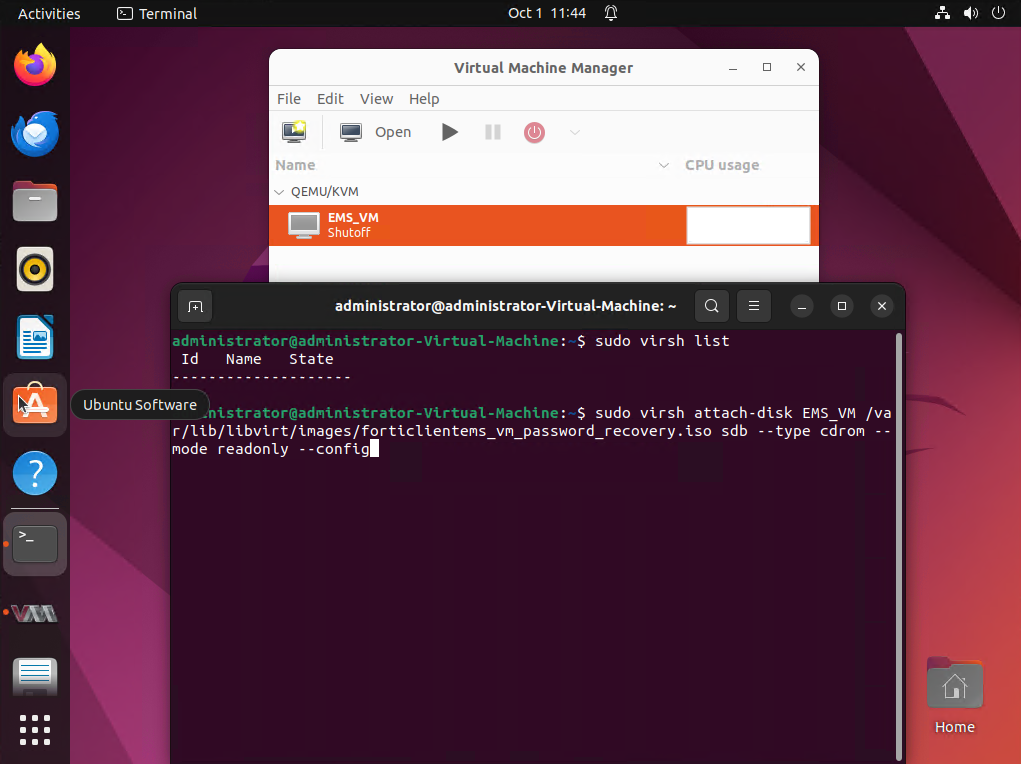
  3. Attach the recovery ISO to the VM as a read-only CD-ROM device (via SCSI):

    sudo virsh attach-disk <vm-name> <full-path-to-forticlient_vm_password_recovery.iso> sdb --type cdrom --mode readonly --config
    

    <vm-name> Replace with your VM’s name
    <full-path-to-forticlient_vm_password_recovery.iso> Replace with the absolute path to the ISO file on the host.
    sdb Device name assigned to the CD-ROM. Ensure it matches what you will configure in the VM XML.

    --config

    The flag makes this persistent across VM reboots.

  4. Edit the VM configuration to set ISO as boot priority:

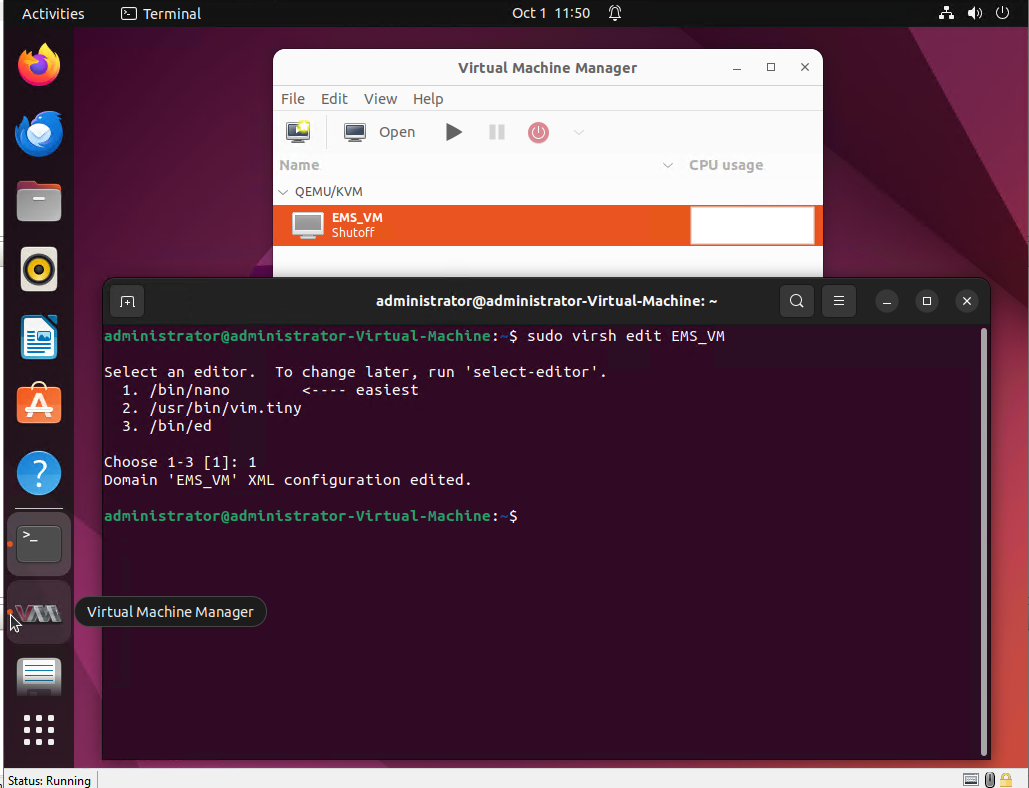
    1. Open the VM XML configuration for editing:

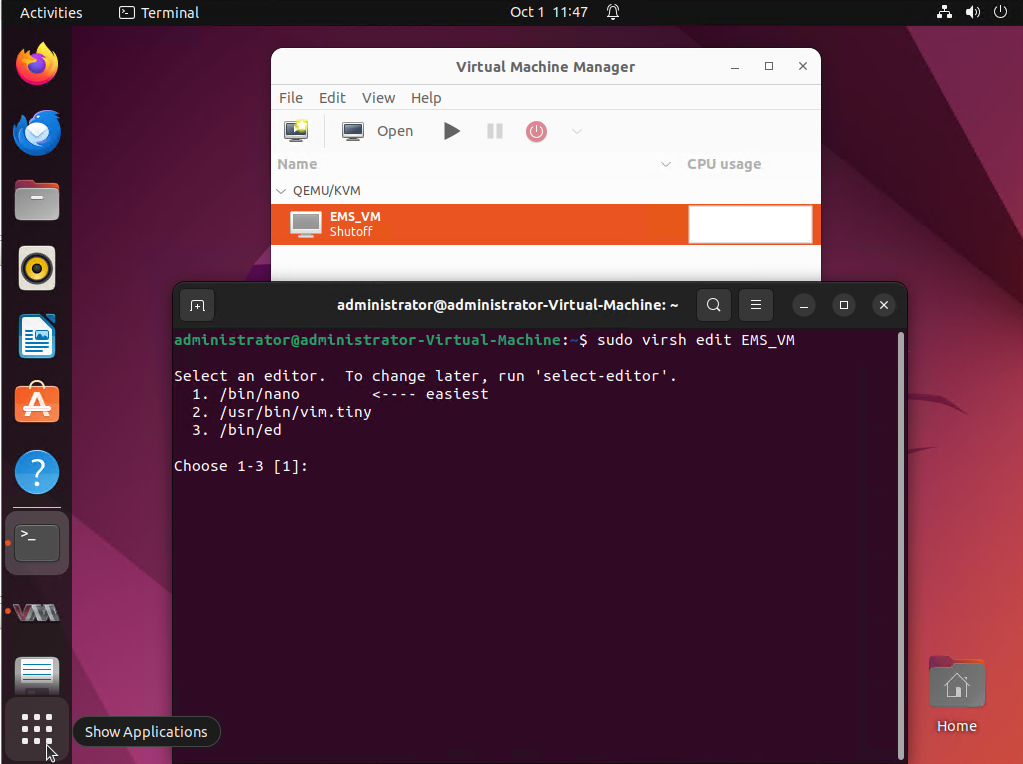
      sudo virsh edit <vm-name>
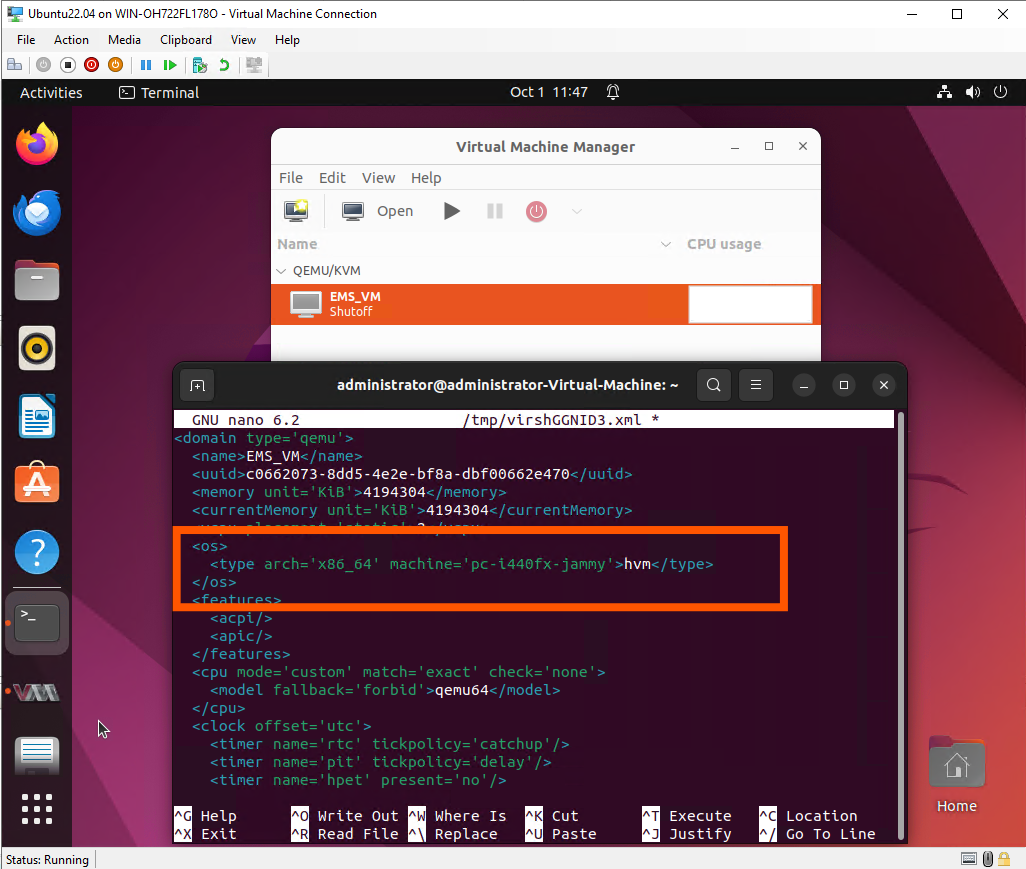
    2. Under the <os> section, remove any existing boot device line, such as <boot dev='hd'/>, so it looks like this (no boot lines):

      <os>
       <type arch='x86_64' machine='pc-q35-6.2'>hvm</type>
      </os>
    3. Under the <devices> section:

      1. Ensure the SCSI controller exists:

        <controller type='scsi' model='virtio-scsi'/>
      2. Add or verify the CD-ROM device entry is configured to match the attached ISO path and device:

        <disk type='file' device='cdrom'>
         <driver name='qemu' type='raw'/>
         <source file='<full-path-to-forticlient_vm_password_recovery.iso>'/>
         <target dev='sdb' bus='scsi'/>
         <readonly/>
         <boot order='1'/>
        </disk>

        Replace <full-path-to-forticlient_vm_password_recovery.iso> with the ISO’s absolute path.

    4. Save and exit the editor.

  5. Start the VM:

    sudo virsh start <vm-name>

    Alternatively, use virt-manager to start the VM.

    The VM will boot from the recovery ISO.

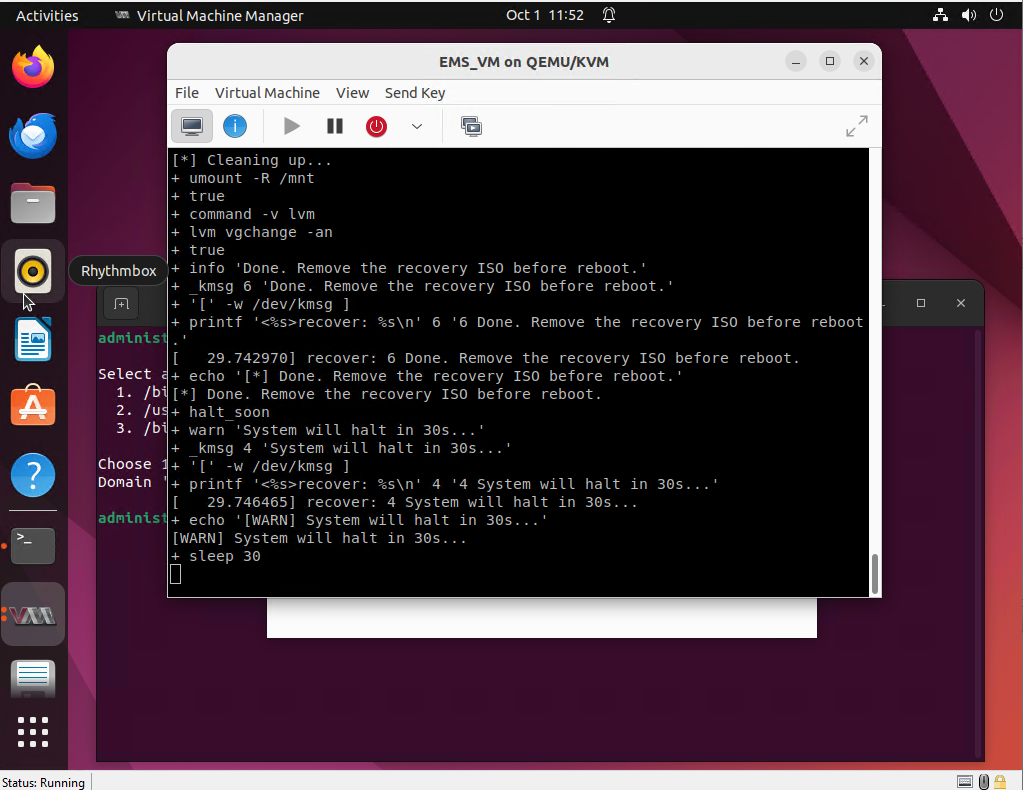
  6. Open the VM console and wait for the recovery process to finish. You should see a message similar to the following:

    SUCCESS: Password for ‘ems’ has been reset
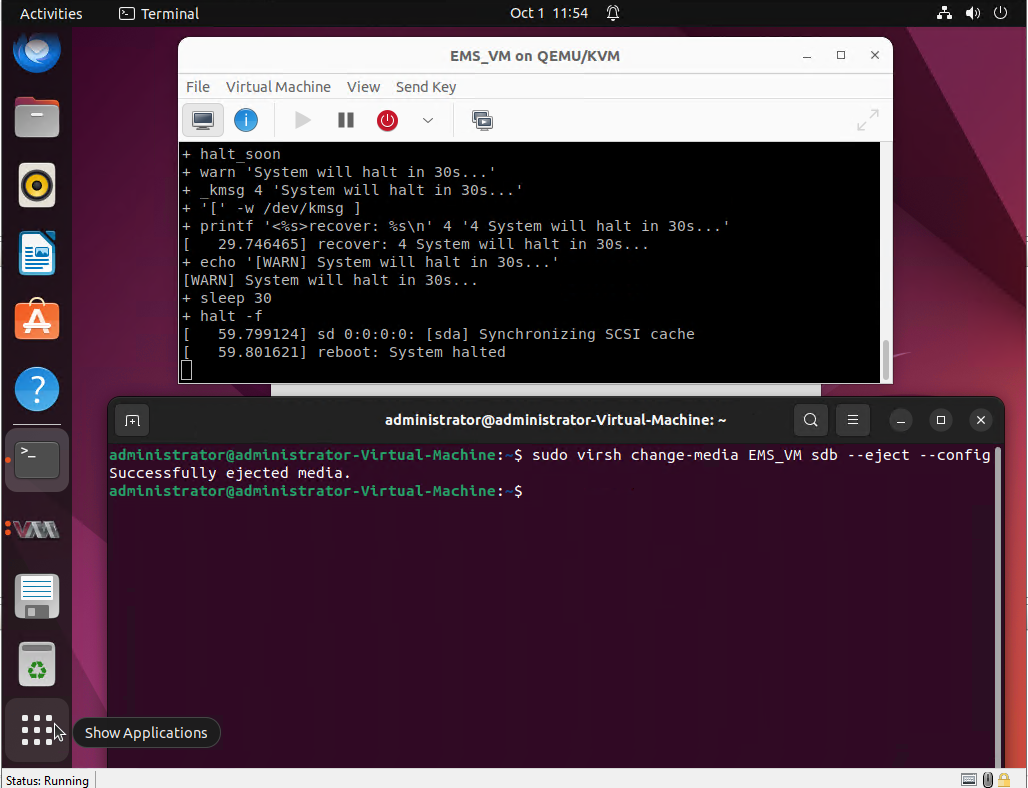
  7. Once the password reset is confirmed, eject the recovery ISO:

    sudo virsh change-media <vm-name> sdb --eject --config
  8. To safely remove the CD-ROM device, first force stop the VM:

    sudo virsh destroy <vm-name>

    Alternatively, stop the VM from virt-manager.

  9. Remove the CD-ROM device from the VM configuration by editing the VM config again:

    sudo virsh edit <vm-name>

    Inside <devices>, remove the entire <disk ... device='cdrom'>...</disk> block that you previously added for the recovery ISO. Or, if you want to keep the device, just remove the <boot order='1'/> line so the VM boots from disk normally.

  10. Save and exit.

  11. To verify the result, start the VM again using the following command (or virt-manager):

    sudo virsh start <vm-name>

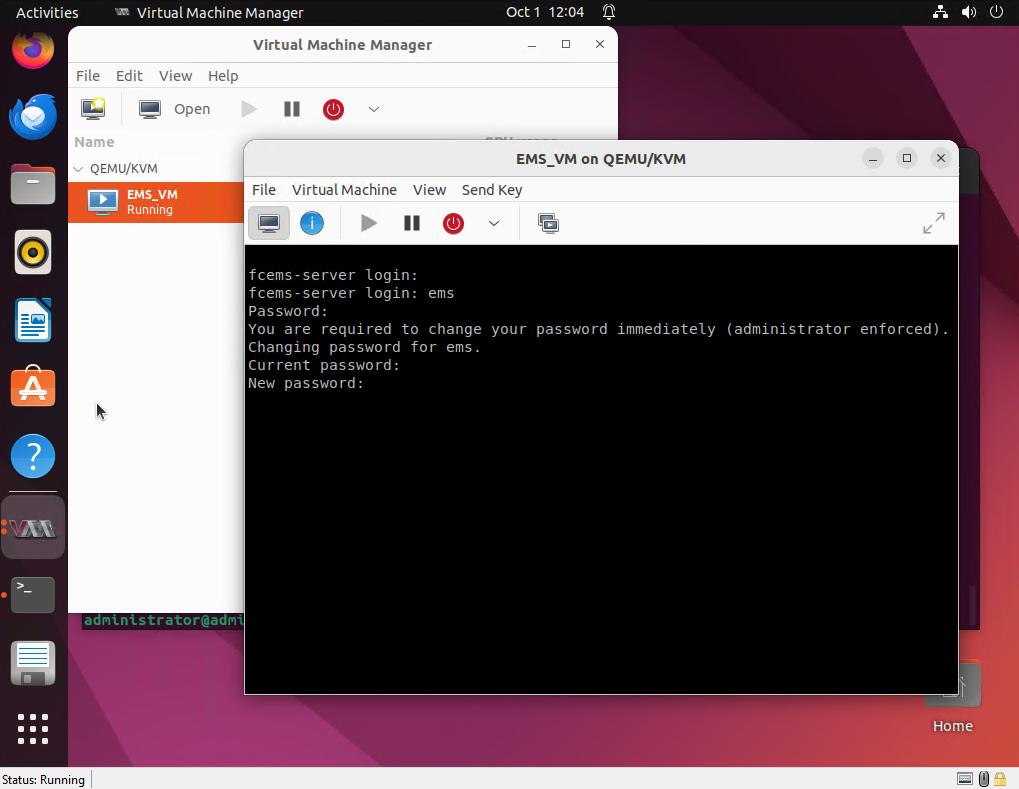
    You should now be able to log in with the default credentials (username and password are both ems). On the first login, you will be prompted to set a new password, which you should do immediately for security.
KVM

KVM

To recover your EMS user password on KVM:
  1. Shut down the EMS VM using the following command:

    sudo virsh shutdown <vm-name>

    Alternatively, shut down the VM via virt-manager if you prefer using the GUI.

  2. Wait until the VM is completely powered off before proceeding.

  3. Attach the recovery ISO to the VM as a read-only CD-ROM device (via SCSI):

    sudo virsh attach-disk <vm-name> <full-path-to-forticlient_vm_password_recovery.iso> sdb --type cdrom --mode readonly --config
    

    <vm-name> Replace with your VM’s name
    <full-path-to-forticlient_vm_password_recovery.iso> Replace with the absolute path to the ISO file on the host.
    sdb Device name assigned to the CD-ROM. Ensure it matches what you will configure in the VM XML.

    --config

    The flag makes this persistent across VM reboots.

  4. Edit the VM configuration to set ISO as boot priority:

    1. Open the VM XML configuration for editing:

      sudo virsh edit <vm-name>

    2. Under the <os> section, remove any existing boot device line, such as <boot dev='hd'/>, so it looks like this (no boot lines):

      <os>
       <type arch='x86_64' machine='pc-q35-6.2'>hvm</type>
      </os>

    3. Under the <devices> section:

      1. Ensure the SCSI controller exists:

        <controller type='scsi' model='virtio-scsi'/>
      2. Add or verify the CD-ROM device entry is configured to match the attached ISO path and device:

        <disk type='file' device='cdrom'>
         <driver name='qemu' type='raw'/>
         <source file='<full-path-to-forticlient_vm_password_recovery.iso>'/>
         <target dev='sdb' bus='scsi'/>
         <readonly/>
         <boot order='1'/>
        </disk>

        Replace <full-path-to-forticlient_vm_password_recovery.iso> with the ISO’s absolute path.

    4. Save and exit the editor.

  5. Start the VM:

    sudo virsh start <vm-name>

    Alternatively, use virt-manager to start the VM.

    The VM will boot from the recovery ISO.

  6. Open the VM console and wait for the recovery process to finish. You should see a message similar to the following:

    SUCCESS: Password for ‘ems’ has been reset

  7. Once the password reset is confirmed, eject the recovery ISO:

    sudo virsh change-media <vm-name> sdb --eject --config

  8. To safely remove the CD-ROM device, first force stop the VM:

    sudo virsh destroy <vm-name>

    Alternatively, stop the VM from virt-manager.

  9. Remove the CD-ROM device from the VM configuration by editing the VM config again:

    sudo virsh edit <vm-name>

    Inside <devices>, remove the entire <disk ... device='cdrom'>...</disk> block that you previously added for the recovery ISO. Or, if you want to keep the device, just remove the <boot order='1'/> line so the VM boots from disk normally.

  10. Save and exit.

  11. To verify the result, start the VM again using the following command (or virt-manager):

    sudo virsh start <vm-name>

    You should now be able to log in with the default credentials (username and password are both ems). On the first login, you will be prompted to set a new password, which you should do immediately for security.