Using Referrer Host on Windows, macOS, Linux, and Chromebooks
You can define exclusions based on the referrer host (source) URL on FortiClient Windows, macOS, Linux, and Chromebooks using the Referrer Host option in EMS (see Web Filter) or the <referrer> XML option.
<urls>
	<url>
		<action>allow</action>
		<type>simple</type>
		<address>youtube.com</address>
		<referrer>google.com</referrer>
	 </url>
</urls>
As opposed to allowing a site regardless of how the user reaches it (using the destination URL pattern), admins can block direct access attempts while ensuring that legitimate searches via allowed referrers are permitted. For example, admins can allow YouTube videos when accessed through Google search results while blocking direct access to YouTube. This provides more precise control, reduces the risk of unwanted content access, and helps maintain a better security posture while keeping user access flexible.
Example
An organization wants to allow access to YouTube videos only when users open them through Google search results but not when they visit YouTube directly.
-
Navigate to Endpoint Profiles > Web Filter.
-
Create a new profile or edit an existing one.
-
Block category Bandwidth Consuming and make sure Web Browser Plugin for Web Filtering is enabled.
-
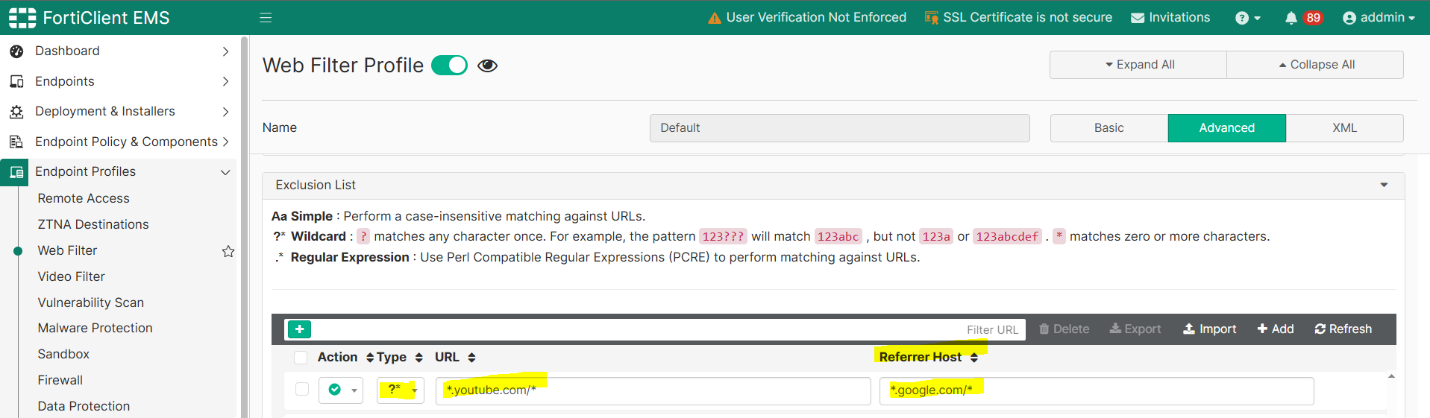
Scroll down to Exclusion List and add a Web Filter exclusion on EMS with Referrer Host defined:
-
URL: *.youtube.com/*
-
Referrer Host: *.google.com/*
-
Type: Wildcard
-
Action: Allow
Alternatively, you can click Import to import an existing exclusion list from FortiManager or FortiGate with the referrer already defined.
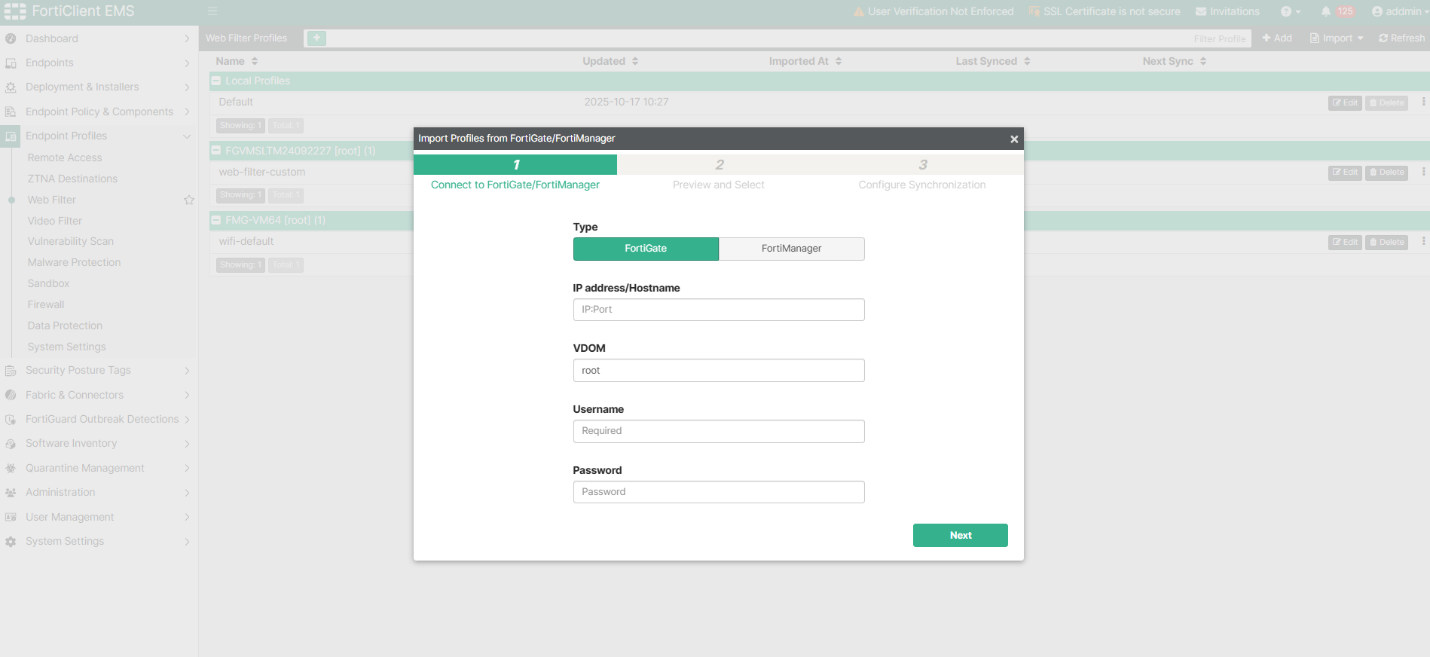

Referrer-based exclusions imported from FortiGate or FortiManager work exactly as configured on FortiGate or FortiManager. The entries cannot be modified from EMS GUI or XML for integrity.
-
-
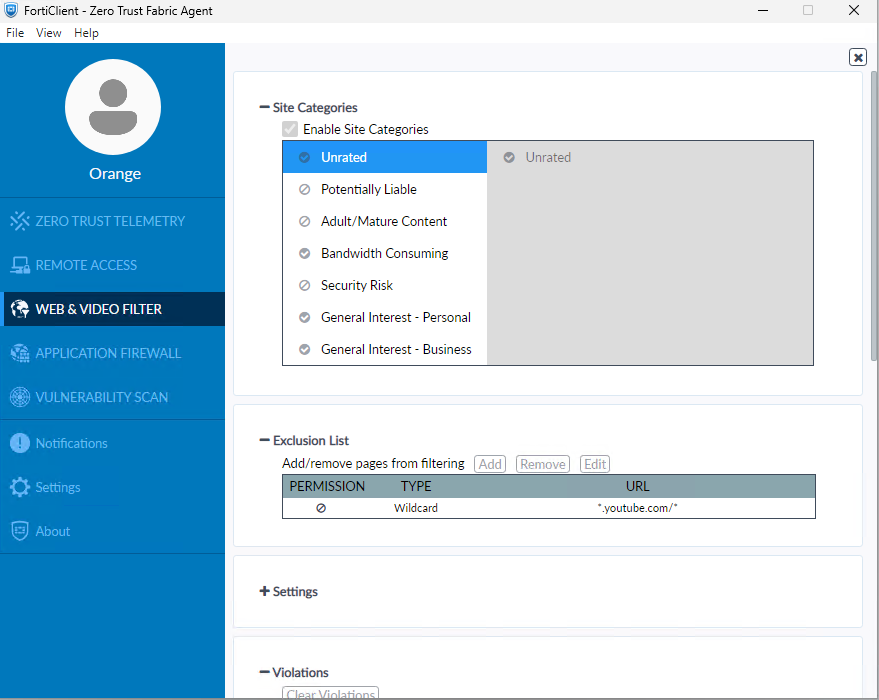
On an endpoint, open FortiClient and verify that the configured exclusion list is visible under the Web & Video Filter tab after syncing from the EMS.
-
Open any browser on the endpoint and verify that web filter extension is imported.
-
Try accessing
youtube.comdirectly and it should be blocked. -
Try searching for something on Google (e.g., “how to fix Wi-Fi”) and play the video directly from the Google search results. It should play successfully.
-
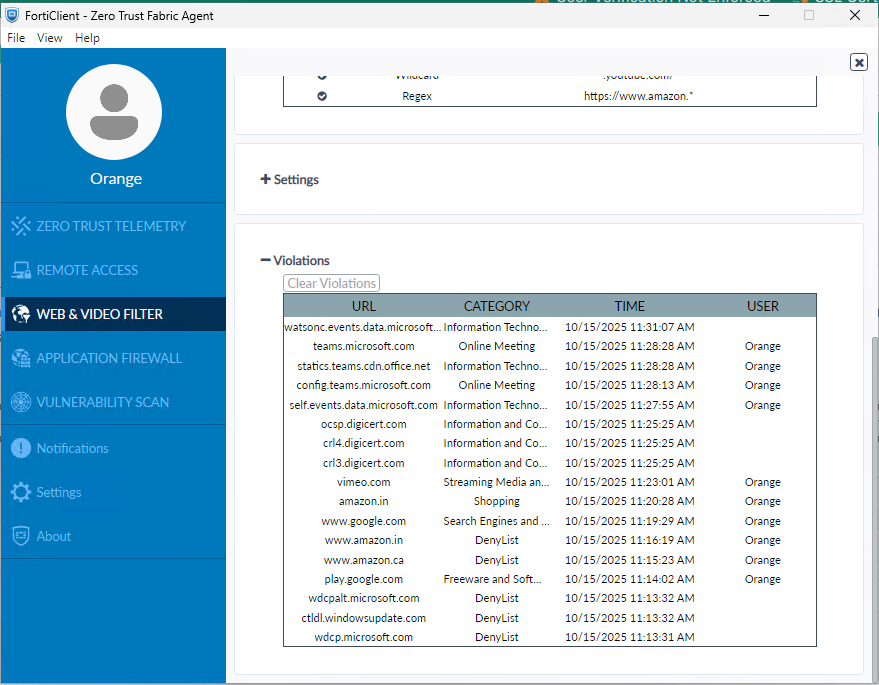
Go to the Violations section in the FortiClient GUI and verify that the attempt to access a blocked site directly (or via an untrusted referrer) is logged.
-
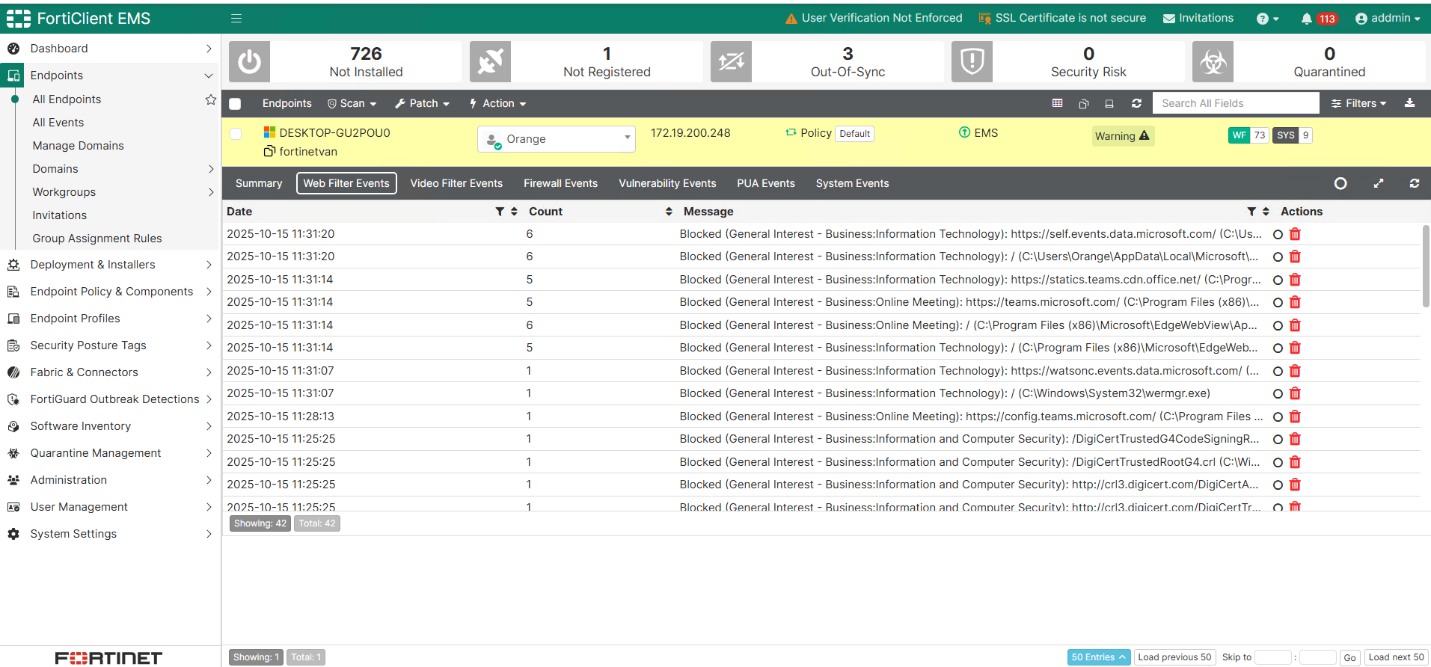
Go to EMS and verify that violations are also logged for that specific endpoint: