
Fortinet white logo
Fortinet white logo

User Guide

Creating Reports

Creating Reports

FortiAIOps allows you to define new reports and generate one-time reports. You can select and combine multiple report categories and the subsequent report types (maximum 5) to generate a single report instead of generating multiple reports for each category. These are saved as Report Templates and can be scheduled similar to other reports.

Basic Information

This section allows you to choose a Category of report, Report Type, provide a Name and Report Title.

The following categories of reports are supported.

Station Reports

The following types of station reports are supported.

Category

Description

Station RF and Channel Distribution

Provides the station RF and channel distribution based on the OUI (Organizationally Unique Identifier). A graphical summary of the stations distributed by RF type, stations distributed across 2.4GHz and 5GHz bands and station density on each channel over time is displayed. The following details are displayed.

  • Graphs - The graphs are of the following types.

    • Station Density on each Channel Over Time - This graph displays the station density on each of the channels over time plotted against the time in weeks.

    • Station Distribution Across 2.4 GHz, 5GHz, and 6GHz Bands - This graph displays the station distribution based on the 2.4GHz, 5GHz, and 6GHz.

    • Station Distribution by RF Type - This graph displays the station distribution based on the RF Type.

  • Station RF and Channel Distribution Details - This section provides each station's OUI, Date/Time (GMT), Station MAC, RF Type, AP Name, AP Radio, SSID and Channel.

Station Session Details

Provides the average station session trend details. A graphical summary of the station session trend details of throughput, loss, airtime utilization and noise for a connected station is displayed. The following details are displayed.

  • Graphs - The three types of Station Session Details graphs are displayed as follows.

    • Trend On Throughput - This graph displays the trend of Throughput for the selected station.

    • Trend On Loss - This graph displays the trend of Loss for the selected station.

    • Trend On Airtime Utilization - This graph displays the trend of Airtime Utilization for the selected station.

  • Station Session Details - This section provides each station's Date/Time, IP4 Address, IP6 Address, Controller, AP ID, SSID, User, Throughput (Kbps), Loss%, Airtime Utilization% and AP Name.

Top Stations

The Top Stations report type generates reports for the busiest stations based on the Throughput and Airtime Utilization. This report type generates the top N stations based on the number of bytes transferred and received and total Rx/Tx. The information includes each station's Station Mac, Controller, AP Id, SSID, Throughput (Kbps) and Date/Time (GMT).

Unique Stations

Provides the unique station details based on all stations connected to a network within the reporting interval. A graphical summary of the stations distributed by RF type, stations distributed across 2.4GHz, 5GHz, and 6GHz bands, stations distributed by OUI, stations distributed by device type, and stations distributed by OS type is displayed. The Unique Station reports are available to all groups and list stations connected to network during last 24 hours. The following details are displayed.

  • Summary - This section provides the total number of Unique Stations.

  • Graphs - The graphs are of the following types.

    • Finger Print OS Distribution - This graph displays the station distribution based on the OS Type.

    • Finger Print Device Distribution - This graph displays the station distribution based on the Device Type.

    • OUI Distribution - This graph displays the station distribution based on the OUI.

    • Station Distribution - This graph displays the station distribution based on the RF Type.

  • Unique Station Details - This section provides the station's OUI, Date/Time (CST), Station MAC, User, IPv4 Address, IPv6 Address, RF Type, SSID, Device Type, OS Type and Floor.

EAP-AKA Error

The EAP-AKA Error type generates a report with details of EAP-AKA errors associated with specific ESSIDs and on specific stations connected to network within the reporting interval. The following details are displayed.

  • User selected Top 5 EAP-AKA Errors - The top 5 most common EAP-AKA errors with the number of stations the errors were reported on and the number of EAP authentication failures for each station.

  • User selected Top 5 Station by Errors - The top 5 stations (MAC addresses) with highest EAP-AKA errors reported and the number of EAP authentication failures for each station.

  • EAP-AKA Errors - The list of EAP-AKA errors within the reporting interval. The details displayed are, date and time of the error, associated controller, access point, station MAC address, and the ESSID, and the error description/reason.

AP Reports

The following types of AP reports are supported.

Category

Description

Rogue Details

The Rogue Details report type generates the report on the individual rogue. It displays the rogue mobility trend. The trend is plotted against time and APs detecting the rogue. The data displayed is a Max of hourly data sample. The following details are displayed.

  • Summary - This section provides the details of the selected rogue

  • Rogue Mobility Trend graph - Trend is plotted against AP which detects rogues with high strength and its time as samples.

  • Rogue Details - This section provides details about the APs detecting the rogue along with Date/Time, Controller, AP Detecting Rogue, AP Location, SSID, Channel and RSSI.

Rogue Summary

Summarizes the rogue device information on the trend of the number of rogues reported on a per controller basis, per hour. The rogue APs and rogue station count is displayed. A graphical summary of the trend on rogue AP, trend on rogue station, and trend on controllers is displayed. The following details are displayed.

  • Summary - This section provides the details of the total number of rogues.

  • Graph - The graphs are of the following types.

    • Rogue Trend By Type - The two types of Rogue Trend By Type graphs are displayed as follows.

      • Trend on Rogue Station - This graph displays the trend type based on the number of rogue Stations.

      • Trend On Rogue AP - This graph displays the trend type based on the number of rogue APs.

    • Rogue Trend By Controllers - This graph displays the top 10 controllers with the highest number of rogues.

  • New Rogues Detected During Reporting Interval - This section provides the details of the new rogues detected during reporting interval. The details are Date/Time, Controller, AP Detecting Rogue, AP Location, Rogue MAC, Rogue Type and Channel RSSI.

Top Radio The Top Radio report type generates a report displaying all the Top N Radios based on Station Count, Throughput, and High Loss. The top radio report type displays the AP Name, Radio, Controller Name, AP Location, Station and Date/Time (GMT).
Inventory Reports

The following types of inventory reports are supported.

Category

Description

Access Points Inventory

This report type generates the AP inventory summary reports for any access points that are accessible. The following details are displayed.

  • Summary - This section provides the total number of Access Points.

  • AP Model Distribution graph - This provides the pictorial representation of the distribution of Access Points.

  • AP Inventory Summary - This section provides the details of Access Point Inventory. The details are Name, Mac address, Model, Software Version, IP Address, Controller, Availability State, Connectivity Preference and Floor.

Controller Inventory

Lists and tracks all the controllers, with its model and software versions on the network.

  • Summary - This section provides the total number of Controllers.

  • Graph - The graphs are of the following types.

    • Controller Software Version Distribution - This graph displays the Controllers based on the controller software version distribution.

    • Controller Model Distribution - This graph displays the Controllers based on the controller model distribution.

  • Controller Inventory Summary - This section provides the details of Controller Inventory. The details are Hostname, IP Address, Mac address, Node Name, Software Version, Model, Description, Availability State, Management State and Location.

Device Availability

Lists all the controllers and access points with its availability, uptime and down time of each of them. This report generates the report for each Controller and AP. It displays the Device Name, UP Duration, Down Duration time and Availability(%) for the AP and Controller.

Service Reports

The following types of service reports are supported.

Category

Description

Service Usage Summary

Provides the service usage summary based on the ESSIDs. A graphical summary of the top SSIDs based on throughput and number of stations is displayed.

  • Graph - The graphs are of the following types.

    • Top SSIDs Based on Throughput - This graph displays the top SSIDs based on the throughput.

    • Top SSIDs Based on Number Stations - This graph displays the top SSIDs based on number of stations.

  • Network Usage Summary - The Network Usage Summary displays the ESSID, Average Station Count, Max Station Count, Time When Max Station Occurred, Total Unique Stations and Maximum Throughput are displayed.

Service Usage Trend

Provides the service usage trends based on the ESSIDs. A graphical summary of the top SSIDs based on throughput and number of stations is displayed.

  • Server Usage Trend graphs - These are displayed with a trend of Max, Minimum and Average stations connected and stations throughput on hourly basis during reporting interval. This is a graphical report represented with a line chart having two lines, one for Max and second one for Average station count.

  • Service Usage Trend Details - The service usage trend report type displays Date/Time (GMT), Max Stations Connected, Min Stations Connected, Avg Stations Connected and Throughput (Kbps).

Application Visibility Reports

The application visibility reports provide the following information.

Category

Description

Application Visibility

This report provides the top 10 applications and the top 10 users in your network which allows you to monitor application usage.

  • Top 10 applications graph - For each application, it provides total number of connected users, ESSIDs and traffic utilization.

  • Top 10 users graph - For each of the user, it displays the client MAC address, applications connected by the client, ESSIDs and traffic utilization.

Scope

This section allows you to define the scope of a report by performing the device selection followed by the service (SSID) selection.
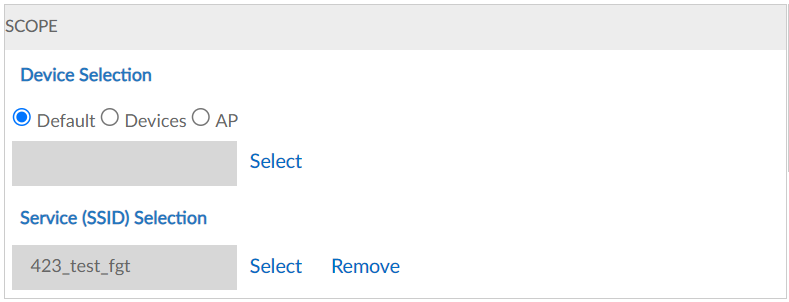
Update the following fields as per your requirement.

  • Default - By choosing default, report is generated for all the controllers mapped to the FortiAIOps.

  • Devices - Select one of multiple FortiGate controllers.

  • AP - Select one or multiple access points.

Reporting Interval

These fields depict the time period to be covered by the selected report. These fields are supported for most report types. When these fields do not appear, the report considers the current status. Select the Schedule option of the Recurrence section, the following options in the Reporting Interval section is enabled.
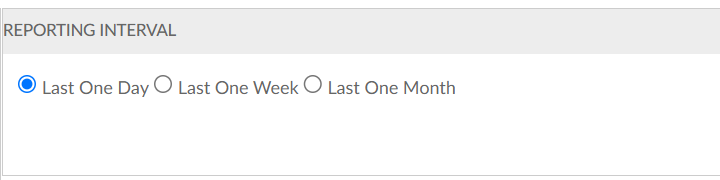
  • Last one day - The last one day's report is generated.

  • Last one week - The last one week's report is generated.

  • Last one month - The last one month's report is generated.

Recurrence

This section allows you to select the time of report recurrence. Select the Schedule option and the following get enabled.
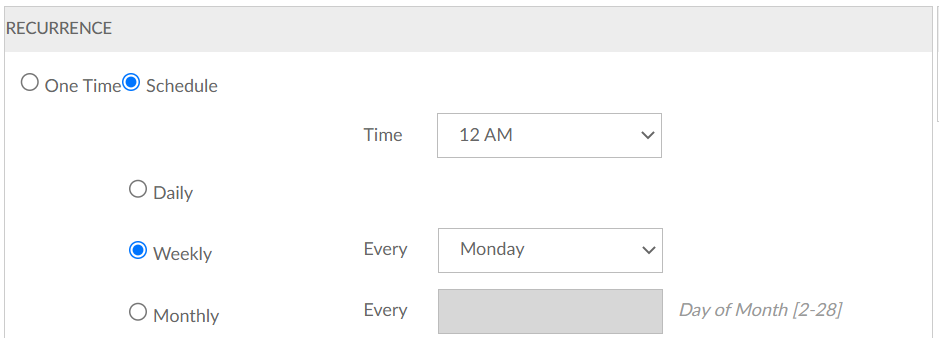
  • One Time - Instant report is generated for the selected reporting interval.

  • Schedule - This option allows you to define a specific time for report creation. These schedule fields establish the time that a report runs, independent of the Scope and Reporting Interval.

  • Daily - This option allows you to generate daily reports.

  • Weekly - This option allows you to generate weekly reports, select this option followed by selecting the day of the report generation from the Every drop-down list.

  • Monthly - This option allows you to generate monthly reports, select this option and enter the day of month; 1-31 is the valid range.

Report Generation Options

You can save the generated reports in any of the following formats and email the generated reports to the specified address.
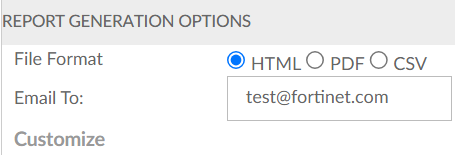
  • File Format - Choose one of the following formats.

    • HTML - Select the HTML option to export and save the report to HTML format. The generated report is saved with the naming convention, <report type>_report_datetime.html.

    • PDF - Select the PDF option to export and save the report to PDF format. The generated report is saved with the naming convention, <report type>_report_datetime.pdf.

    • CSV - Select the CSV option to export and save the report to CSV format. The generated report is saved with the naming convention, <report type>_report_datetime.csv.

  • Limit Report Size To - This option is applicable only to the Top Stations, Top Radio, Device Availability, and Application Visibility reports. The maximum report size for the Application Visibility report is 100.

Creating Reports

Creating Reports

FortiAIOps allows you to define new reports and generate one-time reports. You can select and combine multiple report categories and the subsequent report types (maximum 5) to generate a single report instead of generating multiple reports for each category. These are saved as Report Templates and can be scheduled similar to other reports.

Basic Information

This section allows you to choose a Category of report, Report Type, provide a Name and Report Title.

The following categories of reports are supported.

Station Reports

The following types of station reports are supported.

Category

Description

Station RF and Channel Distribution

Provides the station RF and channel distribution based on the OUI (Organizationally Unique Identifier). A graphical summary of the stations distributed by RF type, stations distributed across 2.4GHz and 5GHz bands and station density on each channel over time is displayed. The following details are displayed.

  • Graphs - The graphs are of the following types.

    • Station Density on each Channel Over Time - This graph displays the station density on each of the channels over time plotted against the time in weeks.

    • Station Distribution Across 2.4 GHz, 5GHz, and 6GHz Bands - This graph displays the station distribution based on the 2.4GHz, 5GHz, and 6GHz.

    • Station Distribution by RF Type - This graph displays the station distribution based on the RF Type.

  • Station RF and Channel Distribution Details - This section provides each station's OUI, Date/Time (GMT), Station MAC, RF Type, AP Name, AP Radio, SSID and Channel.

Station Session Details

Provides the average station session trend details. A graphical summary of the station session trend details of throughput, loss, airtime utilization and noise for a connected station is displayed. The following details are displayed.

  • Graphs - The three types of Station Session Details graphs are displayed as follows.

    • Trend On Throughput - This graph displays the trend of Throughput for the selected station.

    • Trend On Loss - This graph displays the trend of Loss for the selected station.

    • Trend On Airtime Utilization - This graph displays the trend of Airtime Utilization for the selected station.

  • Station Session Details - This section provides each station's Date/Time, IP4 Address, IP6 Address, Controller, AP ID, SSID, User, Throughput (Kbps), Loss%, Airtime Utilization% and AP Name.

Top Stations

The Top Stations report type generates reports for the busiest stations based on the Throughput and Airtime Utilization. This report type generates the top N stations based on the number of bytes transferred and received and total Rx/Tx. The information includes each station's Station Mac, Controller, AP Id, SSID, Throughput (Kbps) and Date/Time (GMT).

Unique Stations

Provides the unique station details based on all stations connected to a network within the reporting interval. A graphical summary of the stations distributed by RF type, stations distributed across 2.4GHz, 5GHz, and 6GHz bands, stations distributed by OUI, stations distributed by device type, and stations distributed by OS type is displayed. The Unique Station reports are available to all groups and list stations connected to network during last 24 hours. The following details are displayed.

  • Summary - This section provides the total number of Unique Stations.

  • Graphs - The graphs are of the following types.

    • Finger Print OS Distribution - This graph displays the station distribution based on the OS Type.

    • Finger Print Device Distribution - This graph displays the station distribution based on the Device Type.

    • OUI Distribution - This graph displays the station distribution based on the OUI.

    • Station Distribution - This graph displays the station distribution based on the RF Type.

  • Unique Station Details - This section provides the station's OUI, Date/Time (CST), Station MAC, User, IPv4 Address, IPv6 Address, RF Type, SSID, Device Type, OS Type and Floor.

EAP-AKA Error

The EAP-AKA Error type generates a report with details of EAP-AKA errors associated with specific ESSIDs and on specific stations connected to network within the reporting interval. The following details are displayed.

  • User selected Top 5 EAP-AKA Errors - The top 5 most common EAP-AKA errors with the number of stations the errors were reported on and the number of EAP authentication failures for each station.

  • User selected Top 5 Station by Errors - The top 5 stations (MAC addresses) with highest EAP-AKA errors reported and the number of EAP authentication failures for each station.

  • EAP-AKA Errors - The list of EAP-AKA errors within the reporting interval. The details displayed are, date and time of the error, associated controller, access point, station MAC address, and the ESSID, and the error description/reason.

AP Reports

The following types of AP reports are supported.

Category

Description

Rogue Details

The Rogue Details report type generates the report on the individual rogue. It displays the rogue mobility trend. The trend is plotted against time and APs detecting the rogue. The data displayed is a Max of hourly data sample. The following details are displayed.

  • Summary - This section provides the details of the selected rogue

  • Rogue Mobility Trend graph - Trend is plotted against AP which detects rogues with high strength and its time as samples.

  • Rogue Details - This section provides details about the APs detecting the rogue along with Date/Time, Controller, AP Detecting Rogue, AP Location, SSID, Channel and RSSI.

Rogue Summary

Summarizes the rogue device information on the trend of the number of rogues reported on a per controller basis, per hour. The rogue APs and rogue station count is displayed. A graphical summary of the trend on rogue AP, trend on rogue station, and trend on controllers is displayed. The following details are displayed.

  • Summary - This section provides the details of the total number of rogues.

  • Graph - The graphs are of the following types.

    • Rogue Trend By Type - The two types of Rogue Trend By Type graphs are displayed as follows.

      • Trend on Rogue Station - This graph displays the trend type based on the number of rogue Stations.

      • Trend On Rogue AP - This graph displays the trend type based on the number of rogue APs.

    • Rogue Trend By Controllers - This graph displays the top 10 controllers with the highest number of rogues.

  • New Rogues Detected During Reporting Interval - This section provides the details of the new rogues detected during reporting interval. The details are Date/Time, Controller, AP Detecting Rogue, AP Location, Rogue MAC, Rogue Type and Channel RSSI.

Top Radio The Top Radio report type generates a report displaying all the Top N Radios based on Station Count, Throughput, and High Loss. The top radio report type displays the AP Name, Radio, Controller Name, AP Location, Station and Date/Time (GMT).
Inventory Reports

The following types of inventory reports are supported.

Category

Description

Access Points Inventory

This report type generates the AP inventory summary reports for any access points that are accessible. The following details are displayed.

  • Summary - This section provides the total number of Access Points.

  • AP Model Distribution graph - This provides the pictorial representation of the distribution of Access Points.

  • AP Inventory Summary - This section provides the details of Access Point Inventory. The details are Name, Mac address, Model, Software Version, IP Address, Controller, Availability State, Connectivity Preference and Floor.

Controller Inventory

Lists and tracks all the controllers, with its model and software versions on the network.

  • Summary - This section provides the total number of Controllers.

  • Graph - The graphs are of the following types.

    • Controller Software Version Distribution - This graph displays the Controllers based on the controller software version distribution.

    • Controller Model Distribution - This graph displays the Controllers based on the controller model distribution.

  • Controller Inventory Summary - This section provides the details of Controller Inventory. The details are Hostname, IP Address, Mac address, Node Name, Software Version, Model, Description, Availability State, Management State and Location.

Device Availability

Lists all the controllers and access points with its availability, uptime and down time of each of them. This report generates the report for each Controller and AP. It displays the Device Name, UP Duration, Down Duration time and Availability(%) for the AP and Controller.

Service Reports

The following types of service reports are supported.

Category

Description

Service Usage Summary

Provides the service usage summary based on the ESSIDs. A graphical summary of the top SSIDs based on throughput and number of stations is displayed.

  • Graph - The graphs are of the following types.

    • Top SSIDs Based on Throughput - This graph displays the top SSIDs based on the throughput.

    • Top SSIDs Based on Number Stations - This graph displays the top SSIDs based on number of stations.

  • Network Usage Summary - The Network Usage Summary displays the ESSID, Average Station Count, Max Station Count, Time When Max Station Occurred, Total Unique Stations and Maximum Throughput are displayed.

Service Usage Trend

Provides the service usage trends based on the ESSIDs. A graphical summary of the top SSIDs based on throughput and number of stations is displayed.

  • Server Usage Trend graphs - These are displayed with a trend of Max, Minimum and Average stations connected and stations throughput on hourly basis during reporting interval. This is a graphical report represented with a line chart having two lines, one for Max and second one for Average station count.

  • Service Usage Trend Details - The service usage trend report type displays Date/Time (GMT), Max Stations Connected, Min Stations Connected, Avg Stations Connected and Throughput (Kbps).

Application Visibility Reports

The application visibility reports provide the following information.

Category

Description

Application Visibility

This report provides the top 10 applications and the top 10 users in your network which allows you to monitor application usage.

  • Top 10 applications graph - For each application, it provides total number of connected users, ESSIDs and traffic utilization.

  • Top 10 users graph - For each of the user, it displays the client MAC address, applications connected by the client, ESSIDs and traffic utilization.

Scope

This section allows you to define the scope of a report by performing the device selection followed by the service (SSID) selection.

Update the following fields as per your requirement.

  • Default - By choosing default, report is generated for all the controllers mapped to the FortiAIOps.

  • Devices - Select one of multiple FortiGate controllers.

  • AP - Select one or multiple access points.

Reporting Interval

These fields depict the time period to be covered by the selected report. These fields are supported for most report types. When these fields do not appear, the report considers the current status. Select the Schedule option of the Recurrence section, the following options in the Reporting Interval section is enabled.

  • Last one day - The last one day's report is generated.

  • Last one week - The last one week's report is generated.

  • Last one month - The last one month's report is generated.

Recurrence

This section allows you to select the time of report recurrence. Select the Schedule option and the following get enabled.

  • One Time - Instant report is generated for the selected reporting interval.

  • Schedule - This option allows you to define a specific time for report creation. These schedule fields establish the time that a report runs, independent of the Scope and Reporting Interval.

  • Daily - This option allows you to generate daily reports.

  • Weekly - This option allows you to generate weekly reports, select this option followed by selecting the day of the report generation from the Every drop-down list.

  • Monthly - This option allows you to generate monthly reports, select this option and enter the day of month; 1-31 is the valid range.

Report Generation Options

You can save the generated reports in any of the following formats and email the generated reports to the specified address.

  • File Format - Choose one of the following formats.

    • HTML - Select the HTML option to export and save the report to HTML format. The generated report is saved with the naming convention, <report type>_report_datetime.html.

    • PDF - Select the PDF option to export and save the report to PDF format. The generated report is saved with the naming convention, <report type>_report_datetime.pdf.

    • CSV - Select the CSV option to export and save the report to CSV format. The generated report is saved with the naming convention, <report type>_report_datetime.csv.

  • Limit Report Size To - This option is applicable only to the Top Stations, Top Radio, Device Availability, and Application Visibility reports. The maximum report size for the Application Visibility report is 100.