
Fortinet white logo
Fortinet white logo

User Guide

Increasing VM Disk Space

Increasing VM Disk Space

Use the following procedure to increase the disk space on your virtual machine. This procedure uses VMware ESXi as an example, but the steps are similar for other virtual machine platforms.

  1. Log in to your virtual machine management GUI (For example, VMware ESXi).

  2. Navigate to the list of virtual machines and select the instance you want to modify.

  3. Before making any hardware changes, you must Shut down the virtual machine instance to prevent data corruption.

  4. Once the VM is off, select the option to Edit its settings.

  5. In the settings window, find Hard disk 2 and modify its size to the desired capacity.
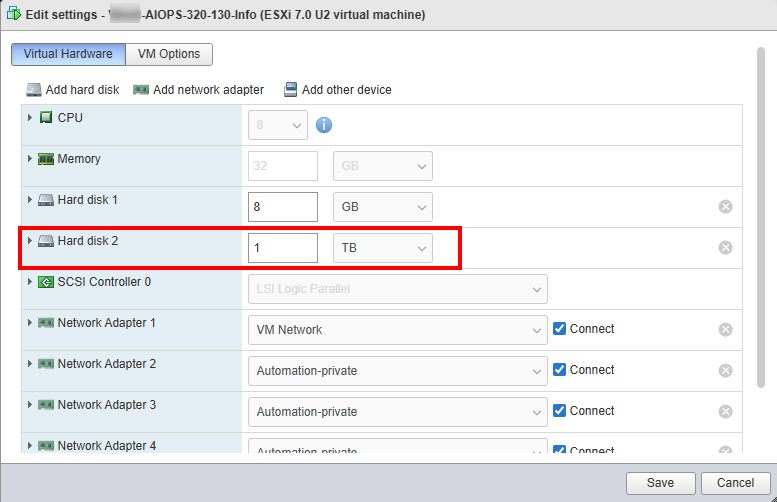
  6. To add another hard disk, click Add hard disk. Modify the size as required.
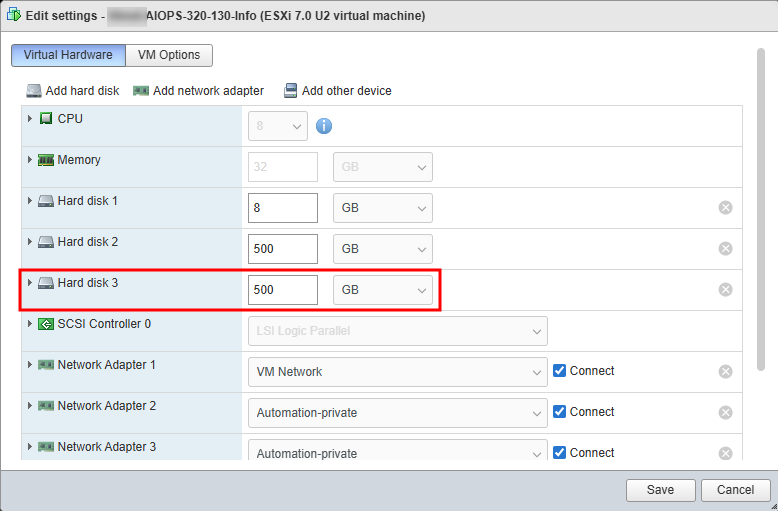
  7. Click Save to apply the changes.

  8. Power on the virtual machine instance.

  9. After the VM reboots, log in to the virtual machine using the console.

  10. Run the following command to view the updated disk and partition information:
    diagnose hardware deviceinfo disk
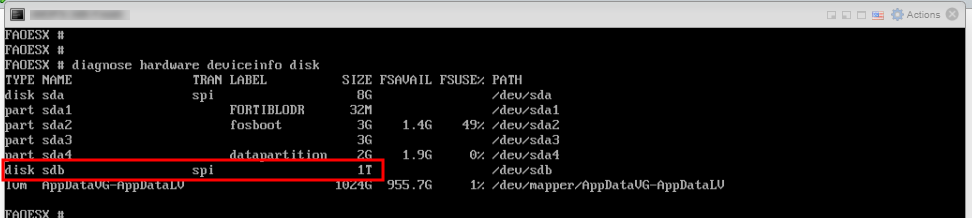

    The output shows that the disk sdb is increased to 1 TB in size.
    If you have added another hard disk, you will see an output similar to the following:


Increasing VM Disk Space

Increasing VM Disk Space

Use the following procedure to increase the disk space on your virtual machine. This procedure uses VMware ESXi as an example, but the steps are similar for other virtual machine platforms.

  1. Log in to your virtual machine management GUI (For example, VMware ESXi).

  2. Navigate to the list of virtual machines and select the instance you want to modify.

  3. Before making any hardware changes, you must Shut down the virtual machine instance to prevent data corruption.

  4. Once the VM is off, select the option to Edit its settings.

  5. In the settings window, find Hard disk 2 and modify its size to the desired capacity.

  6. To add another hard disk, click Add hard disk. Modify the size as required.

  7. Click Save to apply the changes.

  8. Power on the virtual machine instance.

  9. After the VM reboots, log in to the virtual machine using the console.

  10. Run the following command to view the updated disk and partition information:
    diagnose hardware deviceinfo disk


    The output shows that the disk sdb is increased to 1 TB in size.
    If you have added another hard disk, you will see an output similar to the following: