

Locating Wireless Devices on the Map
The Locate feature across the wireless management screens enables you to quickly pinpoint the physical location of both Access Points (APs) and wireless clients on your network maps.
Locating Access Points (APs)
You can find the physical location of an AP from within the Wireless > Access Points window.
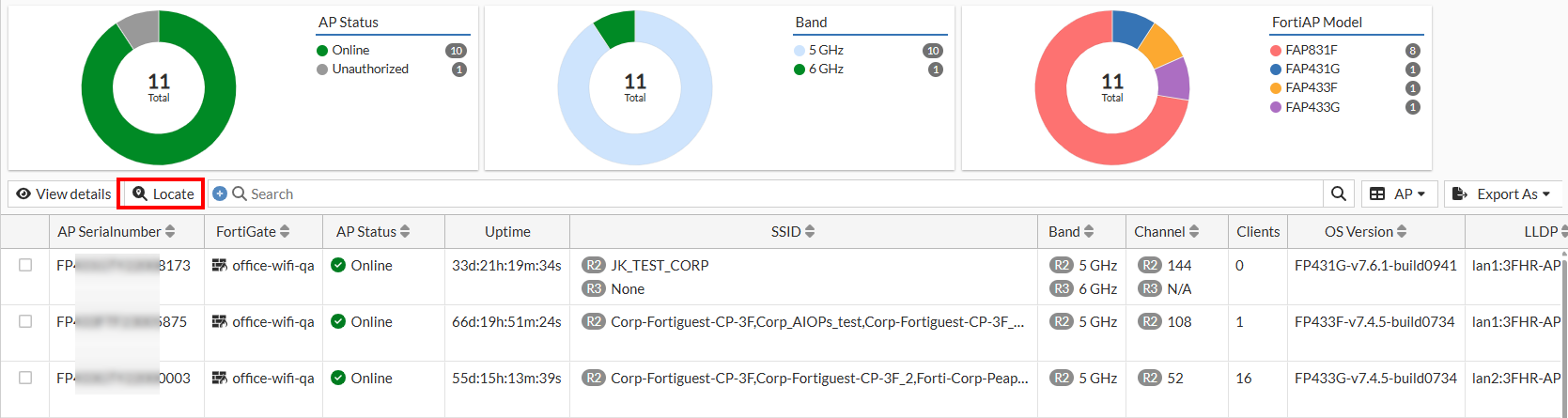
The device table includes a Locate option. Select an AP and click Locate.
The system opens the Wi-Fi Maps window to highlight the placement of the selected AP on its floor plan.
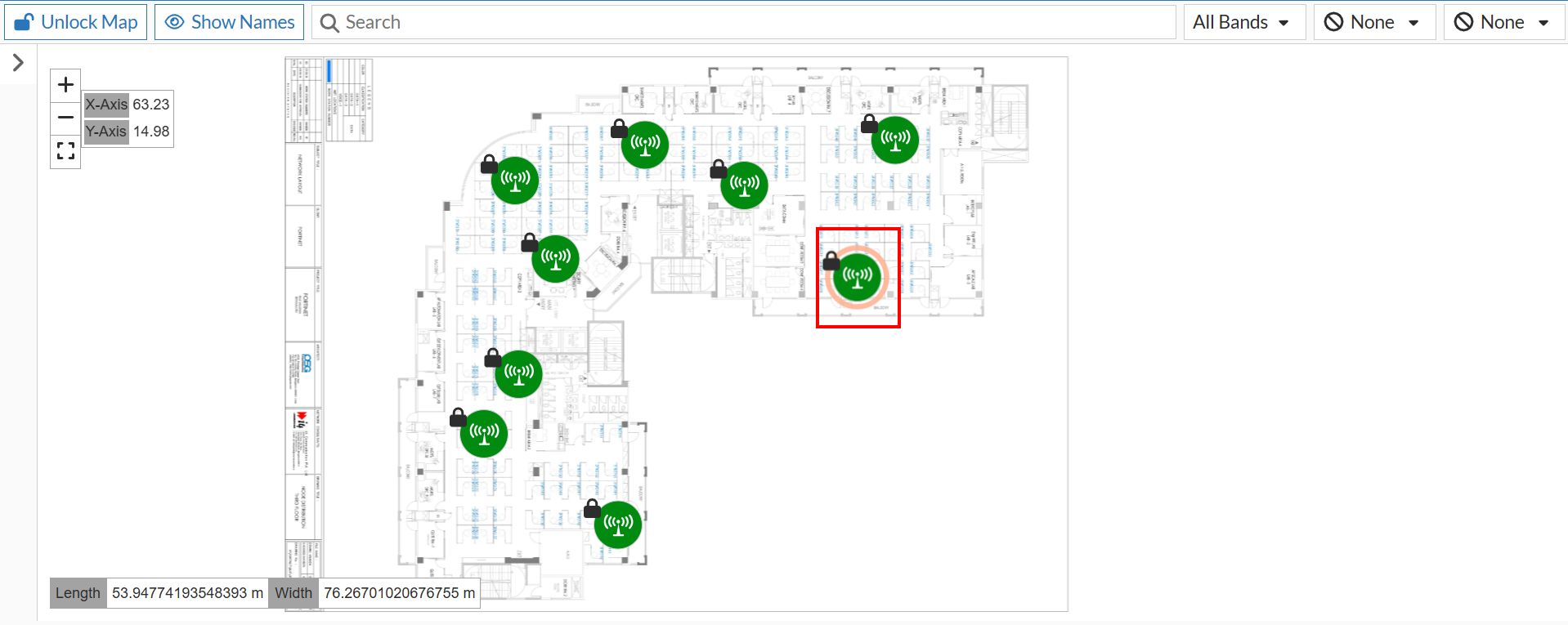
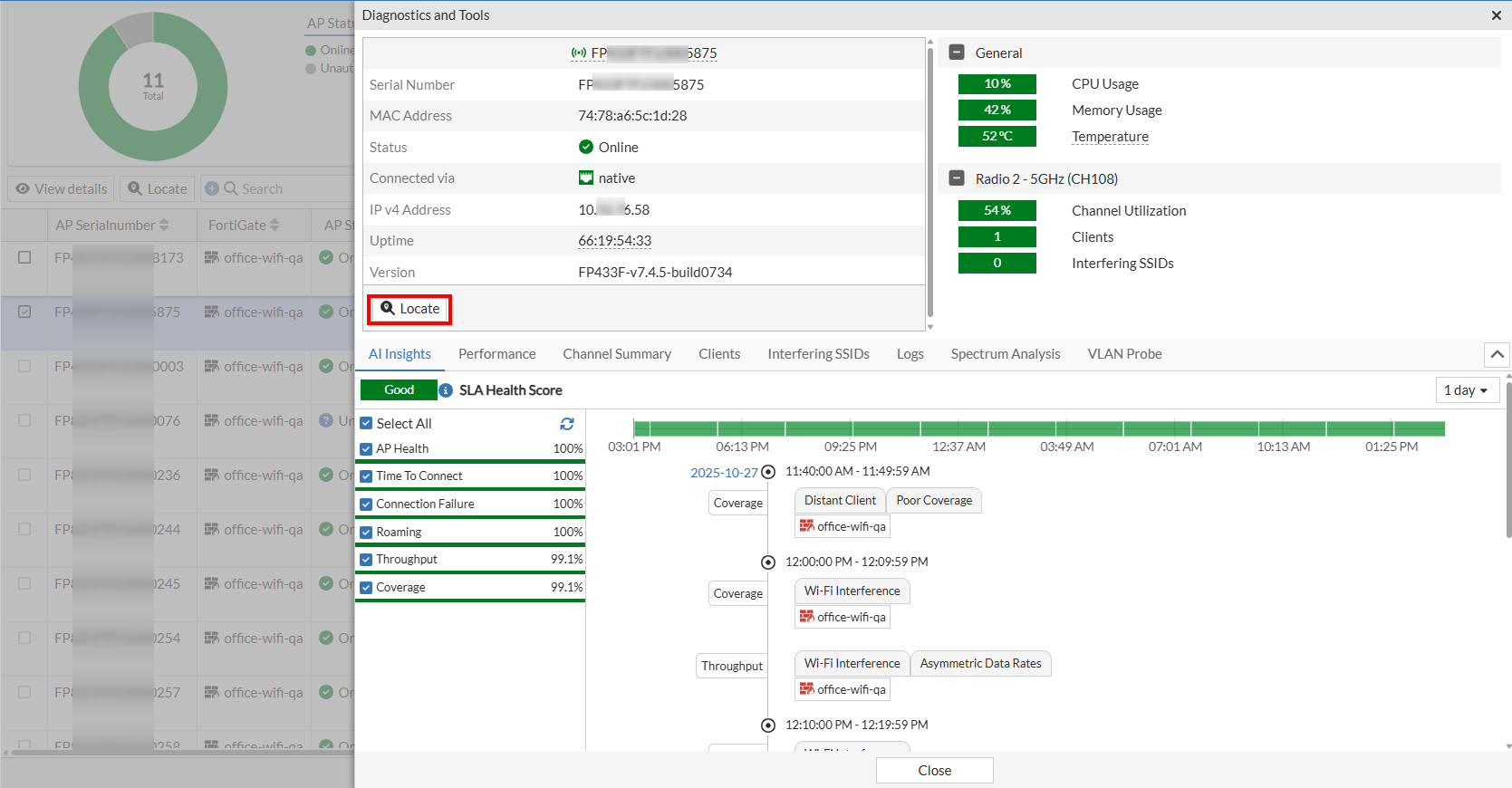
The Diagnostics and Tools pane has a dedicated Locate button. Clicking this button displays the map location of the currently selected AP within the Wi-Fi Maps window.
Locating Wireless Clients
The Wireless > Wireless Clients window also includes the locating capability.
The device table features a Locate option. Select any wireless client and click Locate.
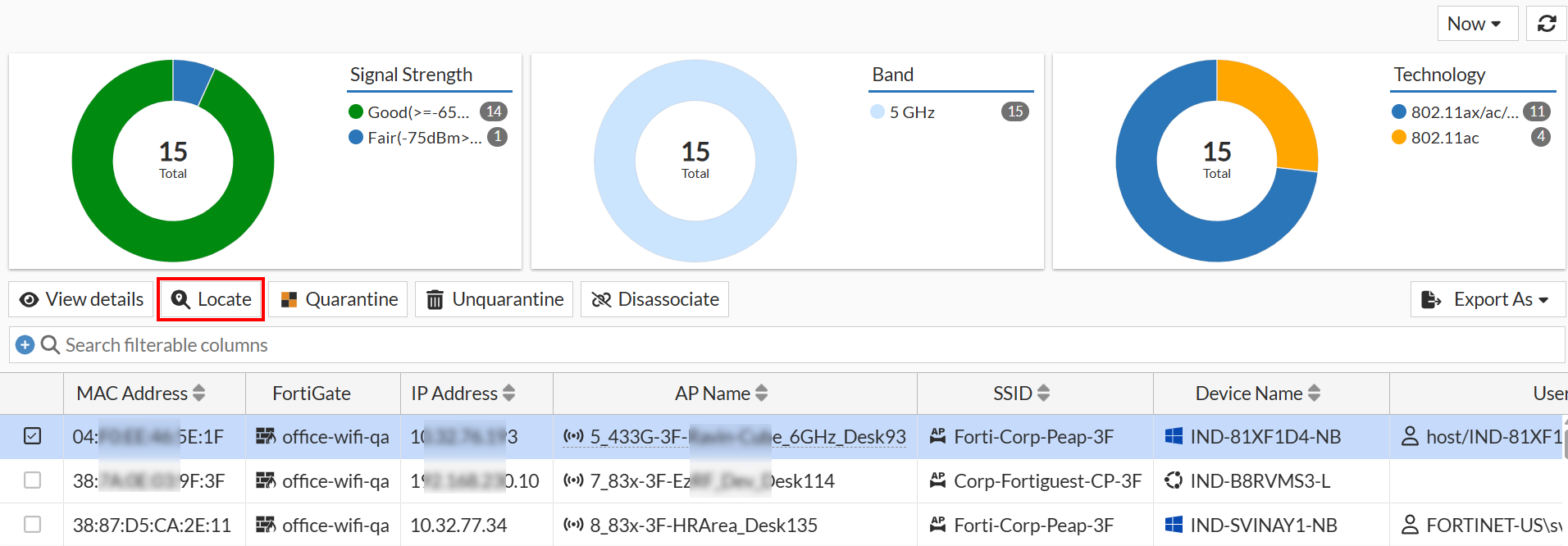
The system opens the Wi-Fi Maps window and highlights the client's physical placement on the floor plan. The AP connected to the wireless client is also highlighted.
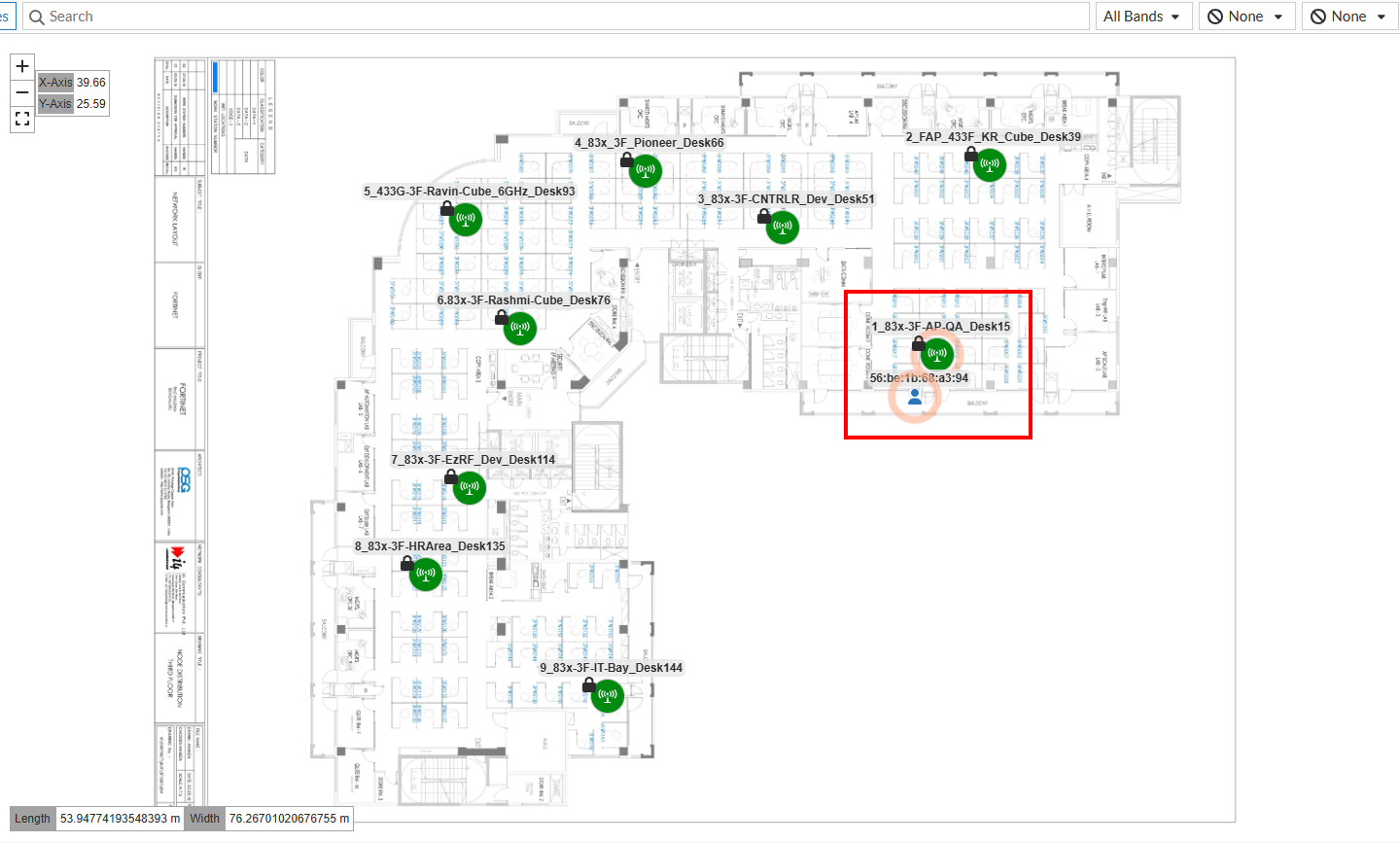
Clicking on the highlighted client will display its detailed information.
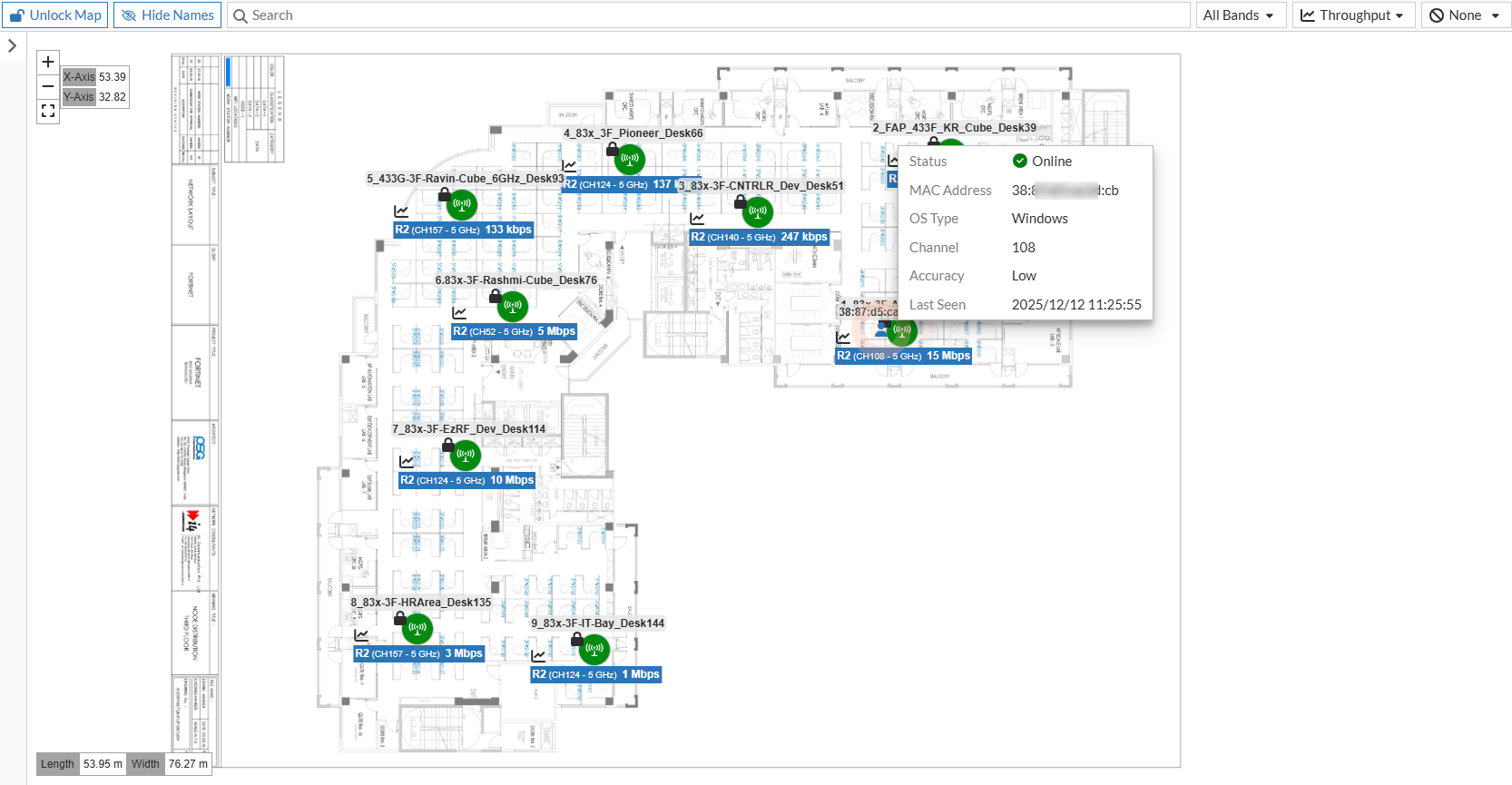
Right click on the client to display Diagnotics and Tools option for client.
Navigate to Wireless > Wireless Clients and select an individual client. Click View Details. This window displays the Locate button which can also be used to locate a client.
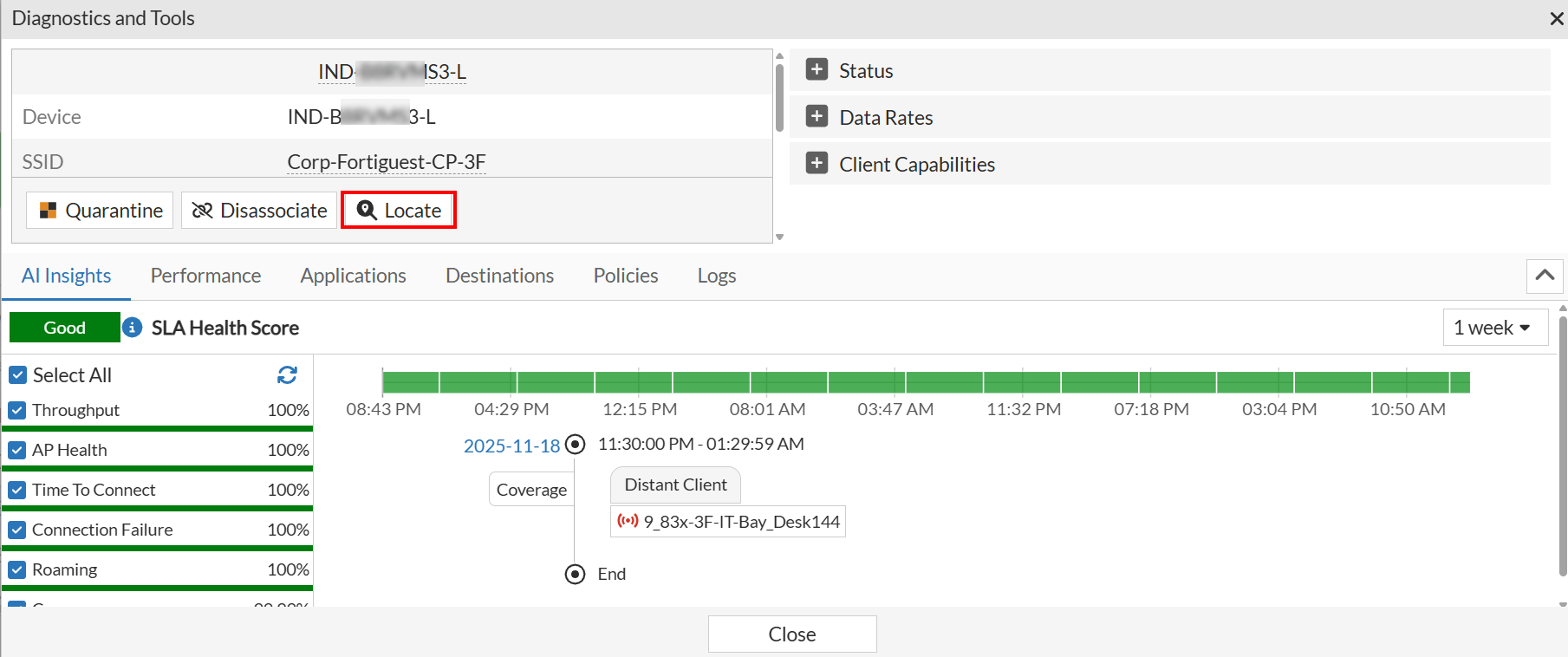
Clicking it shows the map location of the selected wireless client within the Wi-Fi Maps window.