
Fortinet white logo
Fortinet white logo

User Guide

Installing FortiAIOps on VMware ESXi

Installing FortiAIOps on VMware ESXi

Perform the following steps to deploy FortiAIOps.

  1. Download the installation file from Fortinet Support portal and unzip the file (FAO_VM64-vx.x.x-devbuildxxxx-FORTINET.out.ovf.zip). This folder contains 4 installation files.

  2. Connect and log in to the VMware ESXi host client with administrative rights.

  3. Select Create/Register VM in the Host tab.

  4. Select Deploy a virtual machine from an OVF or OVA file as the creation type.

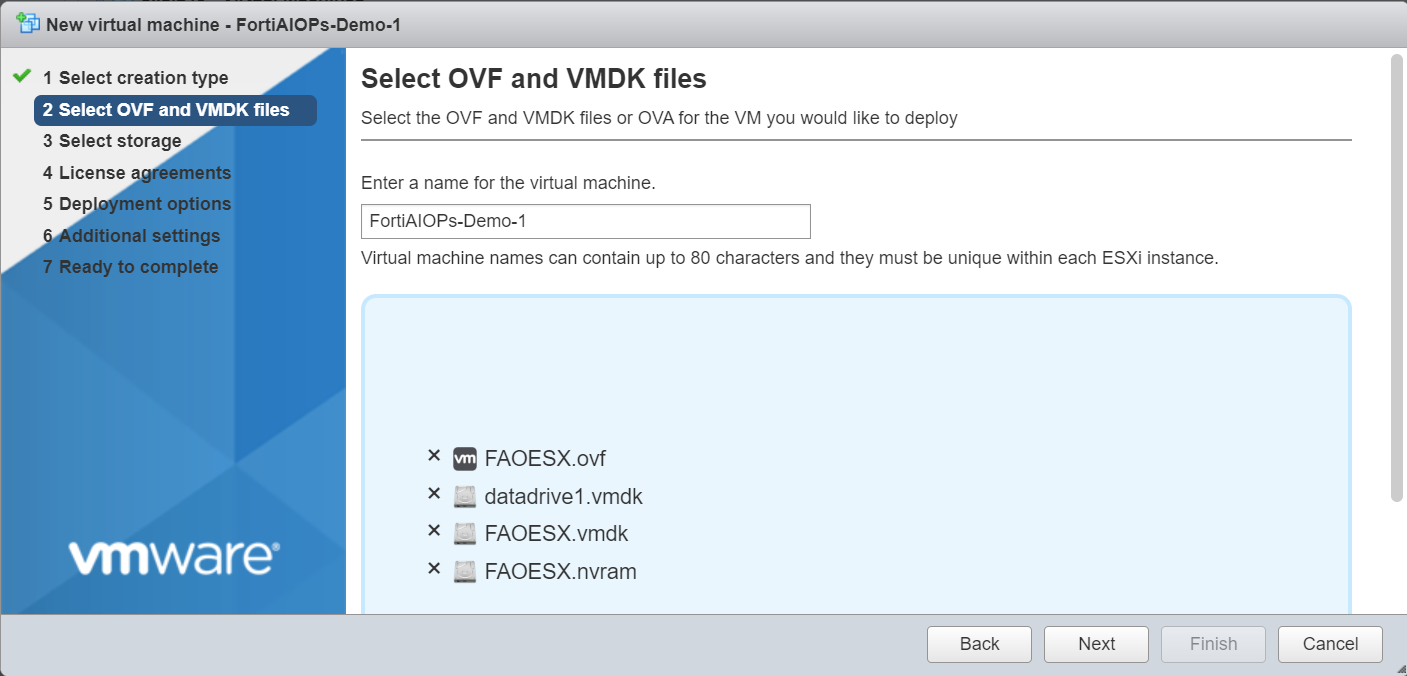
  5. Browse and select the downloaded installation files and enter a suitable hostname.
  6. Select your preferred datastore to store the virtual machine files in the Select storage page.

  7. Accept the end user license agreement.

  8. In the Deployment options page:

    1. Select you preferred VM network

    2. Select your preferred disk provisioning method. Thin disk provisioning method is recommended.

    3. Ensure Power on automatically option is selected
      Note: To modify configurations, it is necessary to edit the VM configuration while the VM is in a powered off state, and then start the VM.

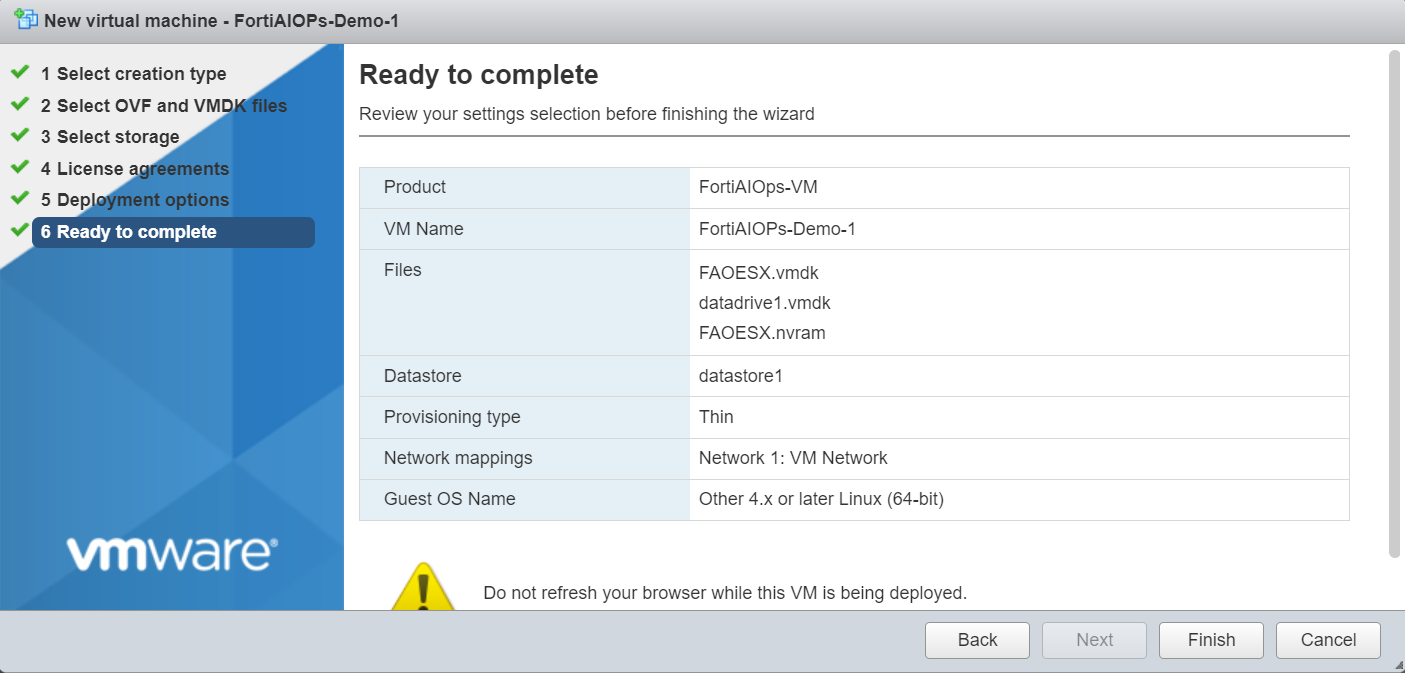
  9. Review the summary of the deployment settings and click Finish.
  10. You can monitor the progress of the deployment in the Recent Tasks pane. When the installation is complete, the virtual machine will be listed in the Inventory pane.

  11. Perform post-installation tasks.

Installing FortiAIOps on VMware ESXi

Installing FortiAIOps on VMware ESXi

Perform the following steps to deploy FortiAIOps.

  1. Download the installation file from Fortinet Support portal and unzip the file (FAO_VM64-vx.x.x-devbuildxxxx-FORTINET.out.ovf.zip). This folder contains 4 installation files.

  2. Connect and log in to the VMware ESXi host client with administrative rights.

  3. Select Create/Register VM in the Host tab.

  4. Select Deploy a virtual machine from an OVF or OVA file as the creation type.

  5. Browse and select the downloaded installation files and enter a suitable hostname.

  6. Select your preferred datastore to store the virtual machine files in the Select storage page.

  7. Accept the end user license agreement.

  8. In the Deployment options page:

    1. Select you preferred VM network

    2. Select your preferred disk provisioning method. Thin disk provisioning method is recommended.

    3. Ensure Power on automatically option is selected
      Note: To modify configurations, it is necessary to edit the VM configuration while the VM is in a powered off state, and then start the VM.

  9. Review the summary of the deployment settings and click Finish.

  10. You can monitor the progress of the deployment in the Recent Tasks pane. When the installation is complete, the virtual machine will be listed in the Inventory pane.

  11. Perform post-installation tasks.