

Adding FortiGate devices using automatic onboarding
FortiManager supports the automatic onboarding of FortiGate devices (FOS 7.6.5 and later).
The auto-onboarding process allows you to initiate the onboarding process from a new FortiGate. When the process is initiated, FortiManager automatically creates a corresponding model device which auto-links to the real device, and the device is authorized and moved into the specified ADOM. Optionally, the onboarding rule can also assign the device to a device group, enforce a firmware version, install a default configuration, and install a license through the Flex VM connector or BYOL VM license pool.
Configuration and use of automatic onboarding follows this process:
Create REST API Administrators
A REST API Administrator is required in order to use the auto-onboarding license installation feature.
Both the Flex VM and BYOL VM license installation types each require their own unique REST API Administrator with the Automatic Register setting enabled. Each administrator is assigned to one of the VM license installation types in an onboarding rule, and will activate licenses on FortiGate using a different API key.
To create a REST API admin:
-
Create REST API Administrators.
-
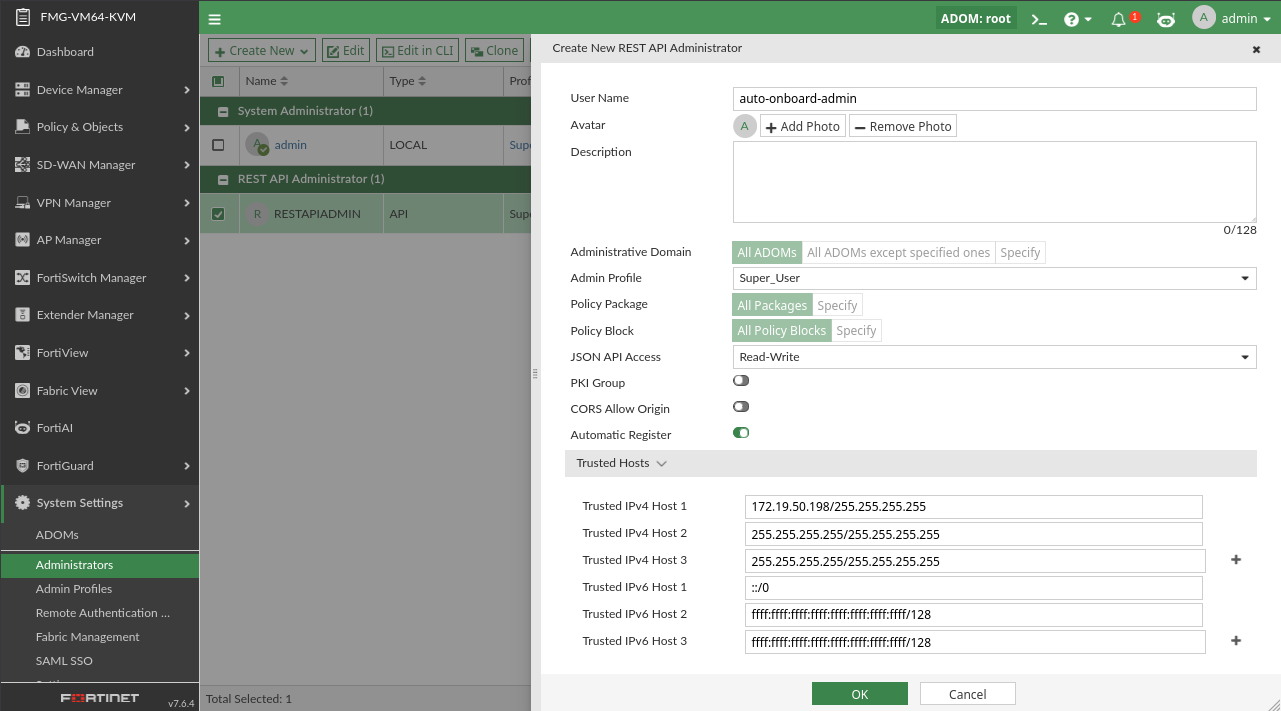
Go to System Settings > Administrators, and click Create New > REST API Admin.
-
Enable the Automatic Register toggle.
-
Configure the remaining settings, and click OK.
-
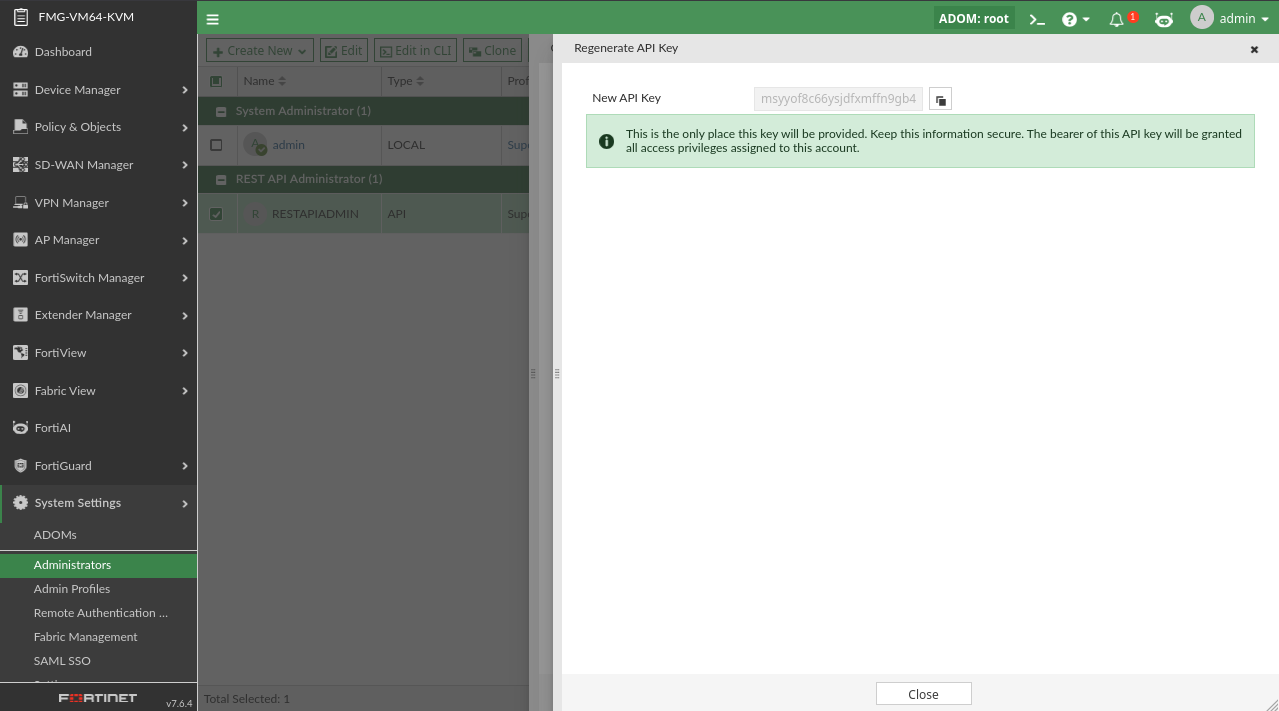
On the next screen, copy the New API Key that is displayed.
-
To create a FortiManager REST API admin in the CLI:
config system admin user
    edit "api-test"
        set password ENC *****************************
        set old-password ENC *****************************=
        set trusthost1 10.59.8.0 255.255.255.0
        set profileid "Super_User"
            set policy-paconfig system admin user
    edit "api-test"
        set password ENC *****************************
        set old-password ENC *****************************
        set trusthost1 10.59.8.0 255.255.255.0
        set profileid "Super_User"
            set policy-package "all_policy_packages"
            set policy-block "all_policy_blocks"
        set user_type api
            config meta-data
                edit "Contact Email"
                next
                edit "Contact Phone"
                next
            end
        set rpc-permit read-write
set autoreg-user enable
    next
end
Configure the automatic onboarding rules
To enable automatic onboarding:
-
In the root ADOM, go to Device Manager > Device & Groups.

Automatic onboarding configuration is only supported in the root ADOM.
-
Select the dropdown next to Add Device, and select Auto Onboarding.
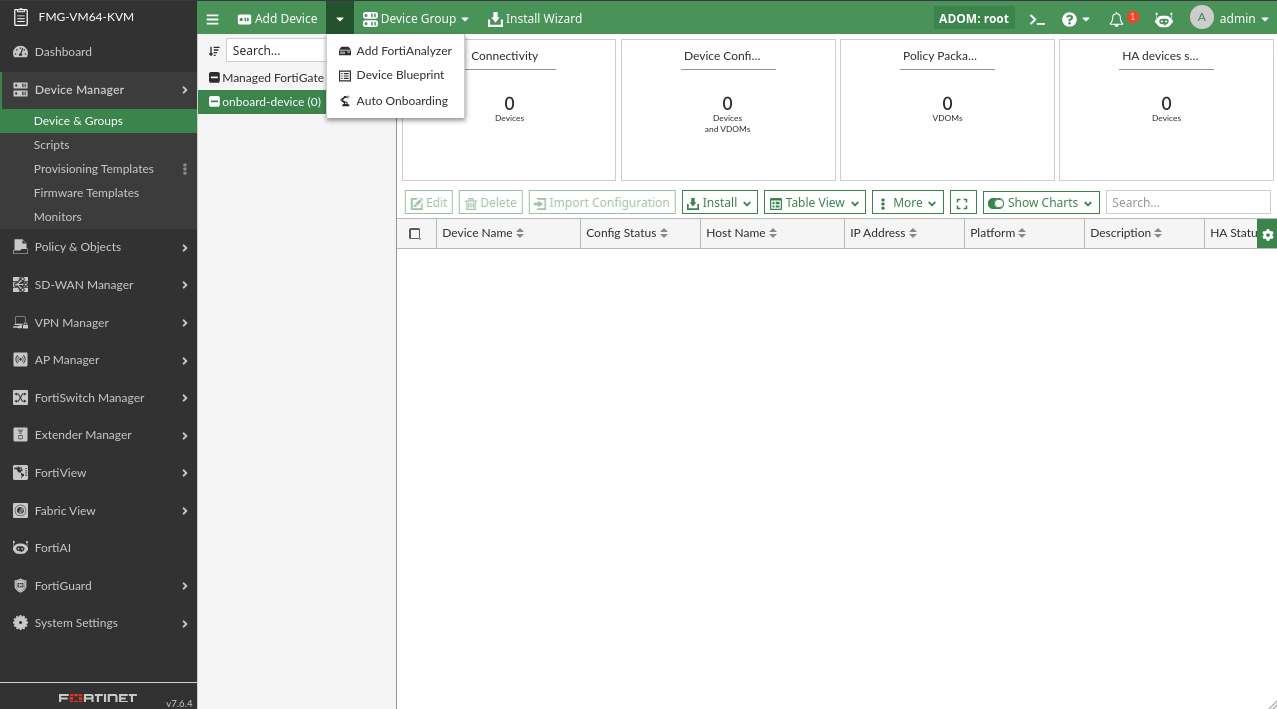
The Auto Onboarding menu appears. -
Enable Allow Auto Onboarding.
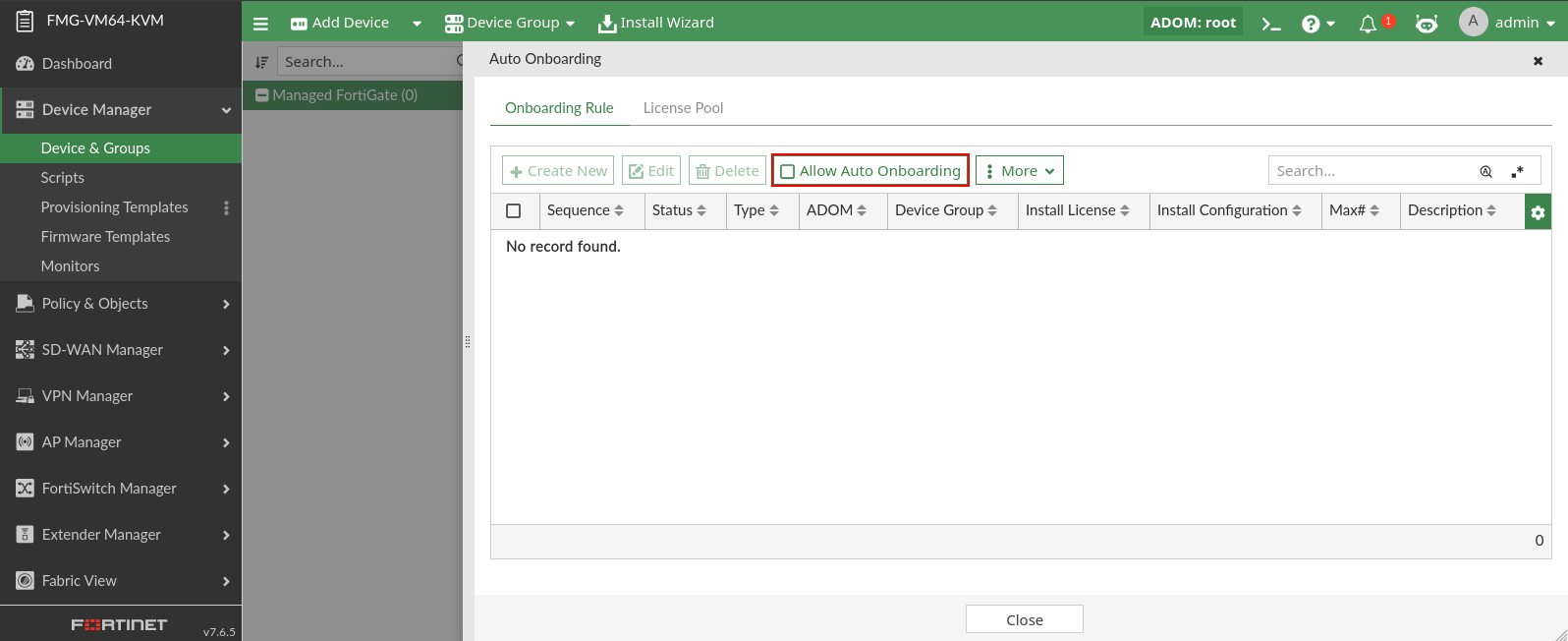
A prompt will appear asking you to confirm enabling auto onboarding.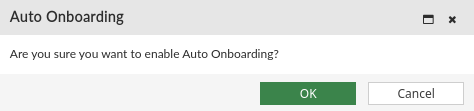
-
Click OK.
To create an onboarding rule:
-
In the root ADOM, go to Device Manager > Device & Groups.
-
Select the dropdown next to Add Device, and select Auto Onboarding.
The Auto Onboarding menu appears. -
Click Create New to create a new onboarding rule.
-
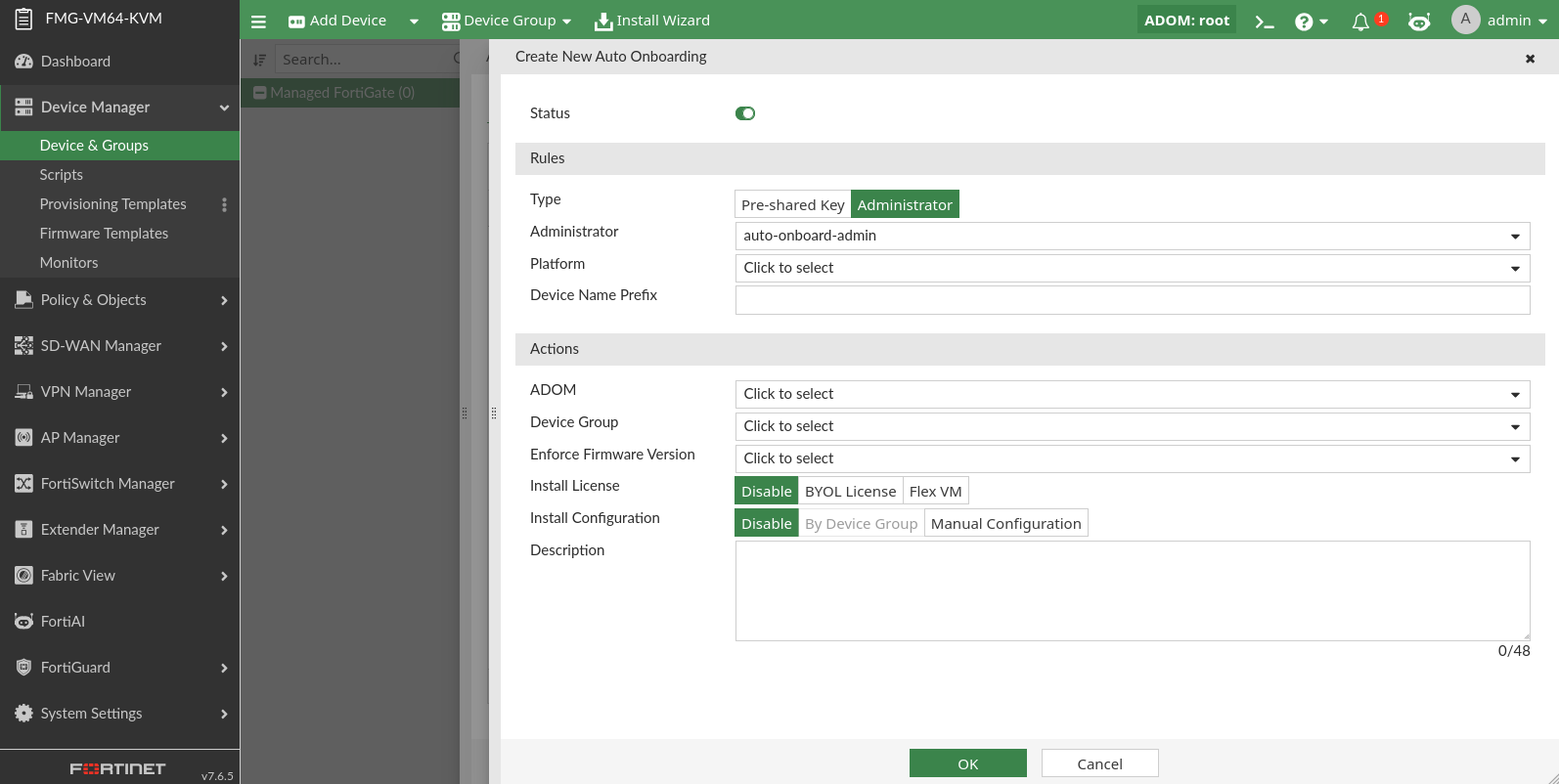
Configure the following settings:
Status Toggle the status of the auto-onboarding rule ON or OFF.
When the status is OFF, automatic onboarding using this rule will not occur.
Rules Configure the following settings that define the automatic onboarding rules. Type Select a onboarding type as Administrator.
Administrator
Select a REST API Administrator to use for administrator-based onboarding.
This setting is only displayed when the Administrator Type is selected.
Rule filters
You can specify the device platform and device name prefix to create a onboarding filter.
Only devices which match all of the specified rules will be onboarded to the FortiManager.
For example, if Platform is set as FortiGate-VM64-KVM and Device Prefix Name is set as
fgt_, only FortiGate devices which are both KVM-based and have a device name starting withfgt_will be added as part of the automatic onboarding process.Platform Select a specific device platform or select All Platforms. Device Name Prefix
Enter a device prefix name, for example
fgt_.Actions
Configure the following settings that determine the actions that will occur for automatic onboarding.
ADOM
Choose the ADOM where the device will be moved after being added to FortiManager.
Device Group
(Optional) Select a device group. Devices added through this automatic onboarding rule will be placed within the specified device group.
Enforce Firmware Version
(Optional) Select a firmware version to enforce. When the device is added through automatic-onboarding, it will be automatically upgraded to the selected firmware version.
Install License
Select one of the following options:
Disable No license installation will occur. Administrators will need to perform this action manually.
Flex VM When choosing Flex VM, you must also select a Flex VM Connector from the dropdown menu.
FortiFlex Connectors can be configured at Fabric View > External Connectors.
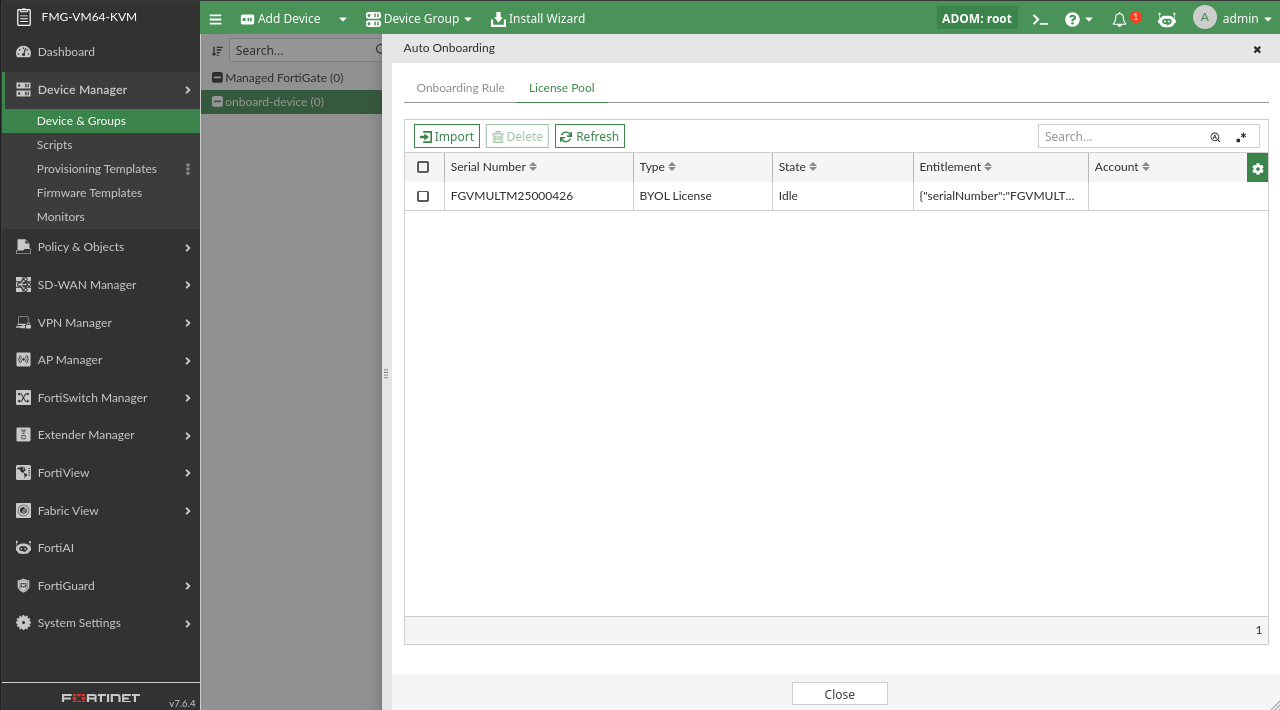
BYOL License When using BYOL licenses, you must import the FortiGate VM licenses to FortiManager.
You can import licenses by clicking on the License Pool tab, and clicking Import.
Install Configuration
Select one of the following options:
Disable No license installation will occur. Administrators will need to perform this action manually.
By Device Group Provisioning templates that are assigned to the device group containing this device will be installed to the device as part of the onboarding process. Manual Configuration Manually select a Template Group and Policy Package to apply to the onboarded device. Description
(Optional) Provide a description of the onboarding rule.
-
Click OK to save the onboarding rule.
You can use the License Pool tab in the Auto Onboarding menu to view additional information about Flex VM and BYOL licenses, including the license State (Idle, Released, or Installed).
Initiate automatic onboarding from the FortiGate
Once automatic registration is configured and enabled, the automatic registration process will proceed as follows:
-
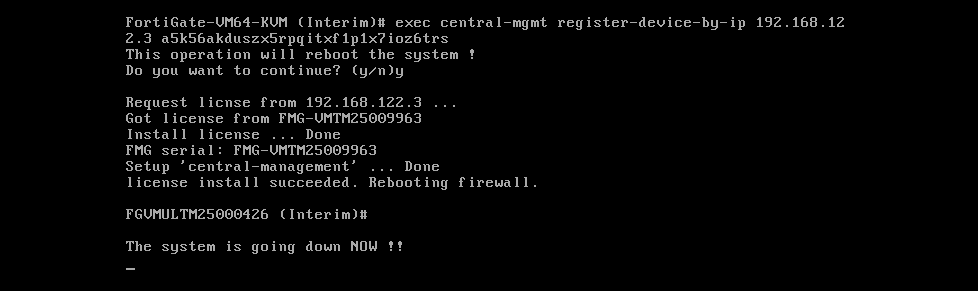
The FortiGate administrator requests onboarding to the FortiManager using the following CLI:
exec central-mgmt register-device-by-ip {FMG IP address} {admin api key/psk} -
A matching onboarding rule is determined on FortiManager based on its sequence in the Onboarding Rule table.
-
The FortiGate requests a license from FortiManager JSON RPC port 443.
-
If Install License is enabled on the onboarding rule, the FortiManager sends the license to FortiGate using the CLI. The license is installed, and the FortiGate is rebooted.
-
FortiManager creates a model device that corresponds with the FortiGate. The model device is created in the ADOM that is specified in the onboarding rule.
-
The FortiGate configures central management settings to use the FortiManager.
-
FortiManager auto-links the model device to the real FortiGate.
-
If Install Configuration is enabled in the onboarding rule, the specified configuration is pushed to the FortiGate.
-
Authorization and registration of the license is completed.