
Fortinet white logo
Fortinet white logo

Administration Guide

Creating SSIDs

Creating SSIDs

In central management mode, the SSIDs are profiles that can be applied to multiple controllers. SSID profiles can be created for different traffic modes, including Tunnel, Bridge, or Mesh.

For more information on SSID settings, see the FortiWiFi and FortiAP Configuration Guide on the Fortinet Document Library.

The settings available in the GUI change depending on which traffic mode is selected.

Note

FortiManager includes Fortinet recommended factory default SSID profiles that you can activate and use in your environment. See Using Fortinet recommended profiles.

To create a new SSID:
  1. Go to AP Manager > SSIDs.

  2. In the toolbar, click Create New > SSID. The Create New SSID windows opens.
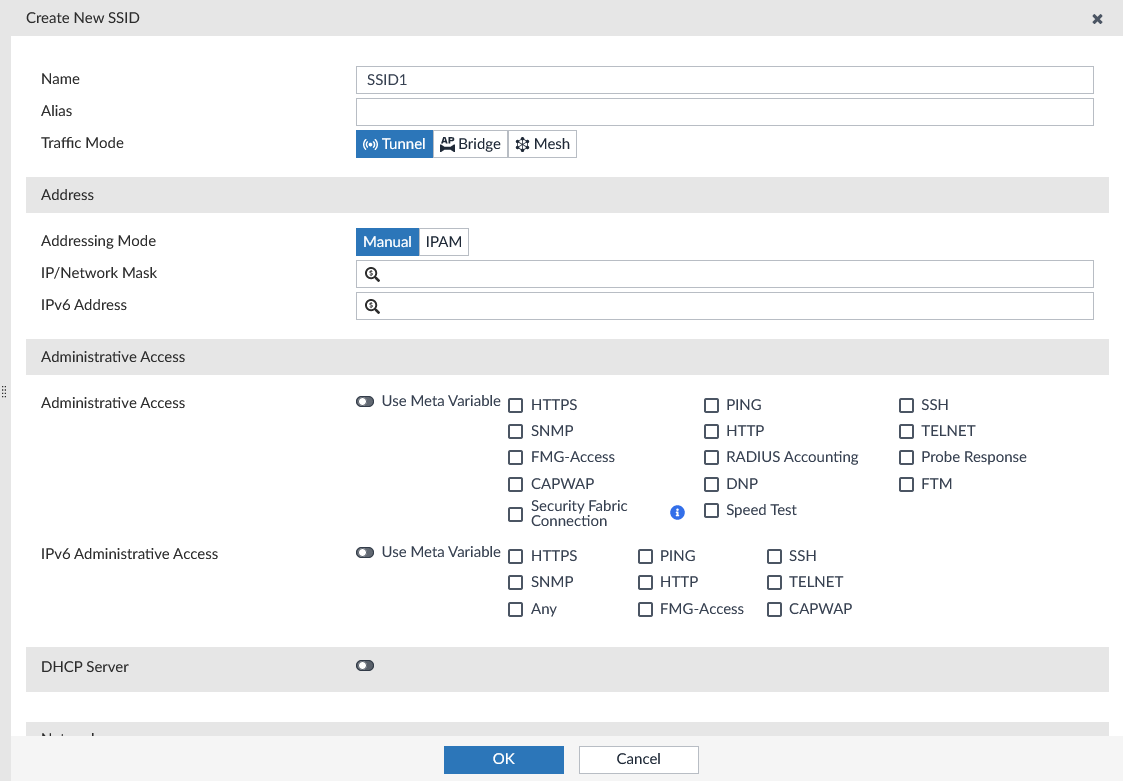
  3. Enter the following information:

    Name

    Type a name for the SSID.

    Alias

    Set the alias for SSID.

    Traffic Mode

    Select the traffic mode: Tunnel, Bridge, or Mesh.

    Address

    These options are only available when Traffic Mode is Tunnel.

    Address Mode

    Select Manual or IPAM.

    When to use IPAM

    Choose Always or Inherit IPAM auto-manage settings.

    This setting is only available when the IPAM Address Mode is selected.

    Network Size

    Select the network size. IPAM will allocate an IP subnet with the selected size.

    This setting is only available when the IPAM Address Mode is selected.

    IP/Network Mask

    Enter the IP address and netmask for the SSID.

    This setting is only available when the Manual Address Mode is selected.

    IPv6 Address

    Enter the IPv6 address.

    Administrative Access

    Administrative Access

    Select the allowed administrative service protocols.

    IPv6 Administrative Access

    Select the allowed administrative service protocols.

    DHCP Server

    Enable or disable a DHCP server. To assign IP addresses to clients, enable DHCP server.

    DHCP Status

    Set the DHCP status as Enabled or Disabled.

    IP Range Managed by IPAM

    Choose if the IP range is managed by IPAM.

    Default Gateway

    Choose the default gateway as Same as Interface IP or Specify to configure the gateway.

    DNS Server

    Choose the DNS server as Same as System DNS, Same as Interface IP, or Specify to configure the DNS server.

    Lease Time

    Set the lease time. Disabling the lease time will result in clients having an unlimited lease time.

    Network

    Device Detection

    Enable or disable device detection.

  4. Configure the WiFi Settings:

    SSID

    Type the wireless service set identifier (SSID), or network name, for this wireless interface. Users who want to use the wireless network must configure their computers with this network name.

    Client Limit

    The maximum number of clients that can simultaneously connect to the AP (0 - 4294967295, default = 0, meaning no limitation).

    Broadcast SSID

    Enable/disable broadcasting the SSID (default = enable).

    Broadcasting enables clients to connect to the wireless network without first knowing the SSID. For better security, do not broadcast the SSID.

    Beacon Advertising

    Enable/disable beacon advertising. When beacon advertising is enabled, you can select which element(s) you want to advertise from the following:

    • Name: The FortiAP name

    • Model: The FortiAP model

    • Serial Number: The FortiAP serial number.

    Encrypt

    Select the data encryption protocol:

    • TKIP: Temporal Key Integrity Protocol, used by the older WPA standard.
    • AES: Advanced Encryption Standard, commonly used with the newer WPA2 standard (default).
    • TKIP-AES: Use both protocols to provide backward compatibility for legacy devices. This option is not recommended, as attackers will only need to breach the weaker encryption of the two (TKIP).

    This option is only available when the security mode includes WPA or WPA2.

    Security Mode

    Select a security mode:

    OSEN

    WPA3 Enterprise

    Open

    WPA 3 Enterprise (PMF Protection)

    Opportunistic Wireless Encryption (OWE)

    WPA3 Enterprise Transition
    WPA2 EnterpriseWPA3 SAE

    WPA Personal

    WPA3 SAE Transition

    Only Open, WPA2 Personal, and WPA3 SAE modes are available when the traffic mode is Mesh.

    Authentication

    Select the authentication method for the SSID, either Local or RADIUS Server, then select the requisite server or group from the dropdown list.

    This option is only available when the security mode is includes OSEN, WPA2 Enterprise, WPA3 Enterprise, WPA3 Enterprise (PMF Protection) or WPA3 Enterprise Transition.

    PMF

    Set PMF settings as Disabled, Enabled, or Optional.

    This option is only available when the security mode is includes WPA2 Enterprise or WPA2 Personal.

    SAE-PK Authentication

    Enable/disable SAE PK Authentication. When enabled, enter a SAE-PK Private Key.

    Hash-to-Element (H2E) only

    When enabled, use hash-to-element-only mechanism for PWE derivation.

    This option is only available when the security mode includes WPA3 SAE or WPA3 SAE Transition.

    Captive Portal

    Select if you want to configure a Captive Portal to authenticate users through a customizable web page.

    Portal Type

    Select the portal type: Authentication (default), Authentication and MAC Authentication, Disclaimer Only, Disclaimer and Authentication, Email Collection, and External MAC Authentication.

    Authentication Portal

    Select Local or External. If External is selected, enter the URL of the portal.

    User Groups

    Select the user group to add from the dropdown list. Select the plus symbol to add multiple groups.

    Customize Portal Messages

    Select to allow for customized portal messages. Portal messages cannot be customized until after the interface has been created.

    Exempt Sources

    Select exempt sources to add from the dropdown list.

    Exempt Destinations

    Select exempt destinations to add from the dropdown list.

    Exempt Services

    Select exempt services to add from the dropdown list.

    Redirect after Captive Portal

    Select Original Request or Specific URL. If Specific URL is selected, enter the redirect URL.

    Pre-shared Key

    Mode

    Select Single to specify a single passphrase.

    Select Multiple to specify a multiple pre-shared key group.

    MPSK Profile

    Select a MPSK Profile or click the Create button to create a new MPSK profile.

    Passphrase

    When Pre-shared Key Mode is set to Single, enter the pre-shared key for the SSID.

    This option is only available when the security mode includes WPA2 Personal, WPA3 SAE, or WPA3 SAE Transition.

    Client MAC Address Filtering

    Enable/disable client MAC address filtering.

    For more information, see the FortiWiFi and FortiAP Configuration Guide.

    Additional Settings

    Schedule

    Select a schedule to control the availability of the SSID. For information on creating a schedule object, see Creating objects.

    Block Intra-SSID Traffic

    Enable/disable blocking communication between clients of the same AP (default = disable).

    Split Tunneling

    Select to enable some subnets to remain local to the remote FortiAP. Traffic for these networks is not routed through the WiFi Controller. Specify split-tunnel networks in the FortiAP Profile.

    Optional VLAN ID

    Select to enable the unit to block intra-SSID traffic.

    Broadcast Suppression

    Optional suppression of broadcast message types:

    • All other broadcast: All other broadcast messages
    • All other multicast: All other multicast messages
    • ARPs for known clients: ARP for known messages
    • ARP poison: ARP poison messages from wireless clients
    • ARP proxy: ARP requests for wireless clients as a proxy
    • ARP replies: ARP replies from wireless clients
    • ARPs for unknown clients: ARP for unknown messages
    • DHCP downlink: Downlink DHCP messages
    • DHCP starvation: DHCP starvation req messages
    • DHCP uplink: Uplink DHCP messages
    • IPv6: IPv6 packets
    • NetBIOS datagram service: NetBIOS datagram services packets
    • NetBIOS name service: NetBIOS name services packets

    Quarantine Host

    Enable/disable station quarantine (default = enable).

    This option is only available when the security mode includes WPA or WPA2.

    VLAN Pooling

    Enable/disable VLAN pooling, allowing you to group multiple wireless controller VLANs into VLAN pools. These pools are used to load-balance sessions evenly across multiple VLANs.

    • Managed AP Group: Select devices to include in the group.
    • Round Robin
    • Hash

    This option is not available when the traffic mode is Mesh.

  5. Configure advanced options. For information, see the FortiOS CLI Reference.

  6. Enable per-device mapping to override the SSID profile settings for selected devices. See Adding SSID per-device mapping.

    note icon

    If you select WPA Enterprise, WPA Only Enterprise, or WPA2 Only Enterprise, you can add a different RADIUS server using per-device mapping. See Adding SSID per-device mapping.

  7. Click OK.

Creating SSIDs

Creating SSIDs

In central management mode, the SSIDs are profiles that can be applied to multiple controllers. SSID profiles can be created for different traffic modes, including Tunnel, Bridge, or Mesh.

For more information on SSID settings, see the FortiWiFi and FortiAP Configuration Guide on the Fortinet Document Library.

The settings available in the GUI change depending on which traffic mode is selected.

Note

FortiManager includes Fortinet recommended factory default SSID profiles that you can activate and use in your environment. See Using Fortinet recommended profiles.

To create a new SSID:
  1. Go to AP Manager > SSIDs.

  2. In the toolbar, click Create New > SSID. The Create New SSID windows opens.

  3. Enter the following information:

    Name

    Type a name for the SSID.

    Alias

    Set the alias for SSID.

    Traffic Mode

    Select the traffic mode: Tunnel, Bridge, or Mesh.

    Address

    These options are only available when Traffic Mode is Tunnel.

    Address Mode

    Select Manual or IPAM.

    When to use IPAM

    Choose Always or Inherit IPAM auto-manage settings.

    This setting is only available when the IPAM Address Mode is selected.

    Network Size

    Select the network size. IPAM will allocate an IP subnet with the selected size.

    This setting is only available when the IPAM Address Mode is selected.

    IP/Network Mask

    Enter the IP address and netmask for the SSID.

    This setting is only available when the Manual Address Mode is selected.

    IPv6 Address

    Enter the IPv6 address.

    Administrative Access

    Administrative Access

    Select the allowed administrative service protocols.

    IPv6 Administrative Access

    Select the allowed administrative service protocols.

    DHCP Server

    Enable or disable a DHCP server. To assign IP addresses to clients, enable DHCP server.

    DHCP Status

    Set the DHCP status as Enabled or Disabled.

    IP Range Managed by IPAM

    Choose if the IP range is managed by IPAM.

    Default Gateway

    Choose the default gateway as Same as Interface IP or Specify to configure the gateway.

    DNS Server

    Choose the DNS server as Same as System DNS, Same as Interface IP, or Specify to configure the DNS server.

    Lease Time

    Set the lease time. Disabling the lease time will result in clients having an unlimited lease time.

    Network

    Device Detection

    Enable or disable device detection.

  4. Configure the WiFi Settings:

    SSID

    Type the wireless service set identifier (SSID), or network name, for this wireless interface. Users who want to use the wireless network must configure their computers with this network name.

    Client Limit

    The maximum number of clients that can simultaneously connect to the AP (0 - 4294967295, default = 0, meaning no limitation).

    Broadcast SSID

    Enable/disable broadcasting the SSID (default = enable).

    Broadcasting enables clients to connect to the wireless network without first knowing the SSID. For better security, do not broadcast the SSID.

    Beacon Advertising

    Enable/disable beacon advertising. When beacon advertising is enabled, you can select which element(s) you want to advertise from the following:

    • Name: The FortiAP name

    • Model: The FortiAP model

    • Serial Number: The FortiAP serial number.

    Encrypt

    Select the data encryption protocol:

    • TKIP: Temporal Key Integrity Protocol, used by the older WPA standard.
    • AES: Advanced Encryption Standard, commonly used with the newer WPA2 standard (default).
    • TKIP-AES: Use both protocols to provide backward compatibility for legacy devices. This option is not recommended, as attackers will only need to breach the weaker encryption of the two (TKIP).

    This option is only available when the security mode includes WPA or WPA2.

    Security Mode

    Select a security mode:

    OSEN

    WPA3 Enterprise

    Open

    WPA 3 Enterprise (PMF Protection)

    Opportunistic Wireless Encryption (OWE)

    WPA3 Enterprise Transition
    WPA2 EnterpriseWPA3 SAE

    WPA Personal

    WPA3 SAE Transition

    Only Open, WPA2 Personal, and WPA3 SAE modes are available when the traffic mode is Mesh.

    Authentication

    Select the authentication method for the SSID, either Local or RADIUS Server, then select the requisite server or group from the dropdown list.

    This option is only available when the security mode is includes OSEN, WPA2 Enterprise, WPA3 Enterprise, WPA3 Enterprise (PMF Protection) or WPA3 Enterprise Transition.

    PMF

    Set PMF settings as Disabled, Enabled, or Optional.

    This option is only available when the security mode is includes WPA2 Enterprise or WPA2 Personal.

    SAE-PK Authentication

    Enable/disable SAE PK Authentication. When enabled, enter a SAE-PK Private Key.

    Hash-to-Element (H2E) only

    When enabled, use hash-to-element-only mechanism for PWE derivation.

    This option is only available when the security mode includes WPA3 SAE or WPA3 SAE Transition.

    Captive Portal

    Select if you want to configure a Captive Portal to authenticate users through a customizable web page.

    Portal Type

    Select the portal type: Authentication (default), Authentication and MAC Authentication, Disclaimer Only, Disclaimer and Authentication, Email Collection, and External MAC Authentication.

    Authentication Portal

    Select Local or External. If External is selected, enter the URL of the portal.

    User Groups

    Select the user group to add from the dropdown list. Select the plus symbol to add multiple groups.

    Customize Portal Messages

    Select to allow for customized portal messages. Portal messages cannot be customized until after the interface has been created.

    Exempt Sources

    Select exempt sources to add from the dropdown list.

    Exempt Destinations

    Select exempt destinations to add from the dropdown list.

    Exempt Services

    Select exempt services to add from the dropdown list.

    Redirect after Captive Portal

    Select Original Request or Specific URL. If Specific URL is selected, enter the redirect URL.

    Pre-shared Key

    Mode

    Select Single to specify a single passphrase.

    Select Multiple to specify a multiple pre-shared key group.

    MPSK Profile

    Select a MPSK Profile or click the Create button to create a new MPSK profile.

    Passphrase

    When Pre-shared Key Mode is set to Single, enter the pre-shared key for the SSID.

    This option is only available when the security mode includes WPA2 Personal, WPA3 SAE, or WPA3 SAE Transition.

    Client MAC Address Filtering

    Enable/disable client MAC address filtering.

    For more information, see the FortiWiFi and FortiAP Configuration Guide.

    Additional Settings

    Schedule

    Select a schedule to control the availability of the SSID. For information on creating a schedule object, see Creating objects.

    Block Intra-SSID Traffic

    Enable/disable blocking communication between clients of the same AP (default = disable).

    Split Tunneling

    Select to enable some subnets to remain local to the remote FortiAP. Traffic for these networks is not routed through the WiFi Controller. Specify split-tunnel networks in the FortiAP Profile.

    Optional VLAN ID

    Select to enable the unit to block intra-SSID traffic.

    Broadcast Suppression

    Optional suppression of broadcast message types:

    • All other broadcast: All other broadcast messages
    • All other multicast: All other multicast messages
    • ARPs for known clients: ARP for known messages
    • ARP poison: ARP poison messages from wireless clients
    • ARP proxy: ARP requests for wireless clients as a proxy
    • ARP replies: ARP replies from wireless clients
    • ARPs for unknown clients: ARP for unknown messages
    • DHCP downlink: Downlink DHCP messages
    • DHCP starvation: DHCP starvation req messages
    • DHCP uplink: Uplink DHCP messages
    • IPv6: IPv6 packets
    • NetBIOS datagram service: NetBIOS datagram services packets
    • NetBIOS name service: NetBIOS name services packets

    Quarantine Host

    Enable/disable station quarantine (default = enable).

    This option is only available when the security mode includes WPA or WPA2.

    VLAN Pooling

    Enable/disable VLAN pooling, allowing you to group multiple wireless controller VLANs into VLAN pools. These pools are used to load-balance sessions evenly across multiple VLANs.

    • Managed AP Group: Select devices to include in the group.
    • Round Robin
    • Hash

    This option is not available when the traffic mode is Mesh.

  5. Configure advanced options. For information, see the FortiOS CLI Reference.

  6. Enable per-device mapping to override the SSID profile settings for selected devices. See Adding SSID per-device mapping.

    note icon

    If you select WPA Enterprise, WPA Only Enterprise, or WPA2 Only Enterprise, you can add a different RADIUS server using per-device mapping. See Adding SSID per-device mapping.

  7. Click OK.