

Policy & Objects
Policy & Objects enables you to centrally manage policies and any objects used by those policies for devices that are managed by the FortiManager.
All changes related to policies and objects should be made on the FortiManager device, and not on the managed devices.
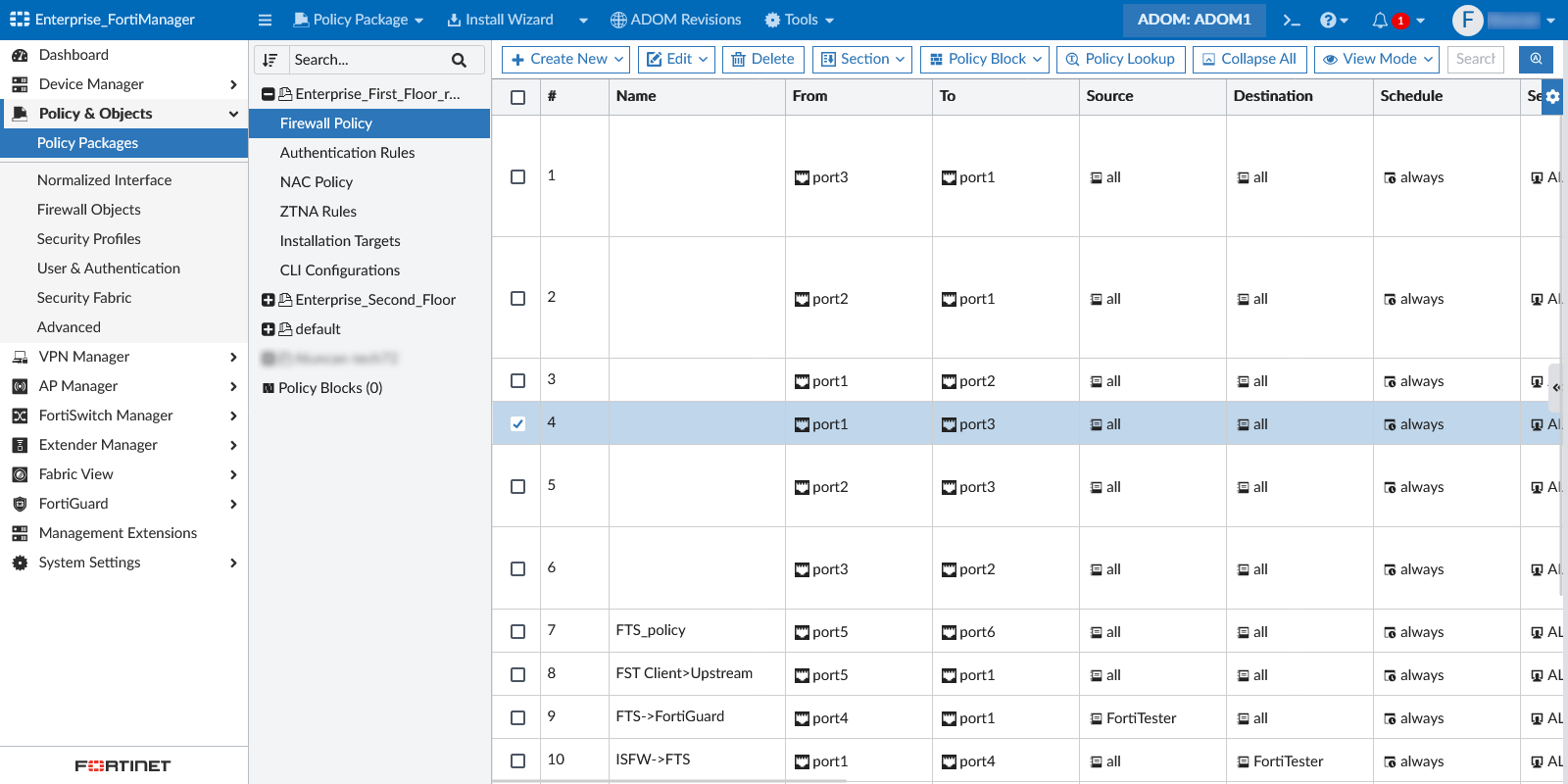
This chapter includes the following sections:

|
Administrator permissions If the administrator account you logged on with does not have the appropriate permissions, you will not be able to edit or delete settings, or apply any changes. Instead you are limited to browsing. To modify these settings, see Administrator profiles. |
|
|
Object selection pane You can determine the way that objects are displayed in Policy & Objects using the following object selection pane settings under the Tools menu.
|
|
|
Workspace and Workflow mode
|
The following sections are available in the tree menu under Policy & Objects:
|
Policy Packages |
Click to view and configure policy packages. |
|
Normalized Interface |
Click to view and configure normalized interfaces. |
|
Firewall Objects |
Click to view and configure firewall objects. |
|
Security Profiles |
Click to view and configure security profiles. |
|
User & Authentication |
Click to view and configure user and authentication objects. |
|
Security Fabric |
Click to view and configure Fortinet Security Fabric objects. |
|
Advanced |
Click to view and configure advanced objects including metadata variables and CLI configurations. |
The following options are available in the Policy Packages pane:
|
Policy Package |
Click to access the policy package menu. The menu options are the same as the right-click menu options. |
||
|
Install Wizard |
Click to access the Install Wizard. You can start the Install Wizard where you can install policy packages and device settings. You can also re-install a policy by clicking the dropdown arrow and choosing Re-install Policy. |
||
|
ADOM Revisions |
Click to create, edit, delete, restore, lock, and unlock ADOM Revisions. |
||
|
Tools |
Click to select one of the following tools from the menu: Find Unused Objects, Find Duplicate Objects, Find Unused Policies, Refresh Hit Counts, Feature Visibility, or Object Selection Pane. |
||
|
Create New |
Create a new policy. See Creating policies. |
||
|
Edit |
Edit a policy. See Editing policies. |
||
|
Delete |
Delete a policy. |
||
|
Section |
Create a new policy section. You can apply colors to policy sections to help differentiate your different policies in the table. See Managing policies. |
||
|
Policy Lookup |
Perform a policy lookup. See Policy Lookup |
||
|
Collapse/Expand All |
Collapse or expand all the categories in the policy list. |
||
|
View Mode |
Toggle between the By Sequence and Interface Pair View display modes. See Managing policies.
|
||
|
Search |
The tree menu can be searched and sorted using the search field and sorting button at the top of the menu. |
||
|
Column Settings |
Select which columns are displayed in the policy table. |

The following options are available on the objects configuration panes:
|
Install Wizard |
Click to access the Install Wizard. You can start the Install Wizard where you can install policy packages and device settings. You can also re-install a policy by clicking the dropdown arrow and choosing Re-install Policy. |
|
ADOM Revisions |
Click to create, edit, delete, restore, lock, and unlock ADOM Revisions. |
|
Tools |
Click to select one of the following tools from the menu: Find Unused Objects, Find Duplicate Objects, Find Unused Policies, Refresh Hit Counts, Feature Visibility, or Object Selection Pane. |
|
Create New |
Create a new object. See Creating objects. |
|
Edit |
Edit an object. See Edit an object. |
|
Delete |
Delete an object. See Remove an object. |
|
More |
Select the dropdown to view additional options for objects. |
|
Column Settings |
Select which columns are displayed in the objects table. |
If workspace is enabled, you can select to lock and edit the policy package in the right-click menu. You do not need to lock the ADOM first. The policy package lock status is displayed in the toolbar.
The following options are available:
|
Lock | Unlock |
Select to lock or unlock the ADOM. |
|
Sessions |
Click to display the sessions list where you can save, submit, or discard changes made during the session. |