Fortinet white logo
Fortinet white logo

Administration Guide

Enforcing new FortiGuard signatures

Enforcing new FortiGuard signatures

When the FDS is updated, new signatures and the enhanced signatures in the update will be listed in Signature Update Management tab in System > Config > FortiGuard.

The Signature Update Management tab acts as a testing ground to evaluate the effectiveness of new signatures before deploying them in a live environment. Whether the signature in the FDS update is an existing signature being updated, or a new signature being added, its action is Alert Only, even if the existing signature was previously configured differently in the signature protection policy. This ensures you can assess their impact and accuracy before they take effect.

We recommend testing the enhanced and newly added signatures first to ensure that they don't trigger false positives and block legitimate traffic unexpectedly. Once it's deemed safe, select the signature and click Approve. FortiWeb will then take corresponding actions on them, which complies with the action you have configured for its main category in Web Protection > Known Attacks > Signatures. For the signature's main category, refer to the following table:

Signature ID

Main Category

01XXXXXXX Cross Site Scripting
02XXXXXXX Cross Site Scripting (Extended)
03XXXXXXX SQL Injection
04XXXXXXX SQL Injection (Extended)
05XXXXXXX Generic Attacks
06XXXXXXX Generic Attacks(Extended)
07XXXXXXX Trojans
08XXXXXXX Information Disclosure

09XXXXXXX

Known Exploits

10XXXXXXX

Personally Identifiable Information

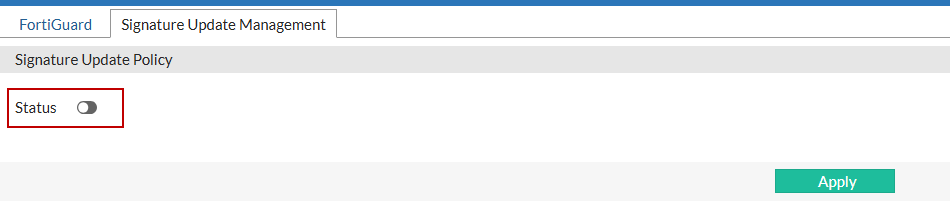
However, if you are confident in applying new signatures without prior testing, you can disable the Status button as shown below. When this option is turned off, new signatures will be automatically approved and will immediately take the configured action (block, alert, etc.) based on the settings defined for their main category in Web Protection > Known Attacks > Signatures. This provides a streamlined approach for users who trust the update process and want to minimize manual intervention.
For additional detail regarding how often a new signature update is released please refer to Updating signatures from FortiGuard.

To enforce new signatures:

The Status toggle on the Signature Update Management page must be switched on in advance. This ensures that new signatures will appear on this page when a signature update is pulled from FortiGuard, allowing you to review and manage them before they are applied.

  1. Go to System > Config > FortiGuard.
  2. Click Signature Update Management tab. Check whether the Status toggle is switched on.
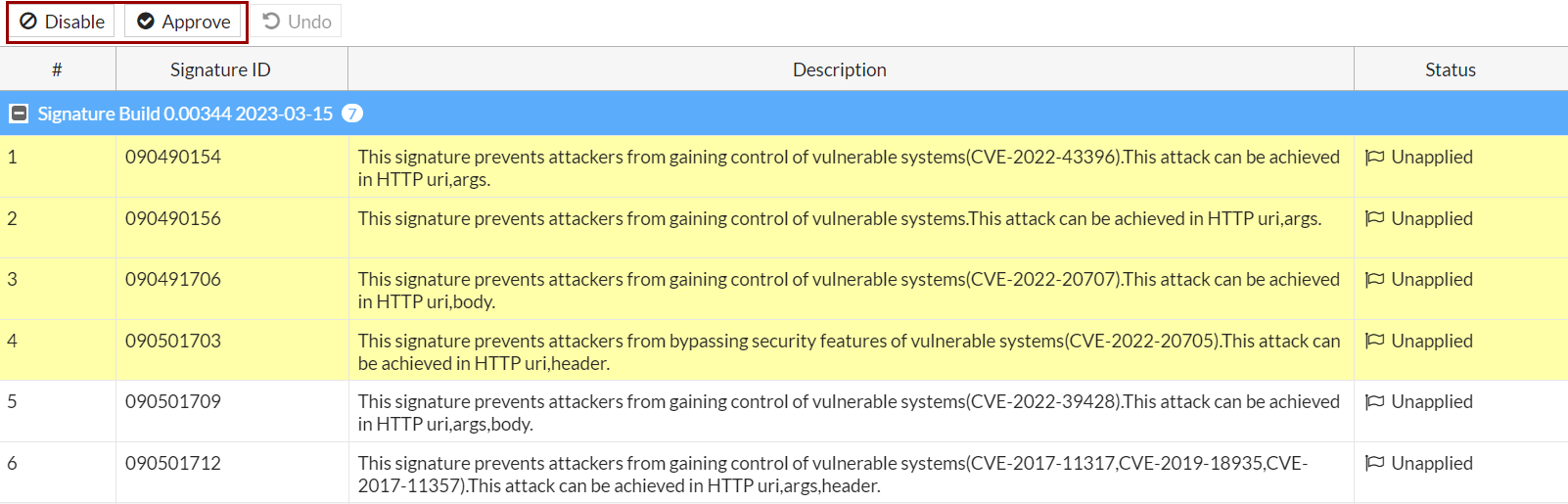
    New signatures in the update if any are listed in the table on this page. You can see the signature ID, description, and status (Applied, Unapplied) of each signature.
  3. Select one signature, and you can perform any of the three actions:
    • Disable: disable the signature across all the web protection policies. If this signature related rule brings multiple blocks, you can confirm the false positive and enable this option.
    • Approve: change the Alert mode of the signature to normal status, with the action as configured for its main category in signature protection policy.
    • Undo: use this option to cancel the "Disable" and "Approve" operations for a signature.
  4. You can select multiple signatures at once, then click the Disable or Approve button at the top of the table to perform the action on all selected signatures in batch.

    If you haven't approved or disabled the signatures by the time the next FDS update occurs, the updated or new signatures will be automatically approved.


Enforcing new FortiGuard signatures

Enforcing new FortiGuard signatures

When the FDS is updated, new signatures and the enhanced signatures in the update will be listed in Signature Update Management tab in System > Config > FortiGuard.

The Signature Update Management tab acts as a testing ground to evaluate the effectiveness of new signatures before deploying them in a live environment. Whether the signature in the FDS update is an existing signature being updated, or a new signature being added, its action is Alert Only, even if the existing signature was previously configured differently in the signature protection policy. This ensures you can assess their impact and accuracy before they take effect.

We recommend testing the enhanced and newly added signatures first to ensure that they don't trigger false positives and block legitimate traffic unexpectedly. Once it's deemed safe, select the signature and click Approve. FortiWeb will then take corresponding actions on them, which complies with the action you have configured for its main category in Web Protection > Known Attacks > Signatures. For the signature's main category, refer to the following table:

Signature ID

Main Category

01XXXXXXX Cross Site Scripting
02XXXXXXX Cross Site Scripting (Extended)
03XXXXXXX SQL Injection
04XXXXXXX SQL Injection (Extended)
05XXXXXXX Generic Attacks
06XXXXXXX Generic Attacks(Extended)
07XXXXXXX Trojans
08XXXXXXX Information Disclosure

09XXXXXXX

Known Exploits

10XXXXXXX

Personally Identifiable Information

However, if you are confident in applying new signatures without prior testing, you can disable the Status button as shown below. When this option is turned off, new signatures will be automatically approved and will immediately take the configured action (block, alert, etc.) based on the settings defined for their main category in Web Protection > Known Attacks > Signatures. This provides a streamlined approach for users who trust the update process and want to minimize manual intervention.

For additional detail regarding how often a new signature update is released please refer to Updating signatures from FortiGuard.

To enforce new signatures:

The Status toggle on the Signature Update Management page must be switched on in advance. This ensures that new signatures will appear on this page when a signature update is pulled from FortiGuard, allowing you to review and manage them before they are applied.

  1. Go to System > Config > FortiGuard.
  2. Click Signature Update Management tab. Check whether the Status toggle is switched on.
    New signatures in the update if any are listed in the table on this page. You can see the signature ID, description, and status (Applied, Unapplied) of each signature.
  3. Select one signature, and you can perform any of the three actions:
    • Disable: disable the signature across all the web protection policies. If this signature related rule brings multiple blocks, you can confirm the false positive and enable this option.
    • Approve: change the Alert mode of the signature to normal status, with the action as configured for its main category in signature protection policy.
    • Undo: use this option to cancel the "Disable" and "Approve" operations for a signature.
  4. You can select multiple signatures at once, then click the Disable or Approve button at the top of the table to perform the action on all selected signatures in batch.

    If you haven't approved or disabled the signatures by the time the next FDS update occurs, the updated or new signatures will be automatically approved.