

Detections table
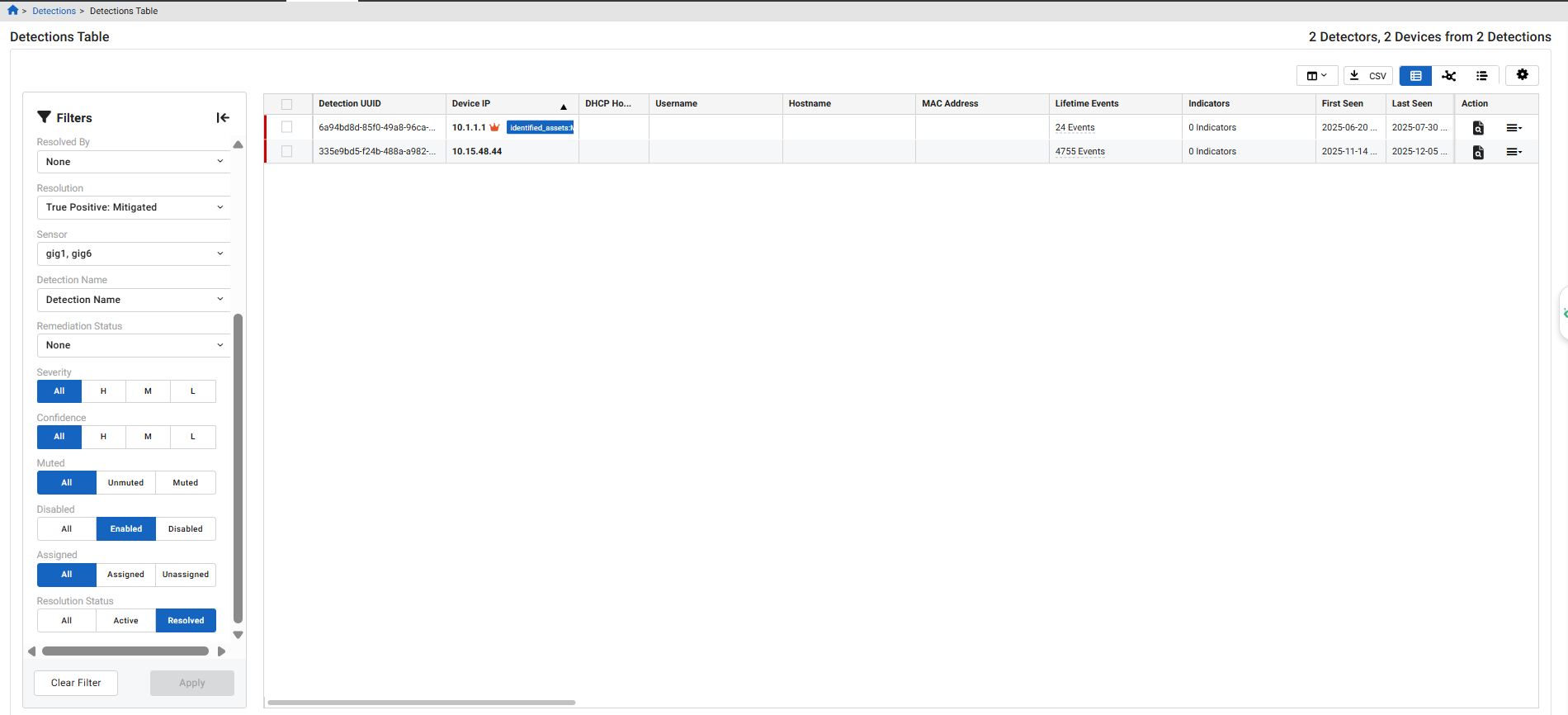
The Detections Table is where you can view all detections. Whereas the Triage Detections and Detections Triage views show detections by detector or device, the Detections Table shows detections by detector and device over time. By default, the table displays detections for the last two weeks. A color-coded bar at the left side of the table indicates active and resolved detections. A green bar indicates an active detection. A red bar indicates a resolved detection.
To access the Detections Table:
-
Go to Detections > Detections Table.
-
On the Dashboard:
- In the MITRE ATT&CK widget, click a bar in the chart.
- In the Resolved Detections widget, click Total or click a data point in the chart.
Filtering events
By default, the Detections Table displays detections by all severities and detection statuses for the previous two weeks ending on the current date. You can use any column header to sort the detections. The Filters pane on left side of the page allows you to view detections for a specific IP, refine the list by Severity and Detection Status. You can also toggle between table and graph view.
| Impacted Devices | Click the dropdown to view the list of impacted devices. Use the search field to enter an IP address to locate a specific device. You can also select one or more devices from the list to filter the view . | ||||||||||||||||||||||||
| Time range |
Click to open the date picker. Use the calender to set the start and end date or select an option from the Quick Ranges (Last Hour to Last 90 days). Click the Date Range Type dropdown to display detections by Active Date, Creation Date, and Resolution Date. The date displayed in the date picker will mirror the dates in the Entity Panel. |
||||||||||||||||||||||||
| Severity |
Select High (H), Medium (M), or Low (L). |
||||||||||||||||||||||||
| Detection Status |
|
||||||||||||||||||||||||
| Additional filters |
|
||||||||||||||||||||||||
| Columns selectors |
|
||||||||||||||||||||||||
| CSV | Click to export the list as a CSV file. | ||||||||||||||||||||||||
| Table View | Click for table view (default). | ||||||||||||||||||||||||
| Graph View | Click to open the Visualizer. | ||||||||||||||||||||||||
| Action |
Select one of the following options:
Click the Detections Context icon to view the detection in a timeline along with its behavioral observations. See Detections context. |
Identified Assets
A crown icon appears only on assets annotated by FortiGuard ATR. It is color-coded to indicate severity levels:
- Red for high risk
- Orange for moderate risk
- Yellow for low risk
