
Fortinet white logo
Fortinet white logo

User Guide

Assigning detections

Assigning detections

Assigning detections in FortiNDR Cloud allows you to manage and delegate security tasks efficiently. This topic provides instructions on how to assign, unassign, and view detections across various pages within the portal.

Assigning detections from the Detections Table

To assign a detection from the Detections Table:
  1. Go to Detections > Detections Table.
  2. Click the Actions menu at the right side of the page and select Assign Detection. The Assign dialog opens.
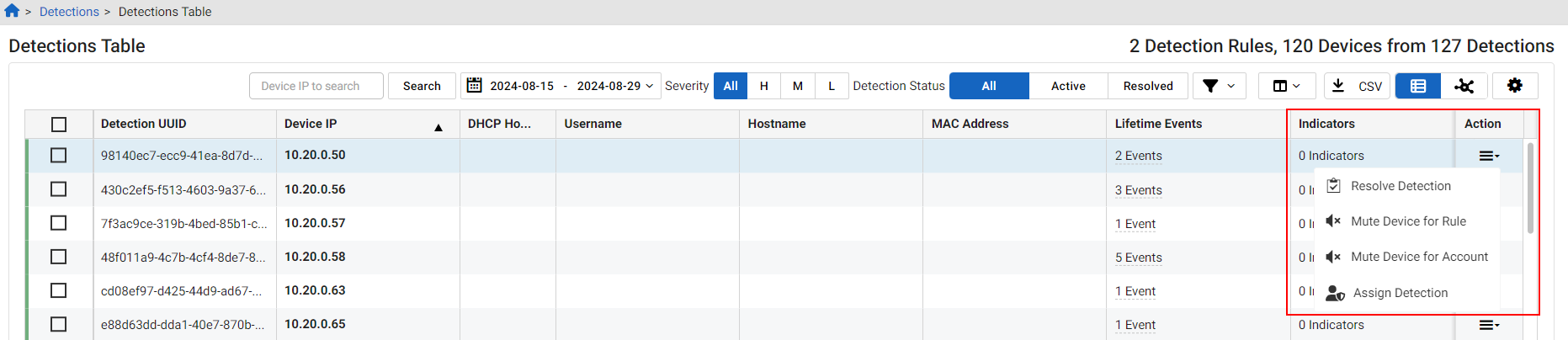
  3. From the Assignee dropdown, select a user from the list. You have the option of assigning the detection to yourself.
  4. (Optional) Enter a comment in the Comments field.
  5. Click Confirm. A confirmation appears at the top of the page.
To bulk assign detections:
  1. Go to Detections > Detections Table.
  2. Select the detections you want to assign. The Tools menu appears.
  3. Select Assign <#> Detections. The Assign dialog opens.

  4. From the Assignee dropdown, select a user from the list. You have the option of assigning the detection to yourself.
  5. (Optional) Enter a comment in the Comments field.
  6. Click Confirm. A confirmation appears at the top of the page.
To unassign detections:
  1. Go to Detections > Detections Table.
  2. Click the Actions menu at the right side of the page and select Assign Detection. The Assign dialog opens.
  3. From the Assignee dropdown, select Unassigned.
  4. (Optional) Enter a comment in the Comments field.
  5. Click Confirm. A confirmation appears at the top of the page.

Assigning detections from the Triage detections page

To assign a detection from the Triage detections page:
  1. Go to Detections > Triage detections. The Triage detections page opens.
  2. Open a detector in the list.
  3. Click the Actions menu on the right side of the page and select Assign Detection. The Assign dialog opens.
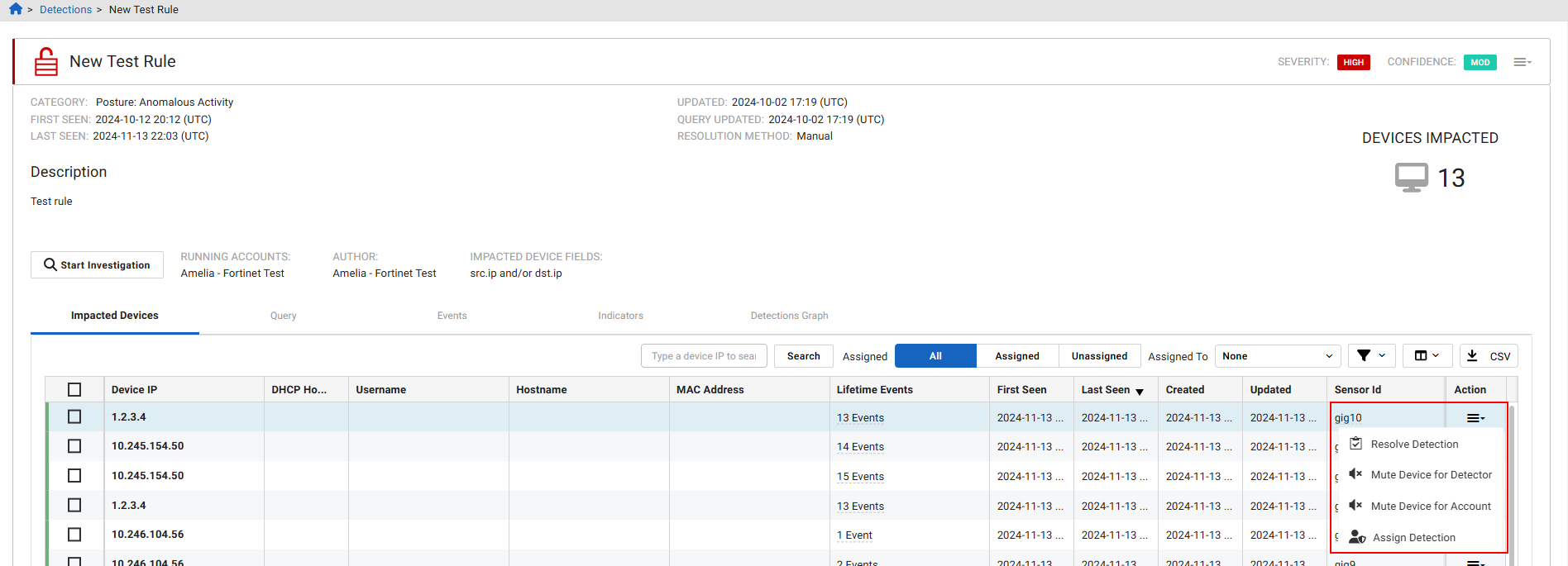
  4. From the Assignee dropdown, select a user from the list. You have the option of assigning the detection to yourself.
  5. (Optional) Enter a comment in the Comments field.
  6. Click Confirm. A confirmation appears at the top of the page.

Viewing assigned detections

Detections Table

The Detections Table contains four columns with assignment information:

Assigned Comment Notes about the detection to the assignee.
Assignee The name of the user assigned to the detection.
Current Assign Time The date and time the assignment was updated.
Initial Assign Time The date and time the detection was assigned.

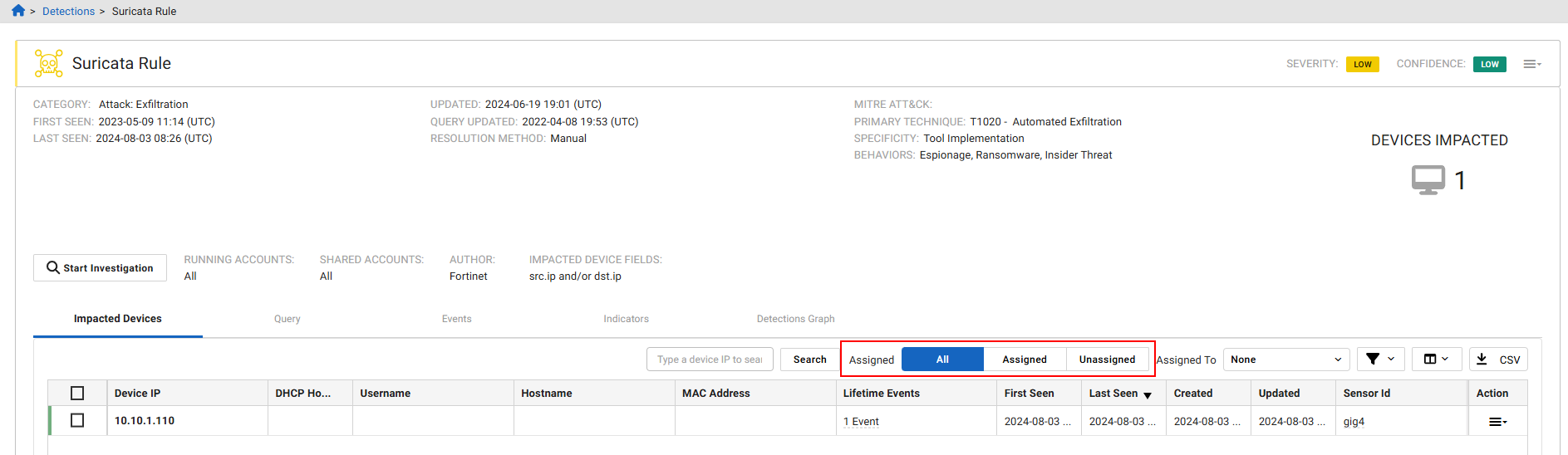
You can also use the filter to show Assigned and Unassigned detections.

Triage detections and Triage Devices

The Assigned Comment, Assignee, Current Assign Time and Initial Assign Time columns appear in the detections table of the Triage detections and Triage Devices pages. To filter the table, use the Assigned, Unassiagned and Assigned to filters at the top of the table.
Tooltip
Viewing detections Assigned to me:

To quickly view detections that are assigned to you, in the Triage Detections or Triage Devices pages, click the filter icon and from the Assigned to dropdown, select Assigned to me.

Assigning detections

Assigning detections

Assigning detections in FortiNDR Cloud allows you to manage and delegate security tasks efficiently. This topic provides instructions on how to assign, unassign, and view detections across various pages within the portal.

Assigning detections from the Detections Table

To assign a detection from the Detections Table:
  1. Go to Detections > Detections Table.
  2. Click the Actions menu at the right side of the page and select Assign Detection. The Assign dialog opens.

  3. From the Assignee dropdown, select a user from the list. You have the option of assigning the detection to yourself.
  4. (Optional) Enter a comment in the Comments field.
  5. Click Confirm. A confirmation appears at the top of the page.
To bulk assign detections:
  1. Go to Detections > Detections Table.
  2. Select the detections you want to assign. The Tools menu appears.
  3. Select Assign <#> Detections. The Assign dialog opens.

  4. From the Assignee dropdown, select a user from the list. You have the option of assigning the detection to yourself.
  5. (Optional) Enter a comment in the Comments field.
  6. Click Confirm. A confirmation appears at the top of the page.
To unassign detections:
  1. Go to Detections > Detections Table.
  2. Click the Actions menu at the right side of the page and select Assign Detection. The Assign dialog opens.
  3. From the Assignee dropdown, select Unassigned.
  4. (Optional) Enter a comment in the Comments field.
  5. Click Confirm. A confirmation appears at the top of the page.

Assigning detections from the Triage detections page

To assign a detection from the Triage detections page:
  1. Go to Detections > Triage detections. The Triage detections page opens.
  2. Open a detector in the list.
  3. Click the Actions menu on the right side of the page and select Assign Detection. The Assign dialog opens.

  4. From the Assignee dropdown, select a user from the list. You have the option of assigning the detection to yourself.
  5. (Optional) Enter a comment in the Comments field.
  6. Click Confirm. A confirmation appears at the top of the page.

Viewing assigned detections

Detections Table

The Detections Table contains four columns with assignment information:

Assigned Comment Notes about the detection to the assignee.
Assignee The name of the user assigned to the detection.
Current Assign Time The date and time the assignment was updated.
Initial Assign Time The date and time the detection was assigned.

You can also use the filter to show Assigned and Unassigned detections.

Triage detections and Triage Devices

The Assigned Comment, Assignee, Current Assign Time and Initial Assign Time columns appear in the detections table of the Triage detections and Triage Devices pages. To filter the table, use the Assigned, Unassiagned and Assigned to filters at the top of the table.

Tooltip
Viewing detections Assigned to me:

To quickly view detections that are assigned to you, in the Triage Detections or Triage Devices pages, click the filter icon and from the Assigned to dropdown, select Assigned to me.
