Fortinet white logo
Fortinet white logo

Admin Guide

Using Google social login as user source

Using Google social login as user source

The Google Social User Source enables users to authenticate to your applications using their Google accounts. This feature provides a seamless, secure login experience by leveraging Google's OpenID Connect (OIDC) authentication service. Users can sign in with their Google credentials without the need to create or remember separate account credentials for your system.

Configuring Google as user source

In FIC, Google Social User Source can be used in the configuration of SSO apps or end-user portals. In both cases, the authentication requirement is the same — designating Google as the user source of the application. You can choose Google as the user source when creating a new app or editing an existing one. For illustration purposes, the following instructions are based on the configuration of the authentication settings of a new SSO app. It is assumed that you have completed the other tasks required for creating the app.

  1. Launch the FIC admin portal.

  2. Navigate to Applications > SSO > Add SSO Application to create a new SSO application.

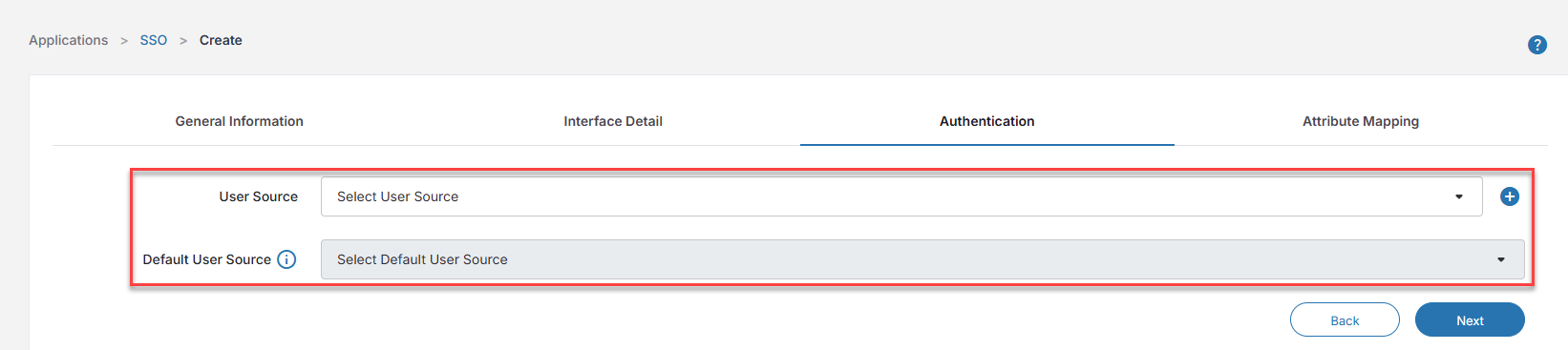
  3. Click the Authentication tab.

  4. For User Source, select Google from the drop-down.

  5. For Default User Source, select Google from the drop-down. (optional)

  6. Click Next.

  7. Complete the SSO app configuration, and click Save.

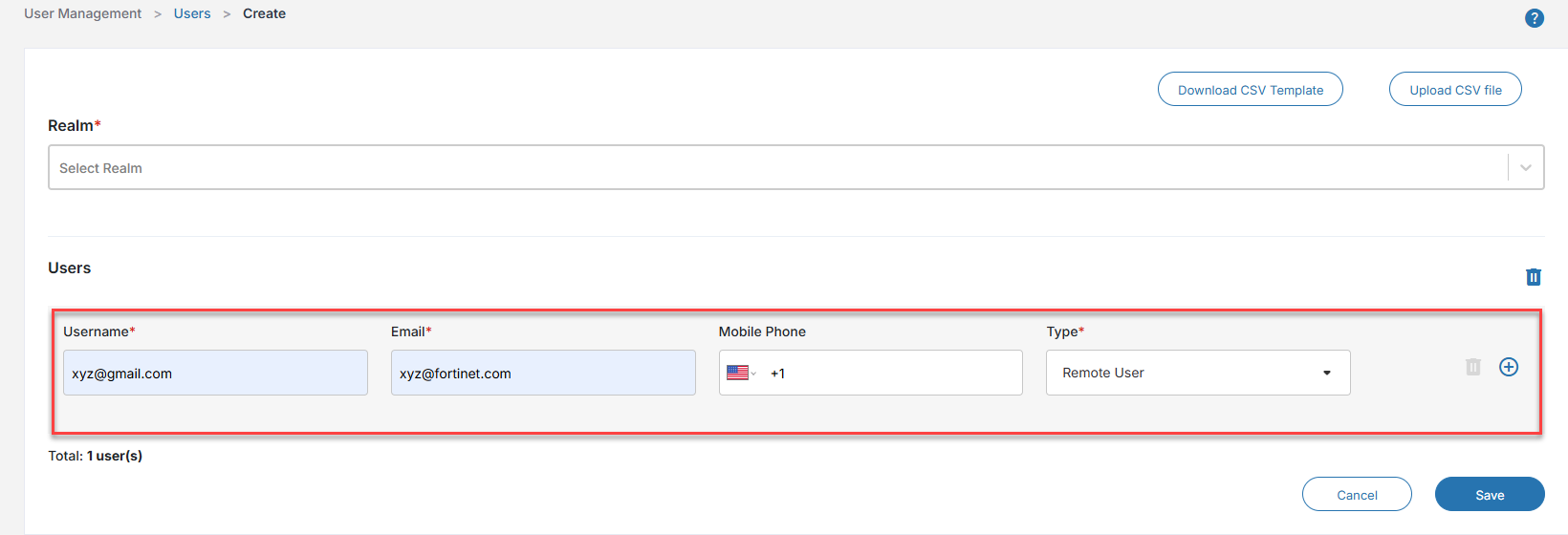
  8. Navigate to User Management >Users.

  9. Select Batch Add, and add the user whom you would like to give access to the SSO app. (Be sure to use the user's Gmail address as the Username and set Type to Remote User).
  10. Click Save.

  11. Navigate to the application's login page.
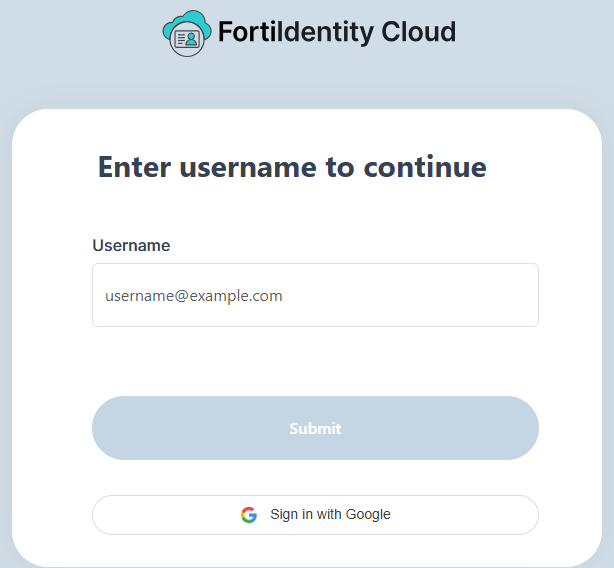
  12. Click Sign in with Google. You should be redirected to Google's authentication page. Upon authenticating with Google, you should be redirected back to your application.

    Tooltip

    The screenshot above appears only when the application has both Google and other user sources configured. In this case, end users can click Sign in with Google to authenticate through Google or enter the email address used as their username to authenticate through that user source.

Using Google social login as user source

Using Google social login as user source

The Google Social User Source enables users to authenticate to your applications using their Google accounts. This feature provides a seamless, secure login experience by leveraging Google's OpenID Connect (OIDC) authentication service. Users can sign in with their Google credentials without the need to create or remember separate account credentials for your system.

Configuring Google as user source

In FIC, Google Social User Source can be used in the configuration of SSO apps or end-user portals. In both cases, the authentication requirement is the same — designating Google as the user source of the application. You can choose Google as the user source when creating a new app or editing an existing one. For illustration purposes, the following instructions are based on the configuration of the authentication settings of a new SSO app. It is assumed that you have completed the other tasks required for creating the app.

  1. Launch the FIC admin portal.

  2. Navigate to Applications > SSO > Add SSO Application to create a new SSO application.

  3. Click the Authentication tab.

  4. For User Source, select Google from the drop-down.

  5. For Default User Source, select Google from the drop-down. (optional)

  6. Click Next.

  7. Complete the SSO app configuration, and click Save.

  8. Navigate to User Management >Users.

  9. Select Batch Add, and add the user whom you would like to give access to the SSO app. (Be sure to use the user's Gmail address as the Username and set Type to Remote User).

  10. Click Save.

  11. Navigate to the application's login page.

  12. Click Sign in with Google. You should be redirected to Google's authentication page. Upon authenticating with Google, you should be redirected back to your application.

    Tooltip

    The screenshot above appears only when the application has both Google and other user sources configured. In this case, end users can click Sign in with Google to authenticate through Google or enter the email address used as their username to authenticate through that user source.