

Quickstart guide
This quickstart guide shows how to configure an application to use FIC service for end-to-end authentication. The instructions are for configuring a local FortiGate SSL VPN user to log in using MFA with FIC push notification.
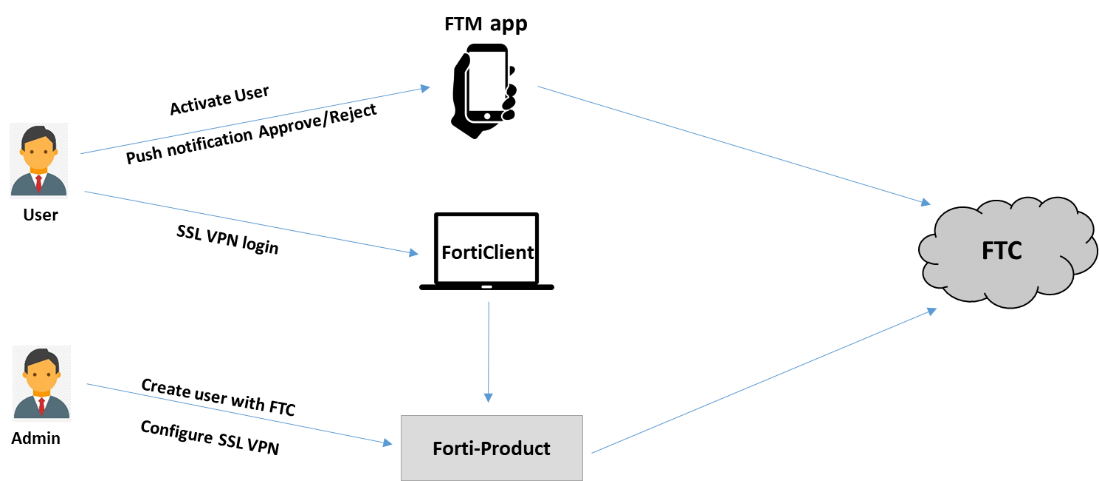
What you need:
-
FortiGate or FortiAuthenticator
-
FortiClient
-
FortiToken Mobile app

|
For information on the compatibility of the aforementioned Fortinet applications, refer to Compatible Fortinet applications. |
Step 1: Registering FortiProduct (FortiGate)
Register the FortiGate (FGT) under your FortiCloud (FC) account. If you don’t have an FC account, go to https://support.fortinet.com/ to register a new FortiCloud account. Register your FGT license under your FC account, and then, if a license file is required for you to use your device (e.g., FortiGate VM), you can download the license file from https://support.fortinet.com/.

Step 2: Getting FIC license
FIC provides free trial licenses and paid licenses. You can choose one based on your preference. The following instructions show you how to get a license:
Option 1: Trial license
If you have registered under FortiCloud from support.fortinet.com, FortiIdentity Cloud (FIC) automatically enables your 30-day free trial license when you log into the FIC portal (FIC.fortinet.com) for the first time. The free trial license can only support up to five end users and five realms. It does not include SMS support.
Option 2: Paid license
Step 3: Configuring SSL VPN and a local user on FGT with FortiIdentity Cloud enabled for MFA
Configure SSL VPN and a local user on the FGT. See SSL VPN setting up on FGT.
Step 4: Activating the local user on FTM app
Install the FTM app on your phone, and activate the user created by scanning the activation code in the email that the user sent with the FTM app. Make sure that system notifications have been enabled for the FTM phone to ensure that it can receive notifications.
Step 5: Configuring FortiClient on the login server
Install FortiClient on the server to be used for logging in the user, and configure the SSL VPN tunnel which connects to the FGT from FortiClient.
Link: Connecting from FortiClient to SSL VPN
Step 6: User login authentication
The user logs in with FortiClient on the server. After entering their username and password, the user will receive a notification from the FTM app on the phone. They can click Approve to log into the system via SSL VPN.