
Fortinet white logo
Fortinet white logo

Administration Guide

Adding an Agentless VPN dashboard

Adding an Agentless VPN dashboard

The Agentless VPN monitor displays remote user logins and active connections. You can use the monitor to disconnect a specific connection. The monitor will notify you when VPN users have not enabled two-factor authentication.
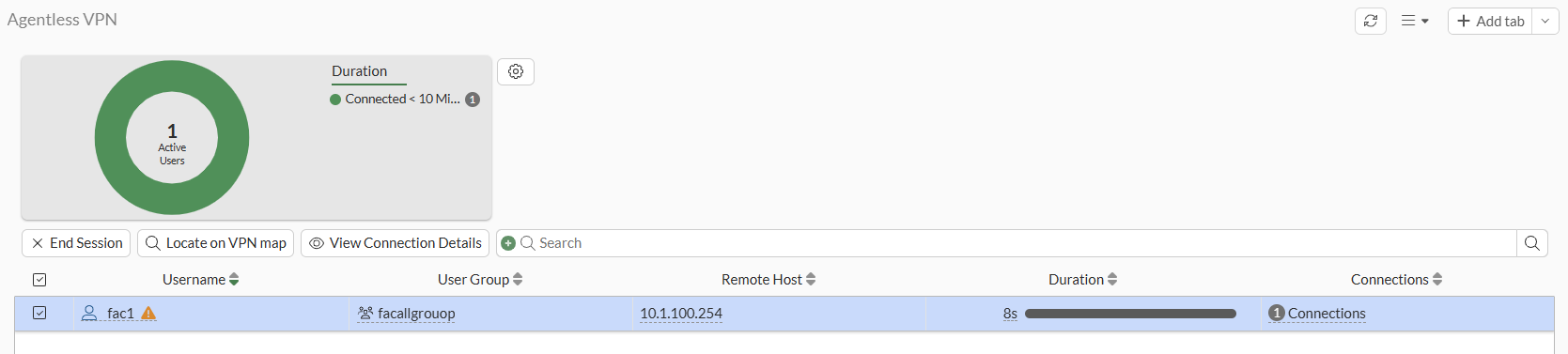
To view the Agentless VPN monitor in the GUI:
  1. Under Dashboard, click + (Add dashboard/monitor).
  2. Enter a name for the dashboard/monitor.
  3. Set Layout type to Monitor, and click Choose monitor.
  4. In the Search box, type Agentless VPN and press Enter.
  5. Click the Agentless VPN tile. The Add Agentless VPN as new tab pane is displayed.
  6. Complete the options and click OK.
  7. Click OK.

To filter or configure a column in the table, hover over the column heading and click the Filter/Configure Column button.

To disconnect a user:
  1. Select a user in the table.
  2. In the table, right-click the user, and click End Session. The Confirm window opens.
  3. Click OK.
To monitor Agentless VPN users in the CLI:
# get vpn ssl monitor

Sample output

Agentless VPN Login Users:
Index 	 User 	 Group 	 Auth Type 	Timeout 	From	 HTTP in/out	HTTPS in/out
0 	 amitchell 	 TAC	 1(1) 		 296 	 10.100.64.101	3838502/11077721	0/0
1 	 mmiles 	 Dev	 1(1) 		 292 	 10.100.64.101	4302506/11167442	0/0
 
Agentless VPN sessions:
Index 	 User 	 Group 	 Source IP 	Duration	I/O Bytes	Tunnel/Dest IP

Adding an Agentless VPN dashboard

Adding an Agentless VPN dashboard

The Agentless VPN monitor displays remote user logins and active connections. You can use the monitor to disconnect a specific connection. The monitor will notify you when VPN users have not enabled two-factor authentication.

To view the Agentless VPN monitor in the GUI:
  1. Under Dashboard, click + (Add dashboard/monitor).
  2. Enter a name for the dashboard/monitor.
  3. Set Layout type to Monitor, and click Choose monitor.
  4. In the Search box, type Agentless VPN and press Enter.
  5. Click the Agentless VPN tile. The Add Agentless VPN as new tab pane is displayed.
  6. Complete the options and click OK.
  7. Click OK.

To filter or configure a column in the table, hover over the column heading and click the Filter/Configure Column button.

To disconnect a user:
  1. Select a user in the table.
  2. In the table, right-click the user, and click End Session. The Confirm window opens.
  3. Click OK.
To monitor Agentless VPN users in the CLI:
# get vpn ssl monitor

Sample output

Agentless VPN Login Users:
Index 	 User 	 Group 	 Auth Type 	Timeout 	From	 HTTP in/out	HTTPS in/out
0 	 amitchell 	 TAC	 1(1) 		 296 	 10.100.64.101	3838502/11077721	0/0
1 	 mmiles 	 Dev	 1(1) 		 292 	 10.100.64.101	4302506/11167442	0/0
 
Agentless VPN sessions:
Index 	 User 	 Group 	 Source IP 	Duration	I/O Bytes	Tunnel/Dest IP