
Fortinet white logo
Fortinet white logo

Administration Guide

Creating a fabric system and license dashboard

Creating a fabric system and license dashboard

Create a dashboard summary page to monitor all the Fabric devices in a single view. You can use this dashboard to monitor aspects of the devices such as system information, VPN and routing.

Example

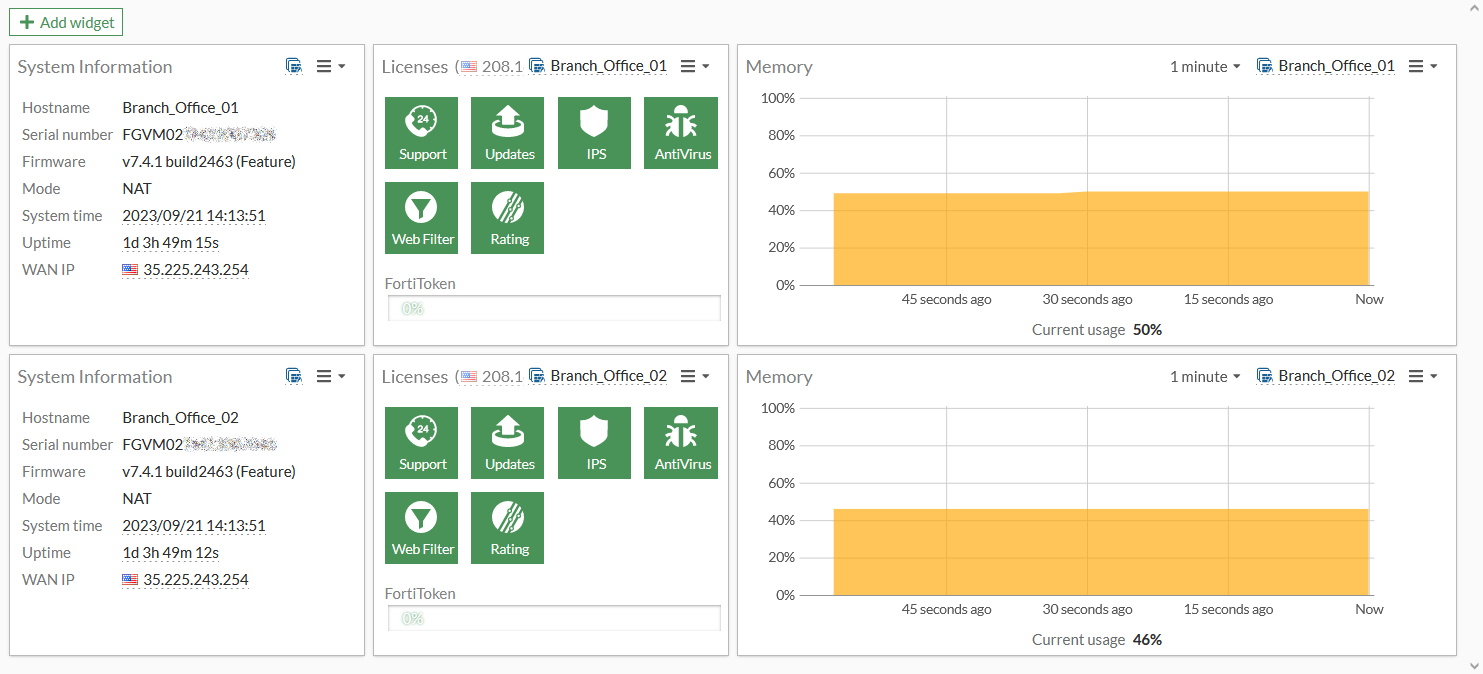
The following image is an example of a Fabric System & License dashboard to monitor the System Information, Licenses, and Memory usage for Branch_Office_01 and Branch_Office_02.
To create a system dashboard:
  1. Click the Add dashboard/monitor button. The Add dashboard/monitor window opens.

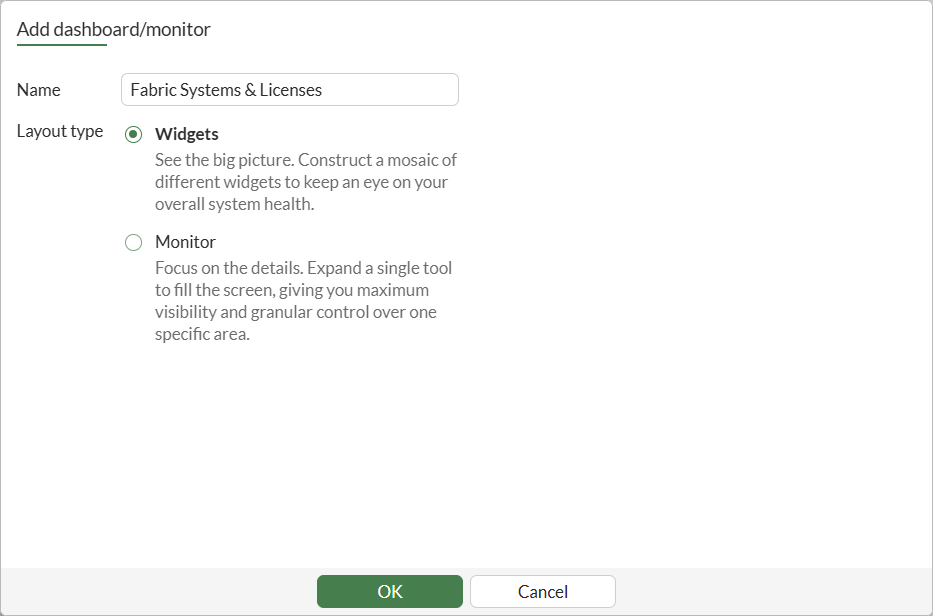
  2. In the Name field, enter a name such as Fabric System & Licenses, select Widgets, and click OK.
    The new dashboard appears under Dashboard in the tree menu.

  3. Add one or more widgets:

    1. In the banner, click Add Widget. The Add dashboard widget window opens.

      Use the Search field to search for a specific widget (for example, License Status, System Information, and Memory Usage).

    2. Click the Add button next to widget. The Add Dashboard Widget window opens.

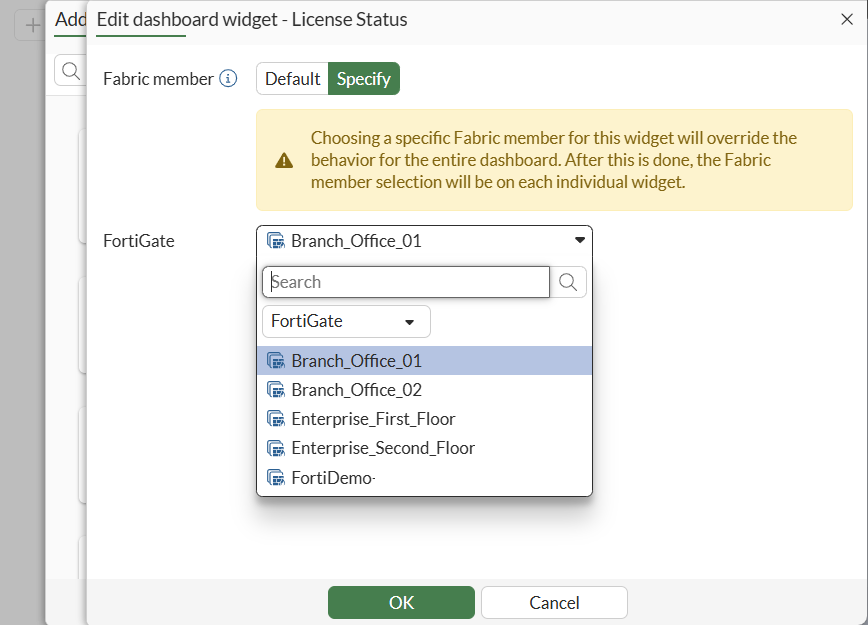
    3. In the Fabric member area, select Specify, select a device in the Security Fabric, and click OK. The widget is added to the dashboard.
    4. Repeat this step for all the devices you want to view in the dashboard.

  4. Click Close.

  5. (Optional) Arrange the widgets in the dashboard by Fabric device.

Creating a fabric system and license dashboard

Creating a fabric system and license dashboard

Create a dashboard summary page to monitor all the Fabric devices in a single view. You can use this dashboard to monitor aspects of the devices such as system information, VPN and routing.

Example

The following image is an example of a Fabric System & License dashboard to monitor the System Information, Licenses, and Memory usage for Branch_Office_01 and Branch_Office_02.

To create a system dashboard:
  1. Click the Add dashboard/monitor button. The Add dashboard/monitor window opens.

  2. In the Name field, enter a name such as Fabric System & Licenses, select Widgets, and click OK.

    The new dashboard appears under Dashboard in the tree menu.

  3. Add one or more widgets:

    1. In the banner, click Add Widget. The Add dashboard widget window opens.

      Use the Search field to search for a specific widget (for example, License Status, System Information, and Memory Usage).

    2. Click the Add button next to widget. The Add Dashboard Widget window opens.

    3. In the Fabric member area, select Specify, select a device in the Security Fabric, and click OK. The widget is added to the dashboard.

    4. Repeat this step for all the devices you want to view in the dashboard.

  4. Click Close.

  5. (Optional) Arrange the widgets in the dashboard by Fabric device.