
Fortinet white logo
Fortinet white logo

Administration Guide

Accessing a FortiGate

Accessing a FortiGate

Note

When you run a function in FortiGate Cloud that applies to FortiGates, such as running a script, FortiGate Cloud may not pass the actual username of the user who performed the action to FortiOS:

When remotely accessing a FortiGate from FortiGate Cloud, one of the following occurs:

  • If Cloud Access Anonymous Mode is enabled, FortiGate Cloud passes the username of the FortiGate Cloud user who performed the action as a randomized @fortigatecloud.com email address, such as 4aa567e55bc8@fortigatecloud.com, to FortiOS.
  • If Cloud Access Anonymous Mode is disabled, FortiGate Cloud passes the actual username of the FortiGate Cloud user who performed the action to FortiOS.

For other management features that a user can perform from FortiGate Cloud, such as running a script, FortiGate Cloud passes the username of the FortiGate Cloud user who performed the action as FortiGateCloud to FortiOS.

Therefore, when viewing logs on the affected FortiGate, you may see 4aa567e55bc8@fortigatecloud.com or FortiGateCloud as a username. For managed security service provider customers, this provides enhanced security by preventing subusers from seeing the primary account email address in the FortiGate logs.

You can access the remote device management interface to configure major features as if you were accessing the device itself. For configuration option descriptions, see the FortiOS documentation.

Cloud Access with read/write permission is available to FortiGates with a valid FortiCare Premium subscription. You can choose to use Inline Cloud Access or Cloud Access Local Authentication under Settings > General Settings.

For devices with a subscription that are upgraded to FortiOS 7.0.2 or a later version, you have full access to configure features.

To remotely access and configure a FortiGate:
  1. Do one of the following:
    • In the upper left corner, click the FortiGate Cloud dropdown list and select the desired FortiGate.
    • Go to Devices and Provisioning > Device List > FortiGate. Select the desired FortiGate, then click Cloud access.
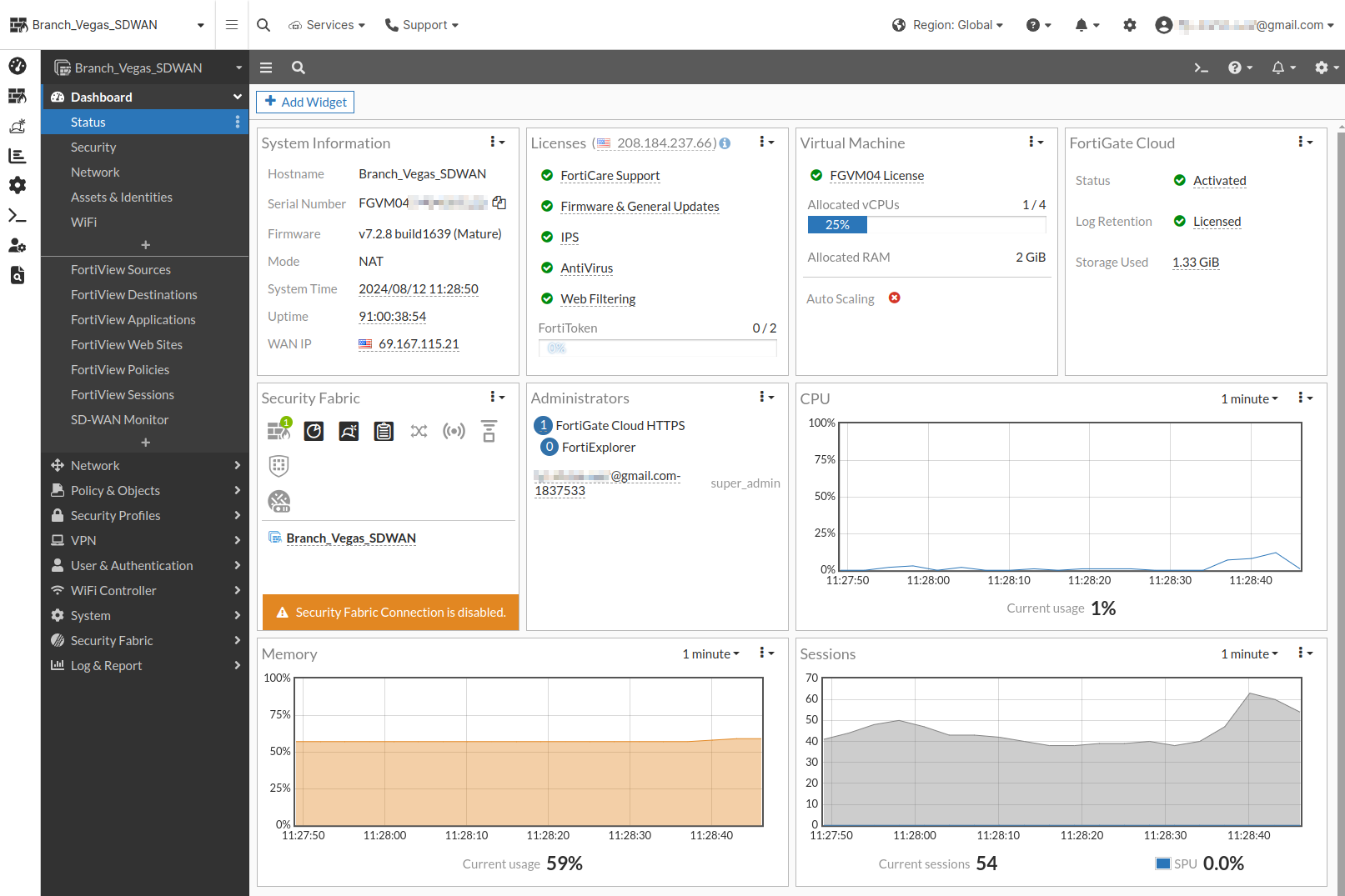
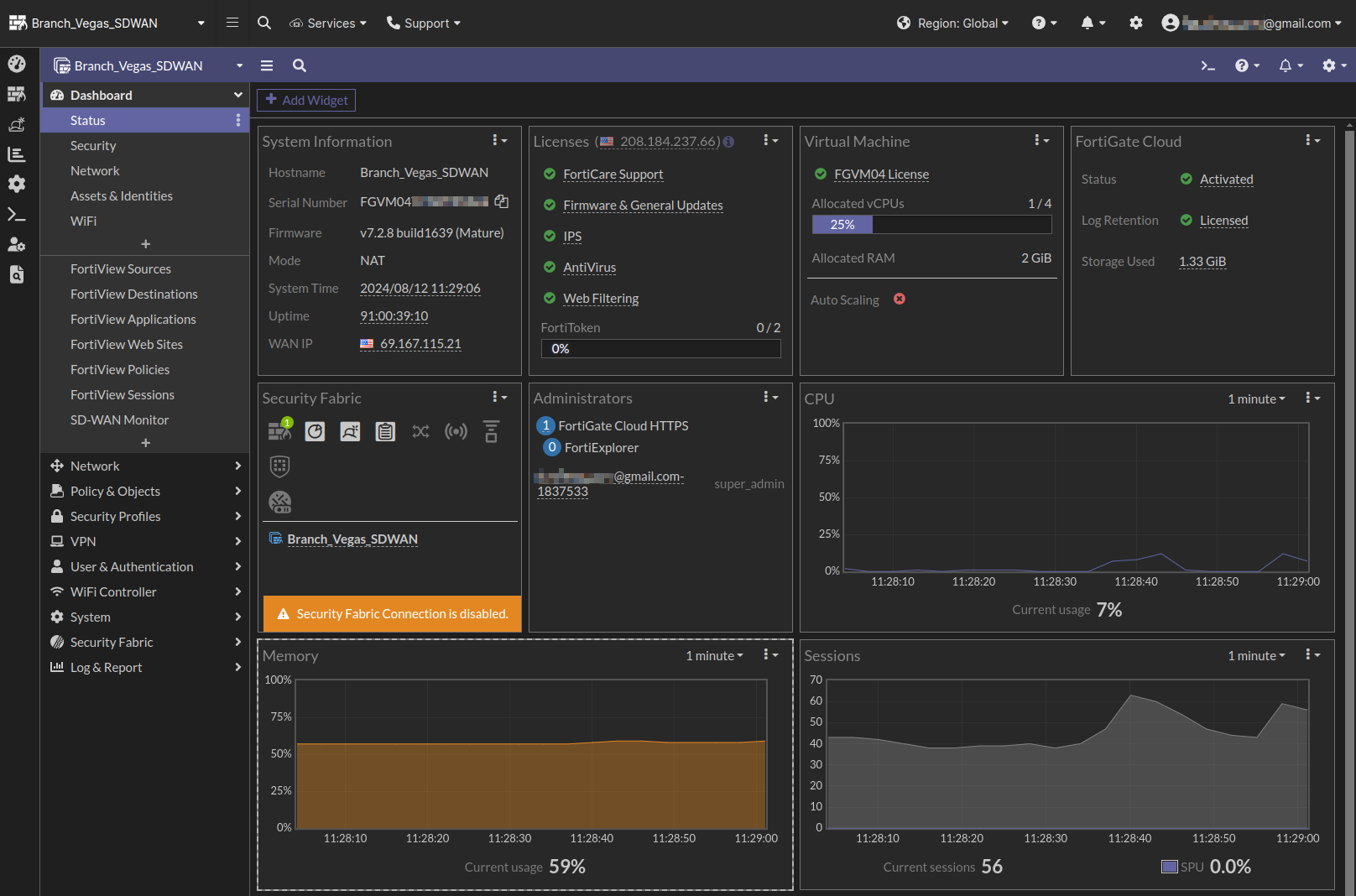
  2. FortiGate Cloud displays the FortiOS interface in the browser window. When Cloud Access Local Authentication is enabled, Cloud Access opens a new browser tab where you must enter FortiGate local credentials to log in. When it is disabled, no credentials are required. View and make changes as desired. The following shows the FortiOS GUI as shown in FortiGate Cloud, in light and dark modes:
  3. Return to FortiGate Cloud using the icons on the left pane.

Accessing a FortiGate

Accessing a FortiGate

Note

When you run a function in FortiGate Cloud that applies to FortiGates, such as running a script, FortiGate Cloud may not pass the actual username of the user who performed the action to FortiOS:

When remotely accessing a FortiGate from FortiGate Cloud, one of the following occurs:

  • If Cloud Access Anonymous Mode is enabled, FortiGate Cloud passes the username of the FortiGate Cloud user who performed the action as a randomized @fortigatecloud.com email address, such as 4aa567e55bc8@fortigatecloud.com, to FortiOS.
  • If Cloud Access Anonymous Mode is disabled, FortiGate Cloud passes the actual username of the FortiGate Cloud user who performed the action to FortiOS.

For other management features that a user can perform from FortiGate Cloud, such as running a script, FortiGate Cloud passes the username of the FortiGate Cloud user who performed the action as FortiGateCloud to FortiOS.

Therefore, when viewing logs on the affected FortiGate, you may see 4aa567e55bc8@fortigatecloud.com or FortiGateCloud as a username. For managed security service provider customers, this provides enhanced security by preventing subusers from seeing the primary account email address in the FortiGate logs.

You can access the remote device management interface to configure major features as if you were accessing the device itself. For configuration option descriptions, see the FortiOS documentation.

Cloud Access with read/write permission is available to FortiGates with a valid FortiCare Premium subscription. You can choose to use Inline Cloud Access or Cloud Access Local Authentication under Settings > General Settings.

For devices with a subscription that are upgraded to FortiOS 7.0.2 or a later version, you have full access to configure features.

To remotely access and configure a FortiGate:
  1. Do one of the following:
    • In the upper left corner, click the FortiGate Cloud dropdown list and select the desired FortiGate.
    • Go to Devices and Provisioning > Device List > FortiGate. Select the desired FortiGate, then click Cloud access.
  2. FortiGate Cloud displays the FortiOS interface in the browser window. When Cloud Access Local Authentication is enabled, Cloud Access opens a new browser tab where you must enter FortiGate local credentials to log in. When it is disabled, no credentials are required. View and make changes as desired. The following shows the FortiOS GUI as shown in FortiGate Cloud, in light and dark modes:

  3. Return to FortiGate Cloud using the icons on the left pane.