

Reports
To schedule a report:
- Go to Analytics > Reports > Scheduled reports.
- Select the desired report.
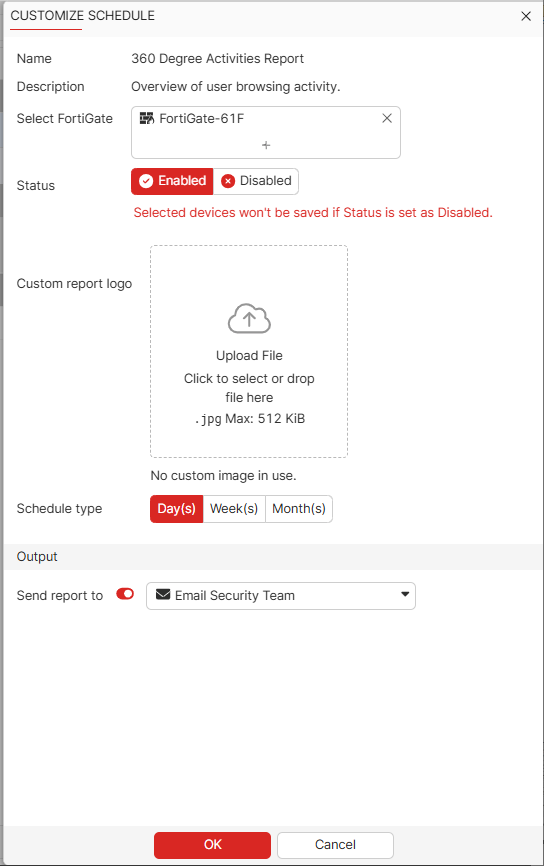
- Click Customize.
- In the Select FortiGate field, select the desired FortiGates to run the report for.
- If desired, in Custom report logo, upload an image as the custom logo for the report.
- In the Schedule type field, configure the desired schedule for the report.
- If desired, enable Send report to and select an email address or email group to send the report to.
- Click OK. FortiGate Cloud generates the report as per the configured schedule. You can view these reports in Analytics > Generated reports.
To run a report on-demand:
- Go to Analytics > Reports > Scheduled reports.
- Select the desired report, and click Run report.
- In the Select FortiGate field, select the desired FortiGates to run the report for.
- In the Start time and End time fields, configure the desired time range to include in the report.
- If desired, enable Send report to and select an email address or email group to send the report to.
- Click OK. FortiGate Cloud generates the report. You can view these reports in Analytics > Generated reports.
To configure an email group to send a report to:
- Create an email group:
- Go to Analytics > Reports > Scheduled reports.
- Click Manage email groups.
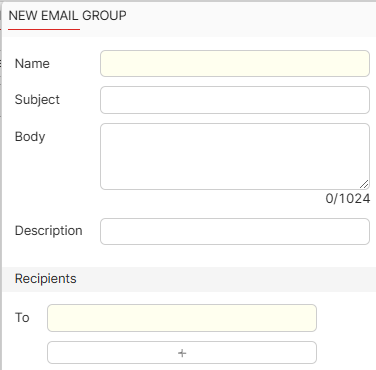
- Click Create.
- In the Name field, enter the email group name.
- In the Subject field, enter the email subject line.
- In the Body field, enter the email body content.
- In the Description field, enter the email description.
- In the To field, enter the email addresses to send the email to.
- Click OK.
- Select the desired report, then click Customize.
- Enable the Send report to toggle. From the Send report to dropdown list, select the desired email group.
- Click OK.
Reports reference
The following provides descriptions of report templates:
Reports for FortiGates without a paid subscription
The 360 Degree Activities Report is the only report available for FortiGates without a paid subscription. It is a general activities report on all FortiGates without a paid subscription. You cannot customize or schedule this report. FortiGate Cloud automatically runs this report weekly.
Reports for FortiGates with a subscription
You can schedule reports using a maximum of 10 report templates with a subscription. The following lists all available report templates:
- 360 Degree Activities Report
- 360 Protection Report
- Admin and System Events Report
- Application Risk and Control
- Bandwidth and Applications Report
- Cyber-Bullying Indicators Report
- Cyber Threat Assessment Report
- Daily Summary Report
- Detailed Application Usage and Risk
- DNS Report
- FSBP Report
- High Bandwidth Application Usage
- SaaS Application Usage Report
- Secure SD-WAN Assessment Report
- Secure SD-WAN Report
- Security Analysis Report
- Security Events and Incidents Summary Report
- Self-Harm and Risk Indicators Report
- Summary Report
- Threat Report
- Top 20 Categories and Applications (Bandwidth) Report
- Top 20 Categories and Applications (Session) Report
- Top 20 Category and Websites (Bandwidth) Report
- Top 20 Category and Websites Report
- Top 500 Sessions by Bandwidth Report
- User Detailed Browsing Report
- User Security Analysis Report
- User Top 500 Websites by Bandwidth Report
- User Top 500 Websites by Session Report
- VPN Report
- Web Activity Report
- What is New Weekly Report
- WiFi Report
- ZTNA Report