

IoC
The indicators of compromise (IoC) service alerts administrators about newly found infections and threats to devices in their network. By analyzing unified threat management logging and activity, IoC provides a comprehensive overview of threats to the network.
IoC detects the following threat types, based on the evolving FortiGuard database:
|
Threat type |
Description |
|---|---|
|
Malware |
Malicious programs residing on infected endpoints |
|
Potentially unwanted programs |
|
|
Unknown |
Threats that the signature detected but does not associate with any known malware |
You can view infected devices' full IP addresses, allowing you to better control their access to your network.
This feature requires a Standard subscription. See Subscription types.
When a compromised host is detected, FortiGate Cloud triggers an alert to the FortiGate with the automation stitch type set to Compromised Host. You can configure an automation stitch on your FortiGate to determine the appropriate action for handling the compromised host in response to the alert. For detailed instructions on setting up an automation stitch, see Creating automation stitches.
To access IoC:
Go to Analytics > IoC > Threats. This page displays a table of data for any detected threats.
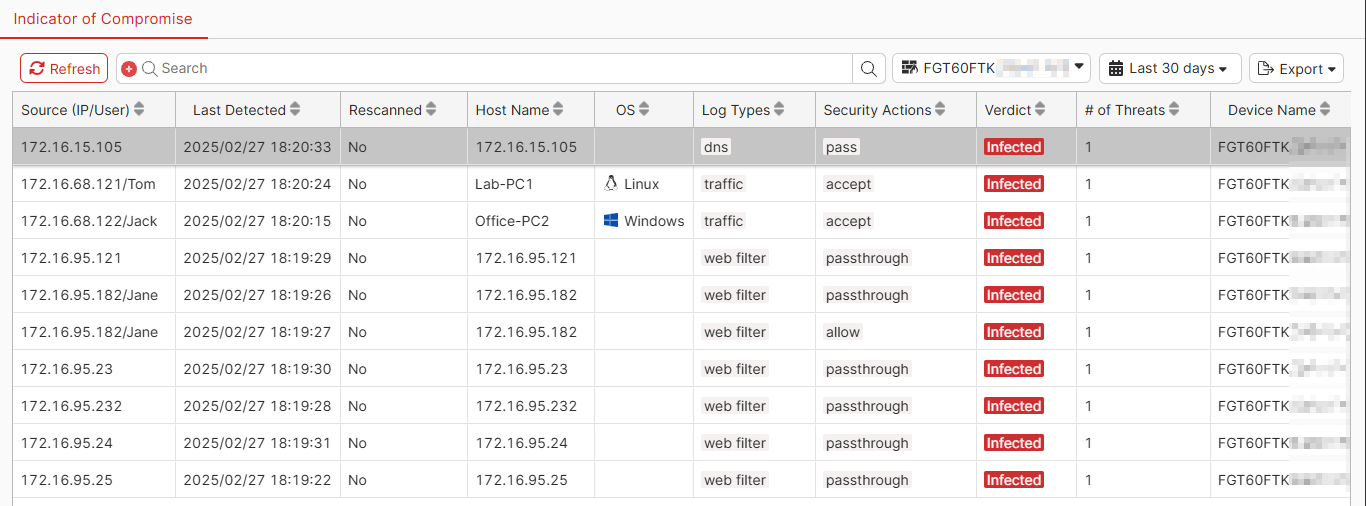
Above the table are the following options:
|
Option |
Description |
|---|---|
|
Refresh |
Refresh the data in the table. |
|
Search |
Search for the desired threat. You can filter on the columns and values. |
|
FortiGate |
Select the desired FortiGate from the dropdown list. |
|
Time range |
Select the desired time range from the dropdown list. |
|
Export |
Export the data in the table to a CSV or JSON file. |
The table displays the following columns of data:
|
Column |
Description |
|---|---|
|
Source (IP/User) |
IP address and username of the device where the threat was detected. |
|
Last Detected |
Last time that the threat was detected. |
|
Rescanned |
Whether the device was rescanned for the threat. |
|
Host Name |
Hostname of the device where the threat was detected. |
|
OS |
OS of the device where the threat was detected. |
|
Log Types |
Log types associated with the threat. |
|
Security Actions |
Security action taken with the traffic. |
|
Verdict |
Status of the device. |
|
# of Threats |
Number of threats present on the device. |
|
Device Name |
Device name where the threat was detected. |
You can configure trigger-based automated alerts for IoC events. See Event Handler.