
Fortinet white logo
Fortinet white logo

User Guide

MAC Access Control and MAC Filtering

MAC Access Control and MAC Filtering

Wi-Fi client MAC filtering on FortiEdge Cloud lets you control which devices can connect to your wireless network. You can configure a MAC Access Control list for the entire network and then apply it to each SSID as a policy.
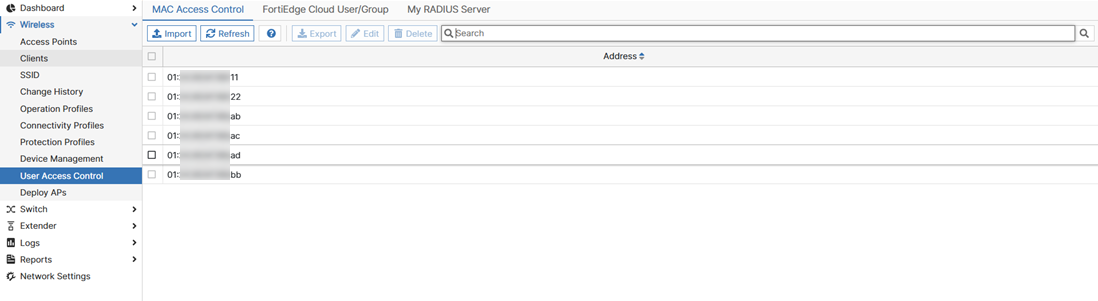
When adding an SSID to a network, you can configure the Cloud Address Group Policy to use the MAC Access Control list with the following options:

  • Disable: MAC address authentication is bypassed for the listed addresses.

  • Allow: The MAC Access Control list functions as a whitelist, granting access only to the listed MAC addresses.

  • Deny: The MAC Access Control list now functions as a blacklist, explicitly blocking access for any MAC addresses on the list while permitting all others to connect.

For more information, see Basic Settings.

To import addresses to the MAC Access Control list:

  1. Navigate to Wireless > User Access Control. Select the MAC Access Control tab.
  2. Click Import.
  3. Add the MAC addresses. Separate each address with a comma. An import can include a maximum of 10,000 MAC addresses (records).
  4. Click OK.

    A dialog box displays a status message. Here is an example: Imported 2 records successfully.

  5. To close the dialog box, click OK.
Note:
  • To export the MAC addresses, select the address and click Export.

  • To edit a MAC address, select the address and click Edit. Make the necessary changes and click OK.

  • To delete a MAC address, select the address and click Delete.

  • Click Refresh to refresh the list.

MAC Access Control and MAC Filtering

MAC Access Control and MAC Filtering

Wi-Fi client MAC filtering on FortiEdge Cloud lets you control which devices can connect to your wireless network. You can configure a MAC Access Control list for the entire network and then apply it to each SSID as a policy.

When adding an SSID to a network, you can configure the Cloud Address Group Policy to use the MAC Access Control list with the following options:

  • Disable: MAC address authentication is bypassed for the listed addresses.

  • Allow: The MAC Access Control list functions as a whitelist, granting access only to the listed MAC addresses.

  • Deny: The MAC Access Control list now functions as a blacklist, explicitly blocking access for any MAC addresses on the list while permitting all others to connect.

For more information, see Basic Settings.

To import addresses to the MAC Access Control list:

  1. Navigate to Wireless > User Access Control. Select the MAC Access Control tab.
  2. Click Import.
  3. Add the MAC addresses. Separate each address with a comma. An import can include a maximum of 10,000 MAC addresses (records).
  4. Click OK.

    A dialog box displays a status message. Here is an example: Imported 2 records successfully.

  5. To close the dialog box, click OK.
Note:
  • To export the MAC addresses, select the address and click Export.

  • To edit a MAC address, select the address and click Edit. Make the necessary changes and click OK.

  • To delete a MAC address, select the address and click Delete.

  • Click Refresh to refresh the list.