
Fortinet white logo
Fortinet white logo

User Guide

Groups

Groups

A group is a virtual container that contains one or more devices. You can add up to two profiles for each group, one profile per device model category. Each device can join only one group. When adding a device to a group, you can decide whether to keep the device's own profile or override it with that of the group. If you elect to keep the device's profile, it will take priority over the group profile. Grouping makes it easy to keep track of and manage your devices by letting you upgrade the device firmware by group. You can use groups to organize your devices by department, region, data plan, wireless carrier, or in any other category. You can create groups before you deploy your devices and each group must have at least one profile.

Adding a Group
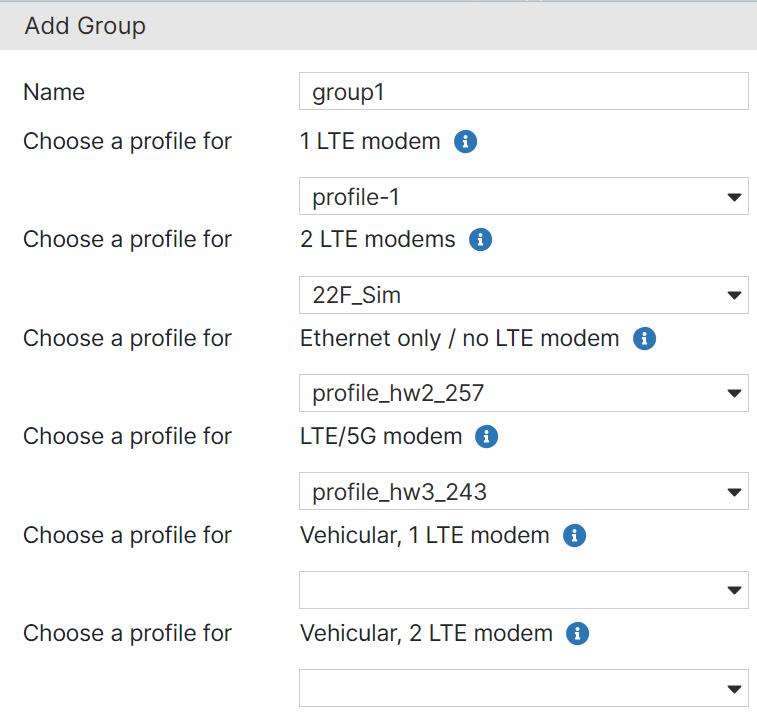
  1. Navigate to Group and click Add.

  2. Enter a Name for the group. Valid characters are: alphanumeric characters and special characters (. -_). Spaces are not permitted.

  3. Select profiles that apply to the devices that you require to be grouped.
Adding Devices to a Group

After creating a group, you can add devices to it.

  1. Select an existing group and click View.
  2. Click Add Devices and enter the serial number of the device you want to add. You can add multiple devices to the group by separating the device serial numbers with a comma.
  3. Keep of Discard the profile. This option is applicable only on devices with a profile. If you keep the profile then devices profile is given precedence over group profile.

You can view information about a group from the Group page. This page lists all the groups, displays the number of devices in each group, the profile of each group, and their status. You can export a list of devices in each group in a CSV file. Click Export.

After you create a group, you can view the group details, modify the profiles and group name as required, delete, or clone a group. Select a group and click View, Clone, or Delete for any of these operations. If you clone a group, specify a unique name for the new group. You cannot delete groups that contain devices. You must first remove all the devices before you can delete the group.

Groups

Groups

A group is a virtual container that contains one or more devices. You can add up to two profiles for each group, one profile per device model category. Each device can join only one group. When adding a device to a group, you can decide whether to keep the device's own profile or override it with that of the group. If you elect to keep the device's profile, it will take priority over the group profile. Grouping makes it easy to keep track of and manage your devices by letting you upgrade the device firmware by group. You can use groups to organize your devices by department, region, data plan, wireless carrier, or in any other category. You can create groups before you deploy your devices and each group must have at least one profile.

Adding a Group
  1. Navigate to Group and click Add.

  2. Enter a Name for the group. Valid characters are: alphanumeric characters and special characters (. -_). Spaces are not permitted.

  3. Select profiles that apply to the devices that you require to be grouped.

Adding Devices to a Group

After creating a group, you can add devices to it.

  1. Select an existing group and click View.
  2. Click Add Devices and enter the serial number of the device you want to add. You can add multiple devices to the group by separating the device serial numbers with a comma.
  3. Keep of Discard the profile. This option is applicable only on devices with a profile. If you keep the profile then devices profile is given precedence over group profile.

You can view information about a group from the Group page. This page lists all the groups, displays the number of devices in each group, the profile of each group, and their status. You can export a list of devices in each group in a CSV file. Click Export.

After you create a group, you can view the group details, modify the profiles and group name as required, delete, or clone a group. Select a group and click View, Clone, or Delete for any of these operations. If you clone a group, specify a unique name for the new group. You cannot delete groups that contain devices. You must first remove all the devices before you can delete the group.