
Fortinet white logo
Fortinet white logo

Administration Guide

Cloud Auto Scaling

Cloud Auto Scaling

FortiADC supports cloud autoscaling for Azure and AWS platforms. Once autoscaling is deployed on the cloud, the status of FortiADC devices can be monitored through the GUI of the primary node. FortiADCs can be in one of two states:

  • init — In this state, the FortiADC establishes a connection with the primary node and performs a full configuration synchronization.

  • online — This state indicates the synchronization process has successfully completed.

Before connecting to any secondary node via GUI, console, or SSH, ensure its status has transitioned to "online."
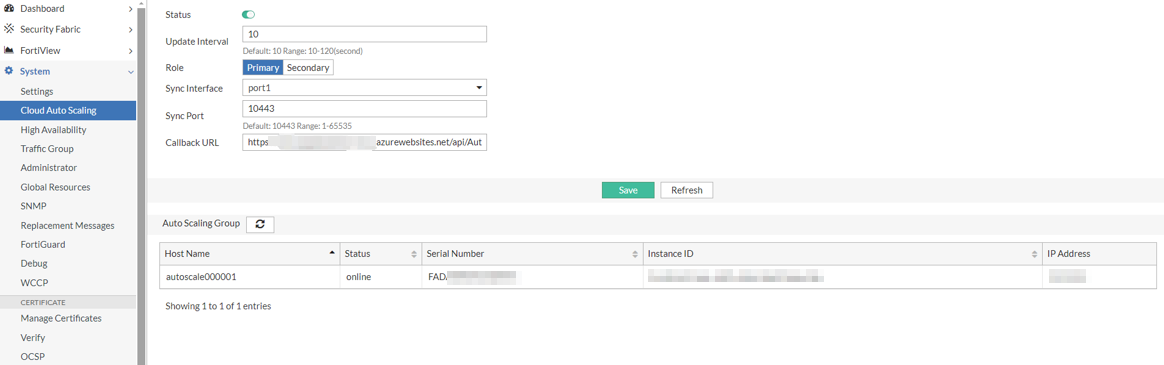
Any updates to the Cloud Auto Scaling configuration in for are not automatically synchronized with the autoscaling group on the cloud platform. To prevent configuration discrepancies between nodes, the autoscaling group must be manually updated to maintain synchronization consistency.

Azure Autoscaling

The Azure Autoscaling feature facilitates dynamic scaling of FortiADC Virtual Machine Scale Sets (VMSS) based on real-time CPU utilization metrics. This architecture comprises a primary FortiADC and several secondary FortiADCs that distribute web traffic from the Azure Load Balancer in front of the VMSS. This setup optimizes resource allocation and enhances system resilience by automatically adjusting active instances to meet fluctuating traffic demands, ensuring high availability and efficient load management.

The autoscaling feature, available in FortiADC 7.6.1 for On-demand (PAYG) instances, can be deployed on the Azure platform using ARM templates. A server-less web application running on Azure App Service enables authorized access to resources within the auto-scaling cluster. This application selects the primary node in the FortiADC Virtual Machine Scale Set (VMSS) and communicates its IP address and VMID to the secondary nodes. Configuration synchronization occurs unidirectionally from the primary node to secondary nodes, ensuring consistent settings across the cluster.

For detailed steps on deploying Azure autoscaling, refer to the FortiADC Azure Deployment Guide.

Other considerations when Azure autoscaling is enabled include:

  • The Azure Load Balancer (LB) Backend tab will be hidden from the user interface.

  • The virtual server address will also be concealed, with the virtual server operating using the interface IP address and port instead.

Troubleshooting

Debug information can be accessed through the Azure Function App's AutoscaleHandler log or the FortiADC CLI.

In the AutoscaleHandler log, you can verify whether the FortiADC VMs in the VMSS are sending heartbeat callbacks in a timely manner and whether they are maintaining a healthy state. Check both the logs and DynamoDB records for the deployed resources.

On the FortiADC-VM, you can utilize CLI commands to monitor the status of the cloud autoscaling daemon. Use the following commands:

  • To review the heartbeat callback results and failover information in case a primary election is triggered:

    # diagnose debug cloud-autoscale autoscaled
  • To check the synchronization between the primary and secondary FortiADCs, as well as view any crash logs if they exist:

    # diagnose debug cloud-autoscale autoscale-tunnel

Limitations

Synchronization

The configuration synchronization for FortiADC is consistent with the settings applied when HA VRRP is enabled. Note that synchronization is not managed by the HA module.

When the FortiADC is operating as the primary node, it listens on the IP address ip:10443, where ip is the interface IP defined in the sync-interface under system auto-scale settings. When a secondary FortiADC connects to the primary, it initiates a full configuration synchronization to ensure consistency with the primary.

Configuration changes can only be initiated by the primary node. Any modifications made on a node assigned the secondary role will not be synchronized to other nodes within the VMSS.

High Availability

When auto-scaling is enabled, the HA mode must operate in standalone mode. Switching the HA mode to VRRP is prohibited while auto-scaling is active.

AWS Autoscaling

You can deploy FortiADC virtual machines (VMs) to support Autoscaling on AWS. This requires a manual deployment incorporating AWS CloudFormation Templates (CFTs).

Multiple FortiADC-VM instances form an Autoscaling group (ASG) to provide highly efficient clustering at times of high workloads. FortiADC-VM instances can be scaled out automatically according to predefined workload levels. When a spike in traffic occurs, the Lambda script is invoked to automatically add FortiADC-VM instances to the ASG. Autoscaling is achieved by using FortiADC Cloud Autoscaling features such as system autoscale that synchronize operating system (OS) configurations across multiple FortiADC-VM instances at the time of scale-out events.

FortiADC Autoscale for AWS is available with FortiADC 7.2.0 and supports On-demand (PAYG) instances.

For detailed steps on deploying AWS autoscaling, refer to the FortiADC AWS Deployment Guide.

Troubleshooting

Debug information can be accessed via AWS CloudWatch or the FortiADC CLI. AWS CloudWatch provides logs to verify if FortiADC-VMs within the ASG are sending timely heartbeat callbacks and to check the health status of each FortiADC instance.

On the FortiADC-VM, the CLI can be used to monitor the cloud autoscaling daemon's status:

  • Use diagnose debug cloud-autoscale autoscaled to view heartbeat callback results and failover details if a primary node election is initiated.

  • Use diagnose debug cloud-autoscale autoscale-tunnel to examine the synchronization process between primary and secondary FortiADCs, and to identify any crash logs if they are present.

Cloud Auto Scaling

Cloud Auto Scaling

FortiADC supports cloud autoscaling for Azure and AWS platforms. Once autoscaling is deployed on the cloud, the status of FortiADC devices can be monitored through the GUI of the primary node. FortiADCs can be in one of two states:

  • init — In this state, the FortiADC establishes a connection with the primary node and performs a full configuration synchronization.

  • online — This state indicates the synchronization process has successfully completed.

Before connecting to any secondary node via GUI, console, or SSH, ensure its status has transitioned to "online."

Any updates to the Cloud Auto Scaling configuration in for are not automatically synchronized with the autoscaling group on the cloud platform. To prevent configuration discrepancies between nodes, the autoscaling group must be manually updated to maintain synchronization consistency.

Azure Autoscaling

The Azure Autoscaling feature facilitates dynamic scaling of FortiADC Virtual Machine Scale Sets (VMSS) based on real-time CPU utilization metrics. This architecture comprises a primary FortiADC and several secondary FortiADCs that distribute web traffic from the Azure Load Balancer in front of the VMSS. This setup optimizes resource allocation and enhances system resilience by automatically adjusting active instances to meet fluctuating traffic demands, ensuring high availability and efficient load management.

The autoscaling feature, available in FortiADC 7.6.1 for On-demand (PAYG) instances, can be deployed on the Azure platform using ARM templates. A server-less web application running on Azure App Service enables authorized access to resources within the auto-scaling cluster. This application selects the primary node in the FortiADC Virtual Machine Scale Set (VMSS) and communicates its IP address and VMID to the secondary nodes. Configuration synchronization occurs unidirectionally from the primary node to secondary nodes, ensuring consistent settings across the cluster.

For detailed steps on deploying Azure autoscaling, refer to the FortiADC Azure Deployment Guide.

Other considerations when Azure autoscaling is enabled include:

  • The Azure Load Balancer (LB) Backend tab will be hidden from the user interface.

  • The virtual server address will also be concealed, with the virtual server operating using the interface IP address and port instead.

Troubleshooting

Debug information can be accessed through the Azure Function App's AutoscaleHandler log or the FortiADC CLI.

In the AutoscaleHandler log, you can verify whether the FortiADC VMs in the VMSS are sending heartbeat callbacks in a timely manner and whether they are maintaining a healthy state. Check both the logs and DynamoDB records for the deployed resources.

On the FortiADC-VM, you can utilize CLI commands to monitor the status of the cloud autoscaling daemon. Use the following commands:

  • To review the heartbeat callback results and failover information in case a primary election is triggered:

    # diagnose debug cloud-autoscale autoscaled
  • To check the synchronization between the primary and secondary FortiADCs, as well as view any crash logs if they exist:

    # diagnose debug cloud-autoscale autoscale-tunnel

Limitations

Synchronization

The configuration synchronization for FortiADC is consistent with the settings applied when HA VRRP is enabled. Note that synchronization is not managed by the HA module.

When the FortiADC is operating as the primary node, it listens on the IP address ip:10443, where ip is the interface IP defined in the sync-interface under system auto-scale settings. When a secondary FortiADC connects to the primary, it initiates a full configuration synchronization to ensure consistency with the primary.

Configuration changes can only be initiated by the primary node. Any modifications made on a node assigned the secondary role will not be synchronized to other nodes within the VMSS.

High Availability

When auto-scaling is enabled, the HA mode must operate in standalone mode. Switching the HA mode to VRRP is prohibited while auto-scaling is active.

AWS Autoscaling

You can deploy FortiADC virtual machines (VMs) to support Autoscaling on AWS. This requires a manual deployment incorporating AWS CloudFormation Templates (CFTs).

Multiple FortiADC-VM instances form an Autoscaling group (ASG) to provide highly efficient clustering at times of high workloads. FortiADC-VM instances can be scaled out automatically according to predefined workload levels. When a spike in traffic occurs, the Lambda script is invoked to automatically add FortiADC-VM instances to the ASG. Autoscaling is achieved by using FortiADC Cloud Autoscaling features such as system autoscale that synchronize operating system (OS) configurations across multiple FortiADC-VM instances at the time of scale-out events.

FortiADC Autoscale for AWS is available with FortiADC 7.2.0 and supports On-demand (PAYG) instances.

For detailed steps on deploying AWS autoscaling, refer to the FortiADC AWS Deployment Guide.

Troubleshooting

Debug information can be accessed via AWS CloudWatch or the FortiADC CLI. AWS CloudWatch provides logs to verify if FortiADC-VMs within the ASG are sending timely heartbeat callbacks and to check the health status of each FortiADC instance.

On the FortiADC-VM, the CLI can be used to monitor the cloud autoscaling daemon's status:

  • Use diagnose debug cloud-autoscale autoscaled to view heartbeat callback results and failover details if a primary node election is initiated.

  • Use diagnose debug cloud-autoscale autoscale-tunnel to examine the synchronization process between primary and secondary FortiADCs, and to identify any crash logs if they are present.