
Fortinet white logo
Fortinet white logo

Flannel VXLAN CNI

Flannel VXLAN CNI

To support ClusterIP services, FortiADC must participate in the Flannel overlay network. This is achieved by establishing a VXLAN tunnel and registering the FortiADC appliance as a "fake node" within the Kubernetes cluster. This registration allows the Kubernetes network to route traffic to the FortiADC even though it is not a physical server in the cluster.
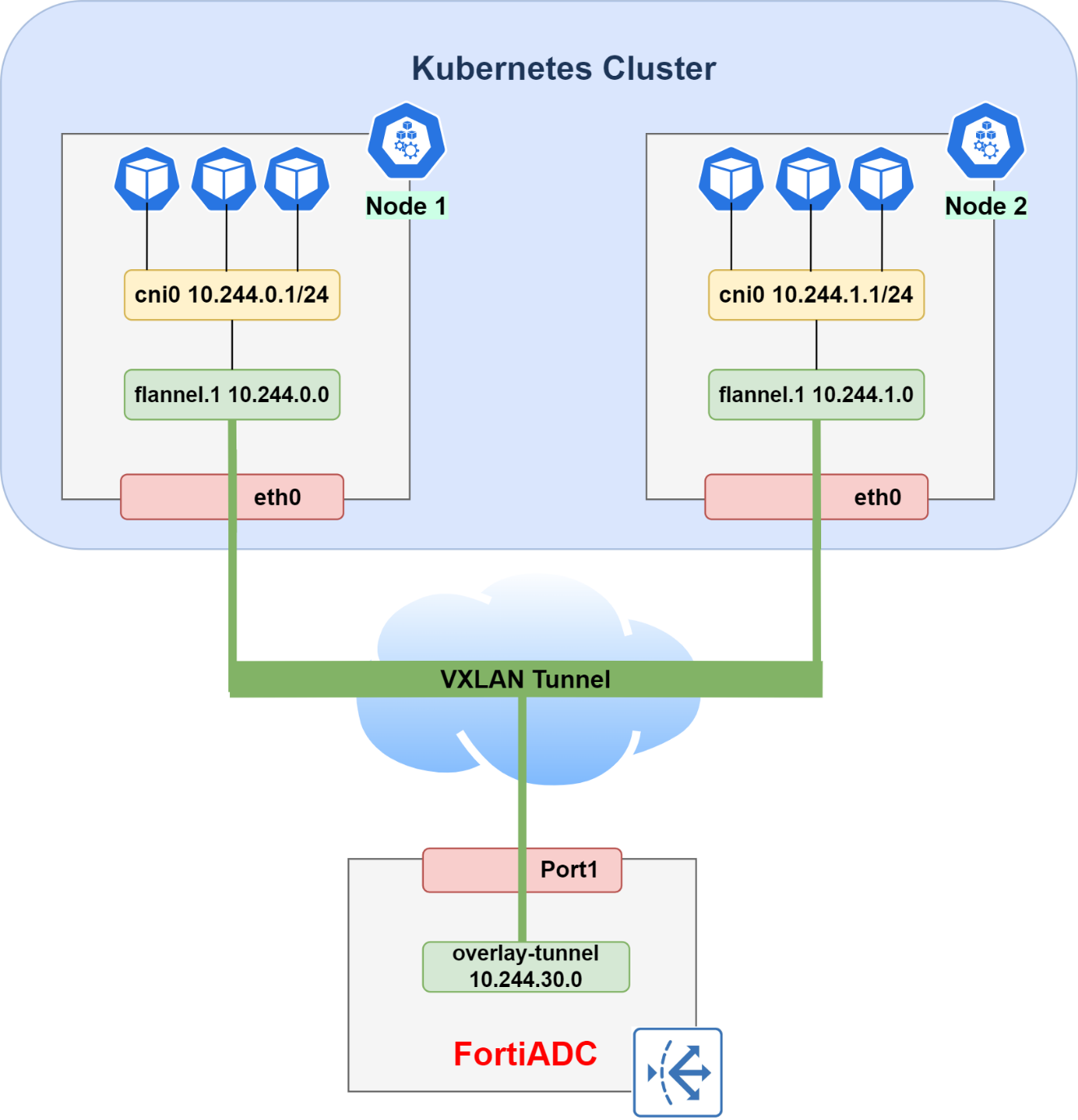
To configure the Flannel VXLAN CNI:
  1. Check Flannel Details: Use the kubectl command to check the flannel VXLAN public IP and the VNI of the control plane node.

    When using VXLAN backend, flannel uses UDP port 8472 for sending encapsulated packets.

    kubectl describe node [NODE NAME] | grep flannel
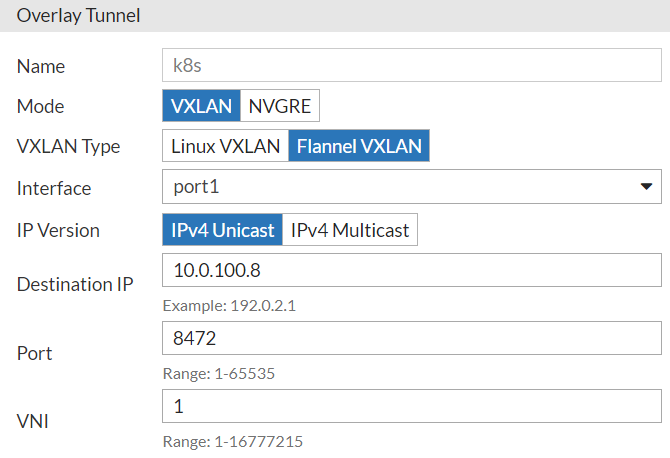
  2. Create Overlay Tunnel: To integrate the FortiADC overlay tunnel with the flannel VXLAN, an overlay tunnel with the VXLAN type must be created on FortiADC.

    1. In FortiADC, go to Network > Interface and click the Overlay Tunnel tab.

    2. Create a new Overlay Tunnel configuration using the flannel VXLAN public IP obtained from the previous step as the Destination IP.

    3. Select VXLAN as the Mode and Flannel VXLAN as the VXLAN Type.
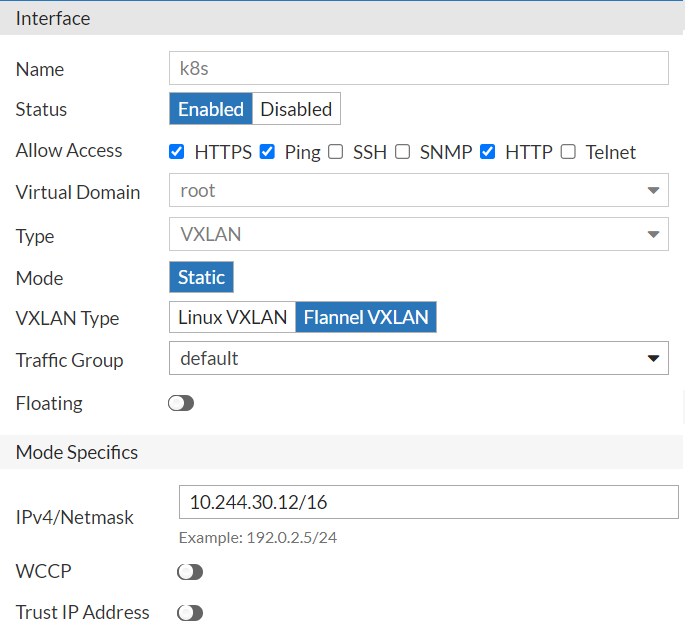
  3. Configure Interface: After the overlay tunnel is configured, you need to configure its interface to connect with your Kubernetes cluster.

    1. Go to Network > Interface. In the Interface page, locate the Interface configuration that share the same name as the overlay tunnel you just created.

    2. In the Interface configuration, specify the network interface IP and the netmask as the one used in your Kubernetes cluster CIDR netmask size.
      You can set the interface IP in any subset of the pod network if and only if the network subset is not used by another node. For example, we claim the subset 10.244.30.0/24 for FortiADC and set 10.244.30.12/16 as the interface IP/netmask.

      Allow ping/http/https traffic to go through the interface.
  4. Retrieve MAC Address: Go to the FortiADC CLI and use the get system interface command to get the VXLAN interface MAC address (mac-addr).

    FortiADC-VM # get system interface k8s
    type                          : vxlan
    mode                          : static
    vdom                          : root
    redundant-master              :
    ip                            : 10.244.30.12/16
    allowaccess                   : https ping http
    mtu                           : 1450
    speed                         : auto
    status                        : up
    retrieve_physical_hwaddr      : disable
    mac-addr                      : e4:74:eb:7c:c7:xx
    flow-sniffer                  : disable
    wccp                          : disable
    trust-ip                      : disable
    floating                      : disable
    recv-seg-offload-override     : disable
    send-seg-offload-override     : disable
    vxlan-type                    : flannel_vxlan			
    				
  5. Deploy "Fake Node": Deploy FortiADC as the fake node installed with the flannel CNI plugin in your Kubernetes cluster using the following manifest:

    apiVersion: v1
    kind: Node
    metadata:
      name: fad
      labels:
        topology.kubernetes.io/zone: "fake-node"
      annotations:
        #Replace public-ip with outgoing interface IP of overlay tunnel
        flannel.alpha.coreos.com/public-ip: "10.0.100.133"
        #Replace VtepMAC with your VXLAN interface MAC
        flannel.alpha.coreos.com/backend-data: '{"VNI":1,"VtepMAC":"e4:74:eb:7c:c7:xx"}'
        flannel.alpha.coreos.com/backend-type: "vxlan"
        flannel.alpha.coreos.com/kube-subnet-manager: "true"
    spec:
    	podCIDR: "10.244.30.0/24"

Using the label topology.kubernetes.io/zone allows the fake node FortiADC to be distinguished from the zone where the control plane nodes and other worker nodes are located.

Since FortiADC is deployed as a fake node, the status of the fake node will always be shown as “NotReady”. This will not affect the connection between FortiADC and servers in the Kubernetes clusters.

Flannel VXLAN CNI

Flannel VXLAN CNI

To support ClusterIP services, FortiADC must participate in the Flannel overlay network. This is achieved by establishing a VXLAN tunnel and registering the FortiADC appliance as a "fake node" within the Kubernetes cluster. This registration allows the Kubernetes network to route traffic to the FortiADC even though it is not a physical server in the cluster.

To configure the Flannel VXLAN CNI:
  1. Check Flannel Details: Use the kubectl command to check the flannel VXLAN public IP and the VNI of the control plane node.

    When using VXLAN backend, flannel uses UDP port 8472 for sending encapsulated packets.

    kubectl describe node [NODE NAME] | grep flannel
  2. Create Overlay Tunnel: To integrate the FortiADC overlay tunnel with the flannel VXLAN, an overlay tunnel with the VXLAN type must be created on FortiADC.

    1. In FortiADC, go to Network > Interface and click the Overlay Tunnel tab.

    2. Create a new Overlay Tunnel configuration using the flannel VXLAN public IP obtained from the previous step as the Destination IP.

    3. Select VXLAN as the Mode and Flannel VXLAN as the VXLAN Type.

  3. Configure Interface: After the overlay tunnel is configured, you need to configure its interface to connect with your Kubernetes cluster.

    1. Go to Network > Interface. In the Interface page, locate the Interface configuration that share the same name as the overlay tunnel you just created.

    2. In the Interface configuration, specify the network interface IP and the netmask as the one used in your Kubernetes cluster CIDR netmask size.
      You can set the interface IP in any subset of the pod network if and only if the network subset is not used by another node. For example, we claim the subset 10.244.30.0/24 for FortiADC and set 10.244.30.12/16 as the interface IP/netmask.

      Allow ping/http/https traffic to go through the interface.

  4. Retrieve MAC Address: Go to the FortiADC CLI and use the get system interface command to get the VXLAN interface MAC address (mac-addr).

    FortiADC-VM # get system interface k8s
    type                          : vxlan
    mode                          : static
    vdom                          : root
    redundant-master              :
    ip                            : 10.244.30.12/16
    allowaccess                   : https ping http
    mtu                           : 1450
    speed                         : auto
    status                        : up
    retrieve_physical_hwaddr      : disable
    mac-addr                      : e4:74:eb:7c:c7:xx
    flow-sniffer                  : disable
    wccp                          : disable
    trust-ip                      : disable
    floating                      : disable
    recv-seg-offload-override     : disable
    send-seg-offload-override     : disable
    vxlan-type                    : flannel_vxlan			
    				
  5. Deploy "Fake Node": Deploy FortiADC as the fake node installed with the flannel CNI plugin in your Kubernetes cluster using the following manifest:

    apiVersion: v1
    kind: Node
    metadata:
      name: fad
      labels:
        topology.kubernetes.io/zone: "fake-node"
      annotations:
        #Replace public-ip with outgoing interface IP of overlay tunnel
        flannel.alpha.coreos.com/public-ip: "10.0.100.133"
        #Replace VtepMAC with your VXLAN interface MAC
        flannel.alpha.coreos.com/backend-data: '{"VNI":1,"VtepMAC":"e4:74:eb:7c:c7:xx"}'
        flannel.alpha.coreos.com/backend-type: "vxlan"
        flannel.alpha.coreos.com/kube-subnet-manager: "true"
    spec:
    	podCIDR: "10.244.30.0/24"

Using the label topology.kubernetes.io/zone allows the fake node FortiADC to be distinguished from the zone where the control plane nodes and other worker nodes are located.

Since FortiADC is deployed as a fake node, the status of the fake node will always be shown as “NotReady”. This will not affect the connection between FortiADC and servers in the Kubernetes clusters.