Fortinet white logo
Fortinet white logo

Administration Guide

Protected object permissions

Protected object permissions

You can enable protected object permissions to allow administrators with the permission enabled to mark specific policies and objects as protected, preventing other administrators without protected object permissions from being able to edit those policies/objects.

Administrators without protected objects permissions are still able to select protected objects within a policy.

This topic includes the following:

Enabling protected object permissions

To enable protected objects permissions:
  1. In the FortiManager CLI, enable protected object permission visibility:

    config system global
    	set gui-object-protect enable
    end
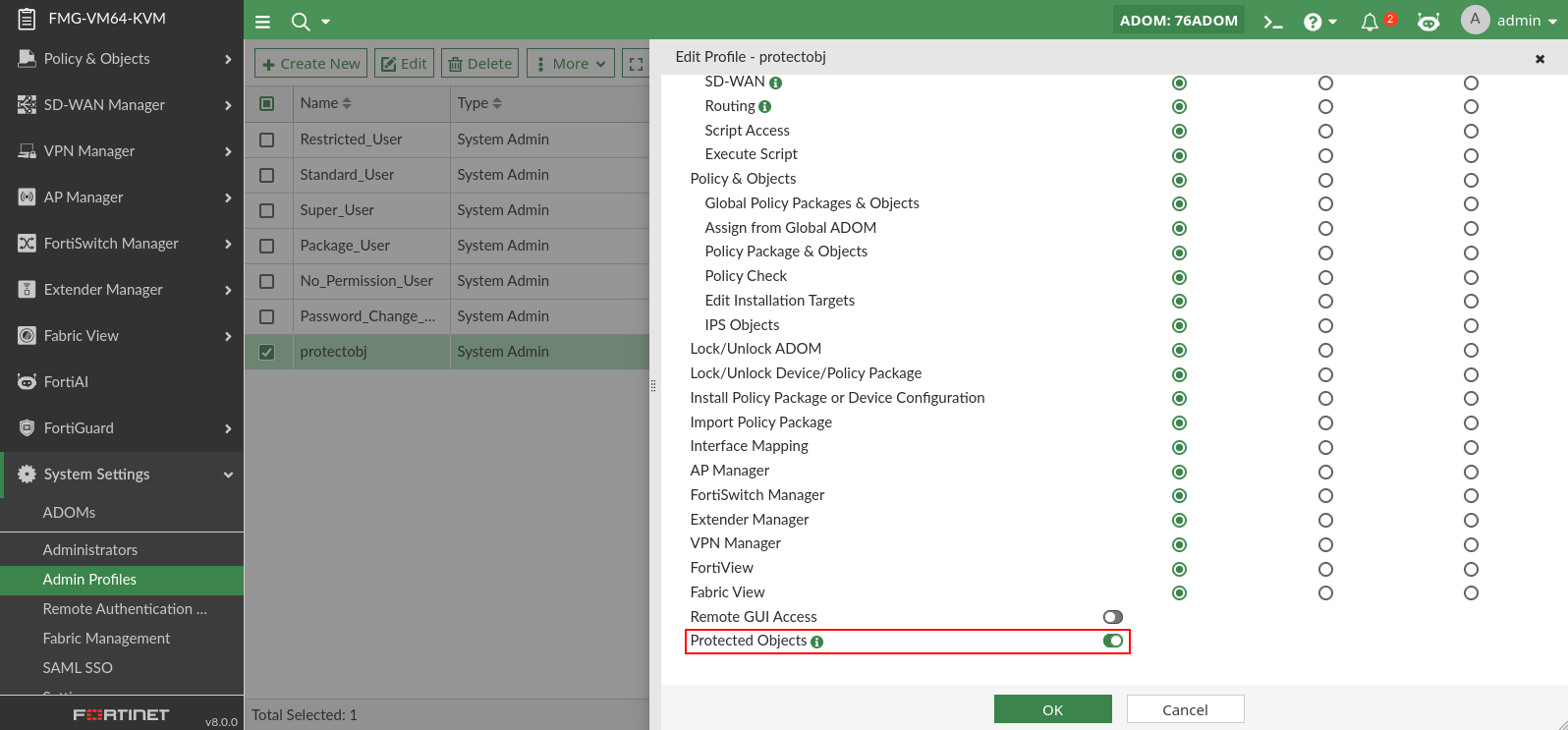
  2. Go to Systems settings > Admin Profile and create or edit an admin profile.

  3. Enable the Protected Objects option.

  4. Assign the admin profile to an administrator

To configure an administrator profile with protected object permissions in the CLI:
config system admin profile 
	edit <profile name> 
	....
	set protected-objects <enable/disable>
end

Marking policies and objects as protected

To mark policies and objects as protected:
  1. Log in as the administrator and go to Policy & Objects > Policy Package.

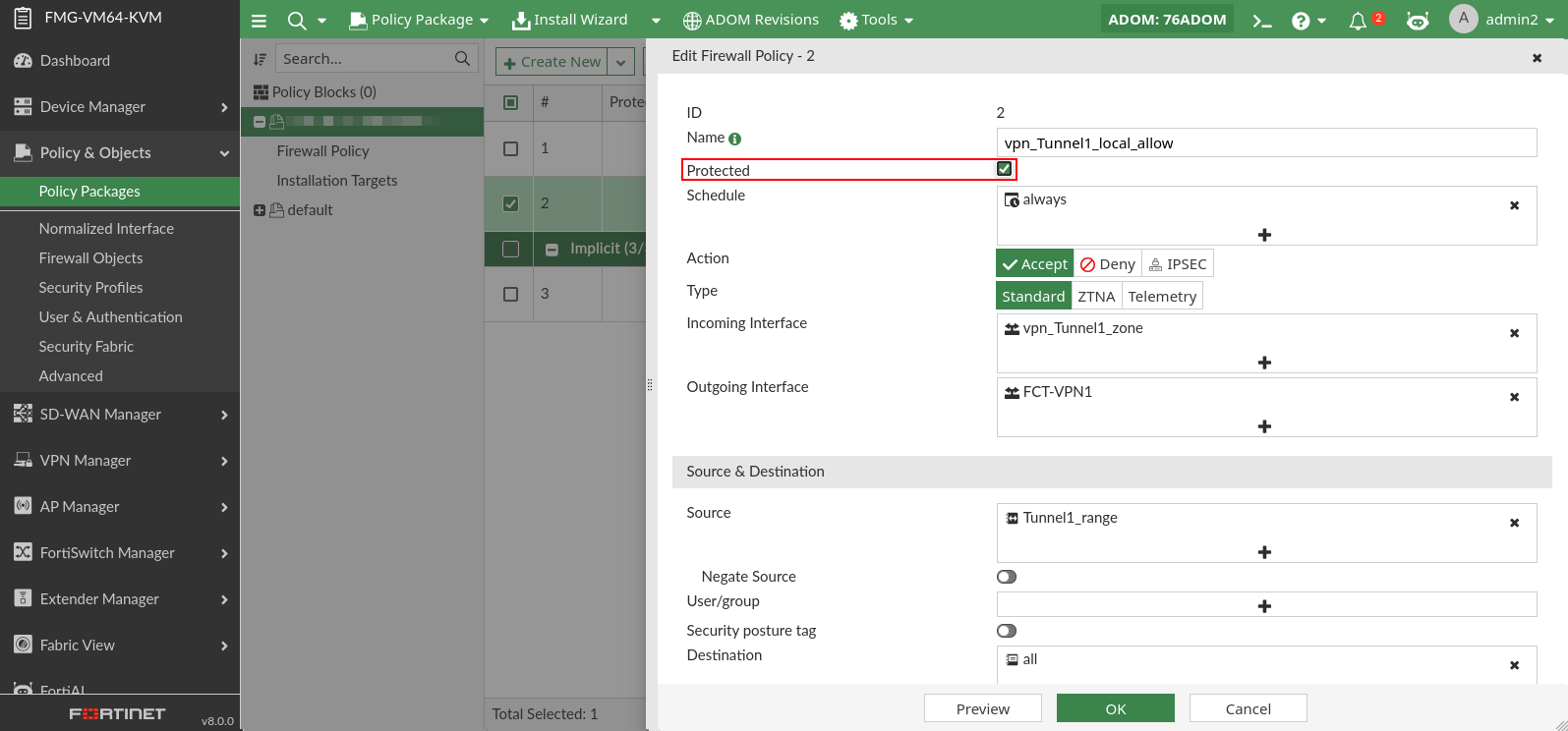
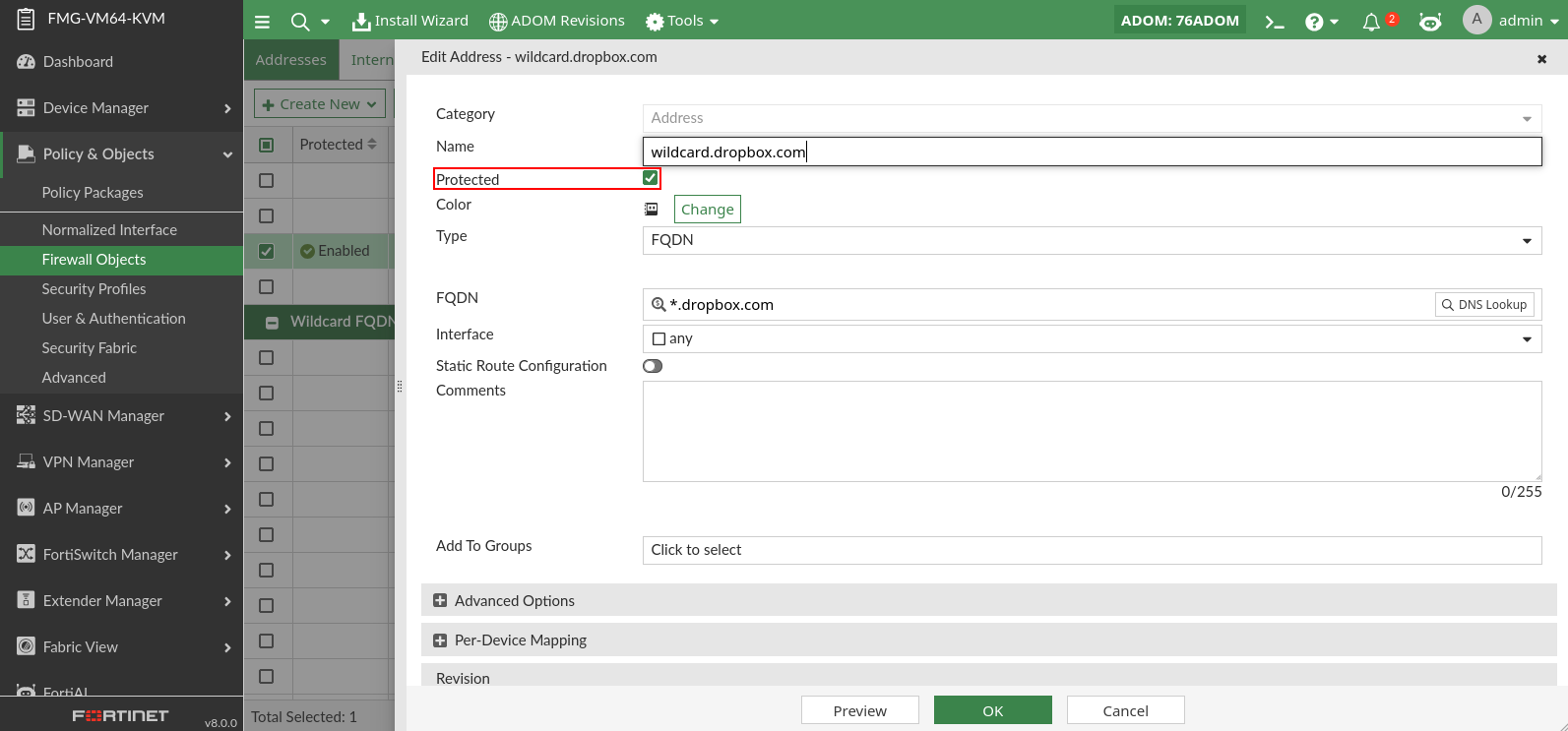
  2. Edit an existing policy, and enable the Protected option, then save the policy.
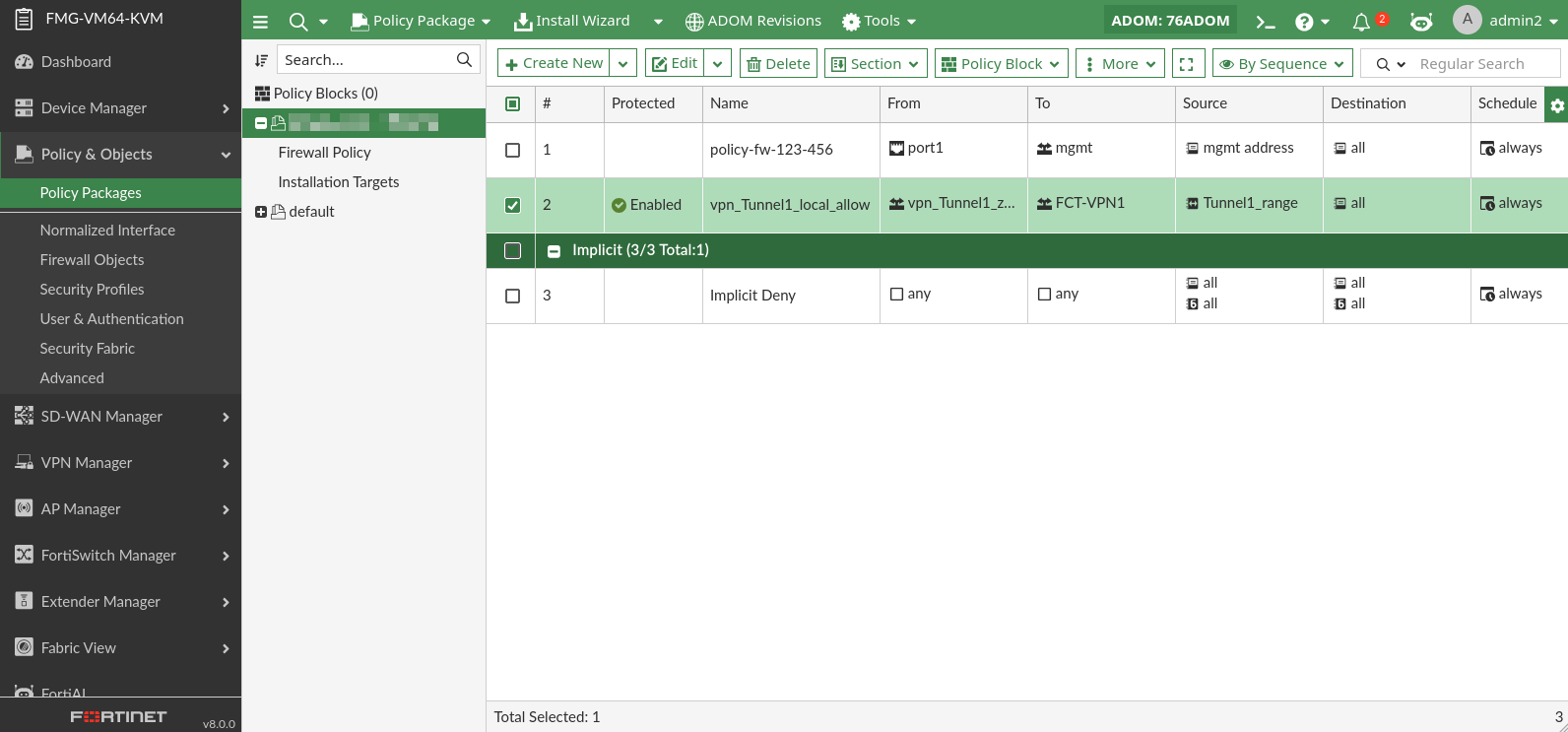
    You can see that the object has the Enabled status in the Protected column in the policy table.
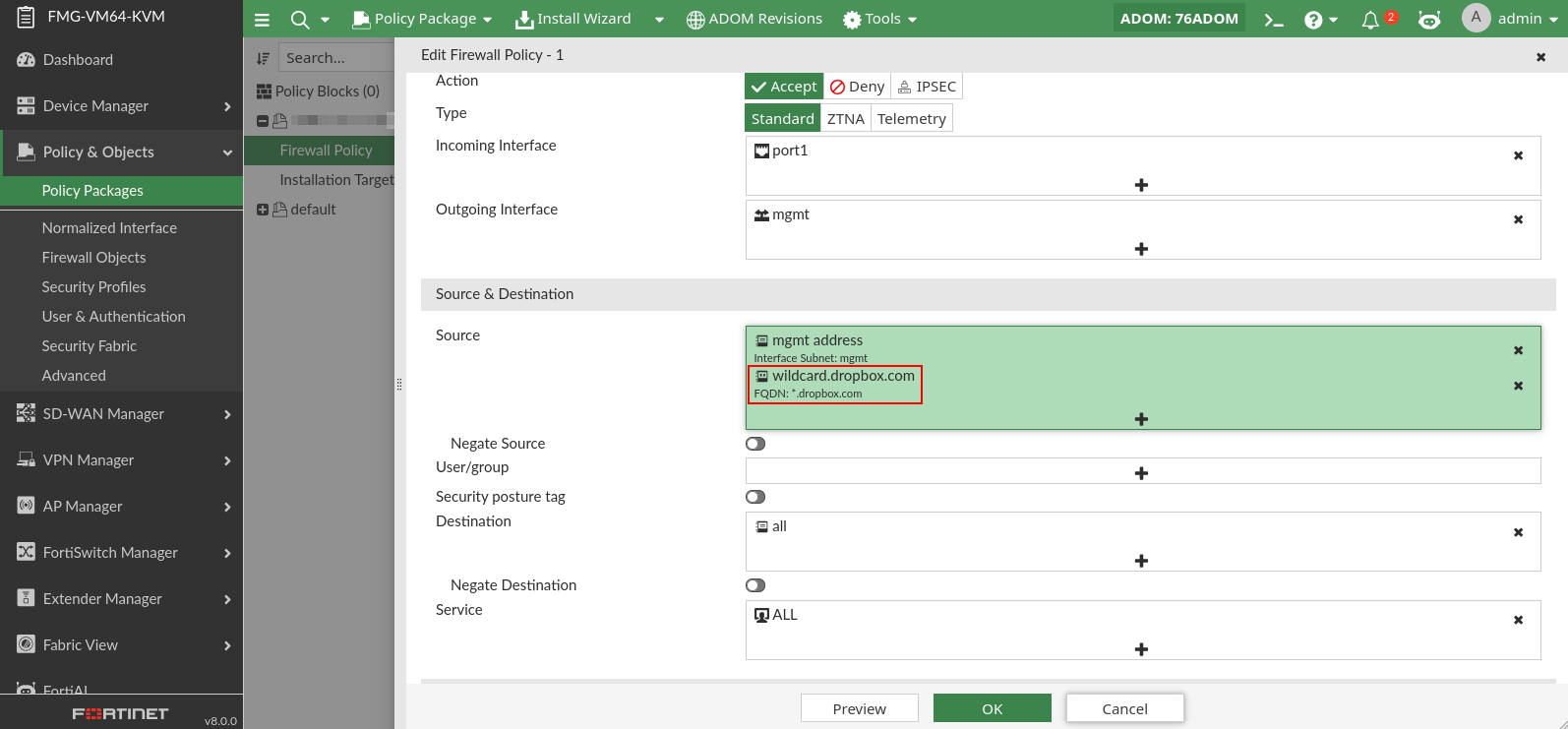
  3. Go to Policy & Objects, and add the protected object for the policy objects.
Users without protected object permissions

  • When object protection mode is enabled, users without the Protected Objects permission will have read-only access to the protected objects.

  • When viewing a protected object, the Protected Objects toggle is not available and you cannot edit or save the object.

  • In policy packages, you can use protected objects inside the policy even without the Protected Objects permission.

Protected object permissions

Protected object permissions

You can enable protected object permissions to allow administrators with the permission enabled to mark specific policies and objects as protected, preventing other administrators without protected object permissions from being able to edit those policies/objects.

Administrators without protected objects permissions are still able to select protected objects within a policy.

This topic includes the following:

Enabling protected object permissions

To enable protected objects permissions:
  1. In the FortiManager CLI, enable protected object permission visibility:

    config system global
    	set gui-object-protect enable
    end
  2. Go to Systems settings > Admin Profile and create or edit an admin profile.

  3. Enable the Protected Objects option.

  4. Assign the admin profile to an administrator

To configure an administrator profile with protected object permissions in the CLI:
config system admin profile 
	edit <profile name> 
	....
	set protected-objects <enable/disable>
end

Marking policies and objects as protected

To mark policies and objects as protected:
  1. Log in as the administrator and go to Policy & Objects > Policy Package.

  2. Edit an existing policy, and enable the Protected option, then save the policy.

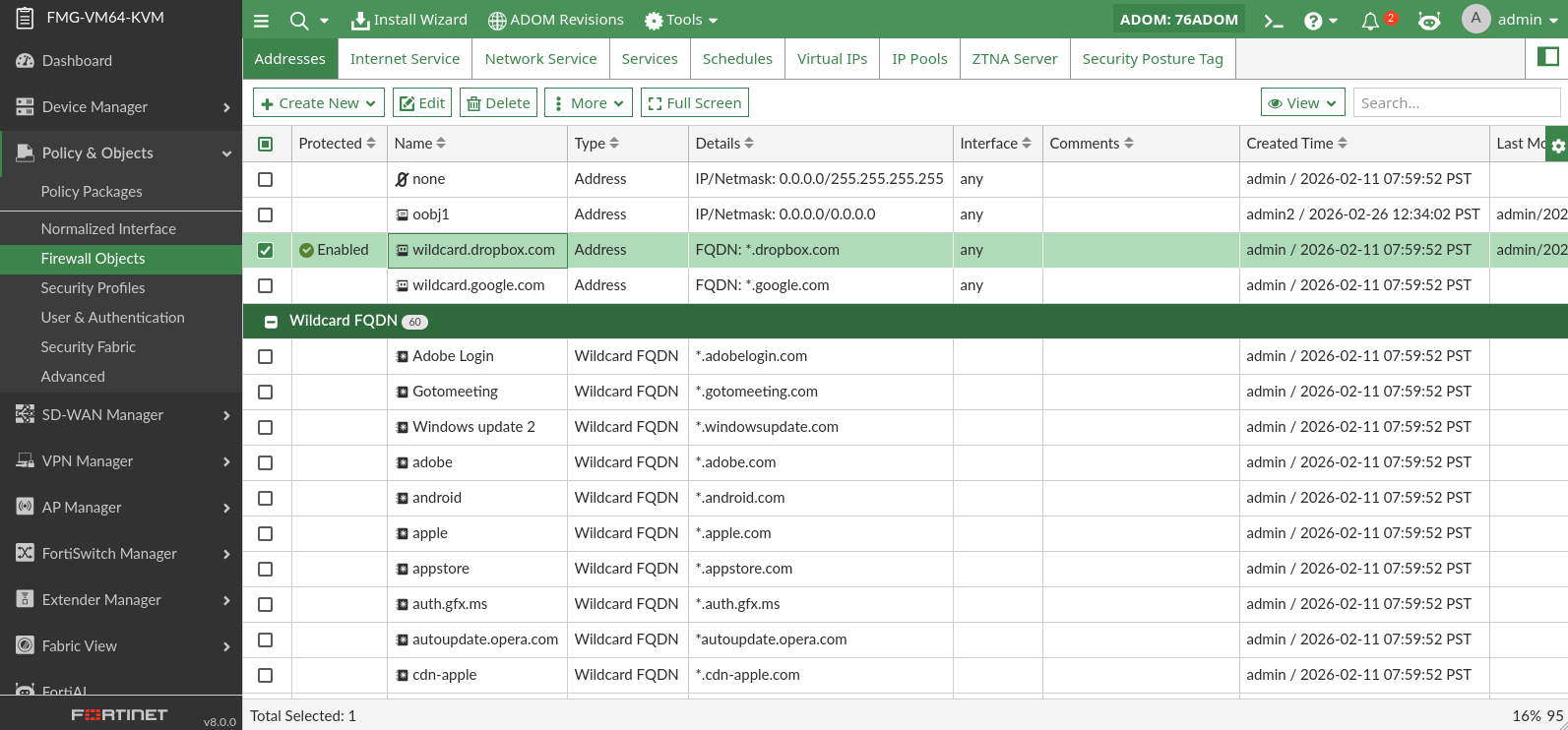
    You can see that the object has the Enabled status in the Protected column in the policy table.

  3. Go to Policy & Objects, and add the protected object for the policy objects.
Users without protected object permissions

  • When object protection mode is enabled, users without the Protected Objects permission will have read-only access to the protected objects.
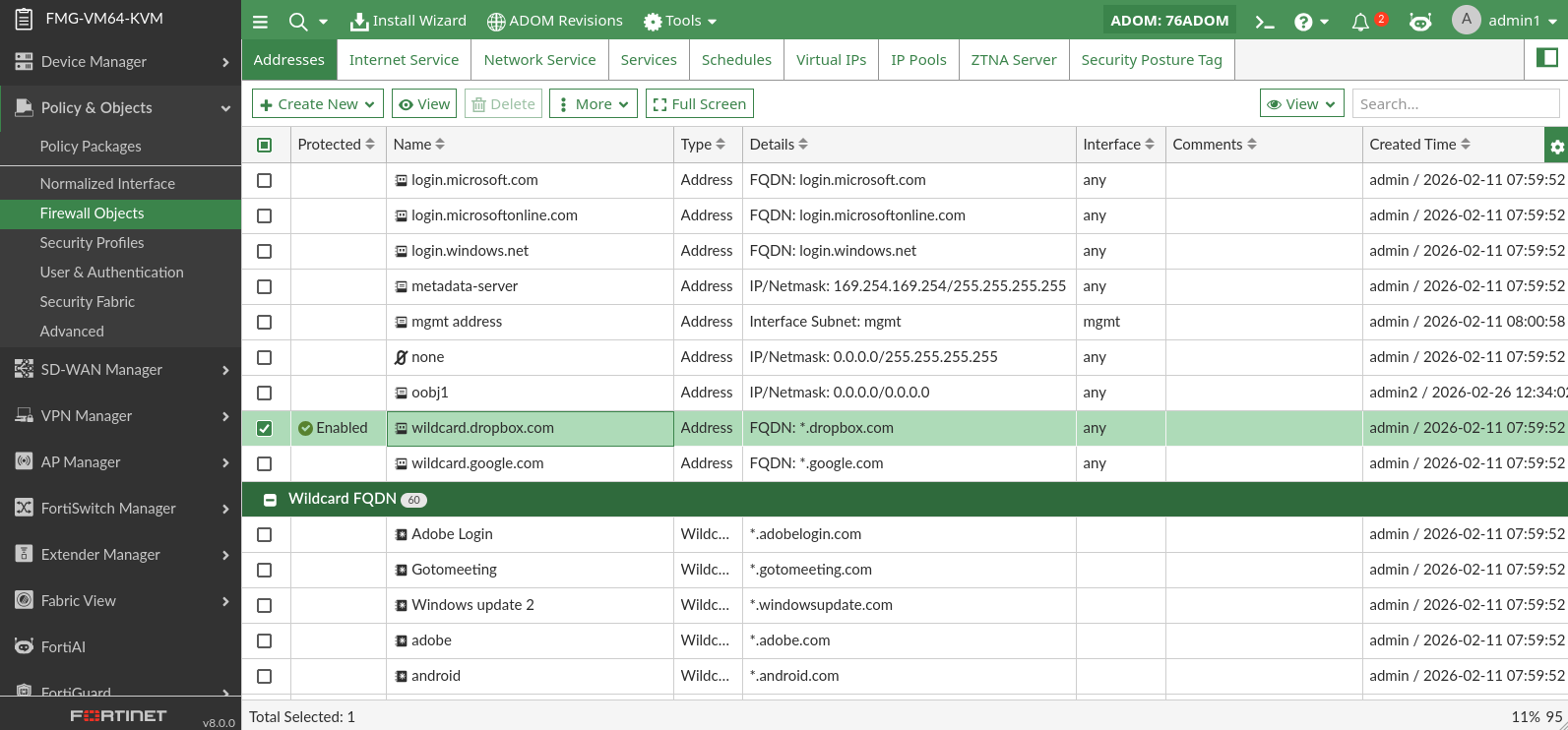
  • When viewing a protected object, the Protected Objects toggle is not available and you cannot edit or save the object.
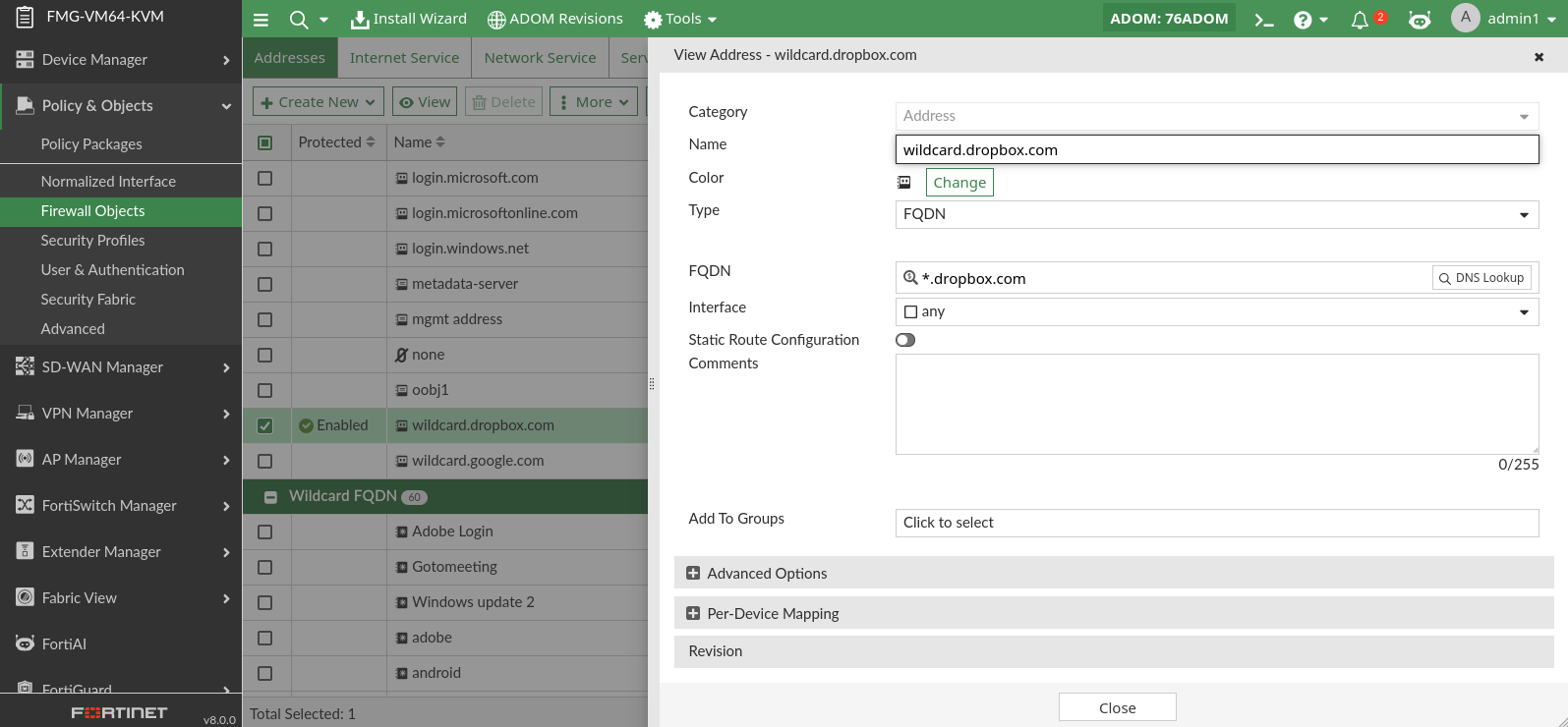
  • In policy packages, you can use protected objects inside the policy even without the Protected Objects permission.