
Fortinet white logo
Fortinet white logo

Administration Guide

Resolving session conflicts

Resolving session conflicts

Because workflow mode allows administrators to approve sessions in any order, changes can effect each other and cause conflicts to occur. When this occurs, the approving administrator will see a conflict error when attempting to approve the session. The administrator can review the changes and has the option to merge non conflicting changes and resubmit the session for approval.

To resolve a conflict during session approval:
  1. As an approver, go to Workflow Session > All Sessions.

  2. Select and approve the desired session.

    When a conflict is detected, the Session Diffs window is displayed and administrators must resolve the conflict by merging or discarding configuration changes before the session can be approved.
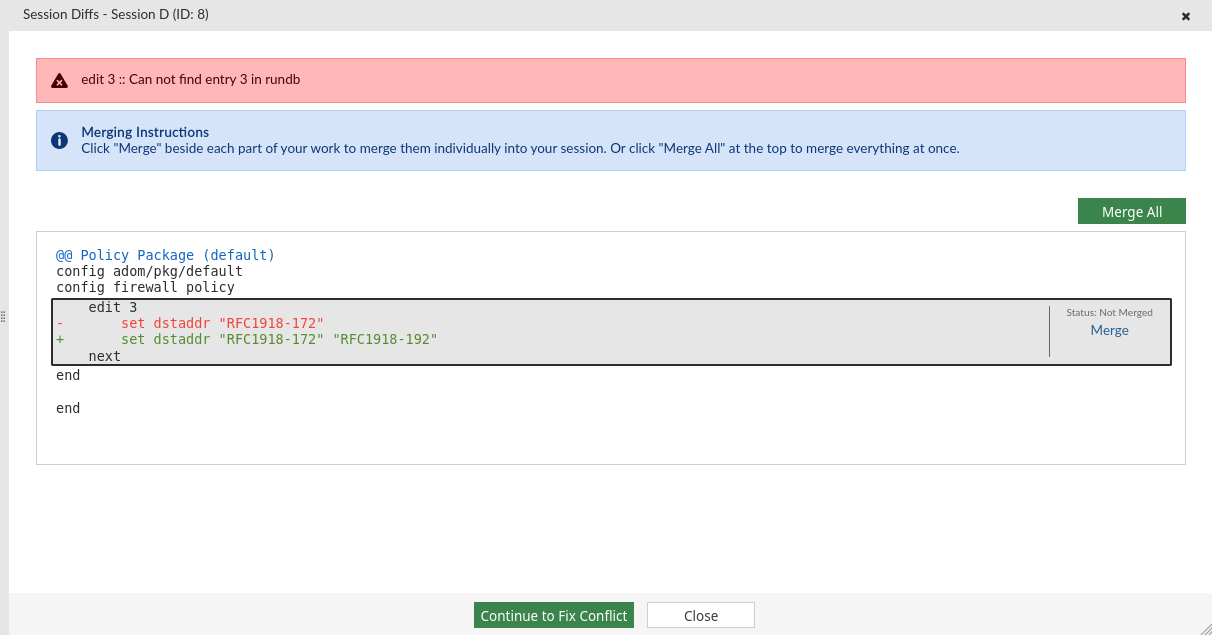
  3. Merge the changes through one of the following methods:

    1. Click Merge All to attempt to merge all configuration changes.

    2. Select the Merge option next to each individual configuration change you want to attempt to merge.

    Configuration blocks are identified as one of the following:

    • Merged (green background): The configuration is merged successfully.

    • Merge Conflict (red background): The configuration is in conflict and cannot be merged.

    • Not Merged (gray background): The configuration has not been merged.

  4. Click Continue to Fix Conflict.

    • FortiManager will copy the latest database along with the session's successfully merged changes, and opens the session for editing.

    • All configurations labeled Merge Conflict or Not Merged and are permanently removed.

  5. Continue to edit the session and resubmit the session for approval as needed.

Example: Resolving a session conflict
  1. admin1 creates a new session named Session3, and makes the following changes:

    1. Edits an existing policy named policy1 and changes the Incoming Interface from any to port1.

    2. Creates a new policy called policy3.

  2. admin2 creates Session4 and deletes policy1.

  3. Both users save and submit their sessions.
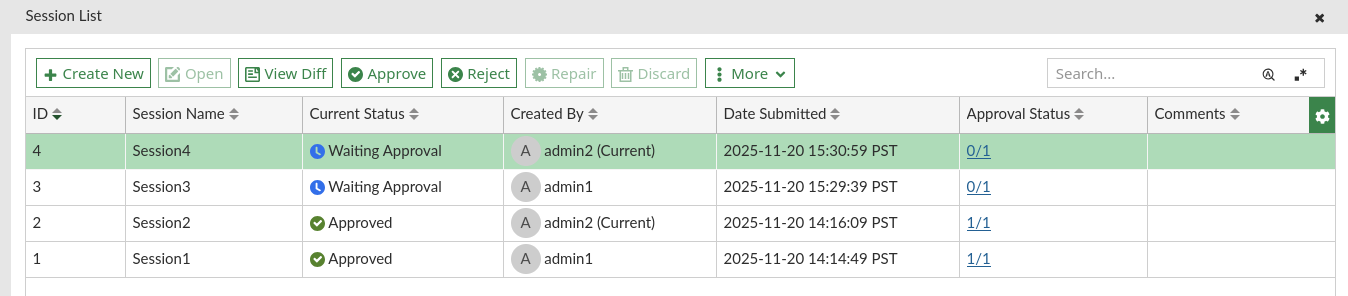
  4. First, admin2 approves Session4 which causes the removal of policy1 from the ADOM.

  5. Next, admin1 attempts to approve Session3, but because Session3 modifies policy1 which was already removed with the approval of Session4, a conflict is identified.

  6. admin1 clicks Merge All to attempt to merge all of the changes made in Session3 with the latest configuration database.

    • Changes to policy3 are identified as Merged (green background) because there is no conflict when adding a new policy.

    • Changes to policy1 are identified as Merge Conflict (red background) because policy1 no longer exists.
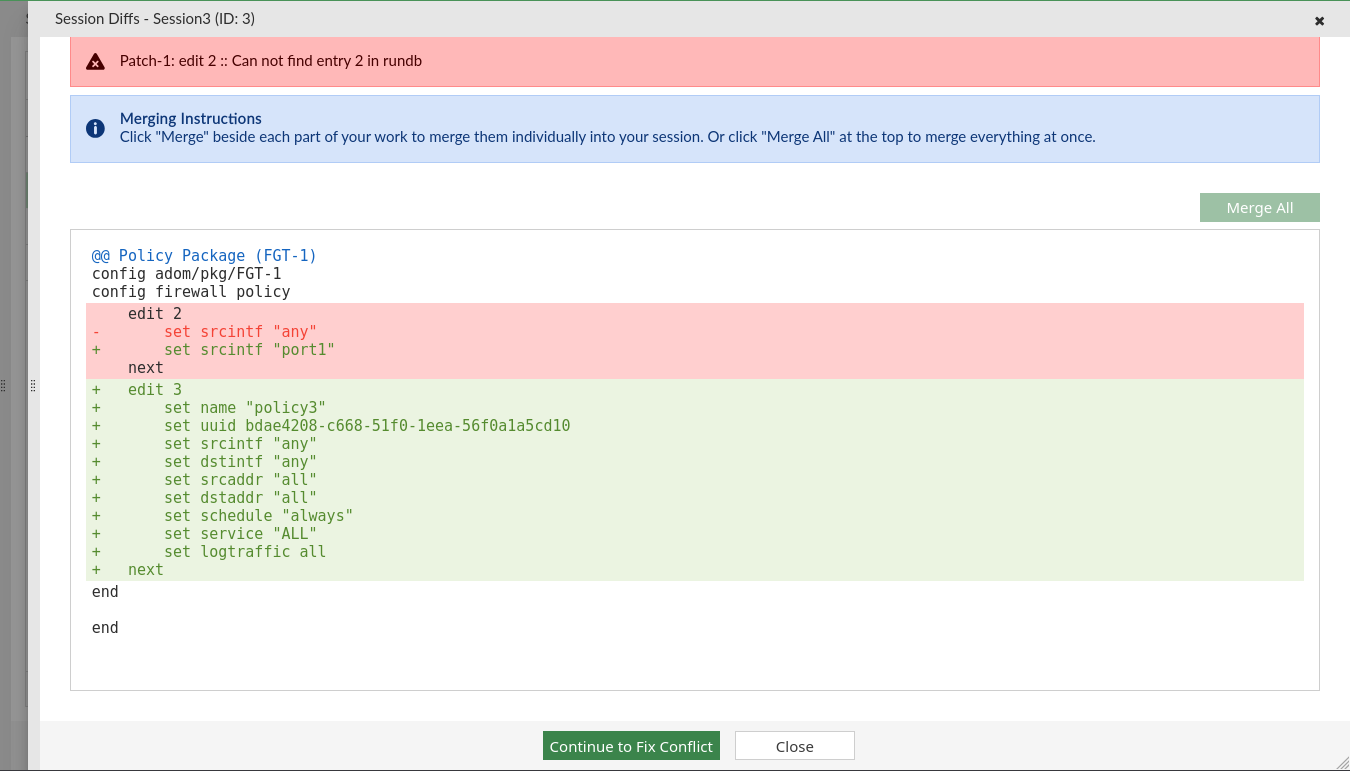
  7. admin1 clicks Continue to Fix Conflict to copy the latest configuration database, including the configuration after Session4 was approved and all of Session3's merged (non-conflicting) changes, and the session is reopened for editing. All unmerged changes are permanently removed.

  8. admin1 can now make additional changes, resubmit, and approve Session3.

Resolving session conflicts

Resolving session conflicts

Because workflow mode allows administrators to approve sessions in any order, changes can effect each other and cause conflicts to occur. When this occurs, the approving administrator will see a conflict error when attempting to approve the session. The administrator can review the changes and has the option to merge non conflicting changes and resubmit the session for approval.

To resolve a conflict during session approval:
  1. As an approver, go to Workflow Session > All Sessions.

  2. Select and approve the desired session.

    When a conflict is detected, the Session Diffs window is displayed and administrators must resolve the conflict by merging or discarding configuration changes before the session can be approved.

  3. Merge the changes through one of the following methods:

    1. Click Merge All to attempt to merge all configuration changes.

    2. Select the Merge option next to each individual configuration change you want to attempt to merge.

    Configuration blocks are identified as one of the following:

    • Merged (green background): The configuration is merged successfully.

    • Merge Conflict (red background): The configuration is in conflict and cannot be merged.

    • Not Merged (gray background): The configuration has not been merged.

  4. Click Continue to Fix Conflict.

    • FortiManager will copy the latest database along with the session's successfully merged changes, and opens the session for editing.

    • All configurations labeled Merge Conflict or Not Merged and are permanently removed.

  5. Continue to edit the session and resubmit the session for approval as needed.

Example: Resolving a session conflict
  1. admin1 creates a new session named Session3, and makes the following changes:

    1. Edits an existing policy named policy1 and changes the Incoming Interface from any to port1.

    2. Creates a new policy called policy3.

  2. admin2 creates Session4 and deletes policy1.

  3. Both users save and submit their sessions.

  4. First, admin2 approves Session4 which causes the removal of policy1 from the ADOM.

  5. Next, admin1 attempts to approve Session3, but because Session3 modifies policy1 which was already removed with the approval of Session4, a conflict is identified.

  6. admin1 clicks Merge All to attempt to merge all of the changes made in Session3 with the latest configuration database.

    • Changes to policy3 are identified as Merged (green background) because there is no conflict when adding a new policy.

    • Changes to policy1 are identified as Merge Conflict (red background) because policy1 no longer exists.

  7. admin1 clicks Continue to Fix Conflict to copy the latest configuration database, including the configuration after Session4 was approved and all of Session3's merged (non-conflicting) changes, and the session is reopened for editing. All unmerged changes are permanently removed.

  8. admin1 can now make additional changes, resubmit, and approve Session3.