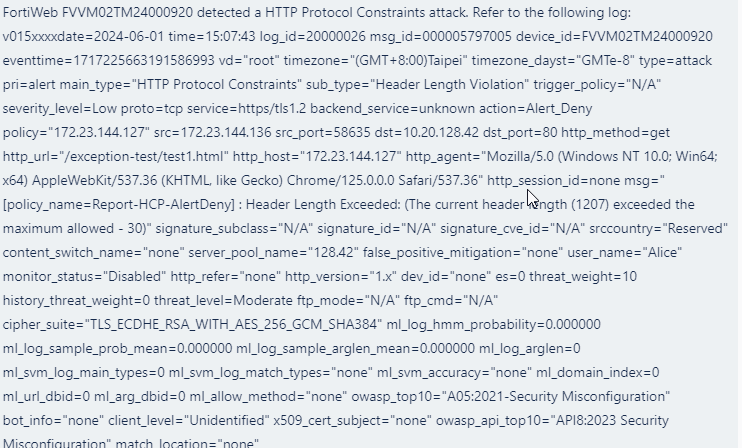
Use case: Automating exception handling for false positives
FortiWeb’s automation feature can be used to streamline the process of adding exceptions for certain attacks. This can be particularly useful in dynamic environments where manual intervention may not be feasible for every false positive detected.
Scenario
An e-commerce platform is experiencing frequent false positives for HTTP constraints attacks due to a particular API endpoint "/exception-test/" that processes large requests from a specific group of users. The security team decides to use FortiWeb’s automation feature to automatically add exceptions for these false positives, ensuring that legitimate traffic is not blocked while maintaining overall security.
How FortiWeb responses to this issue
- Trigger Detection: FortiWeb has detected an HTTP constraints attack from a specific group of user.
- Automated Response: FortiWeb runs the CLI Script action to add the source IP address as an exception, exempting it from the HTTP constraints scan.
- Notification: An alert is sent to the security team via Teams, notify them that an HTTP constraints exception is added.
- Review and Audit: A Jira ticket is created for the security team to review the exceptions list to confirm that they are still relevant and necessary.
By utilizing FortiWeb's automation feature, the e-commerce platform can effectively manage exceptions for HTTP constraints attacks, maintaining a balance between security and usability.
Configurations on FortiWeb
Before performing the following steps, make sure:
-
You have already got the URL of the Teams channel you want to send notifications to. For how to get the URL. See Microsoft Teams Notification action.
-
You have already created a Jira service project and an API token in the Jira account for authentication purpose. See Jira Notification action.
-
The users are authenticated through the rules configured in Application Delivery > Authentication or Site Publish. This process ensures the presence of a "user_name" field in the attack log, allowing the FortiWeb to exempt IP addresses based on the user name.
Perform the following steps on FortiWeb:
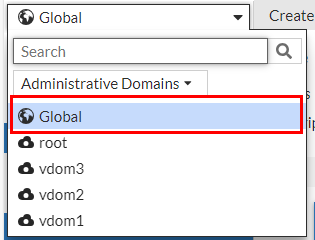
- Switch the Administrative Domain to Global.
- Go to Security Fabric > Automation.
- Select the Trigger tab.
- Click Create New.
- Select FortiWeb Log to filter out the HTTP constraints logs.
- Configure the settings:
Name Enter a name.
Description Enter a description.
Event Click the Add icon, enter "20000026" in the search box, then select the attack. Field Filter(s)
Use the following filter to filter out the specific user group, for example, users with a prefix "testuser".
Field Name: user_name
Contain
Value: testuser
Use the following filter to filter out the logs related to specific request URL "/exception-test/".
Field Name: http_url
Contain
Value: /exception-test/
- Click OK.
- Go to Security Fabric > Automation.
- Click Create New to create a CLI Script action that adds the source IP address to the HTTP Constraints exceptions.
- Select CLI Script.
- Enter a name and description.
- Enter the following command:
config waf http-constraints-exceptions
edit \"from-automation\"
config http_constraints-exception-list
edit 0
set request-file /exception-test/*
set request-type regular
set source-ip-status enable
set source-ip %%log.srcip%%
set max-http-content-length enable
next
end
next
end
show fu waf http-constraints-exceptions from-automation
- Click OK.
- Click Create New to create a Teams Notification action.
- Select Microsoft Teams Notification.
Configure the settings:
Name Enter a name.
Description Enter a description.
URL Paste the webhook URL you got from Teams. - Please leave the "https://" out when you paste the URL because the system will automatically append "https://" to the URL you enter.
Message Type Text Message FortiWeb has detected a HTTP Protocol Constraints attack. Refer to the following log:
%%log%%
Attack source %%log.srcip%% has been added to FortiWeb HTTP Protocol Constraints Exceptions. Refer to the following configuration:
%%results%%
- Click OK.
- Click Create New to create a Jira notification action.
- Select Jira Notification. Configure the settings:
Name Enter a name.
Description Enter a description.
Account Enter the Jira account name. This account must have User Management Access privilege. Token
Enter the API token.
URL Enter the URL of your Jira account. Please leave the "https://" out when you paste the URL because the system will automatically append "https://" to the URL you enter.
Message The Jira message body is slightly different from the Teams message as the
%%results%%variable is omitted. This is due to the potential parsing errors that could arise if the outcome of the message contains paragraph tags such as Tab or Enter. Using%%results%%in this context is inappropriate as the output may contain these paragraph tags.{ \"fields\": { \"project\": { \"key\": \"KAN\" }, \"summary\": \"FortiWeb Automation Notification\", \"description\": { \"type\": \"doc\", \"version\": 1, \"content\": [ { \"type\": \"paragraph\", \"content\": [ { \"type\": \"text\", \"text\": \"FortiWeb has detected a HTTP Protocol Constraints attack. Refer to the following log:\\n%%log%%\\nAttack source %%log.srcip%% has been added to FortiWeb HTTP Protocol Constraints Exceptions.\" } ] } ] }, \"issuetype\": { \"name\": \"Task\" } } } - Click OK.
- Select the Stitch tab.
- Enter a name and brief description for this stitch. Enable the status.
- Click Add Trigger, select the FortiWeb Log trigger, then click Apply.
- Click Add Action, select the CLI Script action you just created, then click Apply.
- Click Add Action, select the Microsoft Teams Notification action you just created, then click Apply.
- Click Add Action, select the Jira Notification action you just created, then click Apply.
- Click OK.
When this automation stitch is triggered, the CLI script will run to add the source IP of the specific user group to HTTP Constraints exception list.
You will receive the following message in Microsoft Teams and Jira. Please note that the following is just an example and may not correspond exactly to the messages configured for this use case.