Fortinet white logo
Fortinet white logo

Porting DID numbers

Porting DID numbers

You can transfer a DID number from another service provider.

To port a DID number
  1. Go to FortiVoice Cloud > Trunks > Local Number Portability.
  2. Click + Port a Number.
  3. In the Port a DID Number dialog, for Description, enter a note for this number porting request.
  4. For Company name, Billing Name, Billing Address, Billing City, Billing State, and Billing Zip Code, enter the information as shown on your organization's phone bill. The billing address is the address associated with your payment method for this DID number, such as a credit card or a bank account.
  5. Click Next.
  6. For Service Address, Service City, Service State, and Service Zip Code, enter the information as shown on your organization's phone bill.
  7. The service address is where you use this DID number. The service address determines taxes, fees, and any other surcharges. It also helps to determine your location when you have to dial an emergency number, such as 911.

  8. Click Next.
  9. Configure the following:

    Field

    Description

    Current Carrier

    Enter the name of your phone service provider, such as AT&T.

    Account PIN

    If your account has a PIN, enter it.
    Name of Billing Telephone Number (BTN)

    Enter the caller ID for your billing telephone number (BTN).

    BTN

    Enter the BTN on your organization's phone bill. This is the main number that you are billed for if you have multiple phone numbers with your service provider.

    Names and Porting Telephone Numbers

    Enter the name associated with the DID number and the DID number to be ported.

    To port more DID numbers, click +.

    Authorized Contact Name

    Enter the name of a second contact person who is authorized to make changes to the DID number porting request.

    Authorized Contact Title

    Enter the title of the authorized contact person.

    Email Address

    Enter the email address of the authorized contact person.

  10. Click Submit.
  11. Click Confirm & Continue.
  12. After submitting a request to port a number, you may see the following statuses displayed in the Port Status column of the Local Number Portability page:

    Port Status

    Description

    Received

    Port request has been received and is waiting to be processed.

    Submitted to Carrier

    Port request has been submitted to the losing carrier with whom the number currently resides.

    Awaiting Paperwork

    Additional information is required to process the request.

    Jeopardy

    Port request is on hold pending receipt of additional information and may not be processed by the date originally specified in the application.

    Not Portable

    The requested number cannot be ported.

    Port Canceled

    Port request has been canceled.

    Port Voided

    Port request has been voided.

    FOC Date

    Port date has been confirmed (firm order commitment) and the date requested in the application is the date on which the number will move.

    Completed

    Port request has been completed and the number is now on the account.

  13. You will receive an email notification in your inbox from FortiCall Support with the email address support@forticall.zendesk.com.
  14. The subject line of the email contains the following information:

  • [Volli Communications]—Volli Communications Inc (Volli) is an independent Voice Over IP business telephone service provider working with Fortinet, Inc. to power the FortiCall digital telephone service.
  • BTN number—The number you requested to port.
  • Ticket number—The Fortinet Support system creates a ticket automatically when you submit your porting request.
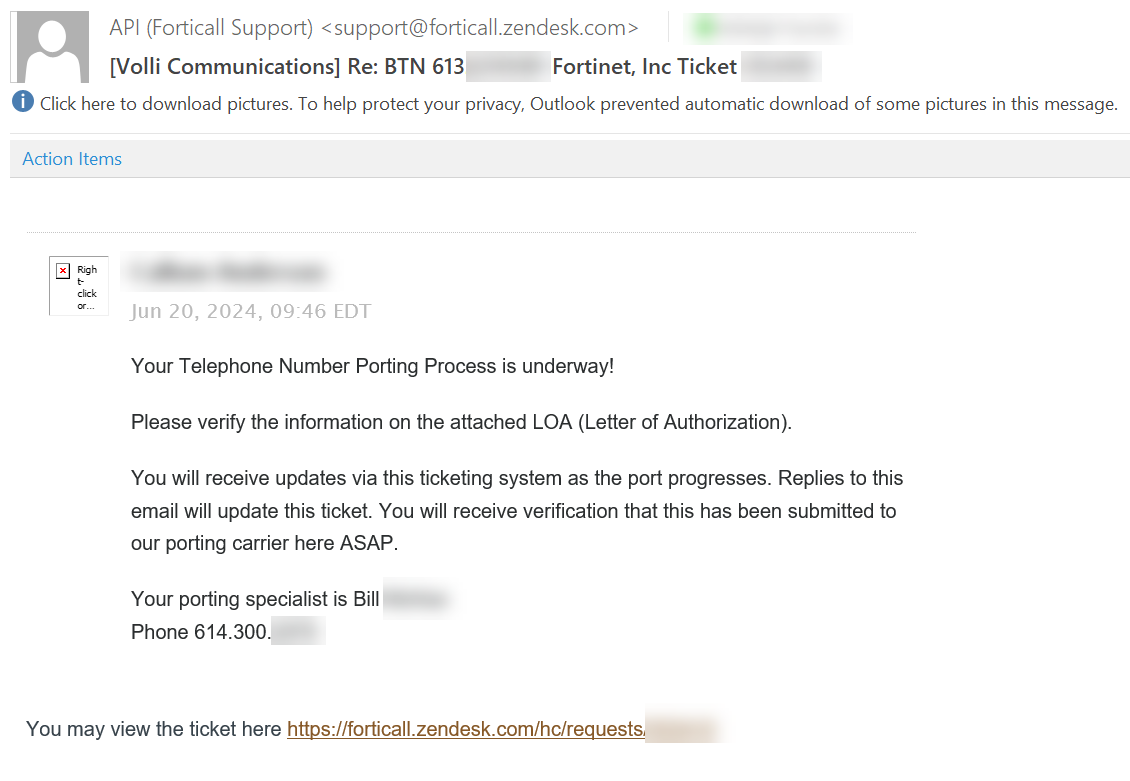
  • Here is an example email:

Porting DID numbers

Porting DID numbers

You can transfer a DID number from another service provider.

To port a DID number
  1. Go to FortiVoice Cloud > Trunks > Local Number Portability.
  2. Click + Port a Number.
  3. In the Port a DID Number dialog, for Description, enter a note for this number porting request.
  4. For Company name, Billing Name, Billing Address, Billing City, Billing State, and Billing Zip Code, enter the information as shown on your organization's phone bill. The billing address is the address associated with your payment method for this DID number, such as a credit card or a bank account.
  5. Click Next.
  6. For Service Address, Service City, Service State, and Service Zip Code, enter the information as shown on your organization's phone bill.
  7. The service address is where you use this DID number. The service address determines taxes, fees, and any other surcharges. It also helps to determine your location when you have to dial an emergency number, such as 911.

  8. Click Next.
  9. Configure the following:

    Field

    Description

    Current Carrier

    Enter the name of your phone service provider, such as AT&T.

    Account PIN

    If your account has a PIN, enter it.
    Name of Billing Telephone Number (BTN)

    Enter the caller ID for your billing telephone number (BTN).

    BTN

    Enter the BTN on your organization's phone bill. This is the main number that you are billed for if you have multiple phone numbers with your service provider.

    Names and Porting Telephone Numbers

    Enter the name associated with the DID number and the DID number to be ported.

    To port more DID numbers, click +.

    Authorized Contact Name

    Enter the name of a second contact person who is authorized to make changes to the DID number porting request.

    Authorized Contact Title

    Enter the title of the authorized contact person.

    Email Address

    Enter the email address of the authorized contact person.

  10. Click Submit.
  11. Click Confirm & Continue.
  12. After submitting a request to port a number, you may see the following statuses displayed in the Port Status column of the Local Number Portability page:

    Port Status

    Description

    Received

    Port request has been received and is waiting to be processed.

    Submitted to Carrier

    Port request has been submitted to the losing carrier with whom the number currently resides.

    Awaiting Paperwork

    Additional information is required to process the request.

    Jeopardy

    Port request is on hold pending receipt of additional information and may not be processed by the date originally specified in the application.

    Not Portable

    The requested number cannot be ported.

    Port Canceled

    Port request has been canceled.

    Port Voided

    Port request has been voided.

    FOC Date

    Port date has been confirmed (firm order commitment) and the date requested in the application is the date on which the number will move.

    Completed

    Port request has been completed and the number is now on the account.

  13. You will receive an email notification in your inbox from FortiCall Support with the email address support@forticall.zendesk.com.
  14. The subject line of the email contains the following information:

  • [Volli Communications]—Volli Communications Inc (Volli) is an independent Voice Over IP business telephone service provider working with Fortinet, Inc. to power the FortiCall digital telephone service.
  • BTN number—The number you requested to port.
  • Ticket number—The Fortinet Support system creates a ticket automatically when you submit your porting request.
  • Here is an example email: