Fortinet white logo
Fortinet white logo

Admin Guide

Demo: Configuring Azure as SCIM client

Demo: Configuring Azure as SCIM client

  1. Go to https://portal.azure.com.

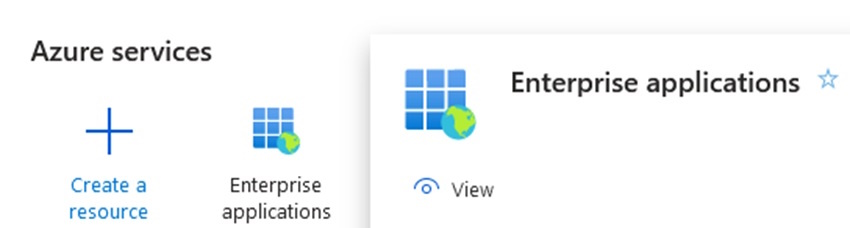
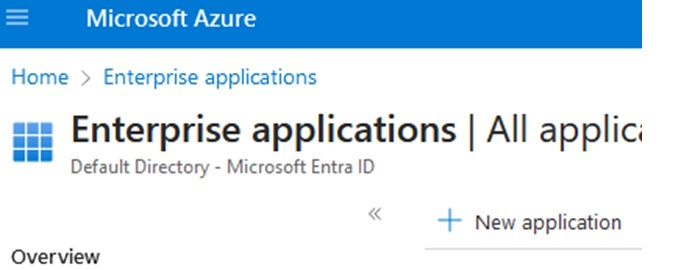
  2. Click Enterprise Applications.

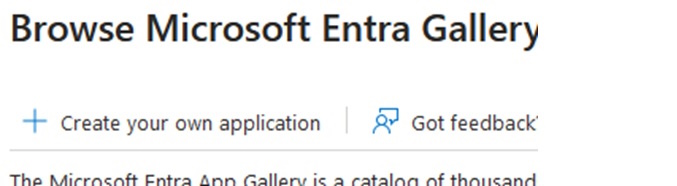
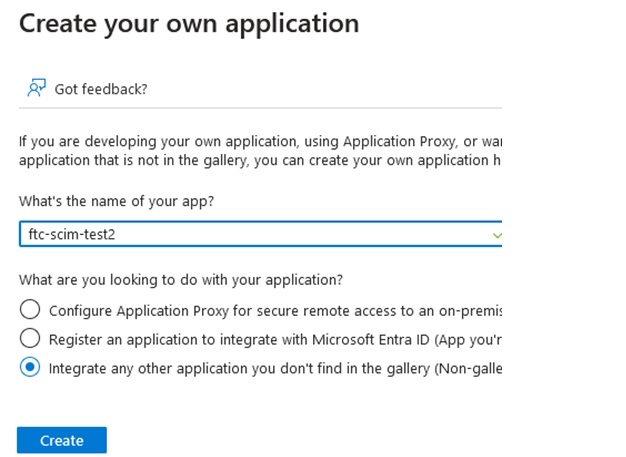
  3. Click Create your Own applications.

  4. Review the application that you've just created.
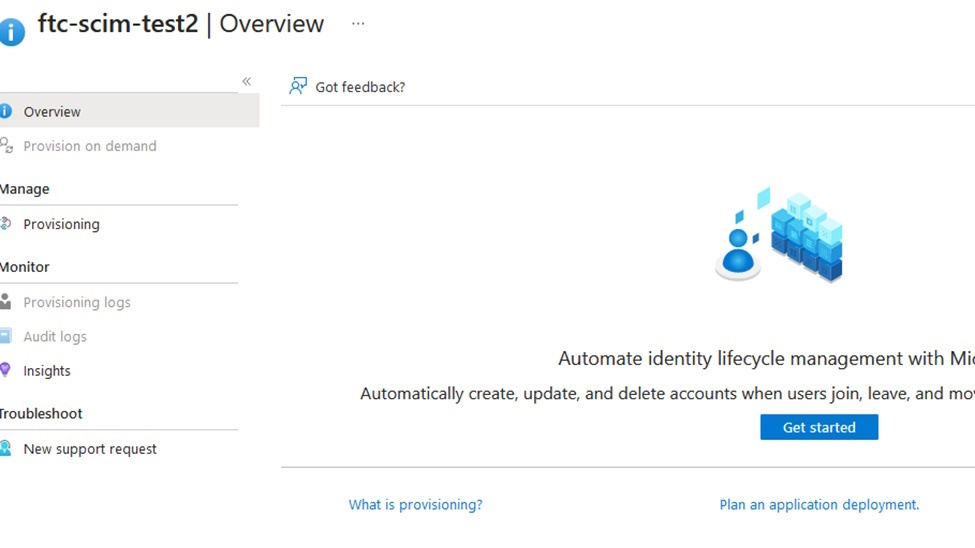
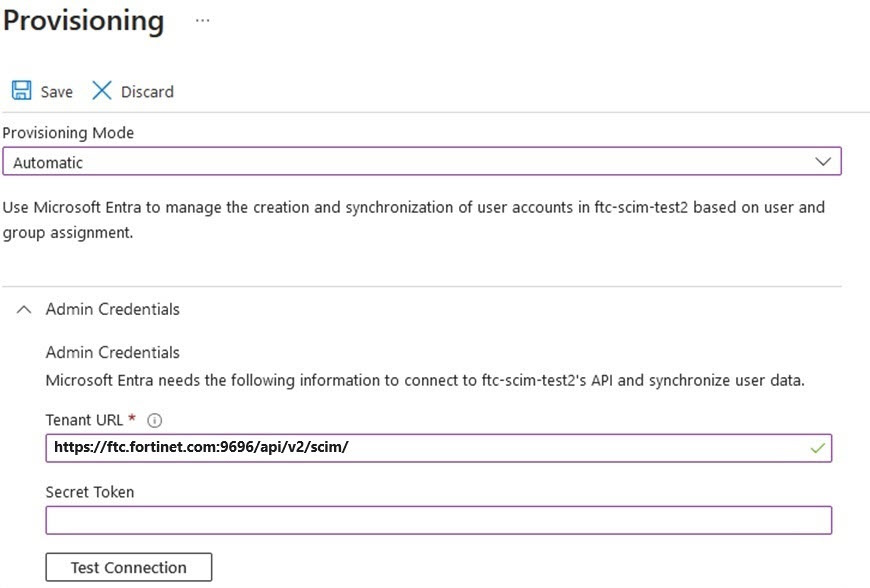
  5. Click Provisioning and select Automatic Provisioning Mode.
  6. Add the users to the applications:

    1. Go to the applications and click the newly created the application FIC-scim-test2.
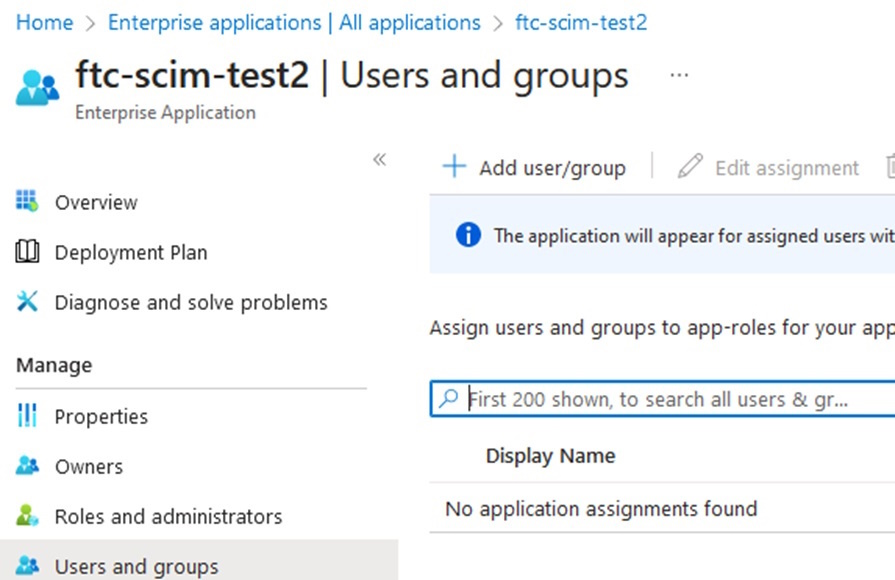
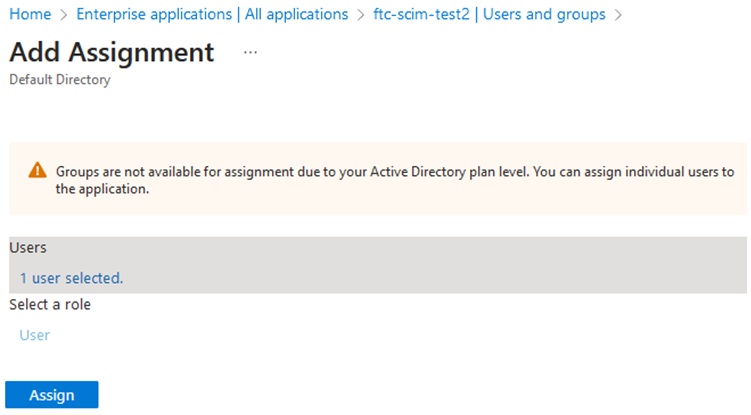
    2. Click Add user/group, select the user(s), and click Assign.
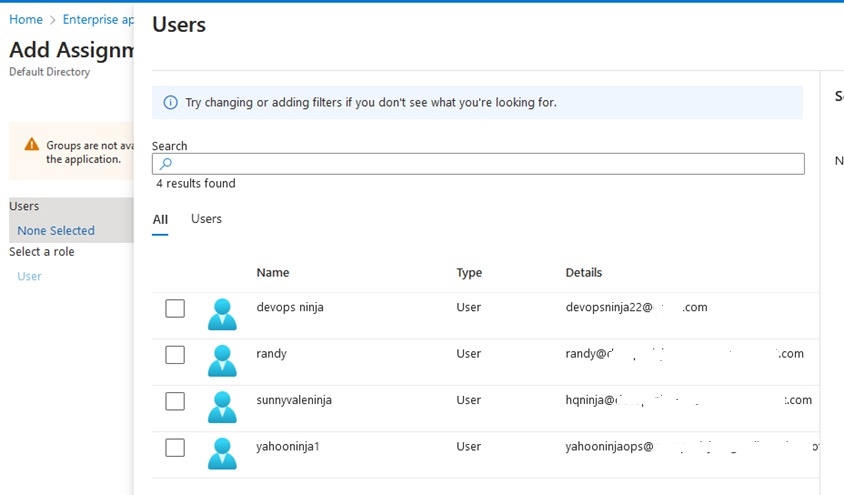
    3. Add to the assignment and click Assign.
    Provisioning:

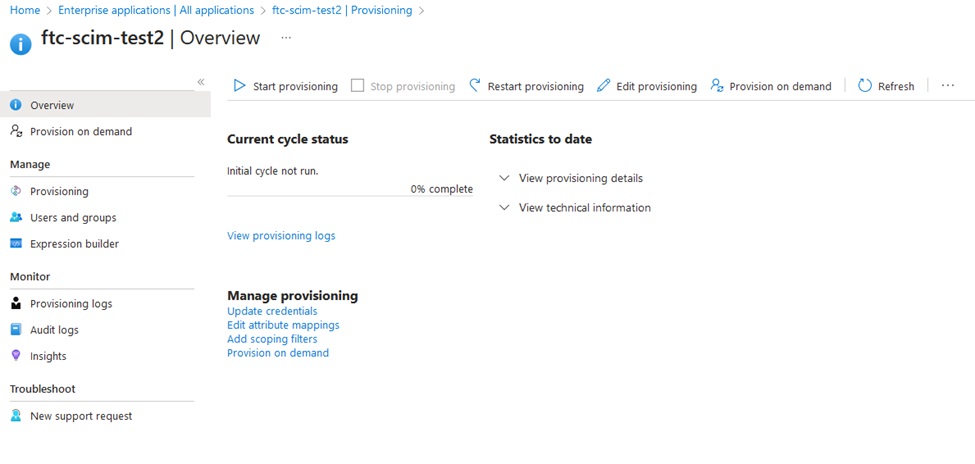
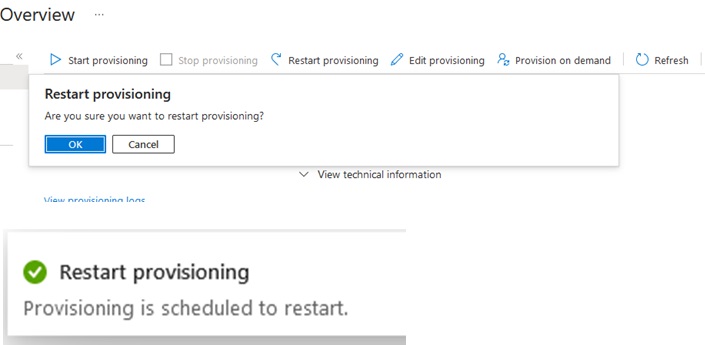
    1. Click Provisioning and Restart.

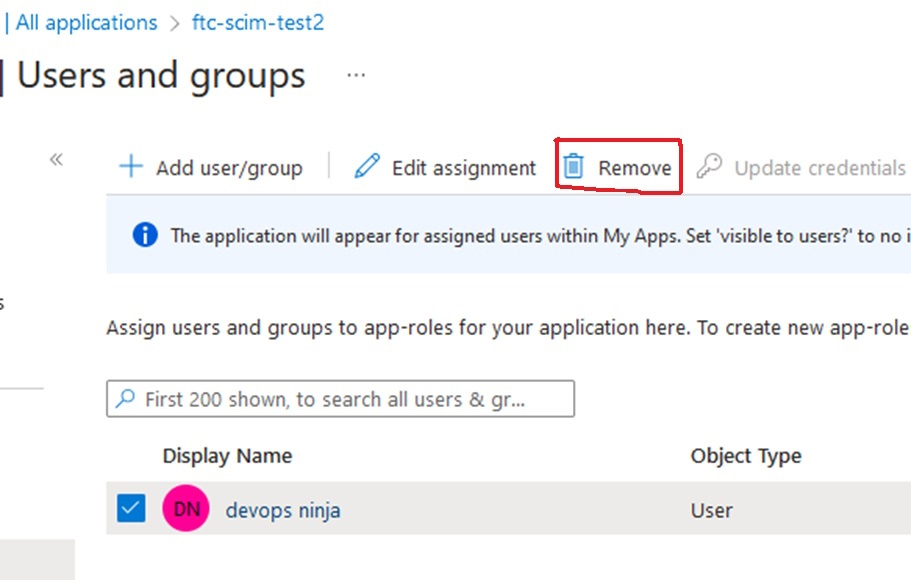
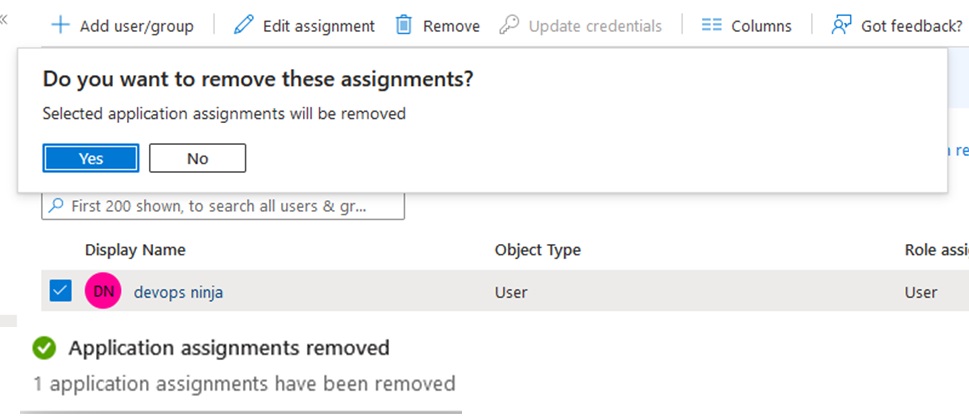
    Remove User:

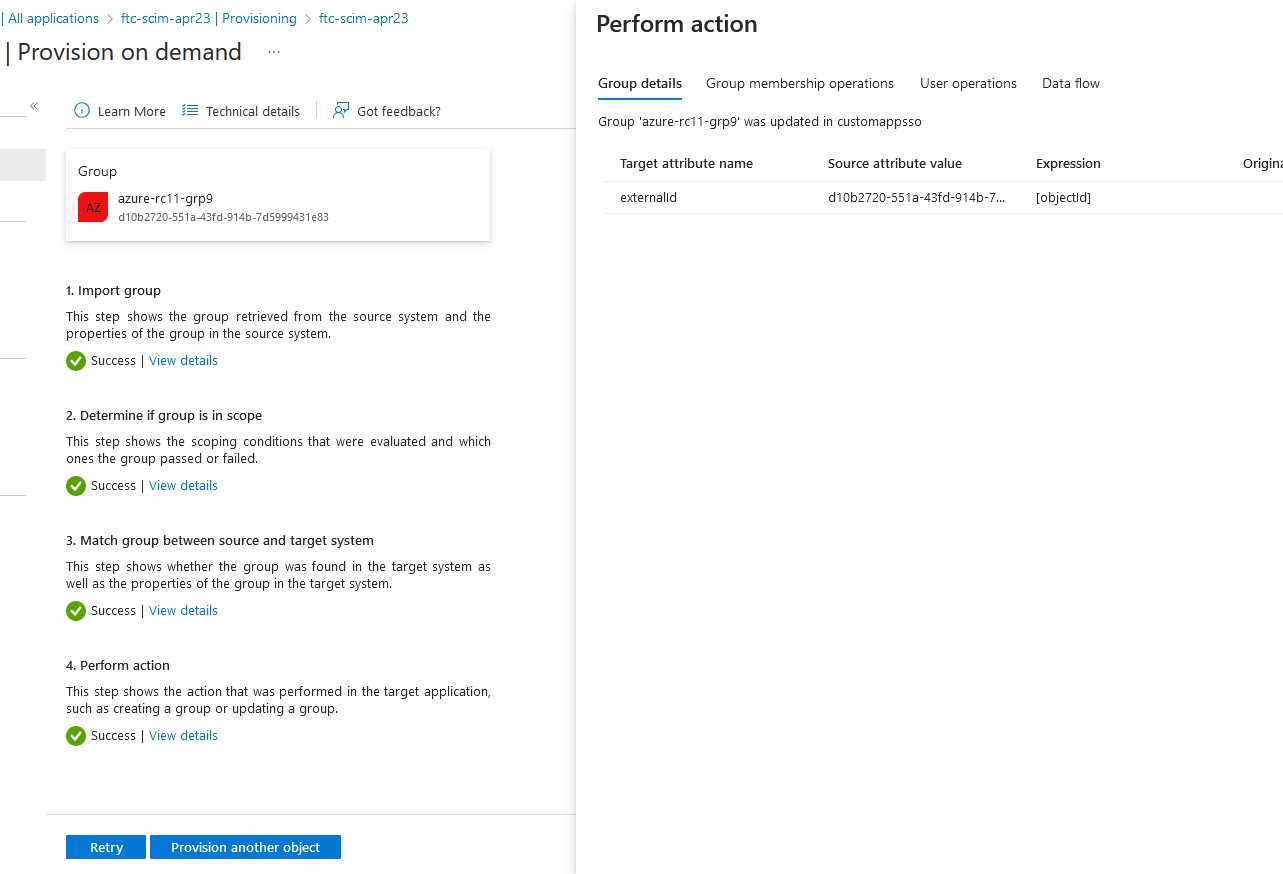
    On-Demand Provision:

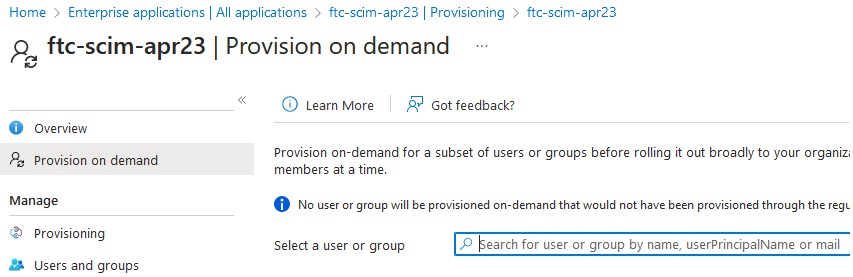
    Go to Enterprise Applications>All Applications>your-Applications>Provisioning>Provision on demand.

    Example:

    1. Search and select the user or group.

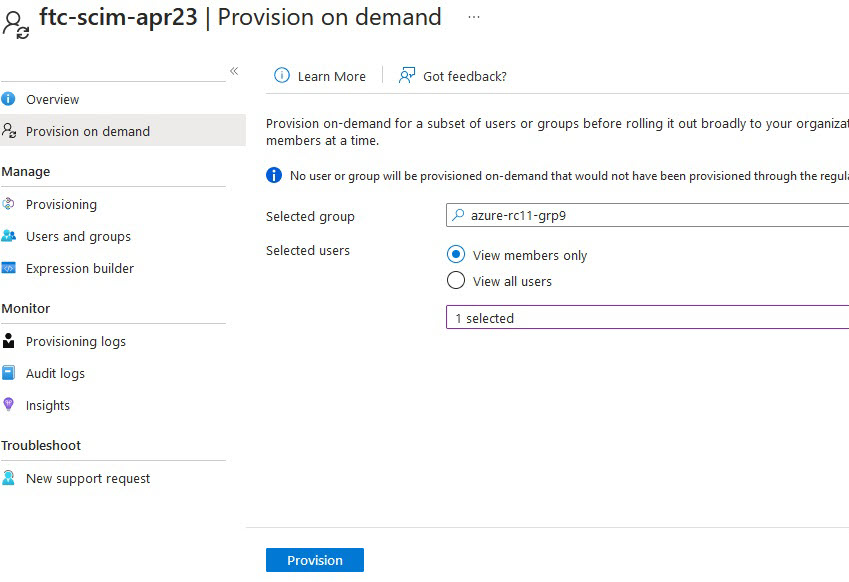
    2. For groups, select the members.

    3. Click Provision.

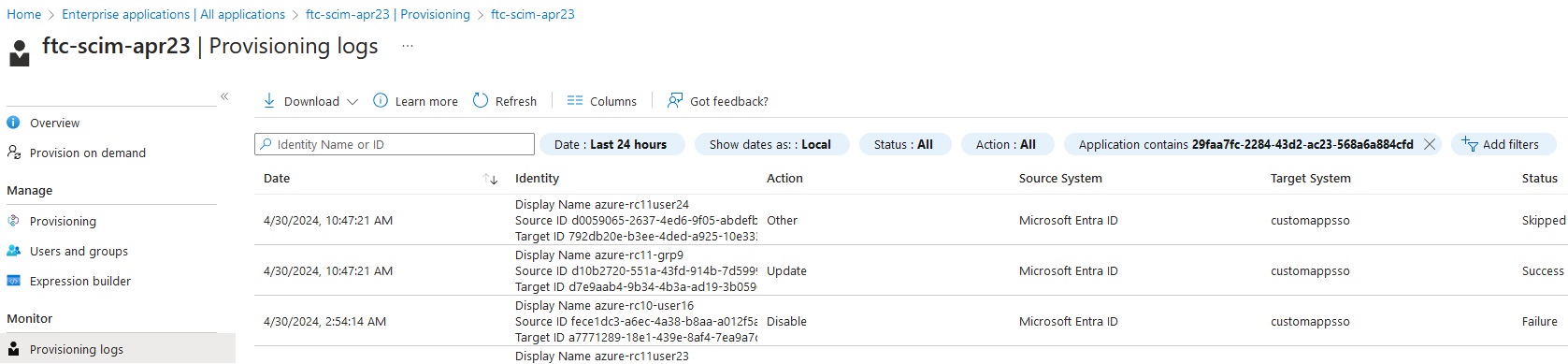
    4. Check the Provision logs:

Demo: Configuring Azure as SCIM client

Demo: Configuring Azure as SCIM client

  1. Go to https://portal.azure.com.

  2. Click Enterprise Applications.

  3. Click Create your Own applications.

  4. Review the application that you've just created.

  5. Click Provisioning and select Automatic Provisioning Mode.

  6. Add the users to the applications:

    1. Go to the applications and click the newly created the application FIC-scim-test2.

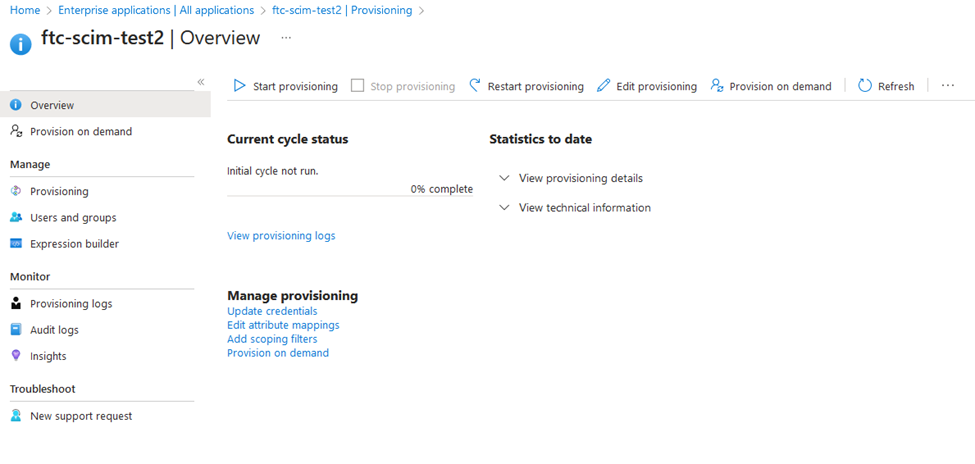
    2. Click Add user/group, select the user(s), and click Assign.

    3. Add to the assignment and click Assign.
    Provisioning:

    1. Click Provisioning and Restart.

    Remove User:

    On-Demand Provision:

    Go to Enterprise Applications>All Applications>your-Applications>Provisioning>Provision on demand.

    Example:

    1. Search and select the user or group.

    2. For groups, select the members.

    3. Click Provision.

    4. Check the Provision logs: