

Creating a Windows app filter profile
The Windows app filter profile interface is designed to help you control which applications and files users can run on Windows servers.
This interface allows for the creation and management of profiles that enforce security policies by restricting access to certain executables, scripts, and installers.
Prerequisites
- The host server operates on Windows.
- WinRM is enabled on the host server.
-
In FortiPAM, the host server is referred to as "target."
The target has a privileged account for WinRM access on the host server.
- All secrets whose server information is “Windows” under this target, except for the privileged account, can be used to enable the Windows application filter.
To create a Windows app filter profile:
- Go to Secret Settings > Windows App Filter Profiles.
- Select Create.
The New Windows App Filter Profile (Apply to secrets to control which apps and files users can run) window opens.
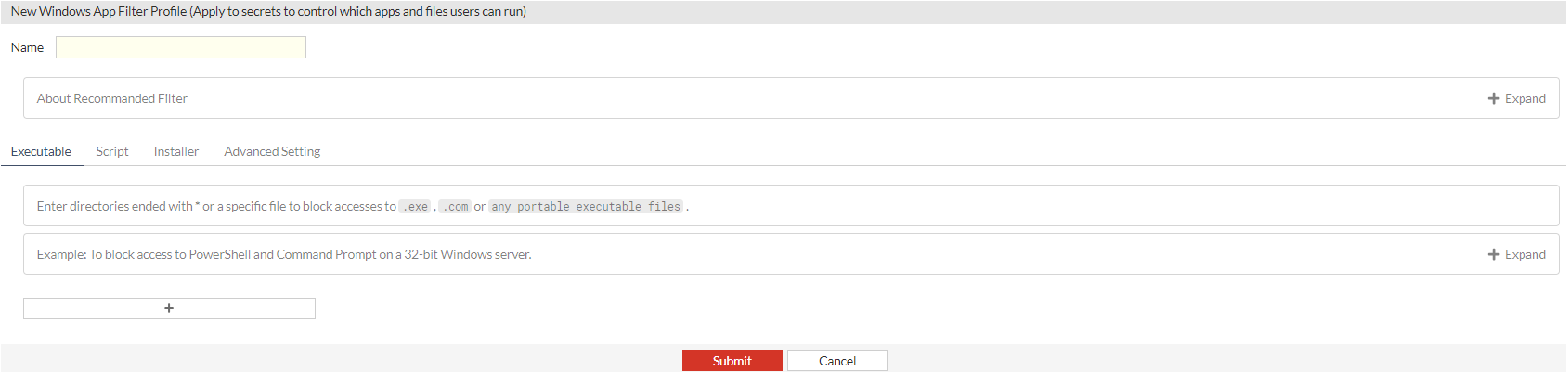
- Enter the following information:
Name
The name of the Windows app filter profile.
This helps identify and manage different profiles.
About Recommended Filter
Offers guidance on setting up filters, recommending the restriction of access exclusively to application storage and system files directories.
The wildcard * blocks all interactions, with exceptions for
%PROGRAMFILES%\*and%WINDIR%\*to permit access to Program Files andC:\Windowsdirectories.Executable
Enter directories ending in
*or a specific file to block access to.exe,.com, or any portable executable file.Deny (Recommend)
Pre-filled with the wildcard
*to block all executable files.Exceptions
List of directories where executable files are allowed ,e.g.,
%PROGRAMFILES%\*,%WINDIR%\*.Add Exceptions
Use the Add Exception button to include additional paths where execution is permitted.
Deny
Define specific paths to block. Click Add Exception to permit specific directories or files within the blocked paths.
Example
To block access to PowerShell and Command Prompt on a 32 bit Windows server, use:
Deny
C:\Windows\System32\WindowsPowerShell\v1.0\powershell.exe%SYSTEM32%\WindowsPowerShell\v1.0\powershell_ise.exe%SYSTEM32%\cmd.exe
Script
Enter directories ending in
*or a specific file to block access to.ps1,.bat,.cmd,.vbs, or.jsfiles..ps1: Powershell scripts
.bat: Batch files
.cmd: Command scripts
.vbs: VBScript files
.js: Javascript files
Using
*at the end of a directory path ensures that all scripts within that directory are blocked.Similar to Executable, you can set Deny.
Installer
Enter directories ending in
*or a specific file to block accesses to.msi,.msp, or.mstfiles..msi: Windows installer package
.msp: Windows installer patch
.mst: Windows installer transform
Deny (Recommend)
Pre-filled with the wildcard
*to block all installer files.Exceptions
List of directories where installer files are allowed ,e.g.,
%PROGRAMFILES%\*,%WINDIR%\*.Add Exceptions
Use the Add Exception button to include additional paths where execution is permitted.
Deny
Define specific paths to block. Click Add Exception to permit specific directories or files within the blocked paths.
Advanced Settings
Offers the ability to control the refresh interval for profile checks and updates.
This guarantees that even in the absence of profile changes, FortiPAM continues to update the rule on the remote server, ensuring the rule remains current.
Consequently, multiple methods exist to initiate the rules update upon the launch of the secret session.
The policy changes.
The secret settings change.
The target settings change.
The Windows app filter profile changes.
The refresh period is up.
Refresh Period
The time period at which the system checks and marks if the profile has been modified during each refresh period, in minutes (default = 30).
When launching a secret with this profile, the filters are only updated if the profile is marked as modified.
- Click Submit.