

Client software
By default, the Client Software tab displays the FortiPAM Google Chrome and Microsoft Edge extension: Fortinet Privileged Access Agent.

When additional client softwares have been added, the Client Software tab appears as the following:
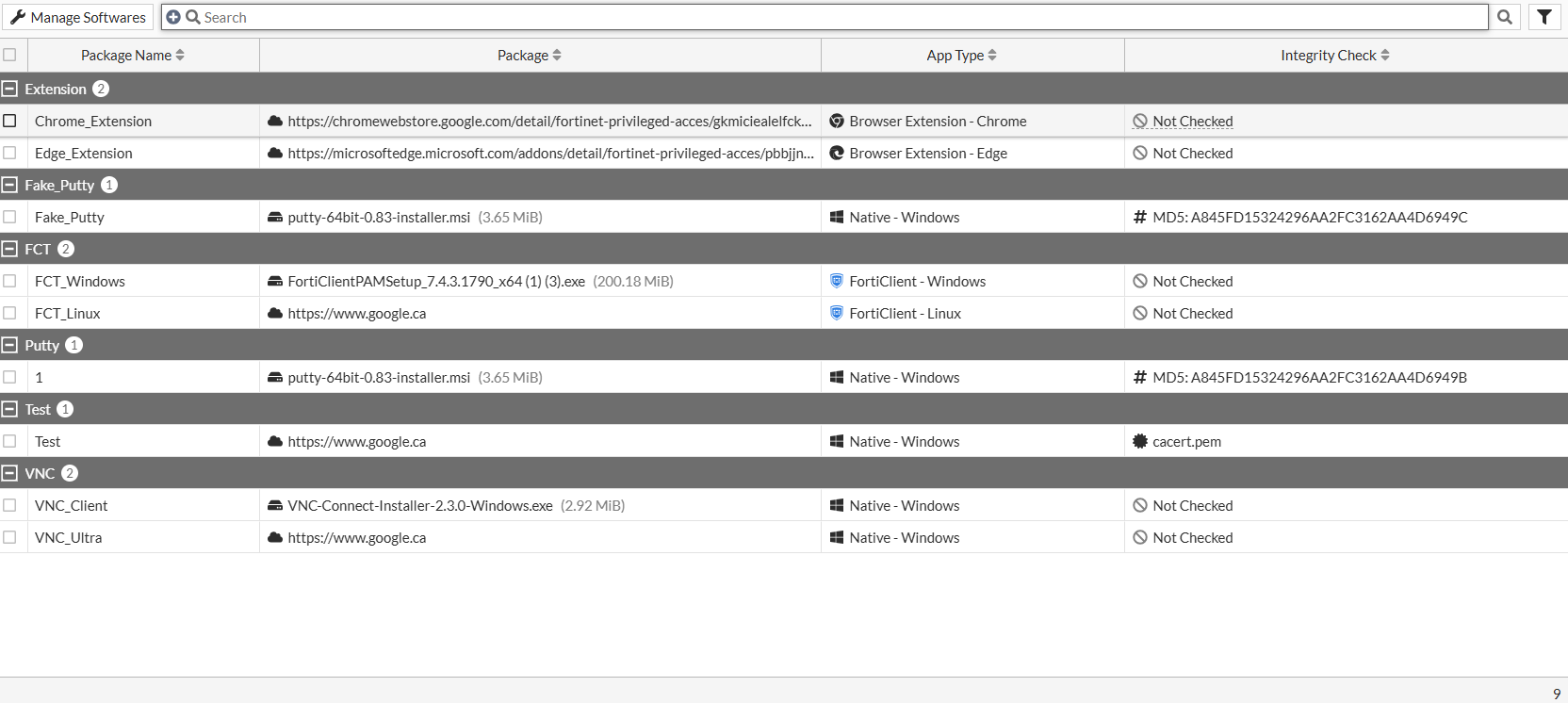
The following columns are displayed by default:
-
Package Name
-
Package
-
App Type
-
Integrity Check
The Client Software tab contains the following options:
|
Manage Softwares |
Select to open the list for the types of client software. See Manage softwares. |
|
Search |
Enter a search term in the search field, then hit The following column filters are available:
|
|
Go to Website |
Select an entry and click Go to Website to open the download link in a new tab. |
For every launcher, you can configure a client software entry in the Client Software tab in Secret Settings to enable integrity checks.

|
Client software integrity check requires FortiPAM 1.1.x (or above) and FortiClient 7.2.2 (or above). |
When the integrity check fails, the launching stops and a prompt appears showing where to download a version of the client software based on your FortiPAM configurations.
|
|
Using integrity check prevents launching of corrupt executables. |
The following three types of integrity checks are available:
-
Executable hash: Comparing the executable hash with the provided value.
-
Certificate: Checking the certificate of a file.
-
None (default)
An integrity check is considered passed when at least one version of the client software package is matched.
For each integrity check; name, number of pages, and references are displayed.
Manage softwares
The Manage Softwares tab contains the following options:
|
Create |
Select to create a client software entry type for integrity check. |
|
Edit |
Select to edit the selected client software entry type. |
|
Delete |
Select to delete the selected client software entry types. |
|
Search |
Enter a search term in the search field, then hit To narrow down your search, see Column filter. |