Fortinet white logo
Fortinet white logo

Administration Guide

Secret event & video

Secret event & video

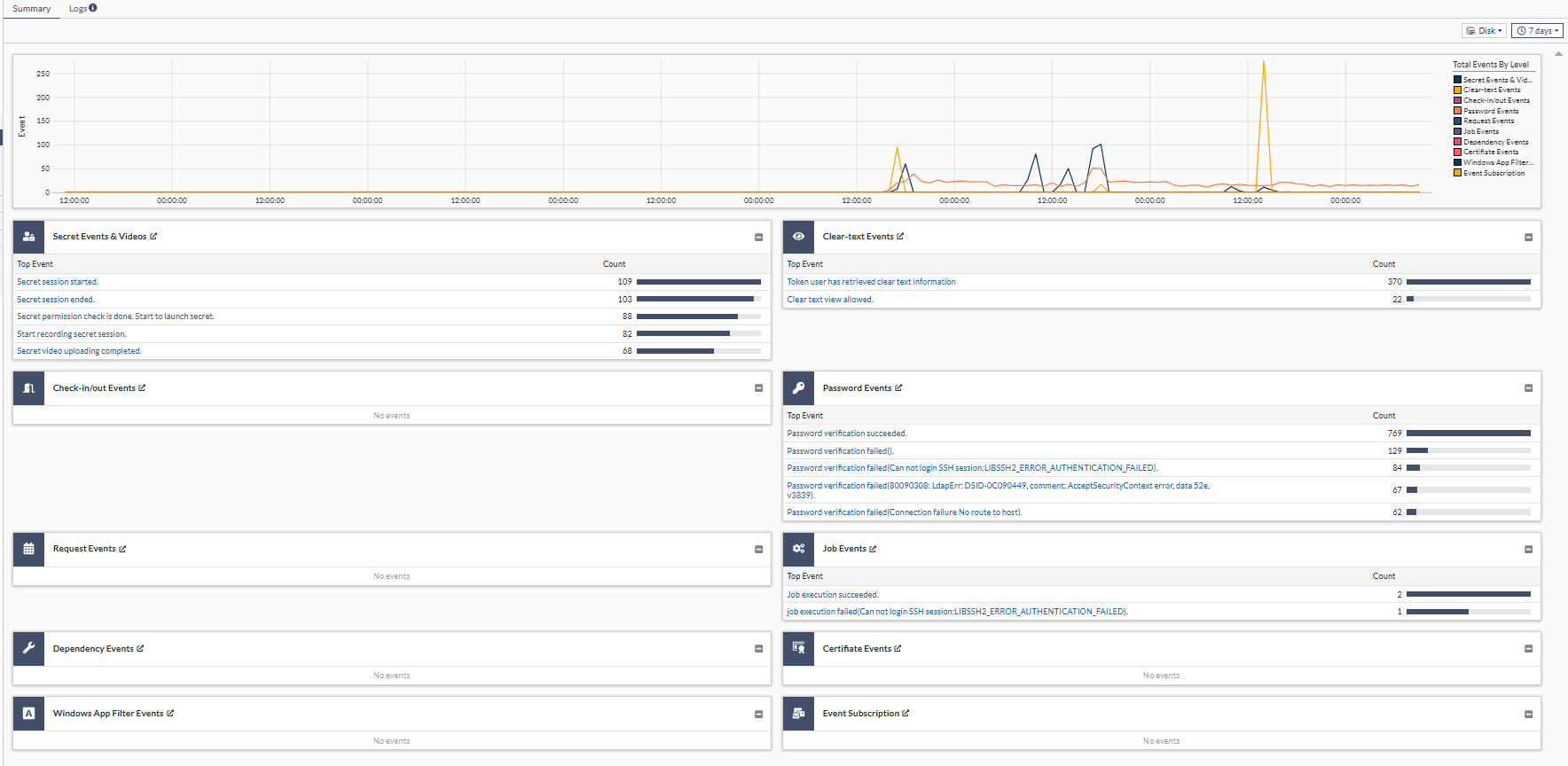
Go to Secret Event in Log & Report to see logs related to the following:

  • Secret Events & Videos

  • Clear Text Events

  • Check-in/out Events

  • Password Events

  • Request Events

  • Job Events

  • Dependency Events

  • Certificate Events

  • Windows App Filter Events

  • Event Subscription

  • The following options are available in the Summary tab:

    Log Location

    Select a source from where to retrieve logs:

    • Disk (default) (FortiPAM)

    Time frame

    From the dropdown, select from the following time filters:

    • 5 minutes

    • 1 hour

    • 24 hours

    • 7 days

    The following options are available in the Logs tabs:

    Export

    From the Export dropdown, select to export the logs in the following three formats:

    • JSON: Export the selected secret session log to your computer as a JSON file named as secret-xyz-YYYY_MM_DD.json

    • CSV: Export the selected secret session log to your computer as a CSV file named as secret-xyz-YYYY_MM_DD.csv

    • TEXT: Export the selected secret session log to your computer as a text file named as secret-xyz-YYYY_MM_DD.txt

    Refresh

    To refresh the contents, click the refresh icon.

    +Add Filter

    From the dropdown, select a filter, select or add additional details about the filter to be used and hit Enter.

    Note: Logs can be filtered by date and time. The log viewer can be filtered with a custom range or with specific time frames.

    Time frame settings for each Log & Report page are independent. For example, changing the time frame on the System Events page does not automatically change the time frame on the User Events and HA Events pages.

    Secret Events & Videos

    From the dropdown, select a tab to display:

    • Secret Events & Videos

    • Clear-text Events

    • Check-in/out Events

    • Password Events

    • Request Events

    • Job Events

    • Dependency Events

    • Certificate Events

    • Windows App Filter Events

    • Event Subscription

    Log location

    Select a source from where to retrieve logs:

    • Disk (default) (FortiPAM)

    • FortiAnalyzer

    See FortiAnalyzer logging for setting up FortiAnalyzer as the remote logging server.

    Time frame

    From the dropdown, select from the following time filters:

    • 5 minutes

    • 1 hour

    • 24 hours

    • 7 days

    • View All

    Details

    Select to see details for the selected log entry.

Secret Events & Videos

Clicking Secret Events & Videos opens all the secret logs and videos. Different subcategories of secret logs are displayed when you click on a secret log.

where the following columns are available by default:

  • Date/Time

  • User

  • Secret name

  • Account

  • Operation

  • Message

  • Launcher

  • Source IP

  • Secret Address: The IP address or FQDN of the actual target server.

  • Gateway: The gateway name for the secret.

  • Destination IP: The next hop IP address. If the next hop is FortiPAM, this is the IP address of FortiPAM.

    If the next hop is the actual target server, this is the IP address of the actual target server.

    If the next hop is a gateway, this is the IP address of the gateway.

  • Video Folder Name

If a secret video file has been backed up to a remote storage and deleted from the FortiPAM local disk, you cannot replay the video. Such a video file displays as Video not found.

A right-click on Video not found displays the Copy Video URL option.
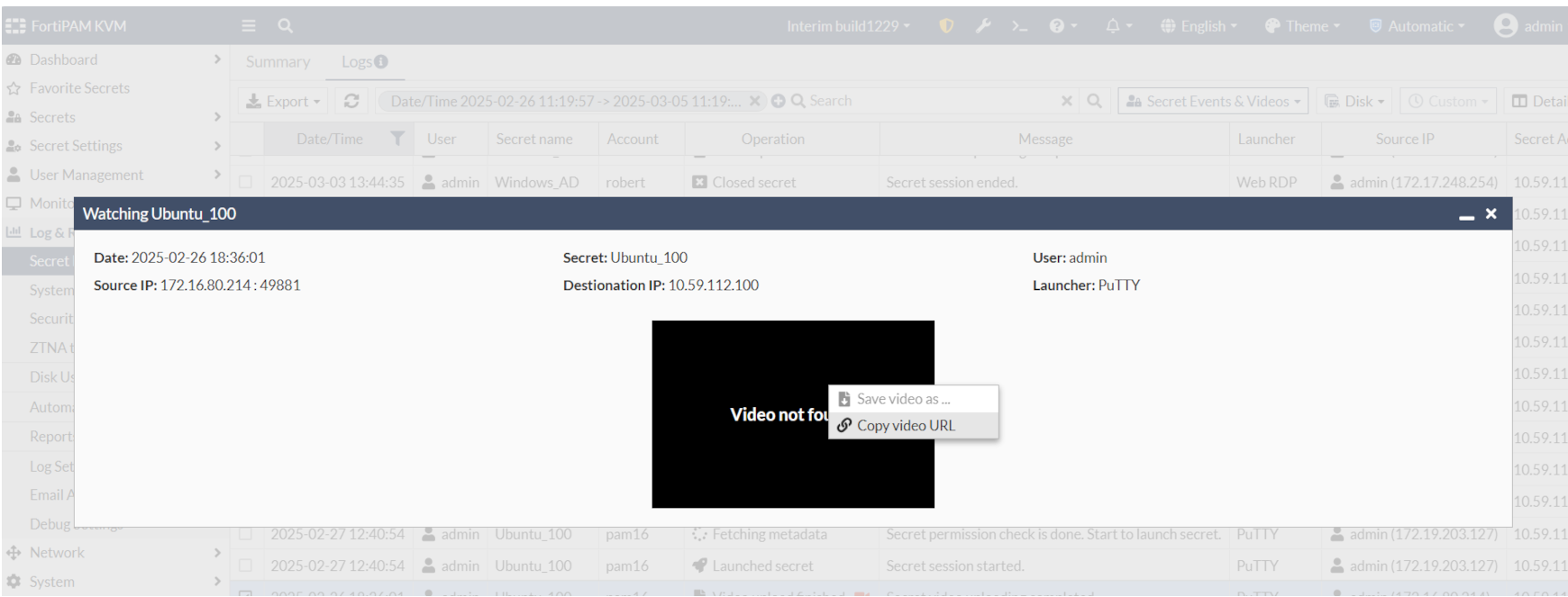
Clicking Copy Video URL allows you to copy the folder location with the format sftp_user_account@sftp_server_ip:/sftp_server_folders, e.g., sftp_user@10.59.112.254:./pam_vid/1884/64429111.

If the video is in the FortiPAM local disk and recorded without livestreaming, the Copy Video URL option allows you to copy the video URL in the local disk, e.g., https://10.59.112.16/wa_vid/1890/6943603/6943603.webm.

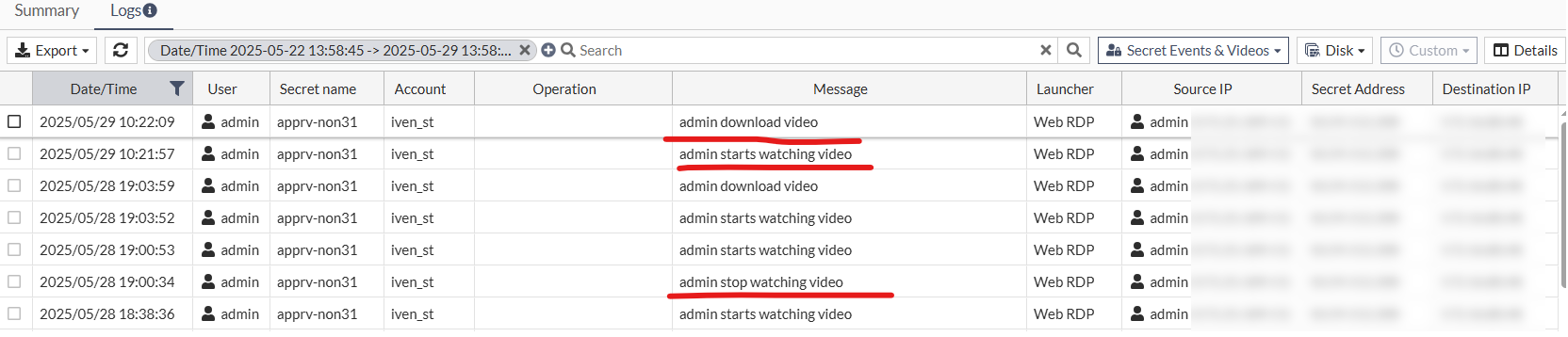
Each time a user plays/stops/downloads a secret video, a log entry is generated.
FortiPAM supports SSH log association with the secret session video playback.
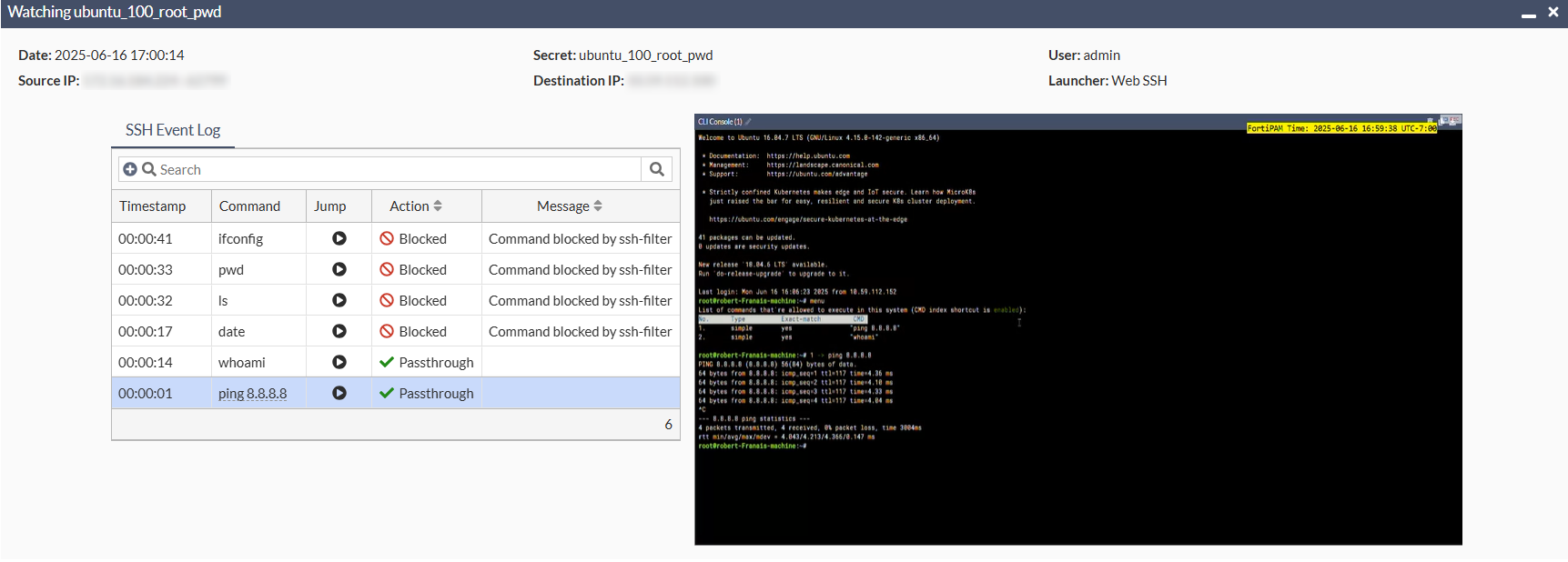
When reviewing an SSH session:

  • Users can click the command play () button from the Jump column in the SSH Event log (left pane).

  • The video playback (right pane) will automatically jump to the timestamp where that command was executed.

Secret configuration requirements:
  • Create an SSH filter (in either Deny or Allow mode).

    Note: Ensure that the pattern you enter has Log enabled.

    See Creating an SSH filter.

  • When creating the secret that supports an SSH launcher, select Enable SSH service in the Settings tab, and select an SSH Filter profile.

    Also, ensure that Session Recording in enabled in the Session Security tab.

    See Creating a secret.

Note:

  • Only commands with logging enabled in the SSH filter will be linked to the video.

  • There may be a 1 – 2 second time difference between the log and the video timestamp.

Limitations
  • In the agentless mode (for web based launchers, e.g., Web SSH), you cannot associate the SSH log to the video.

Clear Text Events

Selecting Clear Text Events shows logs related to viewing passwords. This category of the secret log shows all the information related to the launching of a secret, uploading of a video, termination of a launched session, and status of a FortiPAM token.

Check-in/out Events

Selecting Check-in/out Events shows logs related to password check-ins and check-outs. It displays all the information related to secret check-out and check-in.

Password Events

Selecting Password Events shows logs related to password changers. It displays all the information about when a password changer is triggered on a secret. It indicates whether the operation is successful and who initiated the operation. Operations such as password verification or change of password are recorded here.

For some column descriptions, see Secret Events & Videos.

To view a recorded video of a launched secret:
  1. For the log with the operation labelled Video upload finished, click the video icon.

    The video player opens, and the secret video automatically plays.
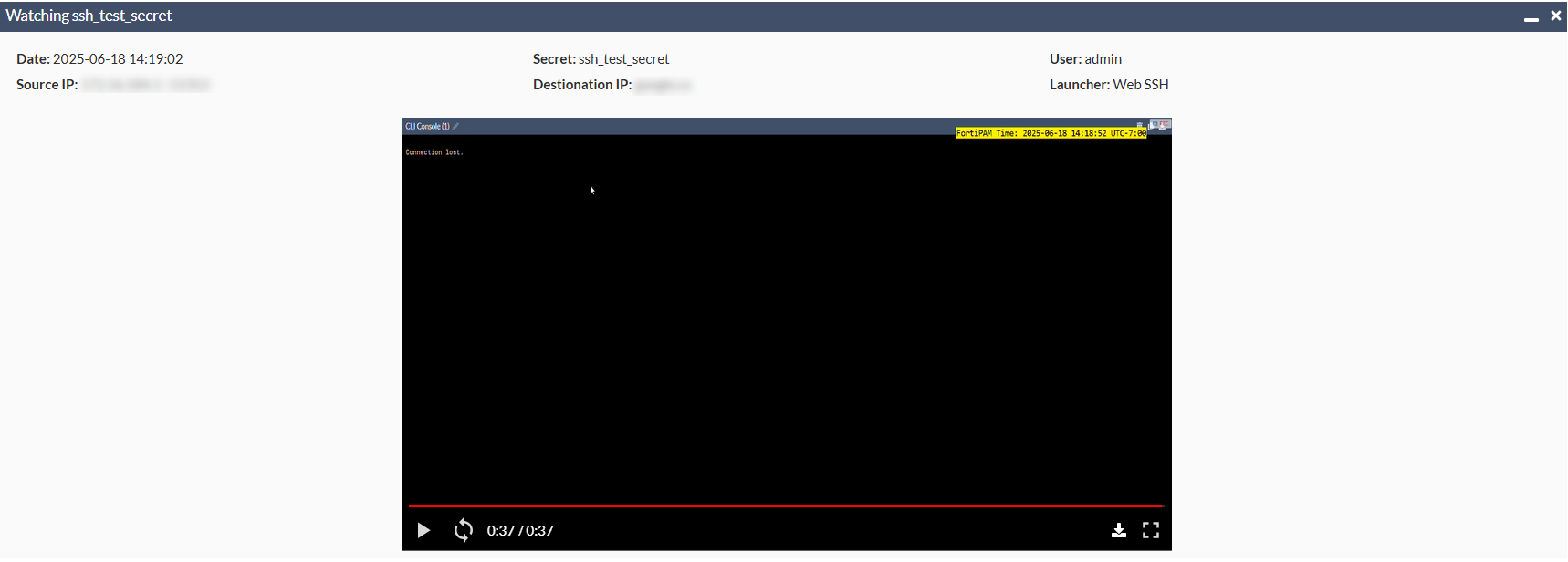
    On the top-right, a timestamp in yellow is displayed.

To download a recorded video of a launched secret:
  1. For the log with the operation labelled Video upload finished, click the video icon.
  2. From the window that opens, select the download icon () to save the secret video on your management computer in WebM format.

    Alternatively, right-click the download icon, and select Save video as ... to save the secret video on your management computer in WebM format.

Request Events

Selecting Request Events shows logs related to secret requests. This category of the secret log shows all the information related to a secret that requires secret approval. It indicates when a request is submitted for a secret or when a request is approved or denied.

Job Events

Selecting Job Events shows all logs related to jobs. This category of secret log keeps track of all the events related to an execution of a job on a secret. This includes the job name, the user who initiated the job, the type of the job, and whether the job is executed successfully.

Dependency Events

Selecting Dependency Events shows all the logs related to service accounts. This category of the secret log shows information related to updating credentials related to a service account.

Certificate Events

Selecting Certificate Events shows all the logs related to Certificate secret. This category of the secret log shows information related to the certificate status.

Windows App Filter Events

Selecting Windows App Filter Events shows all the logs related to the secret configured with Windows application filter profile. This category of the secret log shows information related to the Windows application filter activities.

Event Subscription

Selecting Event Subscription shows all the logs related to an RDP session from the target.

Secret event & video

Secret event & video

Go to Secret Event in Log & Report to see logs related to the following:

  • Secret Events & Videos

  • Clear Text Events

  • Check-in/out Events

  • Password Events

  • Request Events

  • Job Events

  • Dependency Events

  • Certificate Events

  • Windows App Filter Events

  • Event Subscription

  • The following options are available in the Summary tab:

    Log Location

    Select a source from where to retrieve logs:

    • Disk (default) (FortiPAM)

    Time frame

    From the dropdown, select from the following time filters:

    • 5 minutes

    • 1 hour

    • 24 hours

    • 7 days

    The following options are available in the Logs tabs:

    Export

    From the Export dropdown, select to export the logs in the following three formats:

    • JSON: Export the selected secret session log to your computer as a JSON file named as secret-xyz-YYYY_MM_DD.json

    • CSV: Export the selected secret session log to your computer as a CSV file named as secret-xyz-YYYY_MM_DD.csv

    • TEXT: Export the selected secret session log to your computer as a text file named as secret-xyz-YYYY_MM_DD.txt

    Refresh

    To refresh the contents, click the refresh icon.

    +Add Filter

    From the dropdown, select a filter, select or add additional details about the filter to be used and hit Enter.

    Note: Logs can be filtered by date and time. The log viewer can be filtered with a custom range or with specific time frames.

    Time frame settings for each Log & Report page are independent. For example, changing the time frame on the System Events page does not automatically change the time frame on the User Events and HA Events pages.

    Secret Events & Videos

    From the dropdown, select a tab to display:

    • Secret Events & Videos

    • Clear-text Events

    • Check-in/out Events

    • Password Events

    • Request Events

    • Job Events

    • Dependency Events

    • Certificate Events

    • Windows App Filter Events

    • Event Subscription

    Log location

    Select a source from where to retrieve logs:

    • Disk (default) (FortiPAM)

    • FortiAnalyzer

    See FortiAnalyzer logging for setting up FortiAnalyzer as the remote logging server.

    Time frame

    From the dropdown, select from the following time filters:

    • 5 minutes

    • 1 hour

    • 24 hours

    • 7 days

    • View All

    Details

    Select to see details for the selected log entry.

Secret Events & Videos

Clicking Secret Events & Videos opens all the secret logs and videos. Different subcategories of secret logs are displayed when you click on a secret log.

where the following columns are available by default:

  • Date/Time

  • User

  • Secret name

  • Account

  • Operation

  • Message

  • Launcher

  • Source IP

  • Secret Address: The IP address or FQDN of the actual target server.

  • Gateway: The gateway name for the secret.

  • Destination IP: The next hop IP address. If the next hop is FortiPAM, this is the IP address of FortiPAM.

    If the next hop is the actual target server, this is the IP address of the actual target server.

    If the next hop is a gateway, this is the IP address of the gateway.

  • Video Folder Name

If a secret video file has been backed up to a remote storage and deleted from the FortiPAM local disk, you cannot replay the video. Such a video file displays as Video not found.

A right-click on Video not found displays the Copy Video URL option.

Clicking Copy Video URL allows you to copy the folder location with the format sftp_user_account@sftp_server_ip:/sftp_server_folders, e.g., sftp_user@10.59.112.254:./pam_vid/1884/64429111.

If the video is in the FortiPAM local disk and recorded without livestreaming, the Copy Video URL option allows you to copy the video URL in the local disk, e.g., https://10.59.112.16/wa_vid/1890/6943603/6943603.webm.

Each time a user plays/stops/downloads a secret video, a log entry is generated.

FortiPAM supports SSH log association with the secret session video playback.

When reviewing an SSH session:

  • Users can click the command play () button from the Jump column in the SSH Event log (left pane).

  • The video playback (right pane) will automatically jump to the timestamp where that command was executed.

Secret configuration requirements:
  • Create an SSH filter (in either Deny or Allow mode).

    Note: Ensure that the pattern you enter has Log enabled.

    See Creating an SSH filter.

  • When creating the secret that supports an SSH launcher, select Enable SSH service in the Settings tab, and select an SSH Filter profile.

    Also, ensure that Session Recording in enabled in the Session Security tab.

    See Creating a secret.

Note:

  • Only commands with logging enabled in the SSH filter will be linked to the video.

  • There may be a 1 – 2 second time difference between the log and the video timestamp.

Limitations
  • In the agentless mode (for web based launchers, e.g., Web SSH), you cannot associate the SSH log to the video.

Clear Text Events

Selecting Clear Text Events shows logs related to viewing passwords. This category of the secret log shows all the information related to the launching of a secret, uploading of a video, termination of a launched session, and status of a FortiPAM token.

Check-in/out Events

Selecting Check-in/out Events shows logs related to password check-ins and check-outs. It displays all the information related to secret check-out and check-in.

Password Events

Selecting Password Events shows logs related to password changers. It displays all the information about when a password changer is triggered on a secret. It indicates whether the operation is successful and who initiated the operation. Operations such as password verification or change of password are recorded here.

For some column descriptions, see Secret Events & Videos.

To view a recorded video of a launched secret:
  1. For the log with the operation labelled Video upload finished, click the video icon.

    The video player opens, and the secret video automatically plays.

    On the top-right, a timestamp in yellow is displayed.

To download a recorded video of a launched secret:
  1. For the log with the operation labelled Video upload finished, click the video icon.
  2. From the window that opens, select the download icon () to save the secret video on your management computer in WebM format.

    Alternatively, right-click the download icon, and select Save video as ... to save the secret video on your management computer in WebM format.

Request Events

Selecting Request Events shows logs related to secret requests. This category of the secret log shows all the information related to a secret that requires secret approval. It indicates when a request is submitted for a secret or when a request is approved or denied.

Job Events

Selecting Job Events shows all logs related to jobs. This category of secret log keeps track of all the events related to an execution of a job on a secret. This includes the job name, the user who initiated the job, the type of the job, and whether the job is executed successfully.

Dependency Events

Selecting Dependency Events shows all the logs related to service accounts. This category of the secret log shows information related to updating credentials related to a service account.

Certificate Events

Selecting Certificate Events shows all the logs related to Certificate secret. This category of the secret log shows information related to the certificate status.

Windows App Filter Events

Selecting Windows App Filter Events shows all the logs related to the secret configured with Windows application filter profile. This category of the secret log shows information related to the Windows application filter activities.

Event Subscription

Selecting Event Subscription shows all the logs related to an RDP session from the target.