
Fortinet white logo
Fortinet white logo

Administration Guide

Network

Network

Use the Network options to configure system settings such as configuring interfaces, DNS, and static routes.

Interface

FortiNDR has the following preset ports which cannot be changed. For more information about port configuration, see Initial setup > Ports.

Port (interface) Type Default open ports

Port1

10GE copper 10G

Management port.

TCP 443 (HTTPS and GUI), TCP 22 SSH (CLI).

Port2

10GE copper 10G

Sniffer port (default).

Serial / Com1

Serial port

9600 baud, 8 data bits, 1 stop bit, no parity, XON/XOFF.

Port3 and Port4

1GE IPMI (Intelligent Platform Management Interface)

Disabled (default).

Port 5-8 (FortiNDR-3500F gen3)

Fiber 10G SFP+

Sniffer port (default)

Only Super Admin users can access the CLI using SSH. For more information, see Admin Profiles.

DNS and static routes

Use the DNS and Static Routes pages to configure DNS and routing entries.

Static routes control how traffic exits from the FortiNDR unit. They allow you to specify the network interface through which a packet should be sent, as well as the IP address of the next-hop router accessible via that interface.

A default route is a special type of static route that matches all packets. It specifies a gateway router to which packets are sent when no other specific route exists for the destination IP address. To ensure normal operation of the FortiNDR unit, a default route configuration is required.

To add a static route:
  1. Go to Network >Static Routes.
  2. Click Create New to create a new route or double-click a route to modify it.
  3. In Destination IP/Netmask, enter the destination IP address and netmask of packets that will be subject to this static route.

    To create a default route that will match all packets, enter 0.0.0.0/0.

  4. Select the interface that this route applies to. Choose port1 (MGMT) when creating a default route.
  5. Enter the Gateway Address.
  6. Click OK to save the static route.

Configuration example

In the following example, a dedicated interface port3 is used to handle file API submissions, separate from the default management interface port1.

While other ports such as port2 can be used, it is recommended to select a non-sniffer port or turn off the sniffer feature with the CLI to avoid additional overhead from sniffing traffic. See, config system interface in the FortiNDR CLI Reference Guide.

The management port1 is connected to the 172.19.235.0/24 subnet (Management network). The data interface port3 is connected to the 192.168.1.0/24 subnet (data network).
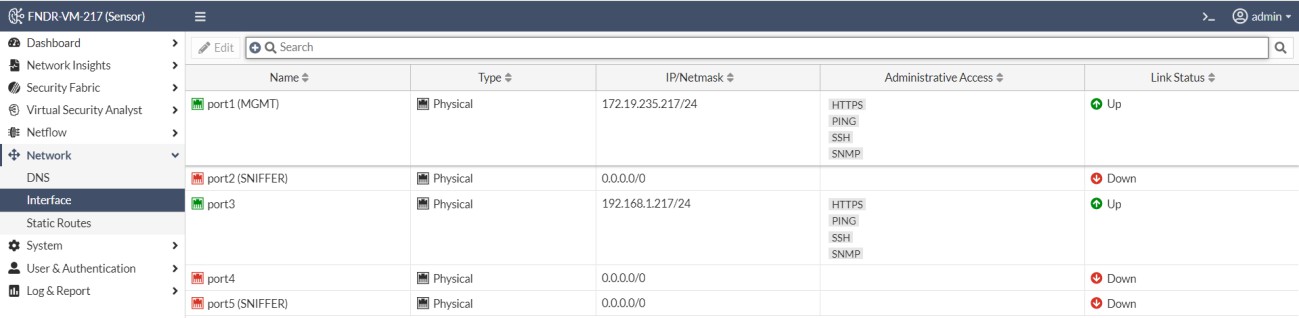
In addition to the static rule for management interface, a new rule for file submission traffic must be added as shown below. Any file submission client residing in the data network should be able to submit samples to the FortiNDR device via port3.


The management network and data network must not share the same subnet.

Network

Network

Use the Network options to configure system settings such as configuring interfaces, DNS, and static routes.

Interface

FortiNDR has the following preset ports which cannot be changed. For more information about port configuration, see Initial setup > Ports.

Port (interface) Type Default open ports

Port1

10GE copper 10G

Management port.

TCP 443 (HTTPS and GUI), TCP 22 SSH (CLI).

Port2

10GE copper 10G

Sniffer port (default).

Serial / Com1

Serial port

9600 baud, 8 data bits, 1 stop bit, no parity, XON/XOFF.

Port3 and Port4

1GE IPMI (Intelligent Platform Management Interface)

Disabled (default).

Port 5-8 (FortiNDR-3500F gen3)

Fiber 10G SFP+

Sniffer port (default)

Only Super Admin users can access the CLI using SSH. For more information, see Admin Profiles.

DNS and static routes

Use the DNS and Static Routes pages to configure DNS and routing entries.

Static routes control how traffic exits from the FortiNDR unit. They allow you to specify the network interface through which a packet should be sent, as well as the IP address of the next-hop router accessible via that interface.

A default route is a special type of static route that matches all packets. It specifies a gateway router to which packets are sent when no other specific route exists for the destination IP address. To ensure normal operation of the FortiNDR unit, a default route configuration is required.

To add a static route:
  1. Go to Network >Static Routes.
  2. Click Create New to create a new route or double-click a route to modify it.
  3. In Destination IP/Netmask, enter the destination IP address and netmask of packets that will be subject to this static route.

    To create a default route that will match all packets, enter 0.0.0.0/0.

  4. Select the interface that this route applies to. Choose port1 (MGMT) when creating a default route.
  5. Enter the Gateway Address.
  6. Click OK to save the static route.

Configuration example

In the following example, a dedicated interface port3 is used to handle file API submissions, separate from the default management interface port1.

While other ports such as port2 can be used, it is recommended to select a non-sniffer port or turn off the sniffer feature with the CLI to avoid additional overhead from sniffing traffic. See, config system interface in the FortiNDR CLI Reference Guide.

The management port1 is connected to the 172.19.235.0/24 subnet (Management network). The data interface port3 is connected to the 192.168.1.0/24 subnet (data network).

In addition to the static rule for management interface, a new rule for file submission traffic must be added as shown below. Any file submission client residing in the data network should be able to submit samples to the FortiNDR device via port3.

The management network and data network must not share the same subnet.