

Netflow ML Configuration
Configure the Machine Learning (ML) profile of network traffic to identify anomalies.
The ML Configuration page has two tabs:
- Default (Standalone mode): Use this tab to view and adjust the machine learning baseline features for traffic anomaly detection and to monitor the status of baseline training.
- Source IP: Use this tab to categorize IP ranges. Each group of IP ranges can be individually trained based on the ML configuration. This allows for varying levels of severity to be applied to distinct IP ranges for custom anomaly detection.
Default tab
To configure the ML Configuration profile:
- Go to Netflow > Netflow ML Configuration.
- Configure the following settings:
Status
Baseline Status
The current baseline training status:
- Baselining:The current training is still in progress.
- Baseline ready: The baseline training is done and is ready for anomaly detection.
ML Discovery Detection
Click to Enable or Disable baseline training.
Latest Training Completion
The date and time of the last baseline training.
Feature Enabled for Learning
Default Feature Configuration
Click to enable the default ML configuration settings.
Severity
Select Low, Medium, High or Critical.
Device Info
Source IP Mask
The Source Device IP. Apply a netmask if you do not want to treat certain range changes in the IP as an anomaly.
Select one of the following options:
- Do Not Apply Netmask: This is the default.
- Apply Class C Netmask: /24
- Apply Class B Netmask: /16
Destination IP
The Destination Device IP. Apply netmask if you do not want to treat certain range changes in the IP as an anomaly
Select one of the following options:
- Do Not Apply Netmask: This is the default.
- Apply Class C Netmask: /24
- Apply Class B Netmask: /16
Source Port
Port number such as, 22, 445, none reserved port, etc.
Destination Port
Port number such as, 22, 445, none reserved port, etc.
Source MAC
Source device MAC address.
VLAN IP The VLAN IP. Protocol and Application Behavior Ethernet type Enable to monitor the Ethernet type. Protocol Enable to enter the protocol. IP Type of Service Enable to monitor the IP service type. TCP Flags Enable to monitor the TCP Flags. ICMP Type Enable to monitor the ICMP type. ICMP Code Enable to monitor the ICMP code. Others Number of Bytes FortiNDR categorizes Bytes into 3 groups:
- Small: Less than 100 bytes
- Medium: 100-9999999
- Larger: Equal to and greater than 10000000 bytes
Number of packets FortiNDR categorizes Packets into 3 groups:
- Small:Less than 2
- Medium: 2-6249
- Larger: Equal to and greater than 6250
Operation Mode Source IP Only Mode When enabled, ML will only monitor the traffic for IPs in the Source IP tab. Other traffic will be skipped. 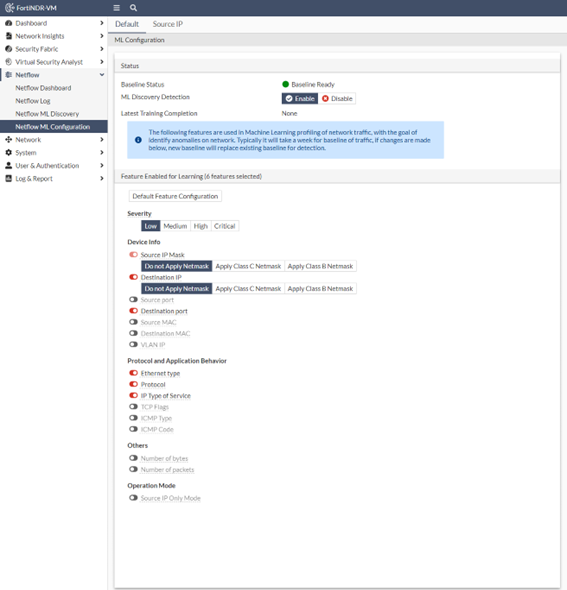
Source IP tab
To configure the Source IP:
- Go to Netflow > Netflow ML Configuration and click the Source IP tab.
- Click Create. The ML Configuration for Source IP pane opens.
- Configure the following settings:
Source IP and Severity
Source IP
Enter the source IP address.
Severity
Select Low, Medium, High or Critical.
Device Info
Source IP Mask
The Source Device IP. Apply a netmask if you do not want to treat certain range changes in the IP as an anomaly.
Select one of the following options:
- Do Not Apply Netmask: This is the default.
- Apply Class C Netmask: /24
- Apply Class B Netmask: /16
Destination IP
The Destination Device IP. Apply netmask if you don’t want to treat certain range change in the IP as anomaly
Select one of the following options:
- Do Not Apply Netmask: This is the default.
- Apply Class C Netmask: /24
- Apply Class B Netmask: /16
Source Port
Port number such as, 22, 445, none reserved port, etc.
Destination Port
Port number such as, 22, 445, none reserved port, etc.
Source MAC
Source device MAC address.
VLAN IP The VLAN IP. Protocol and Application Behavior Ethernet type Enable to monitor the Ethernet type. Protocol Enable to enter the protocol. IP Type of Service Enable to monitor the IP service type. TCP Flags Enable to monitor the TCP Flags. ICMP Type Enable to monitor the ICMP type. ICMP Code Enable to monitor the ICMP code. Others Number of Bytes FortiNDR categorizes Bytes into 3 groups:
- Small: Less than 100 bytes
- Medium: 100-9999999
- Larger: Equal to and greater than 10000000 bytes
Number of packets FortiNDR categorizes Packets into 3 groups:
- Small:Less than 2
- Medium: 2-6249
- Larger:Equal to and greater than 6250