ICAP Connectors
FortiNDR can act as an ICAP server to allow ICAP clients such as FortiGate, Squid, and others to offload web traffic for scanning.
Use the ICAP connector to:
- Stop patient zero attacks in the web browsing client.
- Stop malware coming from web browsing.
- Scan for malware in web traffic without using FortiGate AV profiles.
- Offload to FortiNDR for existing FortiSandbox customers who cannot use OFTP .

|
ICAP connectors are not suitable for high traffic volumes. If the sample submit rate is higher than six sumbmissions per second, we recommend using the Inline Blocking feature in FortiGate to do the sample submitting instead. |
To integrate FortiNDR with FortiGate ICAP:
- In FortiGate:
- Add the ICAP server.
- Create an ICAP profile.
- Add the ICAP profile to a policy.
For more information, see ICAP in the FortiOS Administration Guide.
- In FortiNDR, configure the ICAP server.
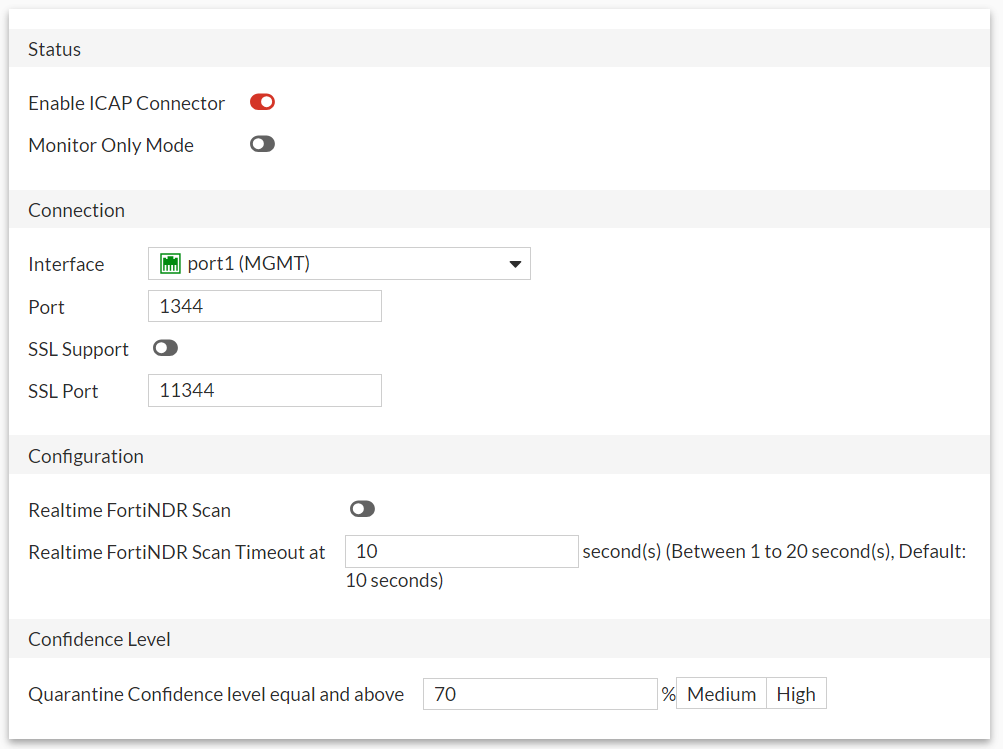
To enable ICAP in FortiNDR:
- Go to Security Fabric > Fabric Connectors and click the ICAP card.
- Configure the ICAP settings and click OK.
Status Enable ICAP Connector Click to enable the ICAP connector. Monitor Only Mode When enabled, FortiNDR will only log the detection, no block action will be performed. Youcannot enable realtime FortiNDR scan configuration and change the confidence level. Connection Interface Select an interface from the dropdown. Port Enter the port the the connector will use to connec to FortiNDR. Default is 1344.
Note: Avoid choosing the Sniffer port as the ICAP interface.
SSL Support Click to enable Secure Sockets Layer. SSL Port Enter the SSL port. Default is 11344. Configuration
Realtime FortiNDR Scan
When enabled, FortiNDRwill delay the response to the ICAP client until the scan result has been achieved or the timeout has been reached.
Realtime FortiNDR Scan Timeout at
Enter the number of seconds is realtime scan will timeout. Default is 10 seconds.
Confidence Level
Quarantine Confidence level equal and above
Set the confidence level as a percentage and select Medium or High.