Creating remote wildcard administrators
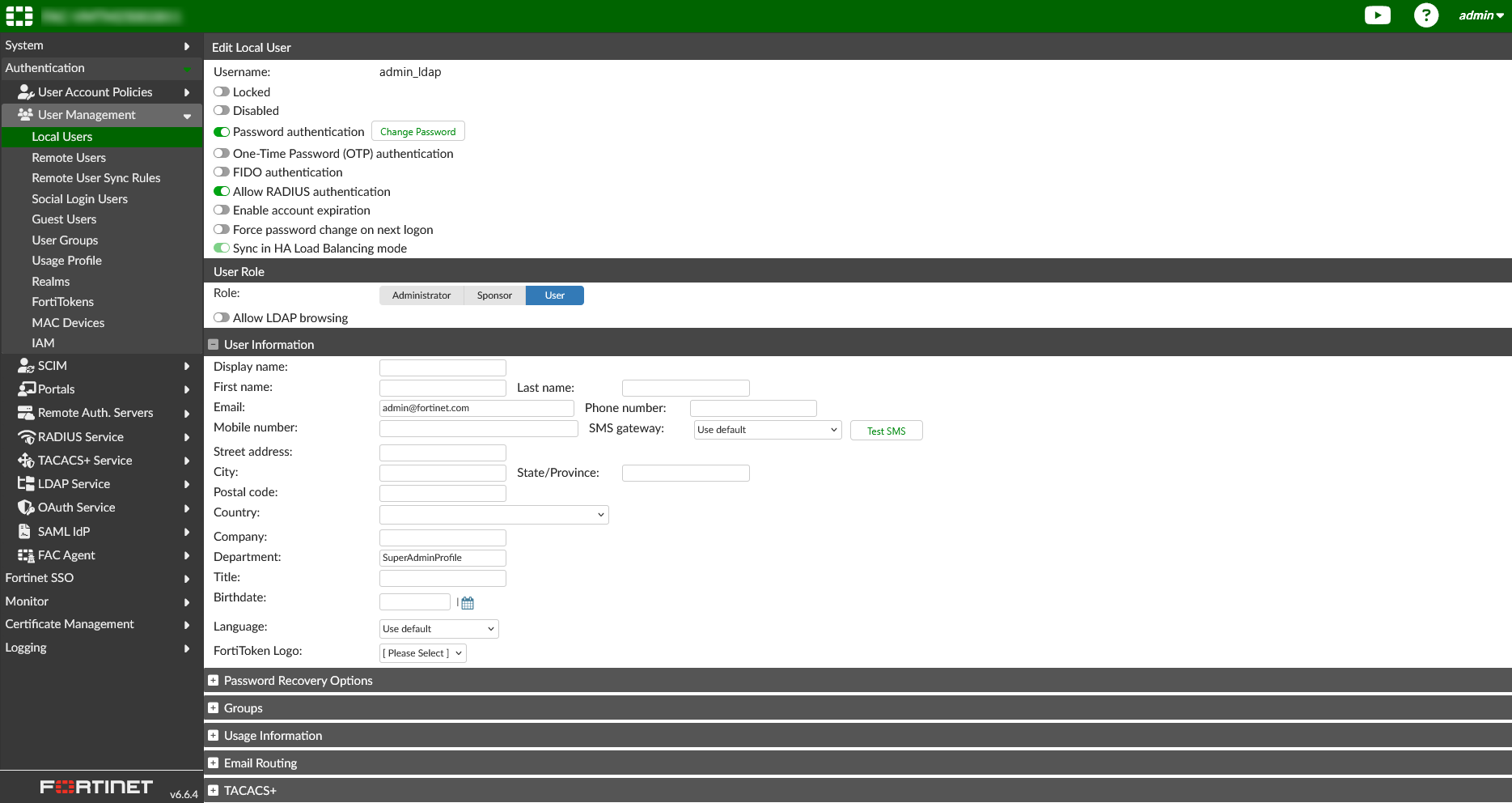
You can enable LDAP and RADIUS login by registering the login username as an Administrator profile name. However, if all the user accounts from an LDAP/RADIUS profile will be sharing the same admin profile permissions, the remote_wildcard profile can be used to bypass registering all user accounts individually on the system. You can still register LDAP credentials individually in addition to the wildcard profile if you wish to give those accounts different access privileges.

|
Some administrators without SuperAdminProfile permissions, will not see the correct sensor data, nor will they be able to arrange the widgets in the Dashboard. To ensure an administrator account is seeing the correct sensor data, the admin profile linked to the administrator account is required to have System Access set to Read/Write permissions. |
Only the Administrator account admin can modify the admin profile field in any administrator’s account.

Assigning sensors to an admin profile
Admin profiles allow you to create different permission structures for specific sensors that are assigned to administrators. For more information about the SuperAdminProfile and pre-defined profile types, see Admin Profiles
To assign sensors to an Admin Profile:
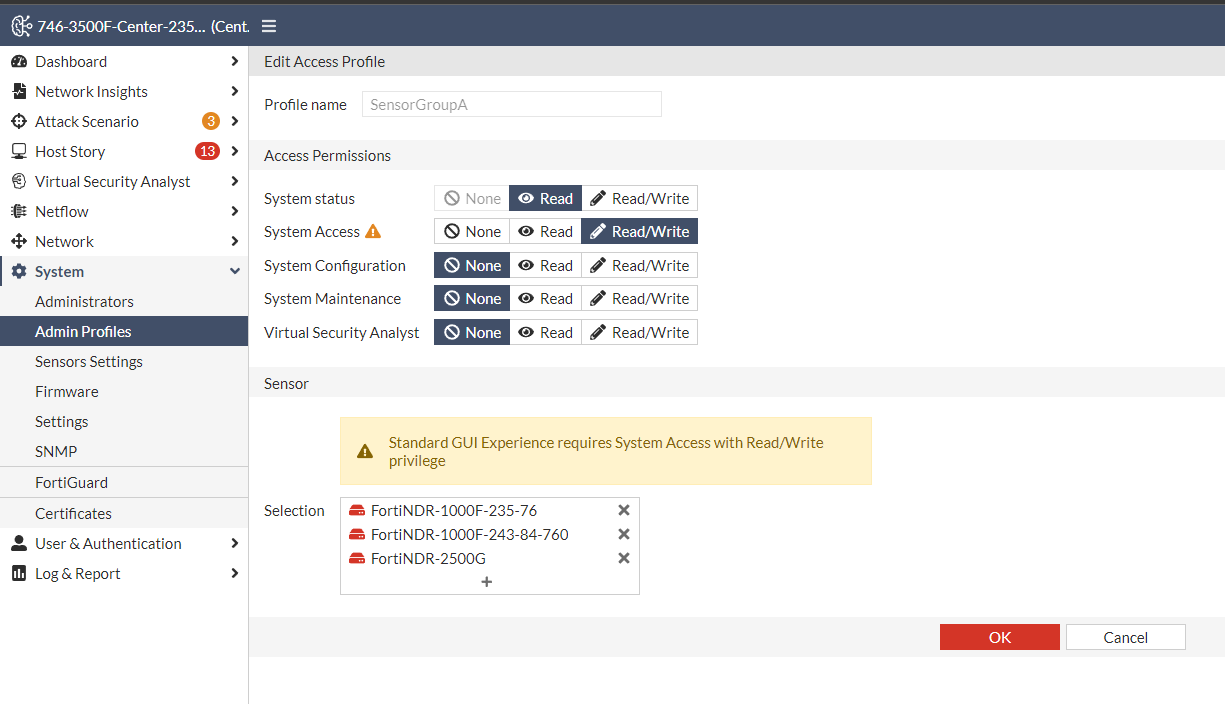
- Go to System > Admin Profiles and click Create New. The Create Access Profile page opens.
- Give the profile a descriptive name.
- (Required) Under Access Permissions, set System Access to Read/Write. You can configure the other permissions as necessary.
- To add sensors to the profile, in the Sensor section, click the Selection button and select the sensors.
- Click OK.
Assigning admin and LDAP/RADIUS profiles to the remote_wildcard administrator
To assign the profiles to the remote_wildcard administrator:
- Go to System > Administrator and double-click remote_wildcard. The Edit Administrator page opens.
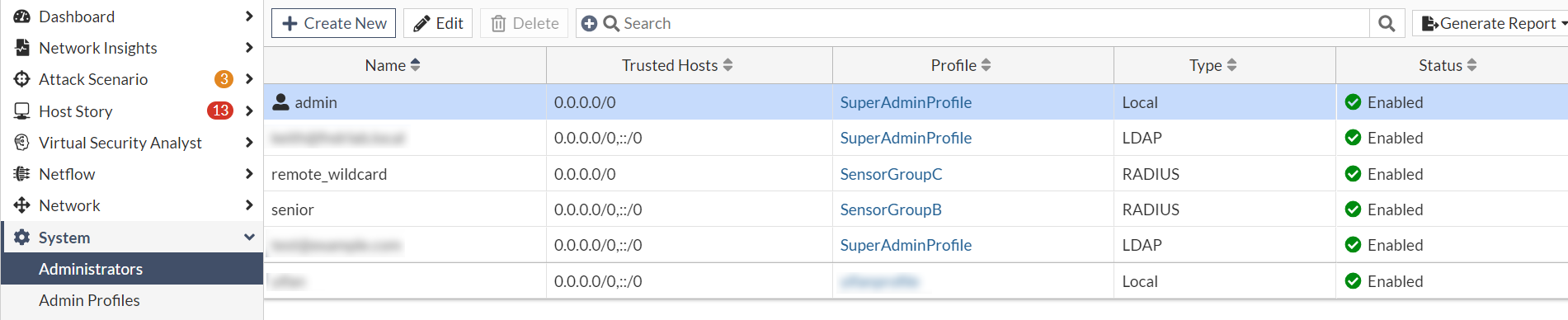
- From the Admin Profile dropdown, select the profile you created in the previous steps.
- Select the Authentication method.
LDAP Select LDAP and then select the LDAP profile.
RADIUS Select RADIUS and then select the RADIUS profile. 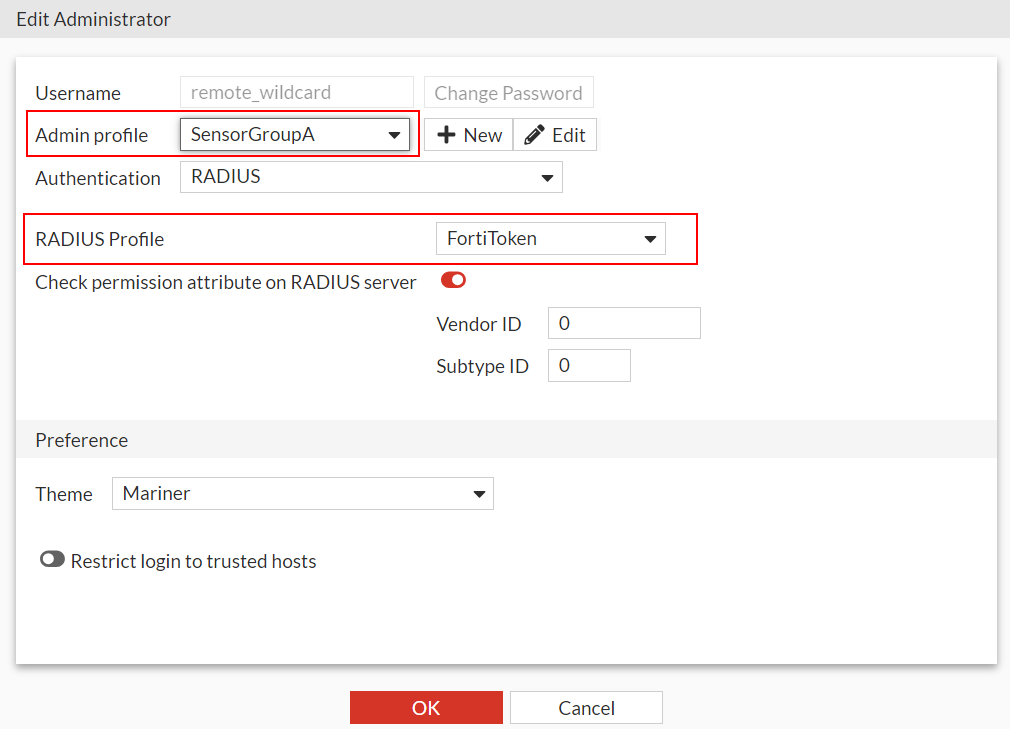
- Click OK.
Resetting the available sensors resources in FortiNDR
When you add and disable sensors in an admin profile, the widgets in the Dashboard retain the current sensor settings even though they are no longer available to the current account. To update the widget sensor settings for all users simultaneously, use the Reset to Default button.
To reset the Available Sensors Resources:
- Log into FortiNDR as the remote_wildcard administrator with the LDAP or RADIUS server.
- Hover over the Available Sensors Resources icon and verify the sensors are assigned to the Admin Profile you created.
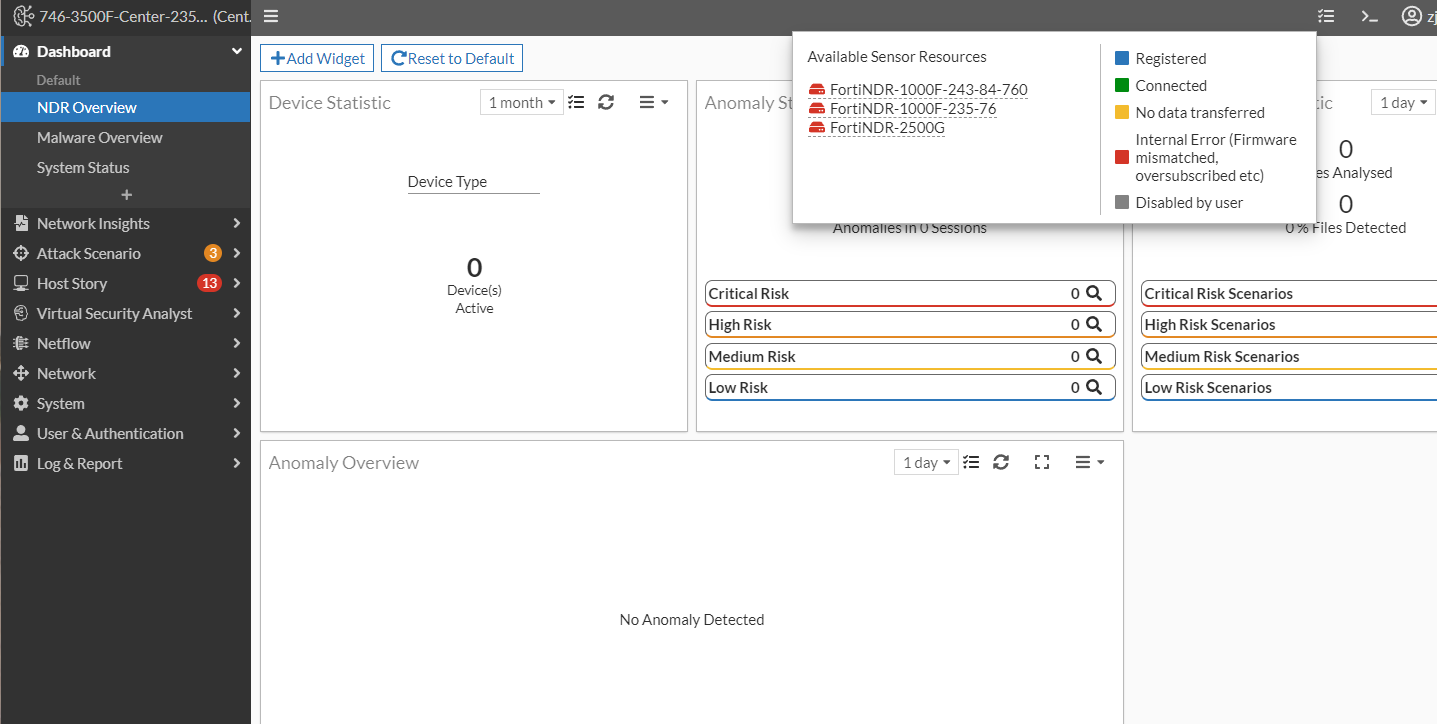
- In the Dashboard, click Reset to Default button to automatically load all the widgets with all the available sensor data.
|
|
All users that access FortiNDR as a remote_wildcard administrator will see this dashboard view. |
Creating LDAP/RADIUS administrators with different permissions
You can use Admin Profiles to assign sensors and permissions to specific administrators. When an LDAP/RADIUS administrator logs into FortiNDR, the system will use the LDAP/RADIUS profile assigned to the remote_wildcard administrator to authenticate the user.
To create multiple LDAP administrators:
- Create a new Admin Profile. See, Assigning sensors to an admin profile .
- Create a new administrator. See, Administrators
- In from the LDAP profile or RADIUS Profile dropdown, select the profile used by the remote_wildcard administrator.
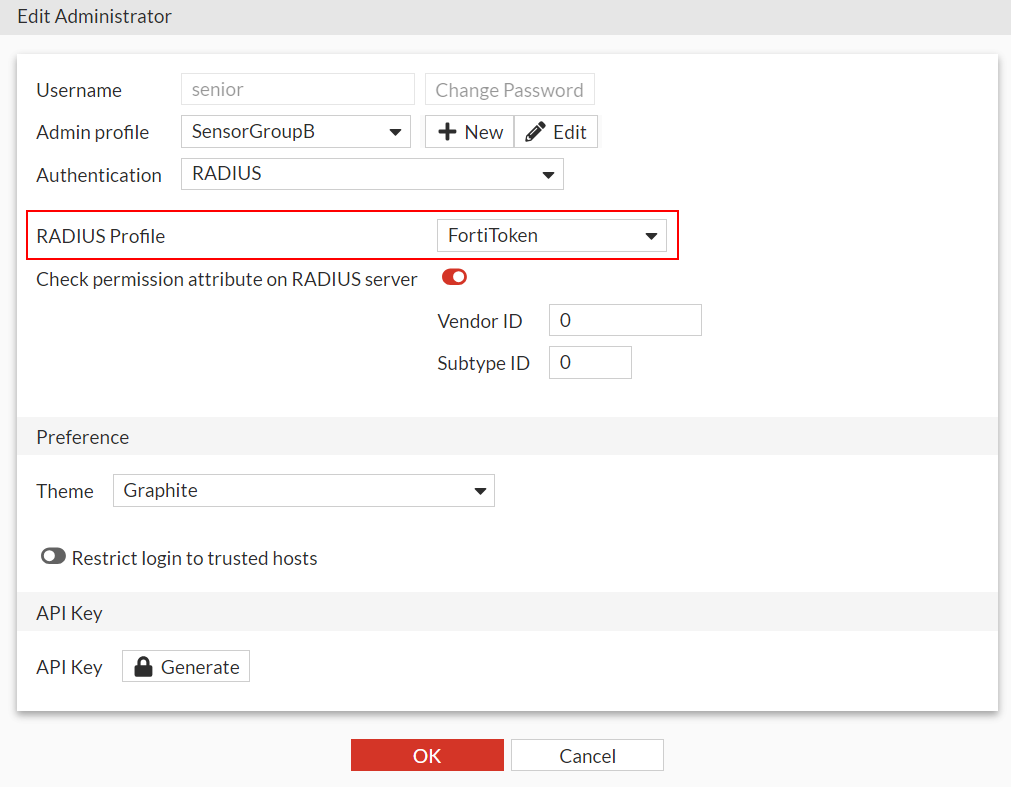
- Click OK.
Administrator Access Group Mapping
Administrator Access Group Mapping allows administrators to override the access profile on the remote server. This saves time manually creating accounts with the proper access profile permissions for each machine. In addition to authentication, you can use Administrator Access Groups in the Active Directory to assign roles to users. For example, users in an admin group can have a Read / Write role whereas users in an Operator group may only have a Read Only role.
|
|
Profile mapping is only supported in LDAP authentication. |
Enabling Administrator Access Group Mapping
To configure FortiNDR:
- In FortiNDR , go to User & Authentication > LDAP Server. Create or edit a new LDAP profile. See LDAP Servers.
- In the CLI, enable
access-overrideand set access-override-attribute to the attribute FortiNDR should use to override the user profile.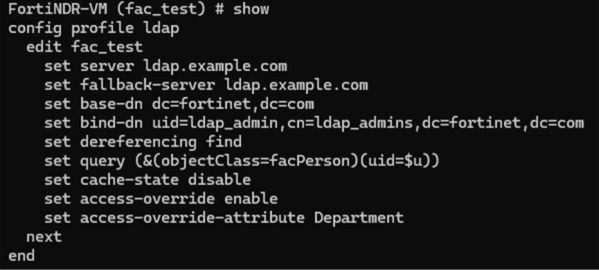
Configuring the LDAP server
Configure the LDAP server to set the value attribute defined in FortiNDR with the profile name to override.
The value of the remote attribute returned by the LDAP server replaces the user’s locally configured attribute if it matches an existing access profile. If no match is found, FortiNDR applies the default access profile.
Example:
The following image shows an example configuration in FortiAuthenticator. In this example, the value of the Department field (set to SuperAdminProfile) is used as the admin access profile listed under FortiNDR > System > Admin Profiles when the access-override feature is enabled. This allows users with different LDAP accounts to use different admin profiles.