

Support for EU GDPR
FortiIdentity Cloud (FIC) supports EU's General Data Protection Regulation (GDPR) compliance by offering data residency in European Union (EU)-based data centers, ensuring that personal data remains within GDPR jurisdictions. It collects only minimal personal information necessary for authentication and ensures that all data is encrypted both in transit and in residency. The service supports user consent management, data access, and deletion requests in line with GDPR rights. With granular access controls, audit logging, and documented breach response procedures, FIC enables organizations to maintain accountability and transparency. Fortinet also provides Data Processing Agreements (DPAs) to clarify roles and responsibilities under the regulation.
FIC's Support for EU GDPR enables our EU customers to select data centers located within the European Union. This regional support enhances data sovereignty, supports lawful data processing, and aligns with the GDPR's requirements for data residency, security, and user rights.
New customers
New EU customers can sign up directly through the eufic.fortinet.com portal by selecting EU (European Union) during sign-up to have their account provisioned for the EU region, as shown in the following screen capture. The admin can then register any new device to this account.
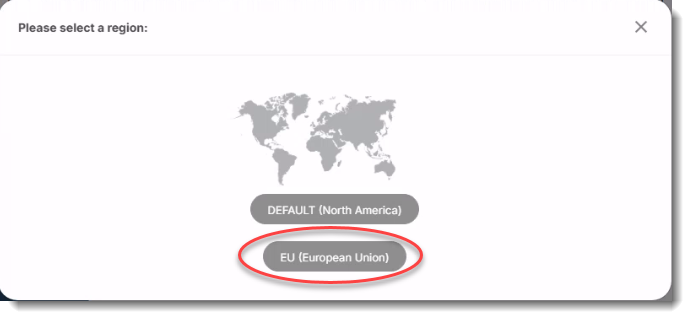
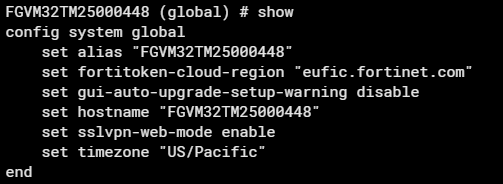
Alternatively, if you have a device running on FortiOS 7.4.8, you can update the system to point to EU region and initiate the account from the FortiGate CLI:
-
In FortiOS, run
config system global. -
Run
execute fortitoken-cloud trial. This should set the FIC account specifically for the EU region.

|
Make sure that |
Device Migration
|
|
Existing FIC customers in EU countries with their accounts originally set up for North America cannot migrate their data or services to the EU region retroactively. Instead, they must delete end users from the devices and their FIC account, create their new accounts by selecting the EU region, and add the devices and end users to their new accounts. |
Case 1: Migrating devices from an existing account in North America to a new account in EU
-
Delete all users on the device(s) using FIC portal. Ensure that the device(s) is/are deleted in FIC as well.
-
Submit a request with FortiCare (support.fortinet.com) to transfer the device(s) to your new EU account.
-
Refer to Transferring devices on FIC.
-
After successful transferring the device(s) to your EU account, add the users to the device(s). This will synch the users and the device(s) to your new EU account.
Case 2: Moving the same account from North America to EU
-
Delete all users from the device(s) and FIC using FIC portal.
-
In FortiOS 7.4.8, reset the region first before proceeding to the next steps.
-
Run
execute fortitoken cloud region-reset. -
Log in to eufic.fortinet.com with the same account and be sure to choose EU (European Union) when setting the region.
-
Alternatively, in a FortiOS 7.4.8 device that is registered with the account, you can set global config to EU, and then add a user which will synch to the EU account. Other devices in the same account will now be able to synch to the EU account.
For existing accounts using SSO application
-
Create a new account in eufic.fortinet.com.
-
Recreate all SSO applications, user source(s), and SSO application users in the new EU account. (Note: The same step applies to local IdP users as well.)
Adding devices
To add a new FortiGate device (running on FortiOS 7.4.8 or later) to an existing EUFIC account, you must first ensure that the device is registered to the same FortiCare account as the EUFIC service and then connect the FortiGate to the EUFIC region using one of the following methods in FortiOS:
-
Run the command:
config system global
    set fortitoken-cloud-region eufic.fortinet.com
end
-
Run the command:
execute fortitoken-cloud region-info
This command communicates with FortiIdentity Cloud to retrieve the account details and will automatically populate the
eufic.fortinet.com regionsetting underconfig system global. -
Create a new user with FortiToken Cloud for two-factor authentication
When you create a new user in the FortiGate and enable it for FortiToken Cloud for two-factor authentication, the system will automatically update the
fortitoken-cloud-regiontoeufic.fortinet.comin the global configuration.