
Fortinet white logo
Fortinet white logo

Admin Guide

26.1.a

Example 5: FortiGate IPsec as SP

Example 5: FortiGate IPsec as SP

  1. On the FIC portal, click Applications > SSO > Add SSO Application.
  2. In the General Information and Interface Detail sections, make the required entries and selections.

  3. Leave the FIC GUI page open, launch the FortiGate GUI, and click User & Authentication > Single Sign-On.
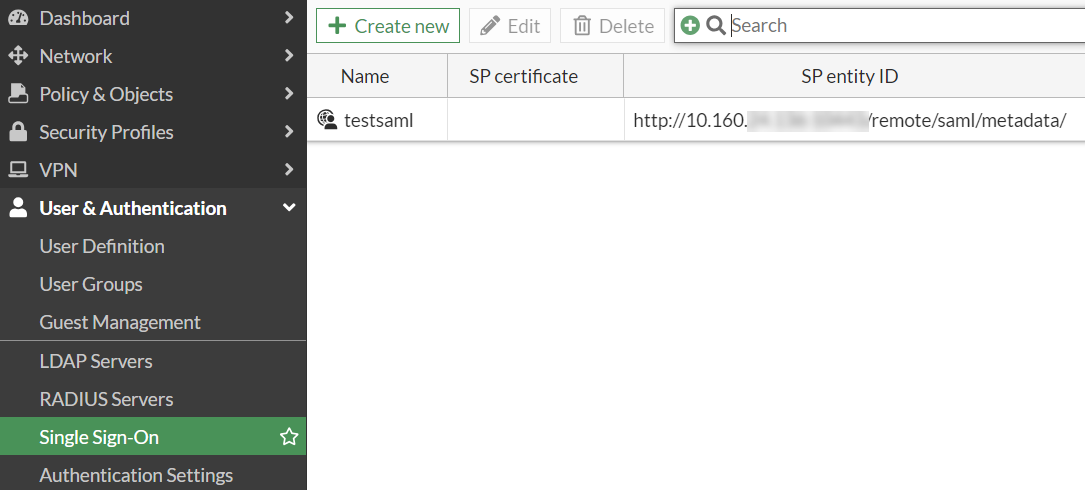
  4. In the Address field, enter the IPsec address that you want to use. In this example, we use Port 9443 for the auth-ike-saml-port, so make sure to append the port number to the address. Then take note of the Entity ID, Assertion consumer service URL, Single logout service URL, and copy and paste them into the SP Metadata section in the FIC SAML app that you have added in Steps 1 through 2.
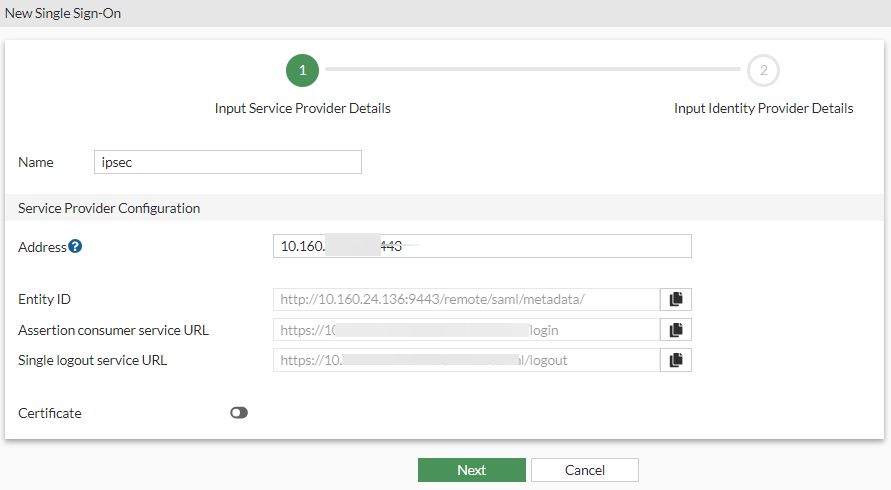
  5. Click Next.

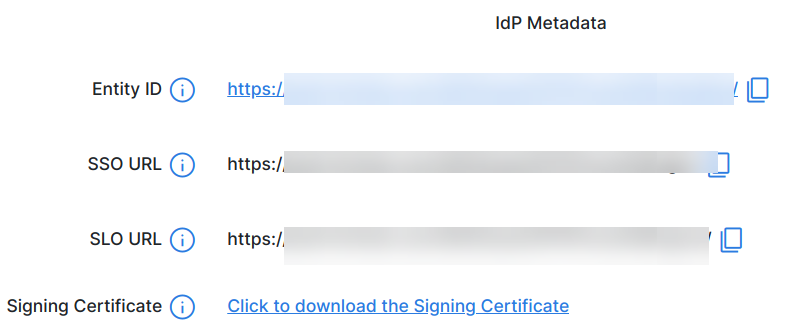
  6. Then go back to the FortiGate GUI, copy the Entity ID, SSO URL, and SLO URL from the IdP Metadata section on FIC to the Identity Provider Details section on FortiGate.
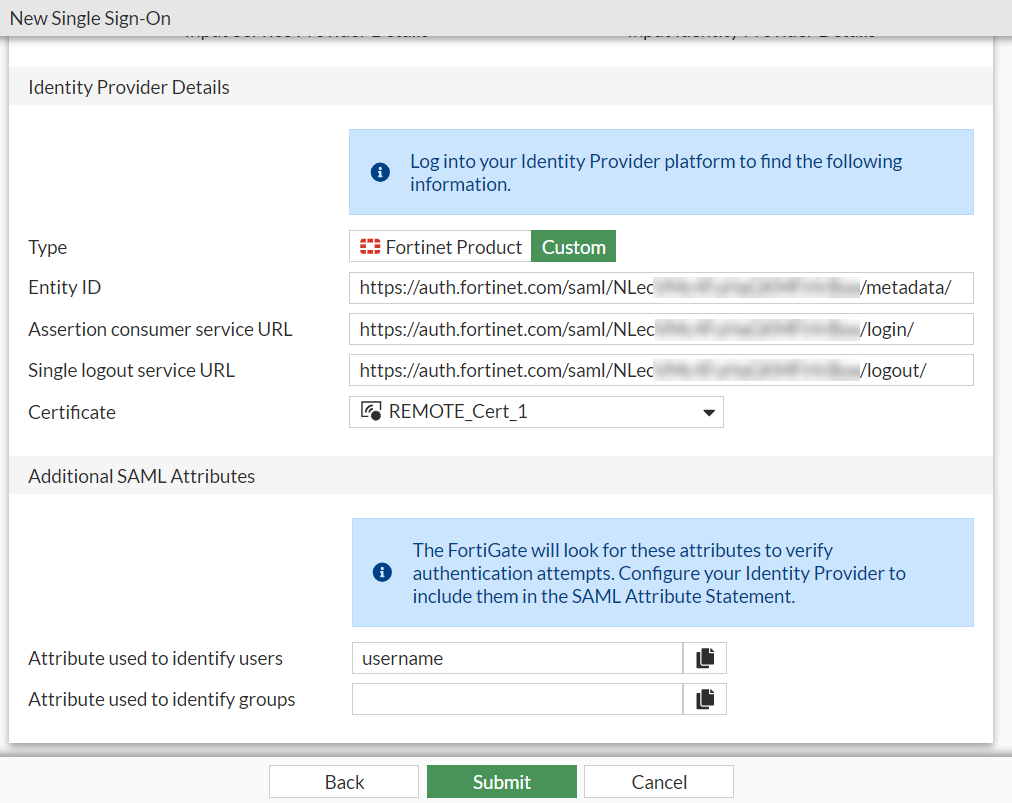
  7. Go back to the FIC portal to complete configuring the SAML app that you left off in Step 2 by clicking Applications > Web > Authentication to configure its authentication settings, (optionally) add any customized attribute that you may want, and click Save.

  8. Click Applications >Web, and locate the SAML application that you have created. Then click the tool icon, select Details, and download the signing certificate to your local machine.
  9. Go back to the FortiGate GUI (Step 4 above), and import the certificate to the FortiGate, and click Submit.

  10. Now on the FortiGate, launch the Console interface and start configuring the IPsec VPN using the following CLI command.

    config system global
        set auth-ike-saml-port 9443
    end
  11. The ike-saml-server setting enables a configured SAML server to listen on a FortiGate interface for SAML authentication requests from FortiClient remote access IPsec VPN clients. Currently, this setting can only be configured in the CLI as follows. Here, “vpnsaml” is the name we used in the single sign-on setting we configured earlier.

    config system interface
        edit <name>
            set ike-saml-server vpnsaml
        next
    end
    
  12. Next, configure the IPsec VPN certificate either from the FortiGate GUI or Console interface.

    To configure the IPsec VPN certificate from the GUI:

    1. Go to User & Authentication > Authentication Settings, and select the certificate from the Certificate drop-down menu.

    2. Import the certificate on the FortiGate by following the procedures in Import a certificate.

    To configure the IPsec VPN certificate in the CLI:

    1. Make sure that the certificate (i.e., VPN-Certificate) has been imported to the FortiGate.

    2. Execute the following commands:

      config user setting
          set auth-cert "VPN_Certificate"
      end
      
  13. Configure IPsec VPN on the FortiGate with FortiClient as the dial-up client:

    1. Go to VPN > IPsec Tunnels.
    2. Click Create New > IPsec Tunnel.

      The VPN Creation Wizard is displayed.

    3. Enter the Name as FCT_SAML.

      Note: This example does not use the VPN wizard for the IPsec tunnel configuration, but configures a Custom IPsec tunnel instead.

    4. Configure the Template type as Custom.
    5. Click Next.
    6. Configure the following options:

      Parameter Description
      Name

      FCT_SAML

      Comments

      (Optional)

      Network
      IP Version IPv4
      Remote Gateway Dialup User
      Interface

      port1

      Select the IPsec tunnel gateway interface.

      Mode Config Enable
      Use system DNS in mode config (Optional) Enable FortiClient to use the host's DNS server after it connects to VPN.

      Assign IP From

      Enable

      Select Address/Address Group from the dropdown list.

      IPv4 mode config

      Client Address Range

      VPN_Client_IP_Range

      VPN_Client_IP_Range is configured from 10.212.134.1 to 10.212.134.200. If it is not already created, select Create > Address from the dropdown menu to create a new address object. See Subnet for more information.

      Subnet Mask

      255.255.255.255

      DNS Server

      8.8.8.8

      Authentication

      Method

      Pre-shared key

      Pre-shared key

      Enter the pre-shared key of at least six characters.

      IKE

      Version

      2

      Peer Options

      Accept Types

      Any peer ID

      Phase 1 Proposal

      Encryption

      AES128

      Authentication

      SHA256

      Select the desired Encryption and Authentication algorithms that should also match with Phase1 Proposals configured on FortiClient. See Configuring IPsec VPN profile on FortiClient.

    7. Keep the other settings as default.

    8. Click OK. The newly created IPsec tunnel should now be visible under VPN > IPsec Tunnels.

    9. Because IKEv2 uses EAP for user authentication, enable EAP using the following CLI command inside the configured IPsec tunnel for user authentication:

      config vpn ipsec phase1-interface
          edit "FCT_SAML"
              set eap enable
              set eap-identity send-request
          next
      end
      Tooltip

      For advanced custom configurations as per your requirement, see Remote access.

  14. Configure firewall policies using the following steps:

    1. Go to Policy & Object > Firewall Policy.
    2. Click Create New.
    3. Make the following entries:

      Parameters Description
      Name

      IPsec to DMZ

      Enter the desired name.

      Incoming Interface

      FCT_SAML

      Select the configured IPsec tunnel.

      Outgoing Interface

      DMZ

      Select the interfaces that FortiClient needs access to when it connects to VPN.

      Source

      Under Address, select VPN_Client_IP_Range.

      Under User, select vpnsaml .

      Note

      The group under User is the SAML user group configured in the earlier steps. You need to add the single sign-on server you made into a user group and then add that user group to this policy.

      Destination

      DMZ subnet

      Click Create if it is not already created. See Subnet for more information.

      Service ALL
    4. Click OK.

    5. Because the IPsec tunnel is configured as a full-tunnel, create another policy to allow traffic from IPsec to Internet and to allow FortiClient to access Internet through IPsec tunnel.

  15. Configure the IPsec VPN profile on FortiClient:

    1. In FortiClient, go to Remote Access > Configure VPN or Add a new connection.

    2. Configure the following settings to set up an IPsec IKEv2 profile on FortiClient:

      Parameter Description
      Connection Name VPN-Tunnel
      Remote Gateway <VPN Gateway FQDN> or <VPN Gateway IP>
      Authentication Method Pre-shared key with Enable Single Sign On (SSO) for VPN Tunnel enabled.
      Customize port 9443
      Advanced Settings > VPN Settings
      IKE Version 2
      Options Mode Config

      To explore additional custom options to configure IPsec VPN profile, see Configuring an IPsec VPN connection.

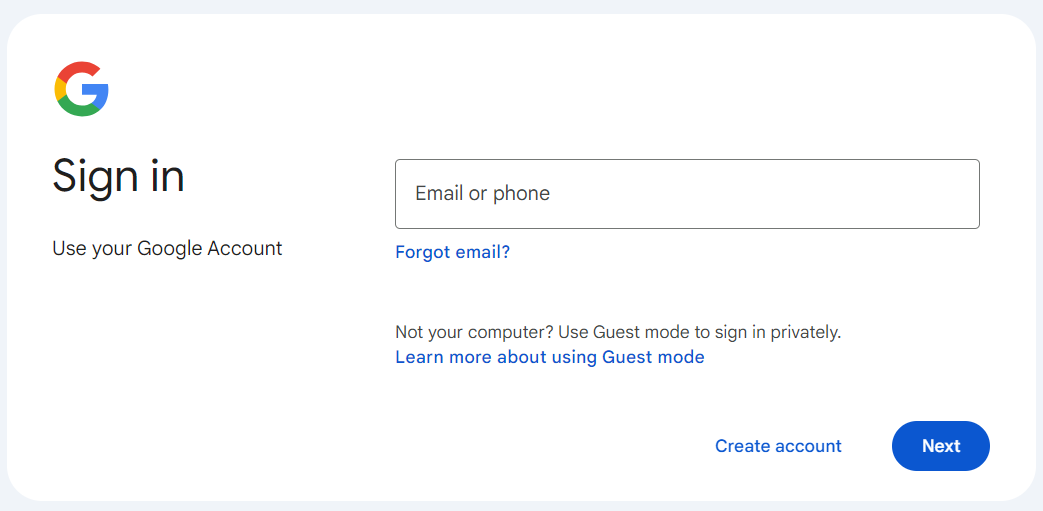
  16. After clicking Save, if you try to connect to the VPN, you now should be taken to your IdP's sign-in page.
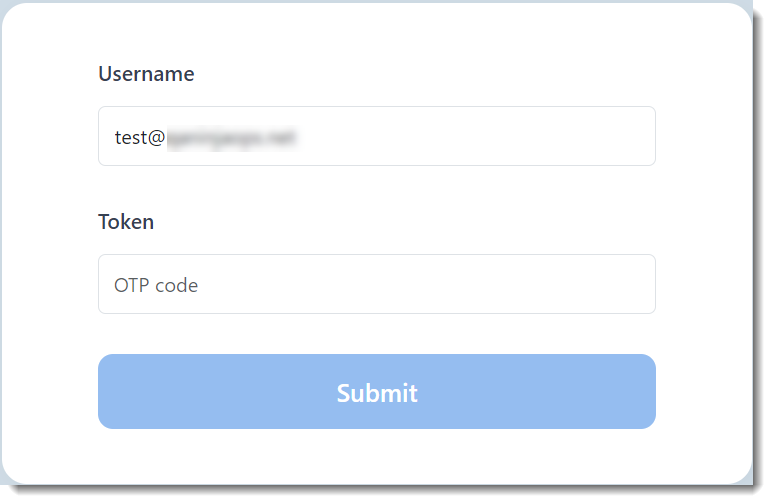
  17. Log in, and you should be taken to the OTP page.
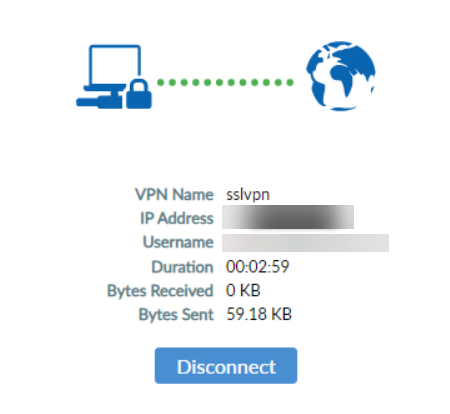
  18. Verify the token using the MFA method you selected when creating the user on FIC earlier. Now the end user should be able to log into the IPsec VPN through FortiClient, as shown in the following illustration.
Example 5: FortiGate IPsec as SP

Example 5: FortiGate IPsec as SP

  1. On the FIC portal, click Applications > SSO > Add SSO Application.
  2. In the General Information and Interface Detail sections, make the required entries and selections.

  3. Leave the FIC GUI page open, launch the FortiGate GUI, and click User & Authentication > Single Sign-On.

  4. In the Address field, enter the IPsec address that you want to use. In this example, we use Port 9443 for the auth-ike-saml-port, so make sure to append the port number to the address. Then take note of the Entity ID, Assertion consumer service URL, Single logout service URL, and copy and paste them into the SP Metadata section in the FIC SAML app that you have added in Steps 1 through 2.

  5. Click Next.

  6. Then go back to the FortiGate GUI, copy the Entity ID, SSO URL, and SLO URL from the IdP Metadata section on FIC to the Identity Provider Details section on FortiGate.

  7. Go back to the FIC portal to complete configuring the SAML app that you left off in Step 2 by clicking Applications > Web > Authentication to configure its authentication settings, (optionally) add any customized attribute that you may want, and click Save.

  8. Click Applications >Web, and locate the SAML application that you have created. Then click the tool icon, select Details, and download the signing certificate to your local machine.

  9. Go back to the FortiGate GUI (Step 4 above), and import the certificate to the FortiGate, and click Submit.

  10. Now on the FortiGate, launch the Console interface and start configuring the IPsec VPN using the following CLI command.

    config system global
        set auth-ike-saml-port 9443
    end
  11. The ike-saml-server setting enables a configured SAML server to listen on a FortiGate interface for SAML authentication requests from FortiClient remote access IPsec VPN clients. Currently, this setting can only be configured in the CLI as follows. Here, “vpnsaml” is the name we used in the single sign-on setting we configured earlier.

    config system interface
        edit <name>
            set ike-saml-server vpnsaml
        next
    end
    
  12. Next, configure the IPsec VPN certificate either from the FortiGate GUI or Console interface.

    To configure the IPsec VPN certificate from the GUI:

    1. Go to User & Authentication > Authentication Settings, and select the certificate from the Certificate drop-down menu.

    2. Import the certificate on the FortiGate by following the procedures in Import a certificate.

    To configure the IPsec VPN certificate in the CLI:

    1. Make sure that the certificate (i.e., VPN-Certificate) has been imported to the FortiGate.

    2. Execute the following commands:

      config user setting
          set auth-cert "VPN_Certificate"
      end
      
  13. Configure IPsec VPN on the FortiGate with FortiClient as the dial-up client:

    1. Go to VPN > IPsec Tunnels.
    2. Click Create New > IPsec Tunnel.

      The VPN Creation Wizard is displayed.

    3. Enter the Name as FCT_SAML.

      Note: This example does not use the VPN wizard for the IPsec tunnel configuration, but configures a Custom IPsec tunnel instead.

    4. Configure the Template type as Custom.
    5. Click Next.
    6. Configure the following options:

      Parameter Description
      Name

      FCT_SAML

      Comments

      (Optional)

      Network
      IP Version IPv4
      Remote Gateway Dialup User
      Interface

      port1

      Select the IPsec tunnel gateway interface.

      Mode Config Enable
      Use system DNS in mode config (Optional) Enable FortiClient to use the host's DNS server after it connects to VPN.

      Assign IP From

      Enable

      Select Address/Address Group from the dropdown list.

      IPv4 mode config

      Client Address Range

      VPN_Client_IP_Range

      VPN_Client_IP_Range is configured from 10.212.134.1 to 10.212.134.200. If it is not already created, select Create > Address from the dropdown menu to create a new address object. See Subnet for more information.

      Subnet Mask

      255.255.255.255

      DNS Server

      8.8.8.8

      Authentication

      Method

      Pre-shared key

      Pre-shared key

      Enter the pre-shared key of at least six characters.

      IKE

      Version

      2

      Peer Options

      Accept Types

      Any peer ID

      Phase 1 Proposal

      Encryption

      AES128

      Authentication

      SHA256

      Select the desired Encryption and Authentication algorithms that should also match with Phase1 Proposals configured on FortiClient. See Configuring IPsec VPN profile on FortiClient.

    7. Keep the other settings as default.

    8. Click OK. The newly created IPsec tunnel should now be visible under VPN > IPsec Tunnels.

    9. Because IKEv2 uses EAP for user authentication, enable EAP using the following CLI command inside the configured IPsec tunnel for user authentication:

      config vpn ipsec phase1-interface
          edit "FCT_SAML"
              set eap enable
              set eap-identity send-request
          next
      end
      Tooltip

      For advanced custom configurations as per your requirement, see Remote access.

  14. Configure firewall policies using the following steps:

    1. Go to Policy & Object > Firewall Policy.
    2. Click Create New.
    3. Make the following entries:

      Parameters Description
      Name

      IPsec to DMZ

      Enter the desired name.

      Incoming Interface

      FCT_SAML

      Select the configured IPsec tunnel.

      Outgoing Interface

      DMZ

      Select the interfaces that FortiClient needs access to when it connects to VPN.

      Source

      Under Address, select VPN_Client_IP_Range.

      Under User, select vpnsaml .

      Note

      The group under User is the SAML user group configured in the earlier steps. You need to add the single sign-on server you made into a user group and then add that user group to this policy.

      Destination

      DMZ subnet

      Click Create if it is not already created. See Subnet for more information.

      Service ALL
    4. Click OK.

    5. Because the IPsec tunnel is configured as a full-tunnel, create another policy to allow traffic from IPsec to Internet and to allow FortiClient to access Internet through IPsec tunnel.

  15. Configure the IPsec VPN profile on FortiClient:

    1. In FortiClient, go to Remote Access > Configure VPN or Add a new connection.

    2. Configure the following settings to set up an IPsec IKEv2 profile on FortiClient:

      Parameter Description
      Connection Name VPN-Tunnel
      Remote Gateway <VPN Gateway FQDN> or <VPN Gateway IP>
      Authentication Method Pre-shared key with Enable Single Sign On (SSO) for VPN Tunnel enabled.
      Customize port 9443
      Advanced Settings > VPN Settings
      IKE Version 2
      Options Mode Config

      To explore additional custom options to configure IPsec VPN profile, see Configuring an IPsec VPN connection.

  16. After clicking Save, if you try to connect to the VPN, you now should be taken to your IdP's sign-in page.

  17. Log in, and you should be taken to the OTP page.

  18. Verify the token using the MFA method you selected when creating the user on FIC earlier. Now the end user should be able to log into the IPsec VPN through FortiClient, as shown in the following illustration.