

Example 4: Azure OIDC as IdP

|
In this example, the SP can be any supported Fortinet application. For a complete list of supported Fortinet applications, see Compatible Fortinet applications. |
-
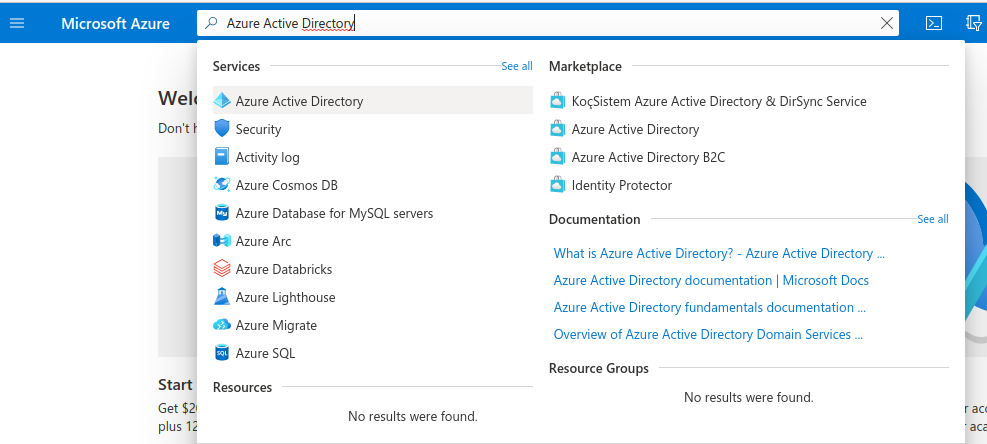
In order to set up OIDC for Microsoft, you need to go to your Microsoft Azure Portal, search for Azure Active Directory, and click it.
-
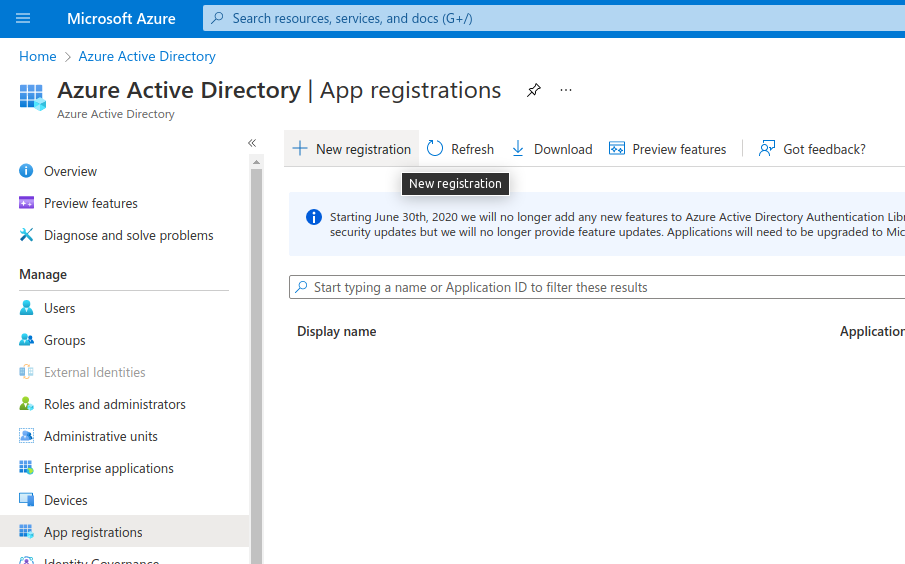
Select Manage > App registrations, and click New registration.
-
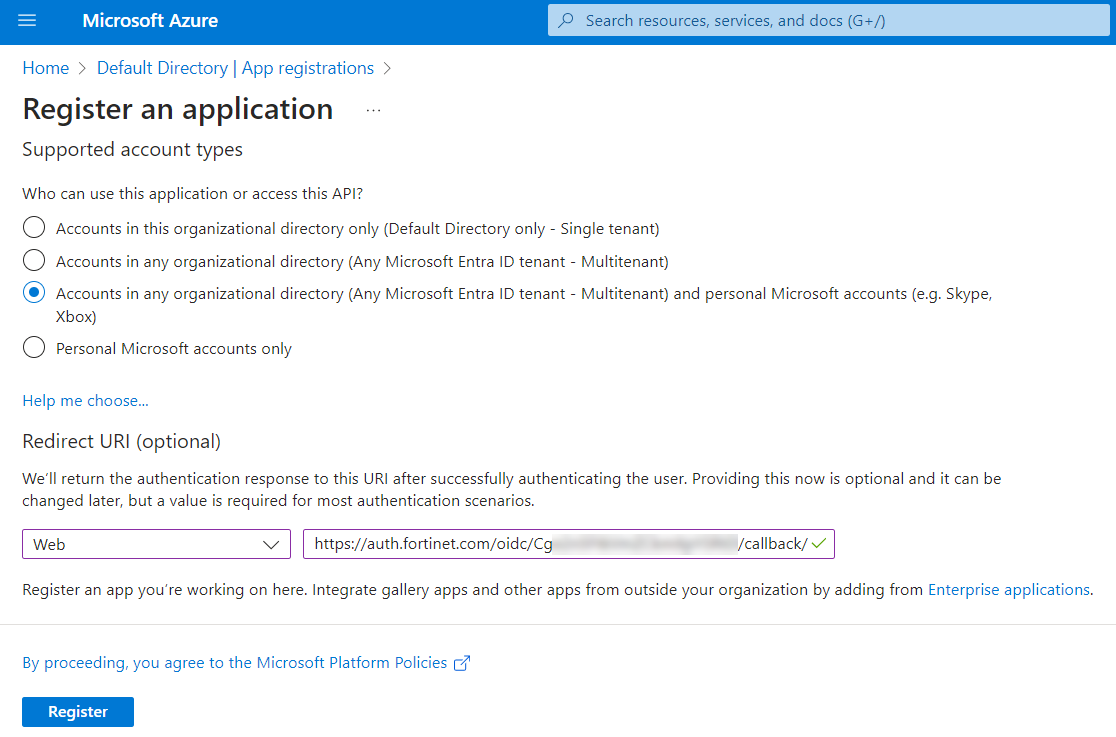
On FIC, create a new user source and set the Interface to OIDC just like in the Google OIDC example. Take note of the callback URL. Then, on the next page in Azure, fill in your application name, select Accounts in any organizational directory (Any Azure AD directory - Multitenant) and personal Microsoft accounts (e.g. Skype, Xbox) to allow anyone to log in, add a Web Redirect URI with the callback URL from FIC, and click Register.
-
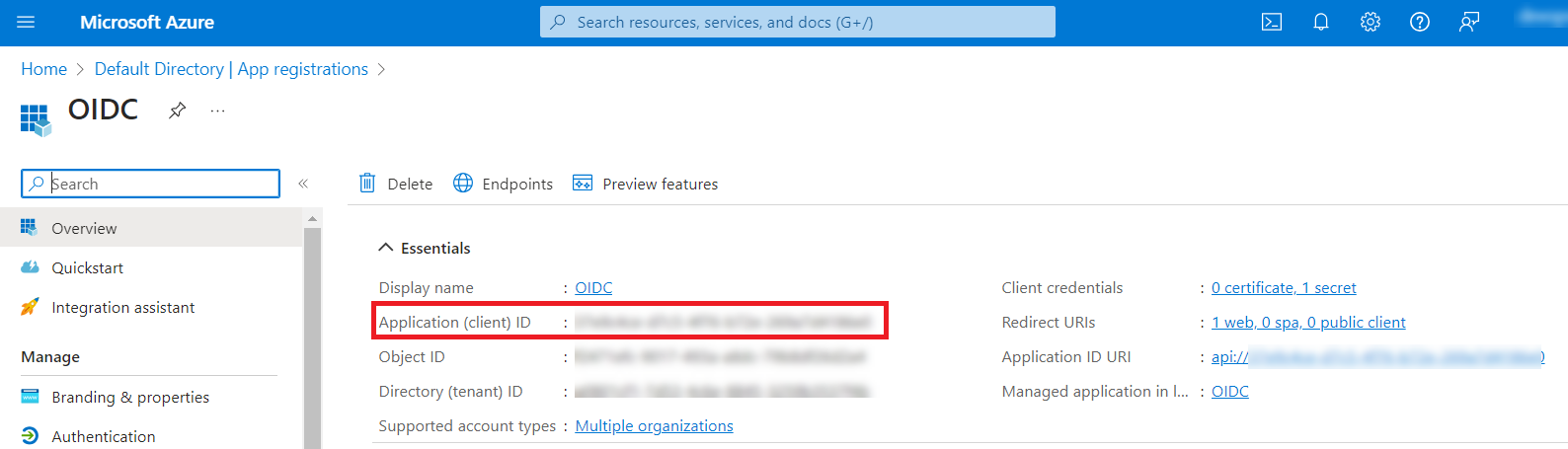
On that resulting page, copy the Client Id (under Application (client) ID, and click Add a certificate or secret:
-
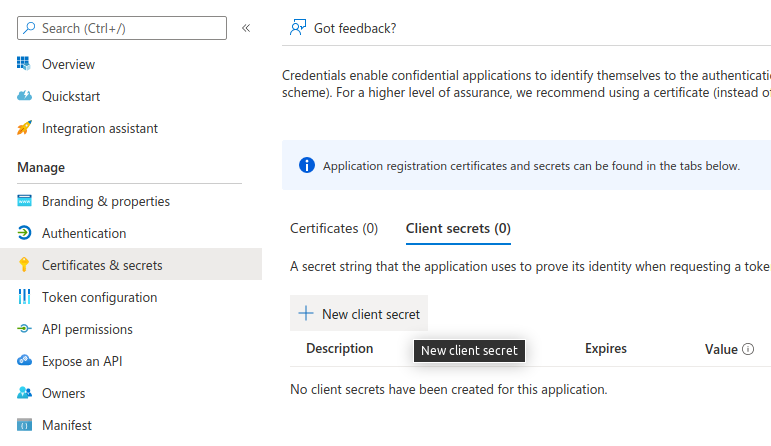
Now, under Client secrets (0), click New client secret:
-
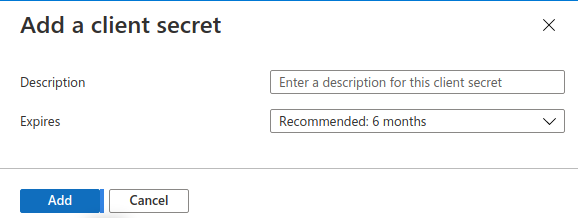
Click Add in that dialog without changing anything.
-
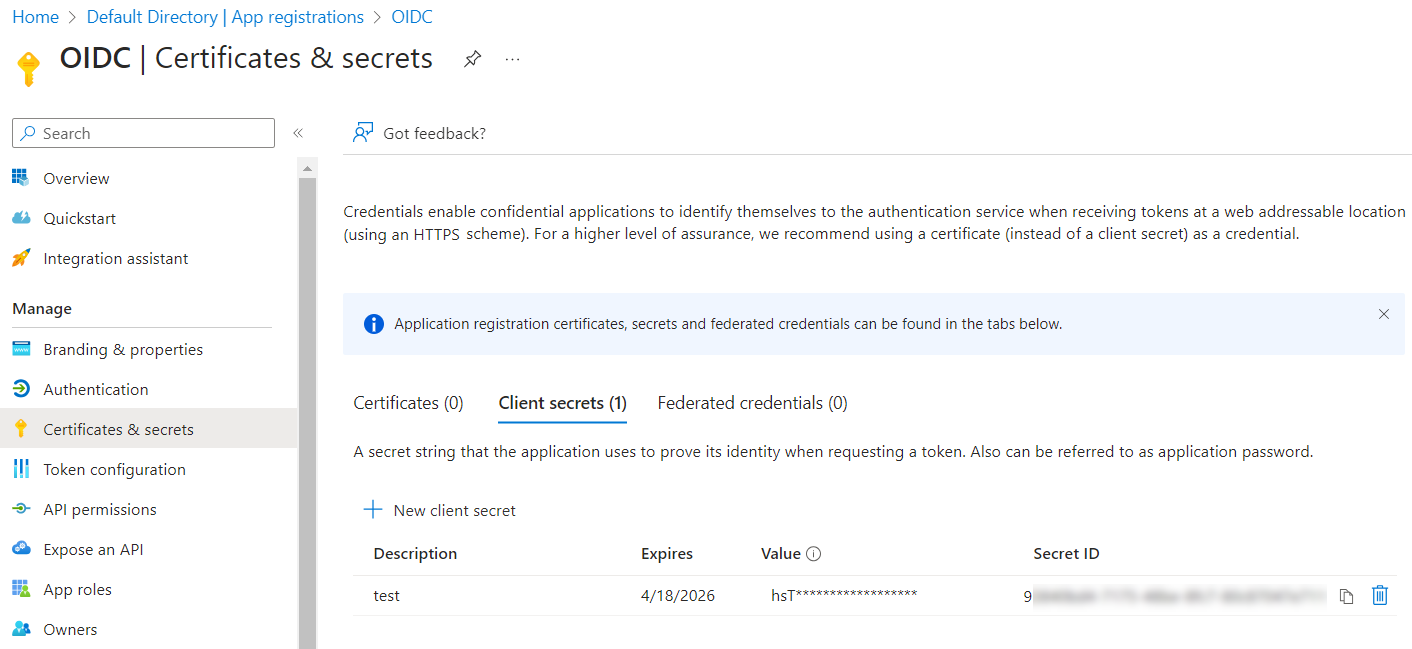
On the resulting page, copy your Secret Value.
-
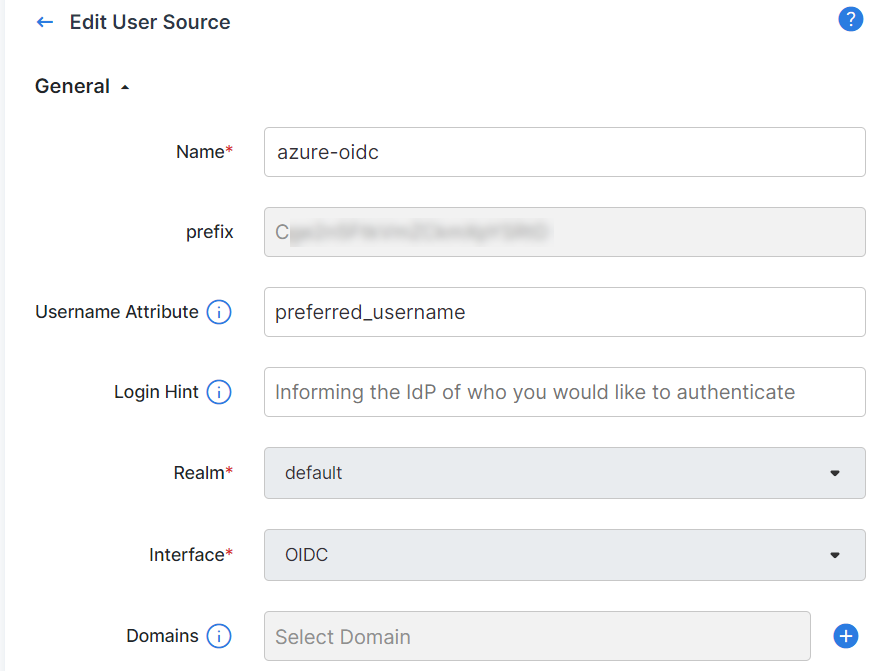
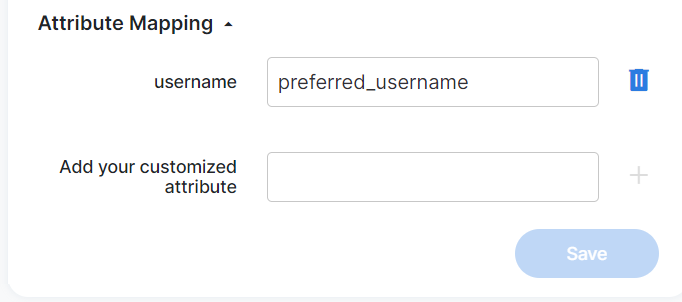
Going back to the FIC configuration, note that if your users do not have any email set on them in Azure, then you'll need to configure a custom username attribute. In our example, we do not had any email configured on our Azure users so we're configuring the username attribute with Microsoft Azure's "preferred_username" field in order for FIC to be able to identify the username from the access token. You can read up more in Microsoft's documentation about which fields are included their OIDC access tokens if you wish to use different fields:
-
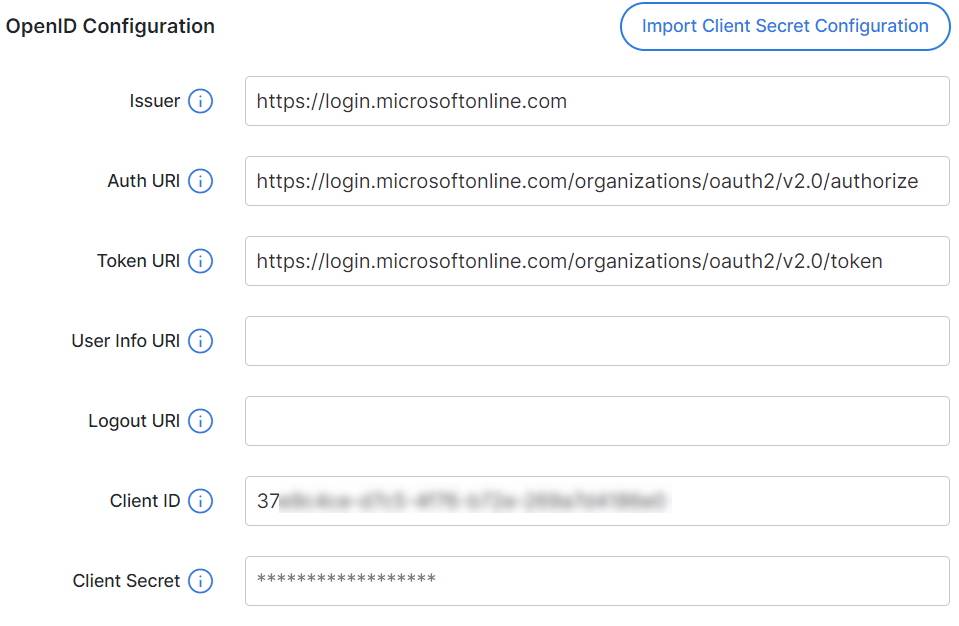
And here is what we are going to put in the OpenID Configuration section for our example:
-
If you used "preferred_username", make sure to configure the attribute mapping as well:
-
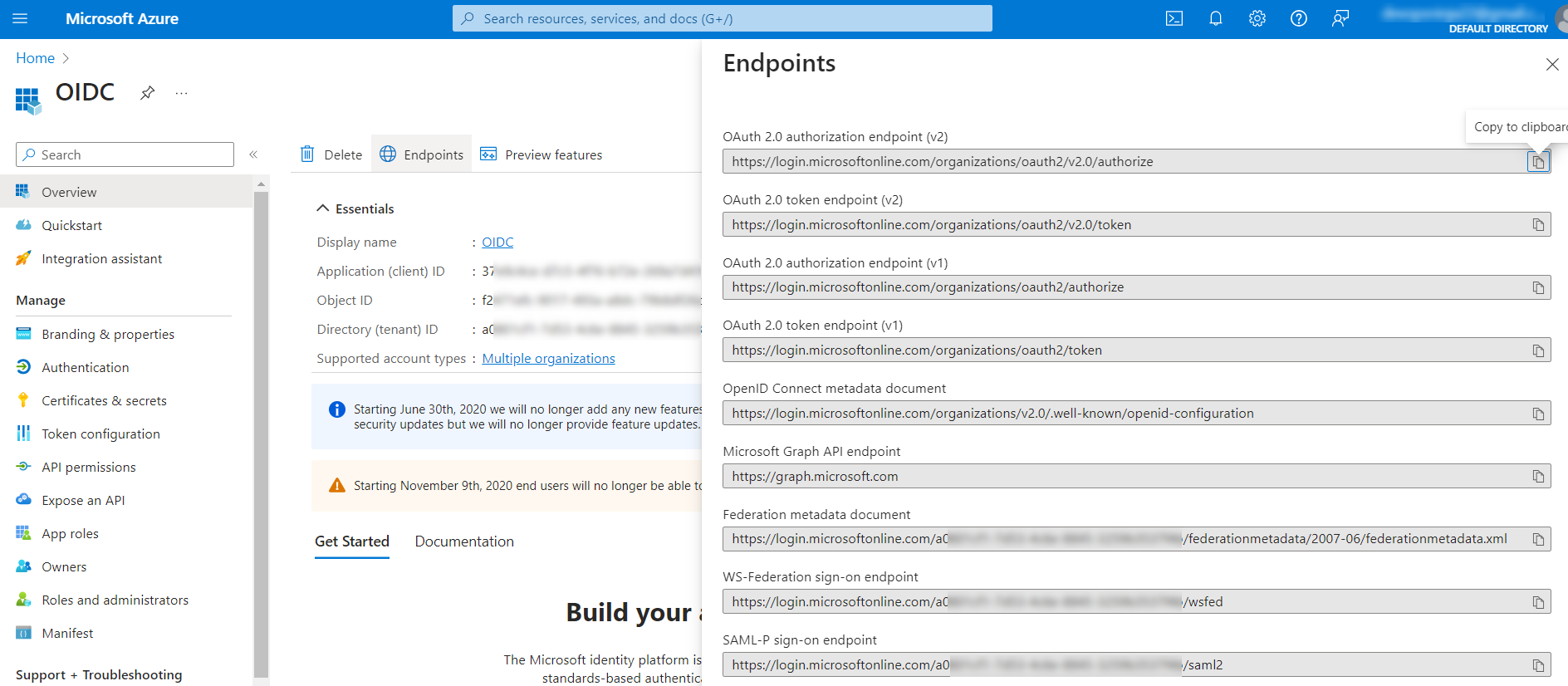
You already got the client and the secret from earlier. If you need to reference the other fields, you can get it from here in Azure by clicking Endpoints in the Overview page of your app:
- After clicking Save in FIC, this Azure OIDC IdP should be ready to be added into your FIC IdP proxy setup.