
Fortinet white logo
Fortinet white logo

Administration Guide

Telemetry profile

Telemetry profile

This topic applies only to a FortiGate acting as a FortiTelemetry Controller with FortiTelemetry enabled on the System > Feature Visibility page. For a summary of FortiTelemetry-related tasks that you can do in FortiOS, see FortiTelemetry NEW. See also FortiTelemetry Administration Guide.

Telemetry profiles are used by FortiTelemetry agent(s). Telemetry profiles instruct FortiTelemetry agent(s) what predefined applications to monitor.

A telemetry profile must be configured in a firewall policy to create a telemetry policy. See Telemetry policy for more information.

To view Telemetry profiles:
  1. Go to Security Profiles > Telemetry Profile. The list of telemetry profiles is displayed, including a default telemetry profile.

  2. Select a profile to access additional buttons, such as Edit, Clone, Delete, and More.

  3. Select the default profile, and click Edit. The Telemetry Profile pane opens.

    The default profile monitors the following predefined applications: Google docs, Microsoft 365, and Salesforce. No SLA targets are defined.
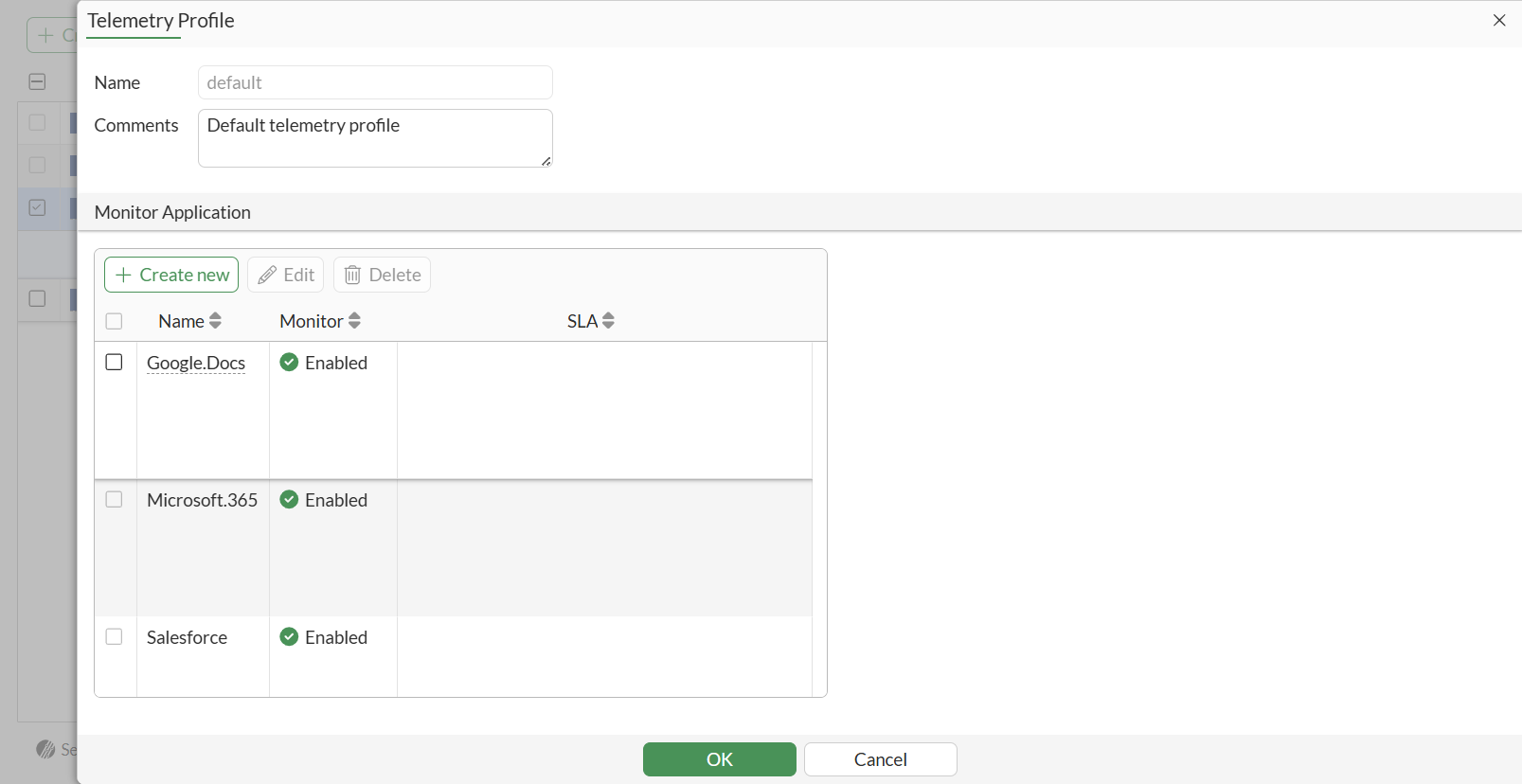
  4. Select an application, and click Edit. The Profile Application pane opens.
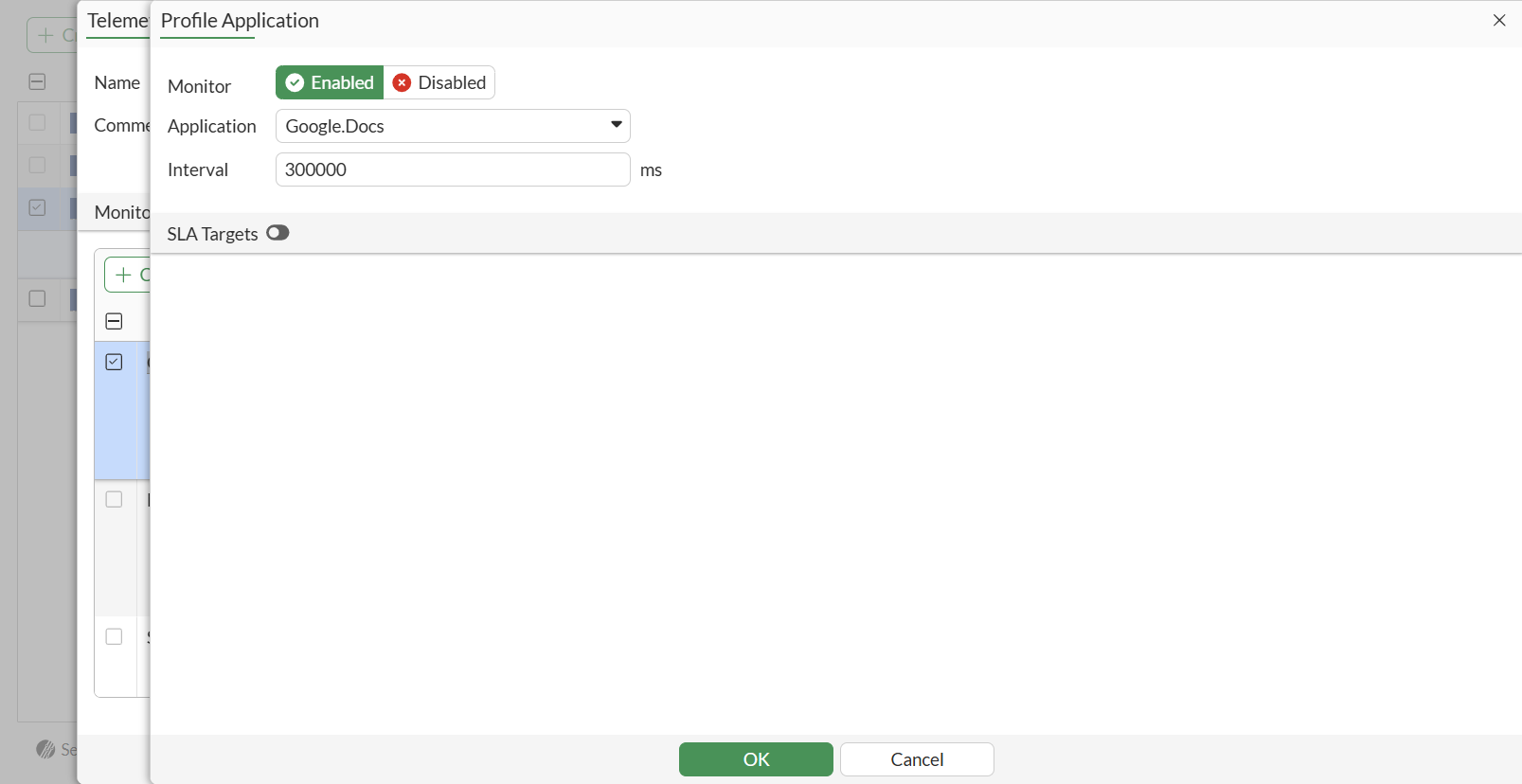
  5. Enable SLA Targets to view what data will be collected. Although you can enable and set SLA targets, the functionality does not work yet
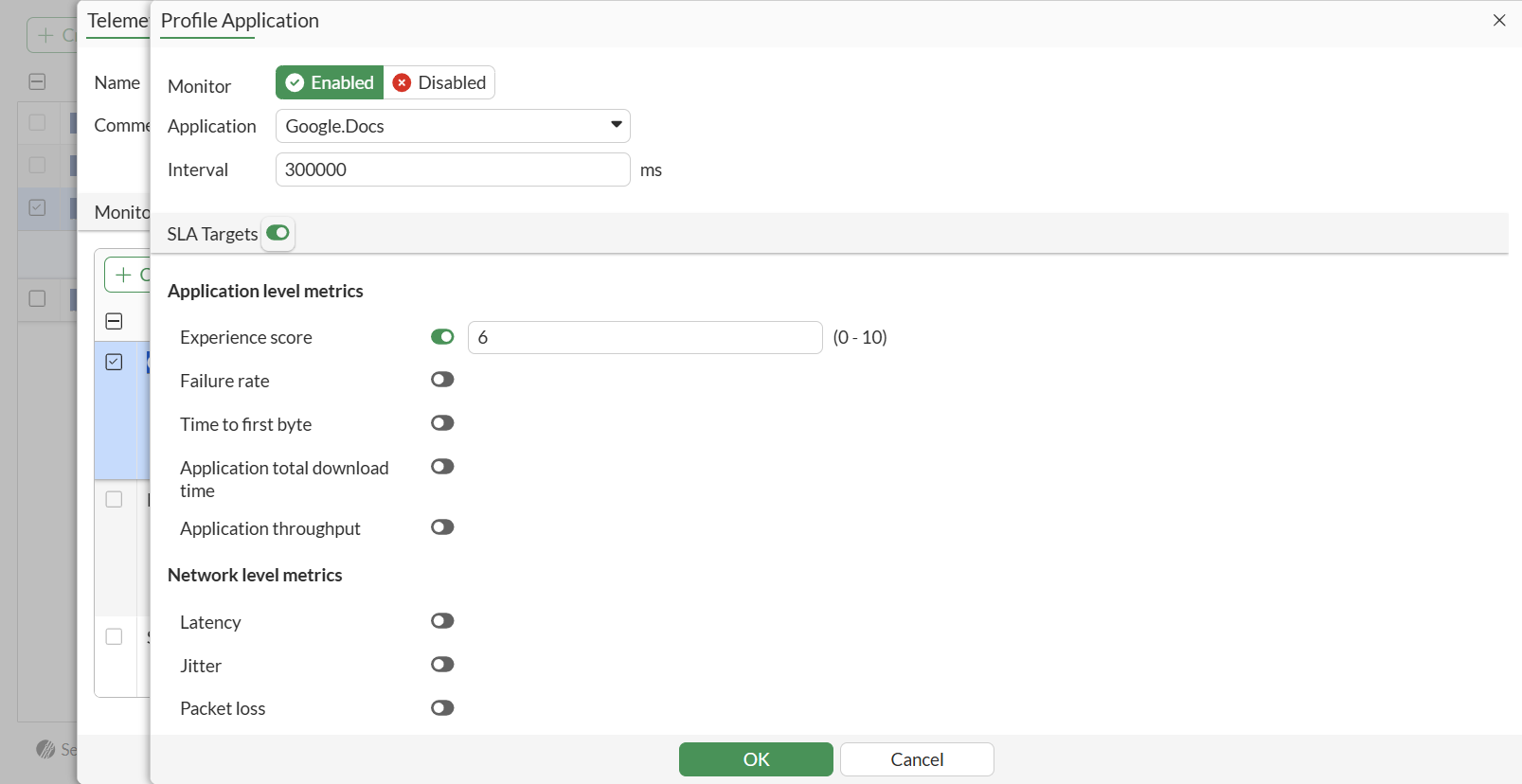
  6. Click OK to save profile application settings.

  7. Click OK to save telemetry profile settings.

Predefined applications

FortiOS 7.6.3 includes the following SaaS applications that FortiTelemetry agents can monitor:

  • Adobe

  • Atlassian Cloud

  • Dropbox

  • Elastic Search

  • Google Docs

  • Google Drive

  • Google Maps

  • Go To Meeting

  • Microsoft 365

  • Microsoft SharePoint

  • Microsoft Teams

  • Sales Force

  • Slack

  • Twilio

  • Webex

  • Yahoo

  • Zendesk

  • Zoom

On the FortiTelemetry Controller, use the config telemetry-controller application predefine command to view the list.

Telemetry profile

Telemetry profile

This topic applies only to a FortiGate acting as a FortiTelemetry Controller with FortiTelemetry enabled on the System > Feature Visibility page. For a summary of FortiTelemetry-related tasks that you can do in FortiOS, see FortiTelemetry NEW. See also FortiTelemetry Administration Guide.

Telemetry profiles are used by FortiTelemetry agent(s). Telemetry profiles instruct FortiTelemetry agent(s) what predefined applications to monitor.

A telemetry profile must be configured in a firewall policy to create a telemetry policy. See Telemetry policy for more information.

To view Telemetry profiles:
  1. Go to Security Profiles > Telemetry Profile. The list of telemetry profiles is displayed, including a default telemetry profile.

  2. Select a profile to access additional buttons, such as Edit, Clone, Delete, and More.

  3. Select the default profile, and click Edit. The Telemetry Profile pane opens.

    The default profile monitors the following predefined applications: Google docs, Microsoft 365, and Salesforce. No SLA targets are defined.

  4. Select an application, and click Edit. The Profile Application pane opens.

  5. Enable SLA Targets to view what data will be collected. Although you can enable and set SLA targets, the functionality does not work yet

  6. Click OK to save profile application settings.

  7. Click OK to save telemetry profile settings.

Predefined applications

FortiOS 7.6.3 includes the following SaaS applications that FortiTelemetry agents can monitor:

  • Adobe

  • Atlassian Cloud

  • Dropbox

  • Elastic Search

  • Google Docs

  • Google Drive

  • Google Maps

  • Go To Meeting

  • Microsoft 365

  • Microsoft SharePoint

  • Microsoft Teams

  • Sales Force

  • Slack

  • Twilio

  • Webex

  • Yahoo

  • Zendesk

  • Zoom

On the FortiTelemetry Controller, use the config telemetry-controller application predefine command to view the list.