Fortinet white logo
Fortinet white logo

Administration Guide

Generic connector for importing addresses

Generic connector for importing addresses

This features allows for seamless integration with any third-party database using a JSON based REST API. Each JSON entry is converted into an address object on the FortiGate, which can be used in policies like any other address.

Each dynamic firewall address can parse up to 100,000 IP addresses and 3,000 MAC addresses. IPv6 addresses are not supported.

When VDOMs are enabled, a generic connector that is created in the Global VDOM must have g- prepended to it's name. The connector and imported addresses are synchronized to all VDOMs. A generic connector that is created in a specific VDOM is not synchronized to other VDOMs, and the address objects are only imported to that VDOM.

When VDOMs are not enabled, generic connectors cannot use the g- prefix in their name.

External feed update method example

In this example, the FortiGate pulls updates from an external resource: a REST API interface created using JSONBIN.io.

To create the REST API interface:
  1. Go to JSONBIN.io and click Quick Create JSON.

  2. Enter a name for the JSON file and select when it expires.

  3. Copy in the following JSON then click Create Bin:

    {
      "addresses": [
        {
          "name": "ip_address",
          "value": [
            "172.16.200.1-172.16.200.254",
            "192.168.4.1-192.168.4.254"
          ],
          "description": "generic object IP Address"
        },
        {
          "name": "mac_address",
          "value": [
            "00:0c:29:1b:40:c9",
            "00:0c:29:f6:0d:49",
            "00:0c:29:63:40:09"
          ],
          "description": "generic object MAC Address"
        }
      ]
    }
  4. Copy the generated Access URL.

To create and test a generic connector that uses the external feed update method in the GUI:
  1. On the FortiGate, go to Security Fabric > External Connectors and click Create New.

  2. Enter a name for the connector, such as gen_obj_range.

  3. Set Update method to External feed.

  4. Set the URL of external resource to the Access URL copied from JSONBIN.io.

  5. In the JSON Mapping, change the Path to address object to record.addresses.
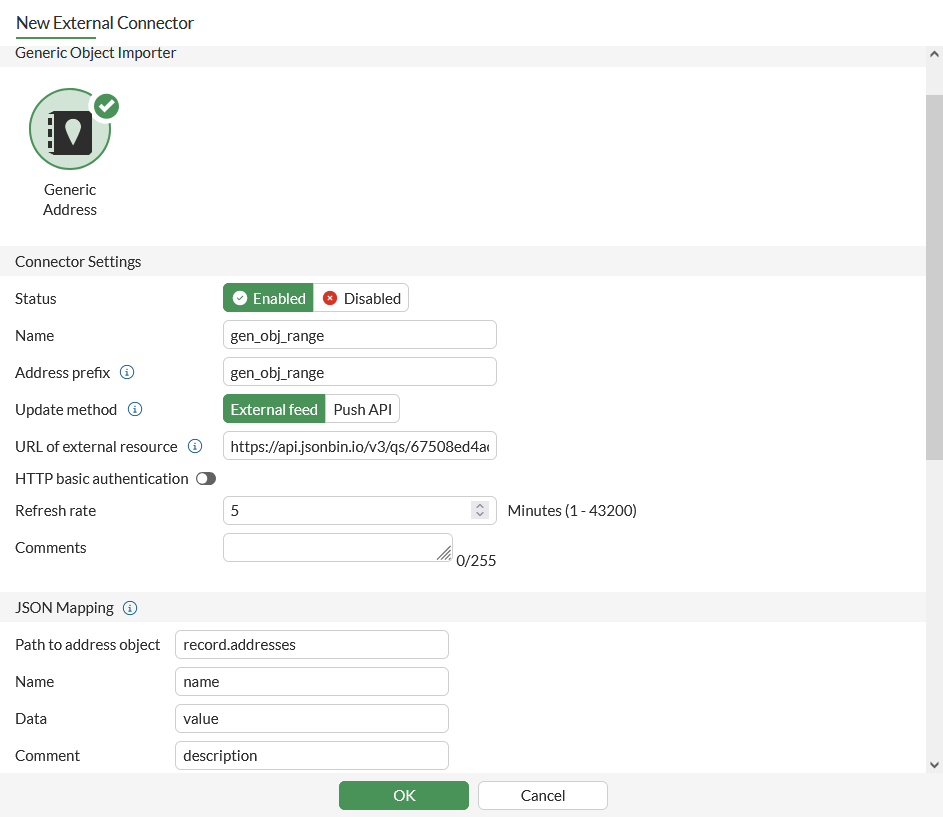
  6. Click OK.

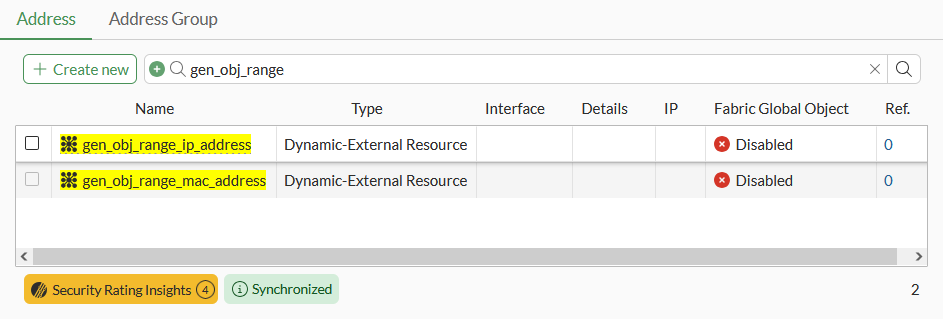
    The connector imports the IP and MAC addresses and automatically creates address objects on the FortiGate. The address object names are a combination of the connector name and the name of the content, for example gen_obj_range_ip_address.
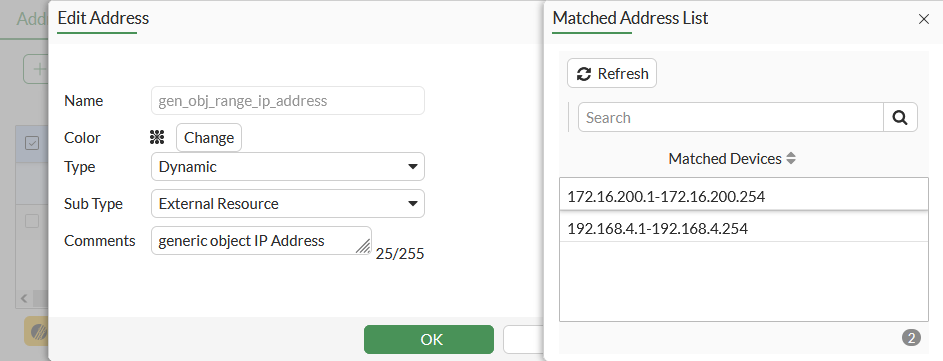
  7. Edit the address object then select View Matched Addresses from the right side bar, or hover over the object name then select View Matched Addresses in the popup message.
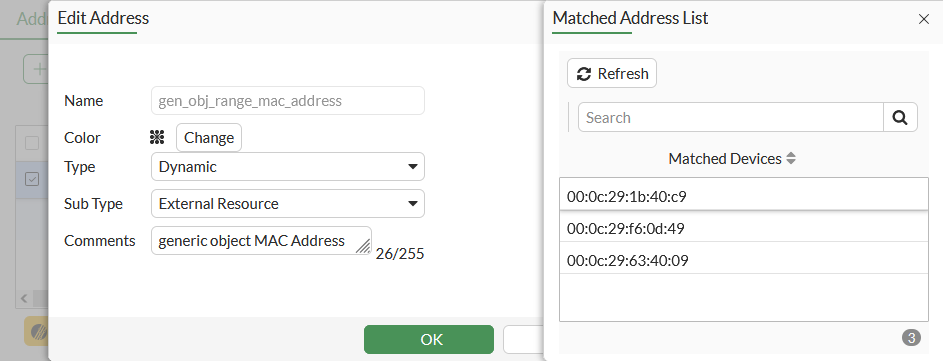
To create a generic connector that uses the external feed update method in the CLI:
  1. Create the generic connector:

    config system external-resource
        edit "gen_obj_range"
            set type generic-address
            set namespace "gen_obj_range"
            set object-array-path "$.record.addresses"
            set resource "https://api.jsonbin.io/v3/qs/6748a04dacd3cb34a8b09811"
        next
    end
  2. Check the matched IP addresses:

    # show firewall address gen_obj_range_ip_address
    config firewall address
        edit "gen_obj_range_ip_address"
            set uuid 711443a0-a6cc-51ef-9a0c-0db7194a28d7
            set type dynamic
            set sub-type external-resource
            set comment "generic object IP Address"
            set obj-tag "ip_address"
            set tag-type "classification"
        next
    end
    # diagnose firewall dynamic list gen_obj_range_ip_address
    CMDB name: gen_obj_range_ip_address
    gen_obj_range_ip_address: ID(88)
            RANGE(172.16.200.1-172.16.200.254)
            RANGE(192.168.4.1-192.168.4.254)
    Total IP dynamic range blocks: 2.
    Total IP dynamic addresses: 508.
  3. Check the matched MAC addresses:

    # show firewall address gen_obj_range_mac_address
    config firewall address
        edit "gen_obj_range_mac_address"
            set uuid 7114802c-a6cc-51ef-c4d3-c98a769ccf33
            set type dynamic
            set sub-type external-resource
            set comment "generic object MAC Address"
            set obj-tag "mac_address"
            set obj-type mac
            set tag-type "classification"
        next
    end
    # diagnose firewall dynamic list gen_obj_range_mac_address
    CMDB name: gen_obj_range_mac_address
    gen_obj_range_mac_address: ID(220)
            MAC(00:0c:29:1b:40:c9)
            MAC(00:0c:29:f6:0d:49)
            MAC(00:0c:29:63:40:09)
    Total MAC dynamic addresses: 3.

Push API update method example

In this example, an external resource update is pushed to the FortiGate through the FortiGate's REST API. A Linux PC is connected to the FortiGate and used as the external resource.

To create and test a generic connector that uses the push API update method in the GUI:
  1. On the FortiGate, go to Security Fabric > External Connectors and click Create New.

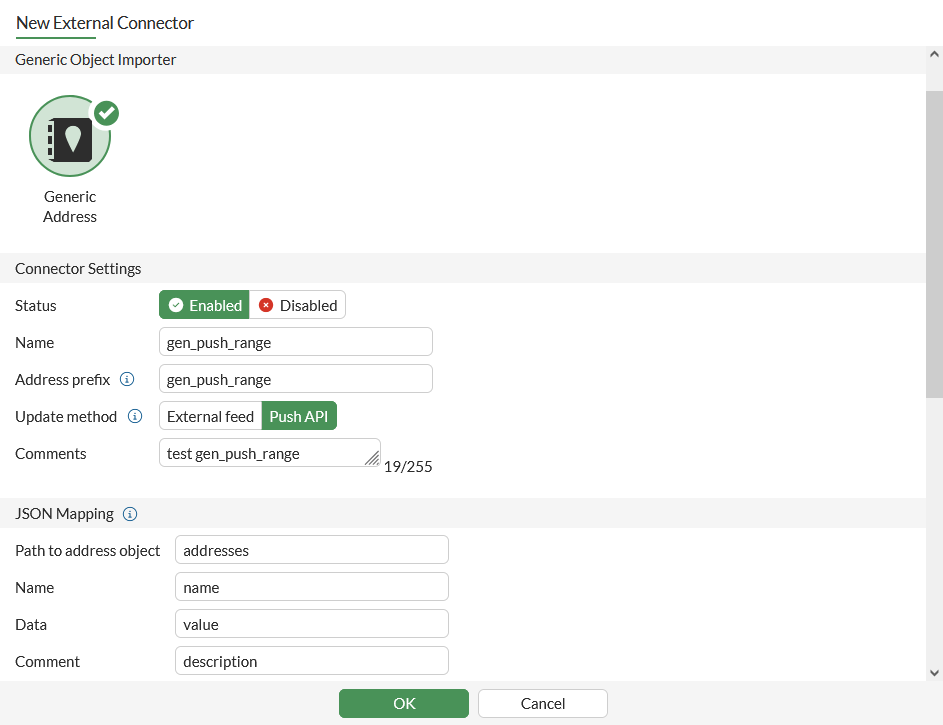
  2. Enter a name for the connector, such as gen_push_range.

  3. Set Update method to Push API.

  4. Click OK.

    The External Feed Push API Information pane opens.
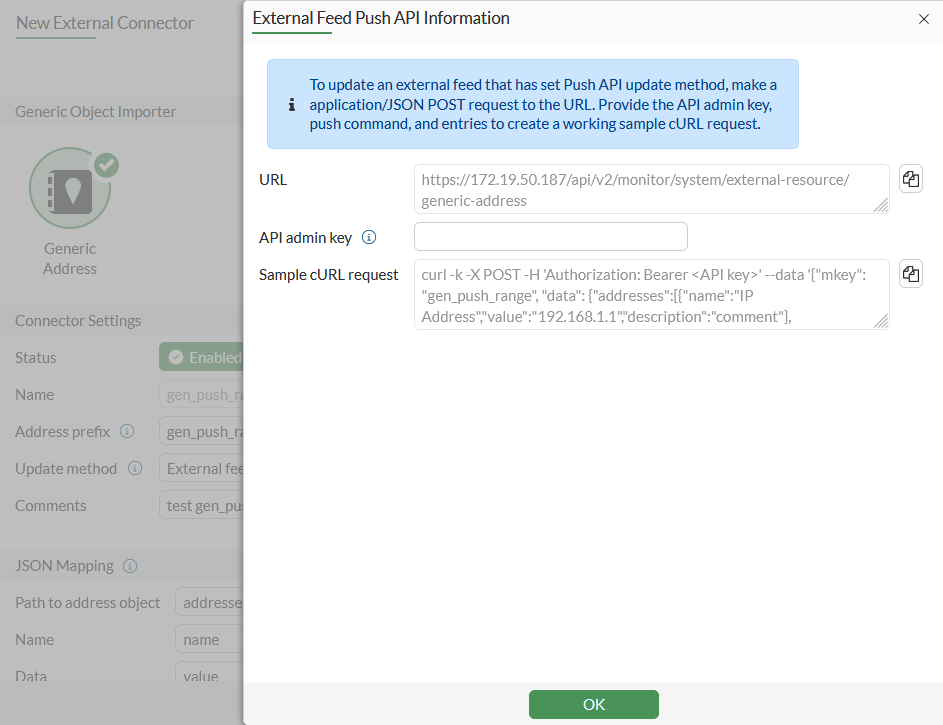
  5. Copy the Sample cURL request and edit the entries, such as API key, IP Address, and son on.

    In this example, the cURL request is:

    curl -k -X POST -H 'Authorization: Bearer xxxxxxxxxxx' --data '{"mkey": "gen_push_range", "data": {"addresses":[{"name":"ip_address","value":["172.16.200.1-172.16.200.254","192.168.4.1-192.168.4.254"],"description":"generic object IP Address"},{"name":"mac_address","value":["00:0c:29:1b:40:c9","00:0c:29:f6:0d:49","00:0c:29:63:40:09"],"description":"generic object MAC Address"}]}}' "https://172.16.116.210:48182/api/v2/monitor/system/external-resource/generic-address"
  6. Send the JSON request to the FortiGate through the Linux PC.

    The connector imports the IP and MAC addresses and automatically creates address objects on the FortiGate. The address object names are a combination of the connector name and the name of the content, for example gen_obj_push_ip_address.
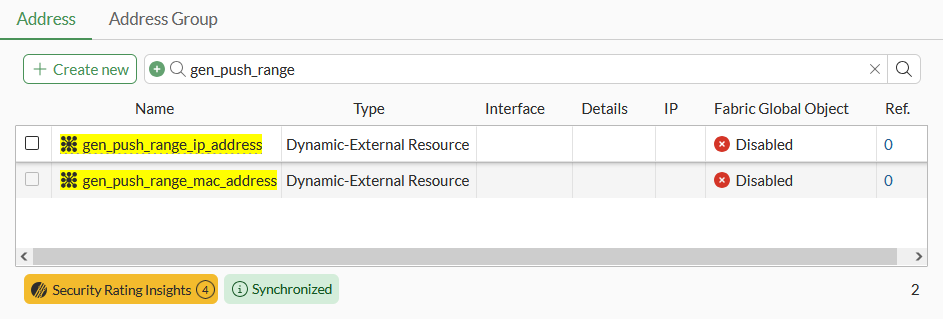
  7. Edit the address object then select View Matched Addresses from the right side bar, or hover over the object name then select View Matched Addresses in the popup message.
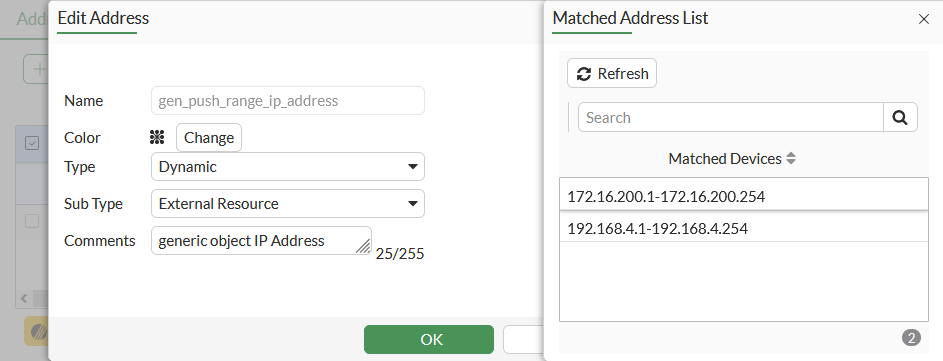
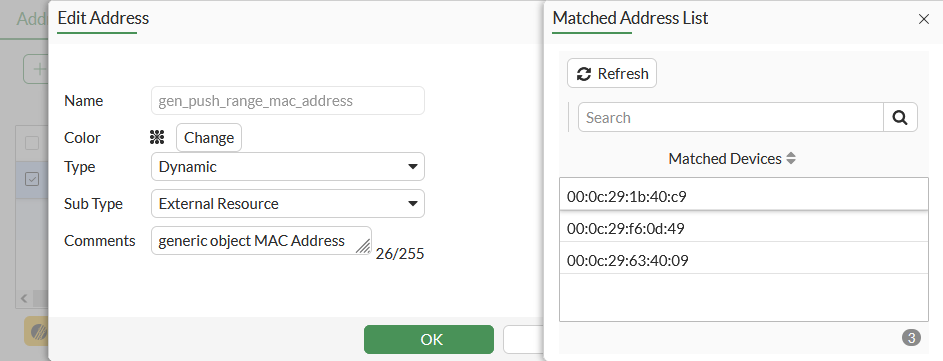
To create and test a generic connector that uses the push API update method in the CLI:
  1. Create the generic connector:

    config system external-resource
        edit "gen_push_range"
            set type generic-address
            set namespace "gen_push_range"
            set update-method push
            set comments "test gen_push_range"
        next
    end
  2. Send the JSON request to the FortiGate through the Linux client used in this example.

    curl -k -X POST -H 'Authorization: Bearer xxxxxxxxxxx' --data '{"mkey": "gen_push_range", "data": {"addresses":[{"name":"ip_address","value":["172.16.200.1-172.16.200.254","192.168.4.1-192.168.4.254"],"description":"generic object IP Address"},{"name":"mac_address","value":["00:0c:29:1b:40:c9","00:0c:29:f6:0d:49","00:0c:29:63:40:09"],"description":"generic object MAC Address"}]}}' "https://172.16.116.210:48182/api/v2/monitor/system/external-resource/generic-address"
  3. Check the matched IP addresses:

    # show firewall address gen_push_range_ip_address
    config firewall address
        edit "gen_push_range_ip_address"
            set uuid b2012094-ac5e-51ef-354d-cd13120322c4
            set type dynamic
            set sub-type external-resource
            set comment "generic object IP Address"
            set obj-tag "ip_address"
            set tag-type "classification"
        next
    end
    # diagnose firewall dynamic list gen_push_range_ip_address
    CMDB name: gen_push_range_ip_address
    gen_push_range_ip_address: ID(254)
            RANGE(172.16.200.1-172.16.200.254)
            RANGE(192.168.4.1-192.168.4.254)
    Total IP dynamic range blocks: 2.
    Total IP dynamic addresses: 508.
  4. Check the matched MAC addresses:

    # show firewall address gen_push_range_mac_address
    config firewall address
        edit "gen_push_range_mac_address"
            set uuid b2015c62-ac5e-51ef-75ef-8bc7586e5238
            set type dynamic
            set sub-type external-resource
            set comment "generic object MAC Address"
            set obj-tag "mac_address"
            set obj-type mac
            set tag-type "classification"
        next
    end
    # diagnose firewall dynamic list gen_push_range_mac_address
    CMDB name: gen_push_range_mac_address
    gen_push_range_mac_address: ID(98)
            MAC(00:0c:29:1b:40:c9)
            MAC(00:0c:29:f6:0d:49)
            MAC(00:0c:29:63:40:09)
    Total MAC dynamic addresses: 3.

Generic connector for importing addresses

Generic connector for importing addresses

This features allows for seamless integration with any third-party database using a JSON based REST API. Each JSON entry is converted into an address object on the FortiGate, which can be used in policies like any other address.

Each dynamic firewall address can parse up to 100,000 IP addresses and 3,000 MAC addresses. IPv6 addresses are not supported.

When VDOMs are enabled, a generic connector that is created in the Global VDOM must have g- prepended to it's name. The connector and imported addresses are synchronized to all VDOMs. A generic connector that is created in a specific VDOM is not synchronized to other VDOMs, and the address objects are only imported to that VDOM.

When VDOMs are not enabled, generic connectors cannot use the g- prefix in their name.

External feed update method example

In this example, the FortiGate pulls updates from an external resource: a REST API interface created using JSONBIN.io.

To create the REST API interface:
  1. Go to JSONBIN.io and click Quick Create JSON.

  2. Enter a name for the JSON file and select when it expires.

  3. Copy in the following JSON then click Create Bin:

    {
      "addresses": [
        {
          "name": "ip_address",
          "value": [
            "172.16.200.1-172.16.200.254",
            "192.168.4.1-192.168.4.254"
          ],
          "description": "generic object IP Address"
        },
        {
          "name": "mac_address",
          "value": [
            "00:0c:29:1b:40:c9",
            "00:0c:29:f6:0d:49",
            "00:0c:29:63:40:09"
          ],
          "description": "generic object MAC Address"
        }
      ]
    }
  4. Copy the generated Access URL.

To create and test a generic connector that uses the external feed update method in the GUI:
  1. On the FortiGate, go to Security Fabric > External Connectors and click Create New.

  2. Enter a name for the connector, such as gen_obj_range.

  3. Set Update method to External feed.

  4. Set the URL of external resource to the Access URL copied from JSONBIN.io.

  5. In the JSON Mapping, change the Path to address object to record.addresses.

  6. Click OK.

    The connector imports the IP and MAC addresses and automatically creates address objects on the FortiGate. The address object names are a combination of the connector name and the name of the content, for example gen_obj_range_ip_address.

  7. Edit the address object then select View Matched Addresses from the right side bar, or hover over the object name then select View Matched Addresses in the popup message.

To create a generic connector that uses the external feed update method in the CLI:
  1. Create the generic connector:

    config system external-resource
        edit "gen_obj_range"
            set type generic-address
            set namespace "gen_obj_range"
            set object-array-path "$.record.addresses"
            set resource "https://api.jsonbin.io/v3/qs/6748a04dacd3cb34a8b09811"
        next
    end
  2. Check the matched IP addresses:

    # show firewall address gen_obj_range_ip_address
    config firewall address
        edit "gen_obj_range_ip_address"
            set uuid 711443a0-a6cc-51ef-9a0c-0db7194a28d7
            set type dynamic
            set sub-type external-resource
            set comment "generic object IP Address"
            set obj-tag "ip_address"
            set tag-type "classification"
        next
    end
    # diagnose firewall dynamic list gen_obj_range_ip_address
    CMDB name: gen_obj_range_ip_address
    gen_obj_range_ip_address: ID(88)
            RANGE(172.16.200.1-172.16.200.254)
            RANGE(192.168.4.1-192.168.4.254)
    Total IP dynamic range blocks: 2.
    Total IP dynamic addresses: 508.
  3. Check the matched MAC addresses:

    # show firewall address gen_obj_range_mac_address
    config firewall address
        edit "gen_obj_range_mac_address"
            set uuid 7114802c-a6cc-51ef-c4d3-c98a769ccf33
            set type dynamic
            set sub-type external-resource
            set comment "generic object MAC Address"
            set obj-tag "mac_address"
            set obj-type mac
            set tag-type "classification"
        next
    end
    # diagnose firewall dynamic list gen_obj_range_mac_address
    CMDB name: gen_obj_range_mac_address
    gen_obj_range_mac_address: ID(220)
            MAC(00:0c:29:1b:40:c9)
            MAC(00:0c:29:f6:0d:49)
            MAC(00:0c:29:63:40:09)
    Total MAC dynamic addresses: 3.

Push API update method example

In this example, an external resource update is pushed to the FortiGate through the FortiGate's REST API. A Linux PC is connected to the FortiGate and used as the external resource.

To create and test a generic connector that uses the push API update method in the GUI:
  1. On the FortiGate, go to Security Fabric > External Connectors and click Create New.

  2. Enter a name for the connector, such as gen_push_range.

  3. Set Update method to Push API.

  4. Click OK.

    The External Feed Push API Information pane opens.

  5. Copy the Sample cURL request and edit the entries, such as API key, IP Address, and son on.

    In this example, the cURL request is:

    curl -k -X POST -H 'Authorization: Bearer xxxxxxxxxxx' --data '{"mkey": "gen_push_range", "data": {"addresses":[{"name":"ip_address","value":["172.16.200.1-172.16.200.254","192.168.4.1-192.168.4.254"],"description":"generic object IP Address"},{"name":"mac_address","value":["00:0c:29:1b:40:c9","00:0c:29:f6:0d:49","00:0c:29:63:40:09"],"description":"generic object MAC Address"}]}}' "https://172.16.116.210:48182/api/v2/monitor/system/external-resource/generic-address"
  6. Send the JSON request to the FortiGate through the Linux PC.

    The connector imports the IP and MAC addresses and automatically creates address objects on the FortiGate. The address object names are a combination of the connector name and the name of the content, for example gen_obj_push_ip_address.

  7. Edit the address object then select View Matched Addresses from the right side bar, or hover over the object name then select View Matched Addresses in the popup message.

To create and test a generic connector that uses the push API update method in the CLI:
  1. Create the generic connector:

    config system external-resource
        edit "gen_push_range"
            set type generic-address
            set namespace "gen_push_range"
            set update-method push
            set comments "test gen_push_range"
        next
    end
  2. Send the JSON request to the FortiGate through the Linux client used in this example.

    curl -k -X POST -H 'Authorization: Bearer xxxxxxxxxxx' --data '{"mkey": "gen_push_range", "data": {"addresses":[{"name":"ip_address","value":["172.16.200.1-172.16.200.254","192.168.4.1-192.168.4.254"],"description":"generic object IP Address"},{"name":"mac_address","value":["00:0c:29:1b:40:c9","00:0c:29:f6:0d:49","00:0c:29:63:40:09"],"description":"generic object MAC Address"}]}}' "https://172.16.116.210:48182/api/v2/monitor/system/external-resource/generic-address"
  3. Check the matched IP addresses:

    # show firewall address gen_push_range_ip_address
    config firewall address
        edit "gen_push_range_ip_address"
            set uuid b2012094-ac5e-51ef-354d-cd13120322c4
            set type dynamic
            set sub-type external-resource
            set comment "generic object IP Address"
            set obj-tag "ip_address"
            set tag-type "classification"
        next
    end
    # diagnose firewall dynamic list gen_push_range_ip_address
    CMDB name: gen_push_range_ip_address
    gen_push_range_ip_address: ID(254)
            RANGE(172.16.200.1-172.16.200.254)
            RANGE(192.168.4.1-192.168.4.254)
    Total IP dynamic range blocks: 2.
    Total IP dynamic addresses: 508.
  4. Check the matched MAC addresses:

    # show firewall address gen_push_range_mac_address
    config firewall address
        edit "gen_push_range_mac_address"
            set uuid b2015c62-ac5e-51ef-75ef-8bc7586e5238
            set type dynamic
            set sub-type external-resource
            set comment "generic object MAC Address"
            set obj-tag "mac_address"
            set obj-type mac
            set tag-type "classification"
        next
    end
    # diagnose firewall dynamic list gen_push_range_mac_address
    CMDB name: gen_push_range_mac_address
    gen_push_range_mac_address: ID(98)
            MAC(00:0c:29:1b:40:c9)
            MAC(00:0c:29:f6:0d:49)
            MAC(00:0c:29:63:40:09)
    Total MAC dynamic addresses: 3.