
Fortinet white logo
Fortinet white logo

Administration Guide

Enabling automatic firmware upgrades

Enabling automatic firmware upgrades

Automatic firmware upgrades can be enabled so that the FortiGate automatically upgrades when a new FortiOS patch release is available, for increased device security.

When enabled, FortiGates use the FortiGuard upgrade path to check FortiGuard for firmware updates within the same minor release. Checks are performed within a specified time period. When a new patch release is available, a firmware upgrade is scheduled.

After the patch release is successfully installed, an email is sent to the FortiCloud account that the FortiGate is registered to.

Note
  • Automatic firmware upgrade cannot be enabled for FortiGates belonging to a Security Fabric, FortiGates under management by a FortiManager, or a secondary HA FortiGate. However, HA groups will still have automatic firmware upgrades based on the primary FortiGate.

  • Automatic upgrades will only upgrade to a newer patch within that minor version. For example, a FortiOS version 7.2.x image will only auto-upgrade to another 7.2.x image. It will not upgrade to a 7.4.x image.

Starting with FortiOS 7.6.1, automatic firmware upgrades are enabled by default on all FortiGate models, including FortiGate VMs. Automatic firmware upgrades can be configured from the FortiGate Setup wizard, the System > Firmware & Registration pane, or in the CLI with the following commands:

config system fortiguard
    set auto-firmware-upgrade {enable | disable}
    set auto-firmware-upgrade-day {sunday monday tuesday wednesday thursday friday saturday}
    set auto-firmware-upgrade-delay <integer>
    set auto-firmware-upgrade-start-hour <integer>
    set auto-firmware-upgrade-end-hour <integer>
end

auto-firmware-upgrade {enable | disable}

Enable/disable automatic patch-level firmware upgrades from FortiGuard.

auto-firmware-upgrade-day {sunday monday tuesday wednesday thursday friday saturday}

Enter the allowed day or days of the week to start the automatic patch-level firmware upgrade from FortiGuard.

auto-firmware-upgrade-delay <integer>

Enter the number of days to wait before automatically installing the automatic patch-level firmware upgrade from FortiGuard (default = 3).

auto-firmware-upgrade-start-hour <integer>

Set the start time of the designated time window for the automatic patch-level firmware upgrade from FortiGuard (in hours, 0 - 23, default = 2).

The actual upgrade time is randomly selected in the time window. See Reviewing upgrade status for more information on confirming the scheduled upgrade time.

auto-firmware-upgrade-end-hour <integer>

Set the end time of the designated time window for the automatic patch-level firmware upgrade from FortiGuard (in hours, 0 - 23, default = 4). When this value it is smaller than the start time, it will be treated as the same time in the next day.

The actual upgrade time is randomly selected in the time window. See Reviewing upgrade status for more information on confirming the scheduled upgrade time.

Note

The auto-firmware-upgrade-delay and auto-firmware-upgrade-day commands are mutually exclusive. The auto-firmware-upgrade-delay command overrides the auto-firmware-upgrade-day command. Disable auto-firmware-upgrade-delay by setting it to zero if you would rather use the auto-firmware-upgrade-day command to select a day of the week for automatic installation, regardless of when the patch release is detected.

Reviewing upgrade status

The following commands can be used to review the status of the automatic upgrade.

The diagnose test application forticldd 13 command lists when the most recent firmware image upgrade check occurred as well as when the next check is scheduled.

Note

If the FortiGate is part of a Fabric or managed by FortiManager, the Automatic image upgrade option will be set to disabled.

# diagnose test application forticldd 13
...
Automatic image upgrade: disabled.

If a newer, valid firmware patch is detected, the show sys federated-upgrade command will list when the firmware upgrade will occur. The firmware upgrade schedule will depend on the configured automatic upgrade settings. If the settings are changed before the upgrade occurs, the image installation will be rescheduled to respect the new requirements.

Note

The show sys federated-upgrade command also lists previous firmware upgrades.

The following debug commands are available for troubleshooting:

# diagnose debug en
# diagnose debug application forticldd -1
# diagnose debug application sfupgraded -1

Example

The following example demonstrates setting automatic firmware upgrades after a delay of three days.

To configure automatic firmware upgrades in the GUI:
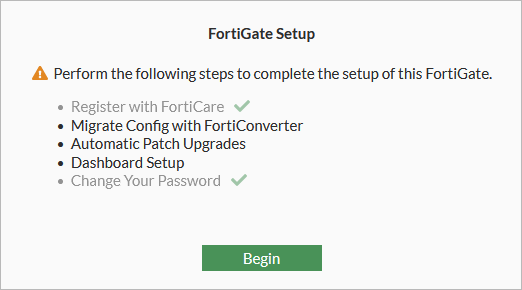
  1. Log in to the FortiGate GUI and click Begin.
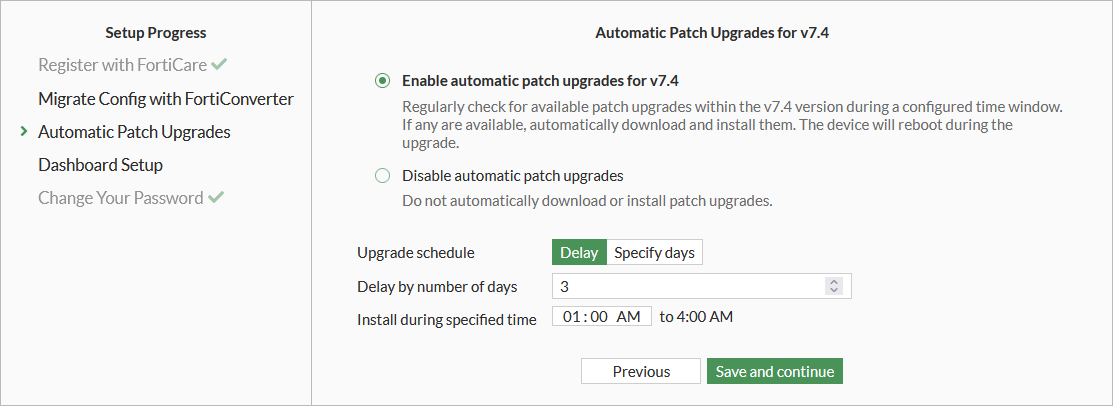
  2. Select Enable automatic patch upgrades for v7.4 (default setting).

  3. Edit the upgrade and installation settings as needed (Upgrade schedule, Delay by number of days, Install during specified time), then click Save and continue.
    Note

    If Disable automatic patch upgrades is selected, this can be changed later from the System > Firmware & Registration page by clicking the Disable automatic patch upgrades notification.

  4. The Enable Automatic Patch Upgrades dialog opens. Select I acknowledge and click OK to proceed.
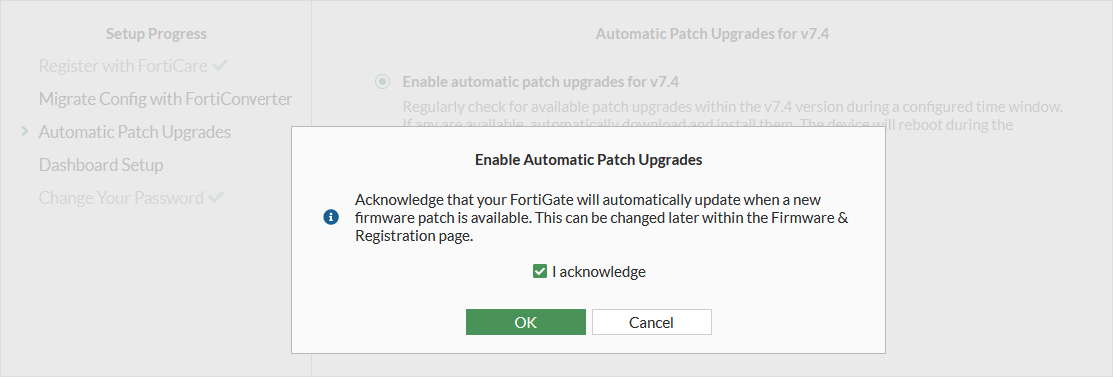
    The FortiGate will be updated based on the configured schedule when a new patch is available.

  5. An email is sent to alert the administrator that the firmware upgrade schedule has changed.

    Sample email after configuring automatic firmware upgrades:

    From: DoNotReply@fortinet-notifications.com <DoNotReply@fortinet-notifications.com>
    Sent: Tuesday, July 25, 2023 11:08 AM
    To: ********** <*****@fortinet.com>
    Subject: Automatic firmware upgrade schedule changed
    
    date=2023-07-25 time=11:07:34 devid="FG81EPTK19000000" devname="FortiGate-81E-POE" eventtime=1690308454221334719 tz="-0700" logid="0100032263" type="event" subtype="system" level="notice" vd="root" logdesc="Automatic firmware upgrade schedule changed" user="system" msg="System patch-level auto-upgrade regular check enabled."
  6. Once a patch is detected, an email is sent to alert the administrator that a new image installation is scheduled.

    Sample email after a new image installation is scheduled:

    From: DoNotReply@fortinet-notifications.com <DoNotReply@fortinet-notifications.com>
    Sent: Friday, July 21, 2023 1:17 PM
    To: ********** <*****@fortinet.com>
    Subject: Automatic firmware upgrade schedule changed
    
    date=2023-07-21 time=13:16:50 devid="FG81EPTK19000000" devname="FortiGate-81E-POE" eventtime=1689970609076391174 tz="-0700" logid="0100032263" type="event" subtype="system" level="notice" vd="root" logdesc="Automatic firmware upgrade schedule changed" user="system" msg="System patch-level auto-upgrade new image installation scheduled between local time Sat Jul 22 13:03:56 2023 and local time Sat Jul 22 14:00:00 2023."
  7. After the image installation is completed, an email is sent to alert the administrator that the federated upgrade is complete.

    Sample email after the federated upgrade is complete:

    From: DoNotReply@fortinet-notifications.com <DoNotReply@fortinet-notifications.com>
    Sent: Friday, July 22, 2023 2:00 PM
    To: ********** <*****@fortinet.com>
    Subject: A federated upgrade was completed by the root FortiGate
    
    date=2023-07-22 time=14:00:09 devid="FG81EPTK19000000" devname="FortiGate-81E-POE" eventtime=1689973183346851869 tz="-0700" logid="0100022094" type="event" subtype="system" level="information" vd="root" logdesc="A federated upgrade was completed by the root FortiGate" msg="Federated upgrade complete" version="7.4.2"
To configure automatic firmware upgrades in the CLI:
  1. Configure the automatic firmware upgrade schedule:

    config system fortiguard
        set auto-firmware-upgrade enable
        set auto-firmware-upgrade-delay 3
        set auto-firmware-upgrade-start-hour 2
        set auto-firmware-upgrade-end-hour 4
    end

    The FortiGate will perform a check between the start and end hours set for the firmware upgrade to review if there is an upgrade available.

  2. Review the firmware upgrade check schedule:

    # diagnose test application forticldd 13
    Scheduled push image upgrade: no
    Scheduled Config Restore: no
    Scheduled Script Restore: no
    Automatic image upgrade: Enabled.
            Next upgrade check scheduled at (local time) Thu Mar 29 03:10:56 2023

    When an available patch upgrade is detected, the automatic firmware update will be scheduled based on the set upgrade delay.

    Sample event log after a new patch upgrade is detected:
    date=2023-03-29 time=03:10:56 eventtime=1679336380720695924 tz="-0700" 
    logid="0100032263" type="event" subtype="system" level="notice" vd="vdom1" 
    logdesc="Automatic firmware upgrade schedule changed" user="system" 
    msg="System patch-level auto-upgrade new image installation scheduled 
         between local time Sat Apr 01 03:10:56 2023 and local time Sat Apr 01 04:00:00 2023."
  3. Review the installation window of the new patch release:

    # diagnose test application forticldd 13
    Scheduled push image upgrade: no
    Scheduled Config Restore: no
    Scheduled Script Restore: no
    Automatic image upgrade: Enabled.
            Next upgrade check scheduled at (local time) Mon Mar 30 03:10:56 2023
            New image 7.4.1b2305(07004000FIMG0021204001) installation is scheduled to
                    start at Sat Apr 01 03:10:56:21 2023
                    end by Sat Apr 01 04:00:00 2023

    Once the firmware patch is successfully installed, an event log is created to track the change and an email is sent to the FortiCloud account under which the FortiGate is registered.

    Sample event log after successfully updating firmware:
    date=2023-04-01 time=03:13:04 devid="FG3H1E5819904039" devname="D" eventtime=1679590383750408029 tz="-0700" 
    logid="0100022094" type="event" subtype="system" level="information" vd="vdom1" 
    logdesc="A federated upgrade was completed by the root FortiGate" 
    msg="Federated upgrade complete" version="7.4.1" 

Enabling automatic firmware upgrades

Enabling automatic firmware upgrades

Automatic firmware upgrades can be enabled so that the FortiGate automatically upgrades when a new FortiOS patch release is available, for increased device security.

When enabled, FortiGates use the FortiGuard upgrade path to check FortiGuard for firmware updates within the same minor release. Checks are performed within a specified time period. When a new patch release is available, a firmware upgrade is scheduled.

After the patch release is successfully installed, an email is sent to the FortiCloud account that the FortiGate is registered to.

Note
  • Automatic firmware upgrade cannot be enabled for FortiGates belonging to a Security Fabric, FortiGates under management by a FortiManager, or a secondary HA FortiGate. However, HA groups will still have automatic firmware upgrades based on the primary FortiGate.

  • Automatic upgrades will only upgrade to a newer patch within that minor version. For example, a FortiOS version 7.2.x image will only auto-upgrade to another 7.2.x image. It will not upgrade to a 7.4.x image.

Starting with FortiOS 7.6.1, automatic firmware upgrades are enabled by default on all FortiGate models, including FortiGate VMs. Automatic firmware upgrades can be configured from the FortiGate Setup wizard, the System > Firmware & Registration pane, or in the CLI with the following commands:

config system fortiguard
    set auto-firmware-upgrade {enable | disable}
    set auto-firmware-upgrade-day {sunday monday tuesday wednesday thursday friday saturday}
    set auto-firmware-upgrade-delay <integer>
    set auto-firmware-upgrade-start-hour <integer>
    set auto-firmware-upgrade-end-hour <integer>
end

auto-firmware-upgrade {enable | disable}

Enable/disable automatic patch-level firmware upgrades from FortiGuard.

auto-firmware-upgrade-day {sunday monday tuesday wednesday thursday friday saturday}

Enter the allowed day or days of the week to start the automatic patch-level firmware upgrade from FortiGuard.

auto-firmware-upgrade-delay <integer>

Enter the number of days to wait before automatically installing the automatic patch-level firmware upgrade from FortiGuard (default = 3).

auto-firmware-upgrade-start-hour <integer>

Set the start time of the designated time window for the automatic patch-level firmware upgrade from FortiGuard (in hours, 0 - 23, default = 2).

The actual upgrade time is randomly selected in the time window. See Reviewing upgrade status for more information on confirming the scheduled upgrade time.

auto-firmware-upgrade-end-hour <integer>

Set the end time of the designated time window for the automatic patch-level firmware upgrade from FortiGuard (in hours, 0 - 23, default = 4). When this value it is smaller than the start time, it will be treated as the same time in the next day.

The actual upgrade time is randomly selected in the time window. See Reviewing upgrade status for more information on confirming the scheduled upgrade time.

Note

The auto-firmware-upgrade-delay and auto-firmware-upgrade-day commands are mutually exclusive. The auto-firmware-upgrade-delay command overrides the auto-firmware-upgrade-day command. Disable auto-firmware-upgrade-delay by setting it to zero if you would rather use the auto-firmware-upgrade-day command to select a day of the week for automatic installation, regardless of when the patch release is detected.

Reviewing upgrade status

The following commands can be used to review the status of the automatic upgrade.

The diagnose test application forticldd 13 command lists when the most recent firmware image upgrade check occurred as well as when the next check is scheduled.

Note

If the FortiGate is part of a Fabric or managed by FortiManager, the Automatic image upgrade option will be set to disabled.

# diagnose test application forticldd 13
...
Automatic image upgrade: disabled.

If a newer, valid firmware patch is detected, the show sys federated-upgrade command will list when the firmware upgrade will occur. The firmware upgrade schedule will depend on the configured automatic upgrade settings. If the settings are changed before the upgrade occurs, the image installation will be rescheduled to respect the new requirements.

Note

The show sys federated-upgrade command also lists previous firmware upgrades.

The following debug commands are available for troubleshooting:

# diagnose debug en
# diagnose debug application forticldd -1
# diagnose debug application sfupgraded -1

Example

The following example demonstrates setting automatic firmware upgrades after a delay of three days.

To configure automatic firmware upgrades in the GUI:
  1. Log in to the FortiGate GUI and click Begin.

  2. Select Enable automatic patch upgrades for v7.4 (default setting).

  3. Edit the upgrade and installation settings as needed (Upgrade schedule, Delay by number of days, Install during specified time), then click Save and continue.

    Note

    If Disable automatic patch upgrades is selected, this can be changed later from the System > Firmware & Registration page by clicking the Disable automatic patch upgrades notification.

  4. The Enable Automatic Patch Upgrades dialog opens. Select I acknowledge and click OK to proceed.

    The FortiGate will be updated based on the configured schedule when a new patch is available.

  5. An email is sent to alert the administrator that the firmware upgrade schedule has changed.

    Sample email after configuring automatic firmware upgrades:

    From: DoNotReply@fortinet-notifications.com <DoNotReply@fortinet-notifications.com>
    Sent: Tuesday, July 25, 2023 11:08 AM
    To: ********** <*****@fortinet.com>
    Subject: Automatic firmware upgrade schedule changed
    
    date=2023-07-25 time=11:07:34 devid="FG81EPTK19000000" devname="FortiGate-81E-POE" eventtime=1690308454221334719 tz="-0700" logid="0100032263" type="event" subtype="system" level="notice" vd="root" logdesc="Automatic firmware upgrade schedule changed" user="system" msg="System patch-level auto-upgrade regular check enabled."
  6. Once a patch is detected, an email is sent to alert the administrator that a new image installation is scheduled.

    Sample email after a new image installation is scheduled:

    From: DoNotReply@fortinet-notifications.com <DoNotReply@fortinet-notifications.com>
    Sent: Friday, July 21, 2023 1:17 PM
    To: ********** <*****@fortinet.com>
    Subject: Automatic firmware upgrade schedule changed
    
    date=2023-07-21 time=13:16:50 devid="FG81EPTK19000000" devname="FortiGate-81E-POE" eventtime=1689970609076391174 tz="-0700" logid="0100032263" type="event" subtype="system" level="notice" vd="root" logdesc="Automatic firmware upgrade schedule changed" user="system" msg="System patch-level auto-upgrade new image installation scheduled between local time Sat Jul 22 13:03:56 2023 and local time Sat Jul 22 14:00:00 2023."
  7. After the image installation is completed, an email is sent to alert the administrator that the federated upgrade is complete.

    Sample email after the federated upgrade is complete:

    From: DoNotReply@fortinet-notifications.com <DoNotReply@fortinet-notifications.com>
    Sent: Friday, July 22, 2023 2:00 PM
    To: ********** <*****@fortinet.com>
    Subject: A federated upgrade was completed by the root FortiGate
    
    date=2023-07-22 time=14:00:09 devid="FG81EPTK19000000" devname="FortiGate-81E-POE" eventtime=1689973183346851869 tz="-0700" logid="0100022094" type="event" subtype="system" level="information" vd="root" logdesc="A federated upgrade was completed by the root FortiGate" msg="Federated upgrade complete" version="7.4.2"
To configure automatic firmware upgrades in the CLI:
  1. Configure the automatic firmware upgrade schedule:

    config system fortiguard
        set auto-firmware-upgrade enable
        set auto-firmware-upgrade-delay 3
        set auto-firmware-upgrade-start-hour 2
        set auto-firmware-upgrade-end-hour 4
    end

    The FortiGate will perform a check between the start and end hours set for the firmware upgrade to review if there is an upgrade available.

  2. Review the firmware upgrade check schedule:

    # diagnose test application forticldd 13
    Scheduled push image upgrade: no
    Scheduled Config Restore: no
    Scheduled Script Restore: no
    Automatic image upgrade: Enabled.
            Next upgrade check scheduled at (local time) Thu Mar 29 03:10:56 2023

    When an available patch upgrade is detected, the automatic firmware update will be scheduled based on the set upgrade delay.

    Sample event log after a new patch upgrade is detected:
    date=2023-03-29 time=03:10:56 eventtime=1679336380720695924 tz="-0700" 
    logid="0100032263" type="event" subtype="system" level="notice" vd="vdom1" 
    logdesc="Automatic firmware upgrade schedule changed" user="system" 
    msg="System patch-level auto-upgrade new image installation scheduled 
         between local time Sat Apr 01 03:10:56 2023 and local time Sat Apr 01 04:00:00 2023."
  3. Review the installation window of the new patch release:

    # diagnose test application forticldd 13
    Scheduled push image upgrade: no
    Scheduled Config Restore: no
    Scheduled Script Restore: no
    Automatic image upgrade: Enabled.
            Next upgrade check scheduled at (local time) Mon Mar 30 03:10:56 2023
            New image 7.4.1b2305(07004000FIMG0021204001) installation is scheduled to
                    start at Sat Apr 01 03:10:56:21 2023
                    end by Sat Apr 01 04:00:00 2023

    Once the firmware patch is successfully installed, an event log is created to track the change and an email is sent to the FortiCloud account under which the FortiGate is registered.

    Sample event log after successfully updating firmware:
    date=2023-04-01 time=03:13:04 devid="FG3H1E5819904039" devname="D" eventtime=1679590383750408029 tz="-0700" 
    logid="0100022094" type="event" subtype="system" level="information" vd="vdom1" 
    logdesc="A federated upgrade was completed by the root FortiGate" 
    msg="Federated upgrade complete" version="7.4.1"