

Multi-VDOM configuration examples
The following examples show how to configure per-VDOM settings, such as operation mode, routing, and security policies, in a network that includes the following VDOMs:
- VDOM-A: allows the internal network to access the Internet.
- VDOM-B: allows external connections to an FTP server.
- root: the management VDOM.
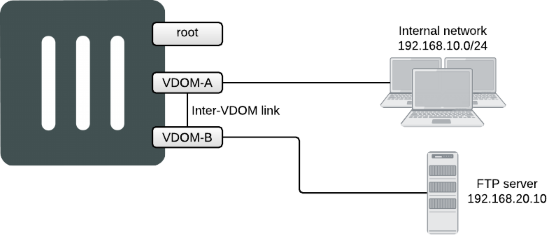
You can use VDOMs in either NAT or transparent mode on the same FortiGate. By default, VDOMs operate in NAT mode.
For both examples, multi-VDOM mode must be enabled, and VDOM-A and VDOM-B must be created.
Enable multi-VDOM mode
Multi-VDOM mode can be enabled in the GUI or CLI. Enabling it does not require a reboot, but does log you out of the device. The current configuration is assigned to the root VDOM.

|
On VMs and FortiGate 60 series models and lower, VDOMs can only be enabled using the CLI. |
To enable multi-VDOM mode in the GUI:
- On the FortiGate, go to System > Settings.
- In the System Operation Settings section, enable Virtual Domains.
- Select Multi VDOM for the VDOM mode.
- Click OK.
To enable multi-VDOM mode with the CLI:
config system global
set vdom-mode multi-vdom
end
Create the VDOMs
To create the VDOMs in the GUI:
- In the Global VDOM, go to System > VDOM and click Create New.
- In the Virtual Domain field, enter VDOM-A.
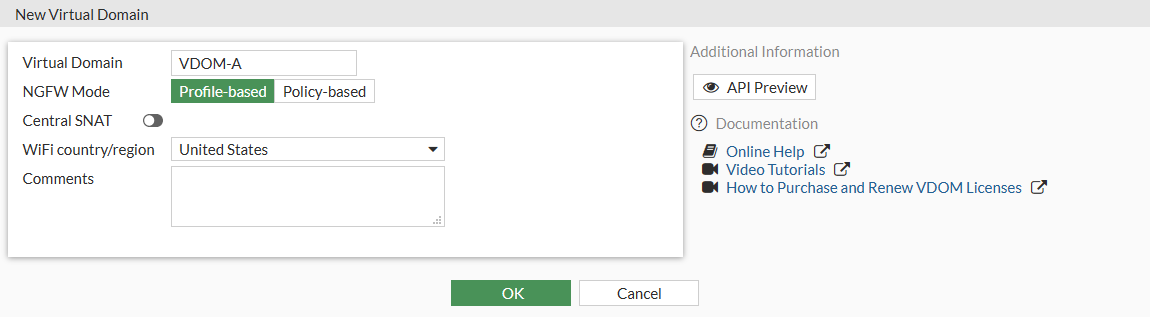
- If required, set the NGFW Mode. If the NGFW Mode is Profile-based, Central SNAT can be enabled.
- Click OK to create the VDOM.
- Repeat the above steps for VDOM-B.
To create the VDOMs with the CLI:
config vdom
    edit VDOM-A
    next
    edit VDOM-B
    next
end