
Fortinet white logo
Fortinet white logo

Administration Guide

Firmware management

Firmware management

Note

In 26.1, firmware profiles are only available for devices with a paid subscription.

Firmware management > Firmware upgrade lists FortiGates provisioned to FortiGate Cloud and groups FortiGates that belong to the same Fortinet Security Fabric. You can also view managed devices connected to the FortiGates. You can manage firmware upgrades. Firmware profiles allow you to easily control device firmware for multiple FortiGates with a subscription from one central interface and automate firmware upgrades.

FortiGates set to automatic patch upgrade perform firmware upgrades to the latest patch of the same major minor release version during the selected time.

When a new FortiOS patch becomes available, FortiGate Cloud sends an email to notify the user that they must upgrade the firmware within seven days of the release date of the patch for FortiGates running an older patch of that FortiOS version. For a FortiGate with a paid subscription, you can postpone the upgrade if desired. For a FortiGate without a paid subscription, if you do not upgrade it within seven days, it remains connected to FortiGate Cloud but cannot use any FortiGate Cloud features. It stops uploading logs to FortiGate Cloud.

If a FortiGate without a paid subscription is not running the latest patch available of its FortiOS version when it initially connects to FortiGate Cloud, you must also upgrade it within seven days of the release date of the latest patch. If the latest patch released more than seven days earlier, you must upgrade the FortiGate immediately. The FortiGate cannot use FortiGate Cloud features and does not upload logs to FortiGate Cloud until you upgrade it.

If the FortiOS version on a FortiGate reaches end of support (EOS), you must upgrade the FortiGate to the latest patch of a supported major release.

Updating to the latest patch is not required for the following devices:

  • FortiGate that is a member of one of the following:
    • Cooperative Security Fabric
  • FortiGate that is running a special build (if the build number is greater than or equal to 8000)
To schedule a firmware upgrade:
  1. Go to Firmware management > Firmware upgrade.
  2. Go to the desired tab.
  3. Select the desired devices.
  4. Click Fabric upgrade. For a non-FortiGate managed device, this option is only available if the device is authorized. See Authorizing managed devices.
  5. For a non-FortiGate managed device, for Select Firmware, select one of the following:

    Option

    Description

    Recommended

    Upgrade the device to a recommended firmware version. The Target version dropdown list displays the recommended version to upgrade to.

    File Upload

    Browse to and upload the install file for the desired firmware version to upgrade to.

  6. For Upgrade schedule, select Immediate or Custom. If you select Custom, configure the desired upgrade time.
  7. Confirm that the dialog displays the desired firmware versions for each FortiGate. Click OK. FortiGate Cloud backs up the FortiGate configurations and upgrades the firmware as per the schedule that you configured. The upgrade reboots the FortiGates.
To upgrade EOS firmware:
  1. Go to Firmware management > Firmware upgrade.
  2. Select the desired FortiGates.
  3. Click Upgrade EOS firmware. If the firmware is at EOS, this upgrades it to a supported version.
To create a firmware profile:
  1. Go to Firmware management > Firmware profiles.
  2. Click Create.
  3. In the Create firmware profile slide-in, configure firmware profile settings.
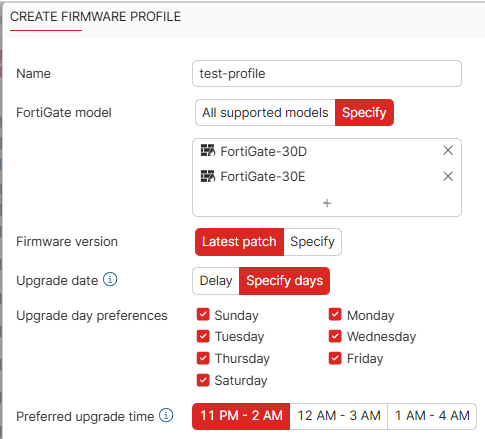
  4. Click OK to create firmware profile.
To assign a firmware profile:
  1. Go to Firmware management > Firmware upgrade.
  2. Select device(s) and click Assign firmware profile.
  3. On the Assign firmware profile slider-in, select the desired firmware profile.
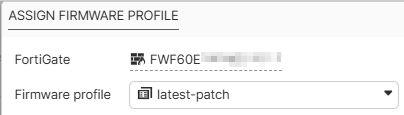
  4. Click OK to assign a firmware profile.
To view firmware upgrade history:

Go to Firmware management > Firmware upgrade history. You can view a list of firmware upgrade tasks and information about them, such as the upgrade path and whether the task succeeded or failed. The list is sorted by device name, then date and time.

Firmware management

Firmware management

Note

In 26.1, firmware profiles are only available for devices with a paid subscription.

Firmware management > Firmware upgrade lists FortiGates provisioned to FortiGate Cloud and groups FortiGates that belong to the same Fortinet Security Fabric. You can also view managed devices connected to the FortiGates. You can manage firmware upgrades. Firmware profiles allow you to easily control device firmware for multiple FortiGates with a subscription from one central interface and automate firmware upgrades.

FortiGates set to automatic patch upgrade perform firmware upgrades to the latest patch of the same major minor release version during the selected time.

When a new FortiOS patch becomes available, FortiGate Cloud sends an email to notify the user that they must upgrade the firmware within seven days of the release date of the patch for FortiGates running an older patch of that FortiOS version. For a FortiGate with a paid subscription, you can postpone the upgrade if desired. For a FortiGate without a paid subscription, if you do not upgrade it within seven days, it remains connected to FortiGate Cloud but cannot use any FortiGate Cloud features. It stops uploading logs to FortiGate Cloud.

If a FortiGate without a paid subscription is not running the latest patch available of its FortiOS version when it initially connects to FortiGate Cloud, you must also upgrade it within seven days of the release date of the latest patch. If the latest patch released more than seven days earlier, you must upgrade the FortiGate immediately. The FortiGate cannot use FortiGate Cloud features and does not upload logs to FortiGate Cloud until you upgrade it.

If the FortiOS version on a FortiGate reaches end of support (EOS), you must upgrade the FortiGate to the latest patch of a supported major release.

Updating to the latest patch is not required for the following devices:

  • FortiGate that is a member of one of the following:
    • Cooperative Security Fabric
  • FortiGate that is running a special build (if the build number is greater than or equal to 8000)
To schedule a firmware upgrade:
  1. Go to Firmware management > Firmware upgrade.
  2. Go to the desired tab.
  3. Select the desired devices.
  4. Click Fabric upgrade. For a non-FortiGate managed device, this option is only available if the device is authorized. See Authorizing managed devices.
  5. For a non-FortiGate managed device, for Select Firmware, select one of the following:

    Option

    Description

    Recommended

    Upgrade the device to a recommended firmware version. The Target version dropdown list displays the recommended version to upgrade to.

    File Upload

    Browse to and upload the install file for the desired firmware version to upgrade to.

  6. For Upgrade schedule, select Immediate or Custom. If you select Custom, configure the desired upgrade time.
  7. Confirm that the dialog displays the desired firmware versions for each FortiGate. Click OK. FortiGate Cloud backs up the FortiGate configurations and upgrades the firmware as per the schedule that you configured. The upgrade reboots the FortiGates.
To upgrade EOS firmware:
  1. Go to Firmware management > Firmware upgrade.
  2. Select the desired FortiGates.
  3. Click Upgrade EOS firmware. If the firmware is at EOS, this upgrades it to a supported version.
To create a firmware profile:
  1. Go to Firmware management > Firmware profiles.
  2. Click Create.
  3. In the Create firmware profile slide-in, configure firmware profile settings.

  4. Click OK to create firmware profile.
To assign a firmware profile:
  1. Go to Firmware management > Firmware upgrade.
  2. Select device(s) and click Assign firmware profile.
  3. On the Assign firmware profile slider-in, select the desired firmware profile.

  4. Click OK to assign a firmware profile.
To view firmware upgrade history:

Go to Firmware management > Firmware upgrade history. You can view a list of firmware upgrade tasks and information about them, such as the upgrade path and whether the task succeeded or failed. The list is sorted by device name, then date and time.