
Fortinet white logo
Fortinet white logo

User Guide

MSSP - OU Level Features

MSSP - OU Level Features

FortiEdge Cloud supports the centralized account management feature of FortiCloud Organization feature, in addition to MSSP. The MSSP users (organizational type IAM Users and External IdP Roles) can monitor the status and statistics of networks and devices present across multiple member accounts in the organization, at a given time. This applies to both admin and read-only users.

New member accounts can be created directly within the root account Organization or a Sub-OU without an invitation token. For more information, see Creating new Member Accounts. Note the following guidelines when using a dummy email address.

  • The format of the email address is created by combining the first name and last names.

  • Only alphanumeric characters (letters and numbers) are allowed. The only supported special characters are . (full stop), + (plus), - (hyphen), and _ (underscore).

  • Camel case formatting is allowed, for example, FirstNameLastName or firstName-lastName.

  • Ensure no spaces are included in the first and the last name.

On logging in into FortiEdge Cloud, you can now select the entire organization and not just a specific OU/account. The default Dashboard displays data for the accounts present in the selected organization/OU.
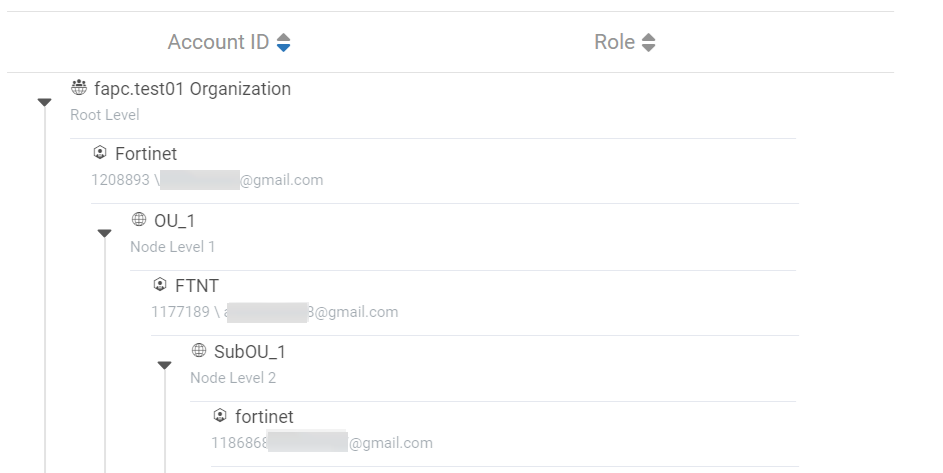
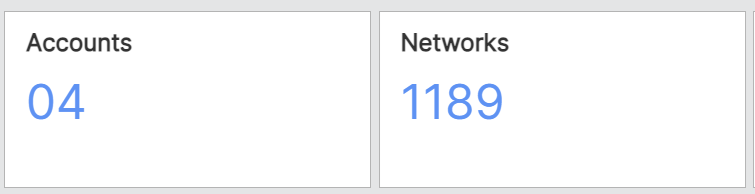
The default Dashboard displays data for the accounts present in the selected organization/OU. Additional dashlets are now displayed for the number of Accounts and Networks in the selected organization/OU. Clicking on the Accounts dashlet leads you to the Accounts page in the navigation tree, to view the accounts present in the selected ORG/OU node.
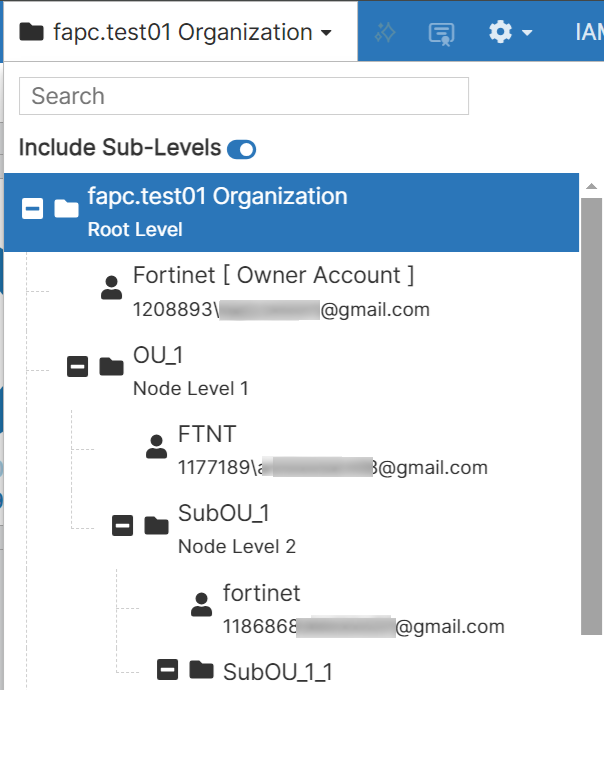
You can view the ORG/OU tree in the upper right corner of the screen, modifying the selected node from this list updates the dashboard data as per your selection.
In the custom dashboards, the Network tab is enhanced to display all the networks in the accounts; this enables selection of multiple networks from multiple accounts in the selected organization/OU/account.

Note: A maximum of 50 networks can be selected.

The Accounts menu lists the accounts in the selected organization/OU.

You can also manage federated configurations across multiple member accounts in the organization (applying a common configuration change across all or a group of member accounts). The following pages are configurable/filtered based on the organization/OU.

  • Configuration > Profiles - The federated configuration profiles from one or more accounts are listed based on the selected node in the organization/OU. The configuration profiles defined in the organization account work on networks across accounts in the selected scope.

  • Configuration > Profile History - The history listing displays entries from multiple accounts. When the complete organization or an OU / sub-OU is selected, then the history records from multiple accounts are displayed.

  • Clients - The clients of the networks in the selected node in the organization/OU are queried.

  • Networks - This page displays all networks present in the selected node in the organization/OU. You can perform various operations on this page, such as, cloning, renaming, or deleting a network. The Networks page is available in the navigation menu, also, clicking on the Networks widget in the dashboard, leads you to the this page.

  • Devices - This page displays all devices present in the networks of the selected node in the organization/OU.

MSSP - OU Level Features

MSSP - OU Level Features

FortiEdge Cloud supports the centralized account management feature of FortiCloud Organization feature, in addition to MSSP. The MSSP users (organizational type IAM Users and External IdP Roles) can monitor the status and statistics of networks and devices present across multiple member accounts in the organization, at a given time. This applies to both admin and read-only users.

New member accounts can be created directly within the root account Organization or a Sub-OU without an invitation token. For more information, see Creating new Member Accounts. Note the following guidelines when using a dummy email address.

  • The format of the email address is created by combining the first name and last names.

  • Only alphanumeric characters (letters and numbers) are allowed. The only supported special characters are . (full stop), + (plus), - (hyphen), and _ (underscore).

  • Camel case formatting is allowed, for example, FirstNameLastName or firstName-lastName.

  • Ensure no spaces are included in the first and the last name.

On logging in into FortiEdge Cloud, you can now select the entire organization and not just a specific OU/account. The default Dashboard displays data for the accounts present in the selected organization/OU.

The default Dashboard displays data for the accounts present in the selected organization/OU. Additional dashlets are now displayed for the number of Accounts and Networks in the selected organization/OU. Clicking on the Accounts dashlet leads you to the Accounts page in the navigation tree, to view the accounts present in the selected ORG/OU node.

You can view the ORG/OU tree in the upper right corner of the screen, modifying the selected node from this list updates the dashboard data as per your selection.

In the custom dashboards, the Network tab is enhanced to display all the networks in the accounts; this enables selection of multiple networks from multiple accounts in the selected organization/OU/account.

Note: A maximum of 50 networks can be selected.

The Accounts menu lists the accounts in the selected organization/OU.

You can also manage federated configurations across multiple member accounts in the organization (applying a common configuration change across all or a group of member accounts). The following pages are configurable/filtered based on the organization/OU.

  • Configuration > Profiles - The federated configuration profiles from one or more accounts are listed based on the selected node in the organization/OU. The configuration profiles defined in the organization account work on networks across accounts in the selected scope.

  • Configuration > Profile History - The history listing displays entries from multiple accounts. When the complete organization or an OU / sub-OU is selected, then the history records from multiple accounts are displayed.

  • Clients - The clients of the networks in the selected node in the organization/OU are queried.

  • Networks - This page displays all networks present in the selected node in the organization/OU. You can perform various operations on this page, such as, cloning, renaming, or deleting a network. The Networks page is available in the navigation menu, also, clicking on the Networks widget in the dashboard, leads you to the this page.

  • Devices - This page displays all devices present in the networks of the selected node in the organization/OU.