
Fortinet white logo
Fortinet white logo

Administration Guide

Example workflow: Show all hosts with Log4j vulnerability

Example workflow: Show all hosts with Log4j vulnerability

The following workflow uses the Show all hosts with Log4j Vulnerability to identity vulnerabilities in a specific Resource Group in a specific region.

1. Run the query

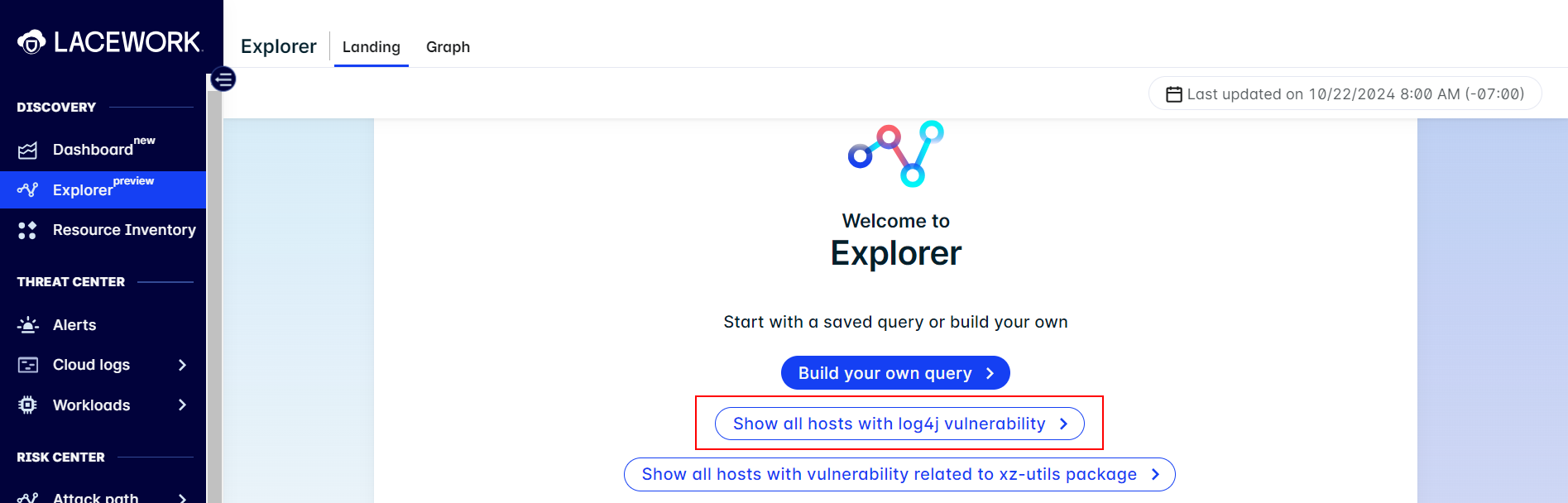
In the Explorer landing page, click the Show all hosts with Log4j Vulnerability query.
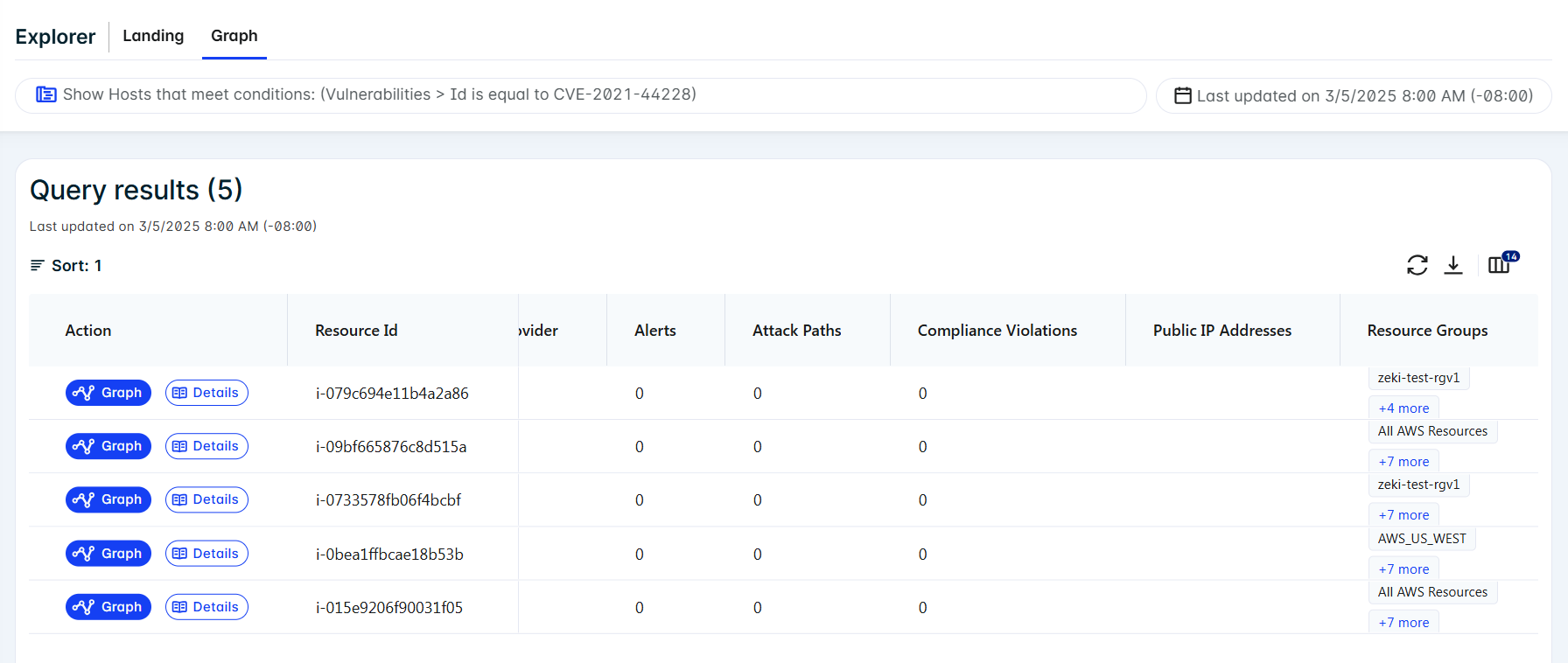
The query results displays all hosts affected by log4j.
2. Use the query builder to include resource groups by region

To narrow the results to Resource Group by region:

  1. Click the query string at the top of the page.
  2. Click Add Clause.
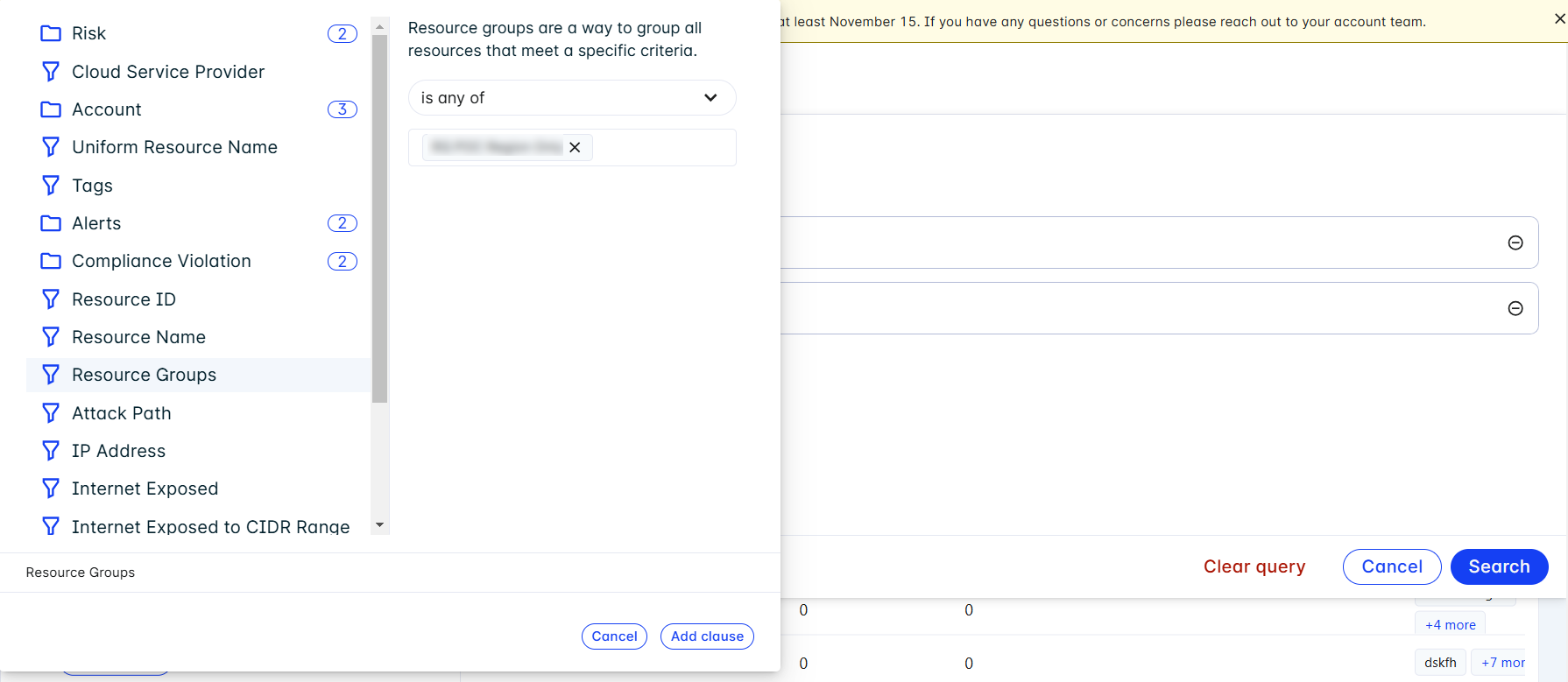
  3. Click Resource Groups. Search for the region and select it, then click Add clause.
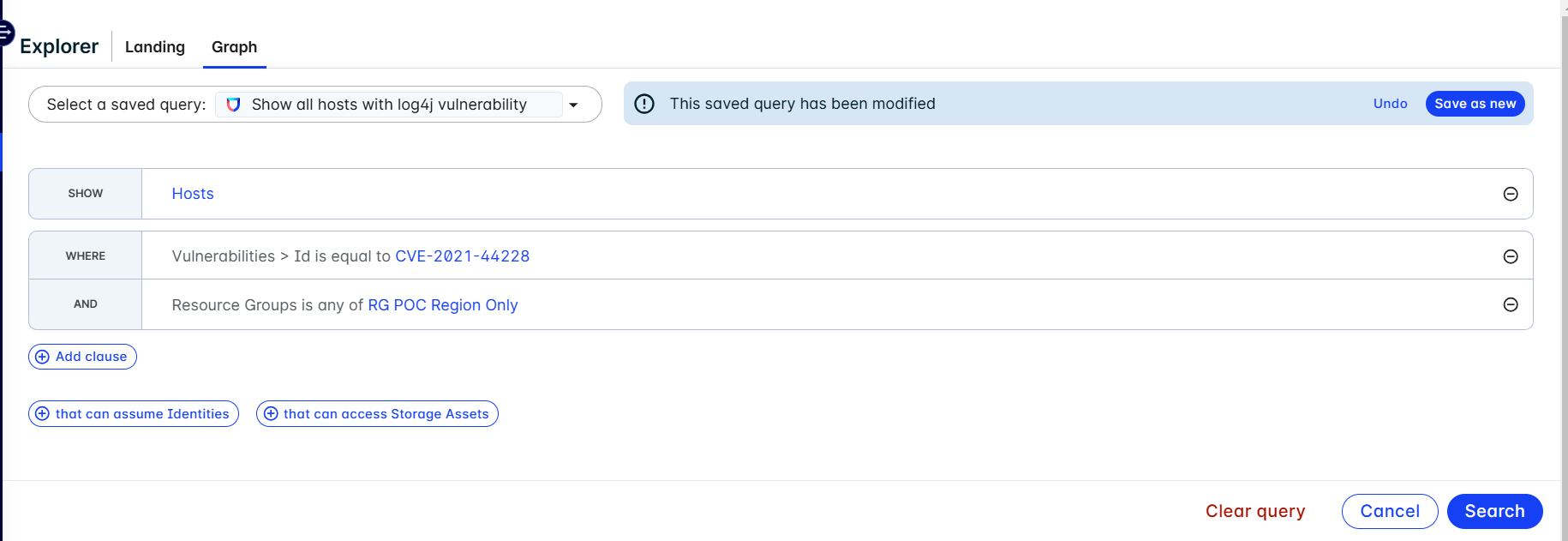
  4. Note that you have the option to save this revision as a new query. Click Search.
3. View the results in the Explorer Graph

After the results are returned, click View in Graph. The Explorer graph displays the affected resources.
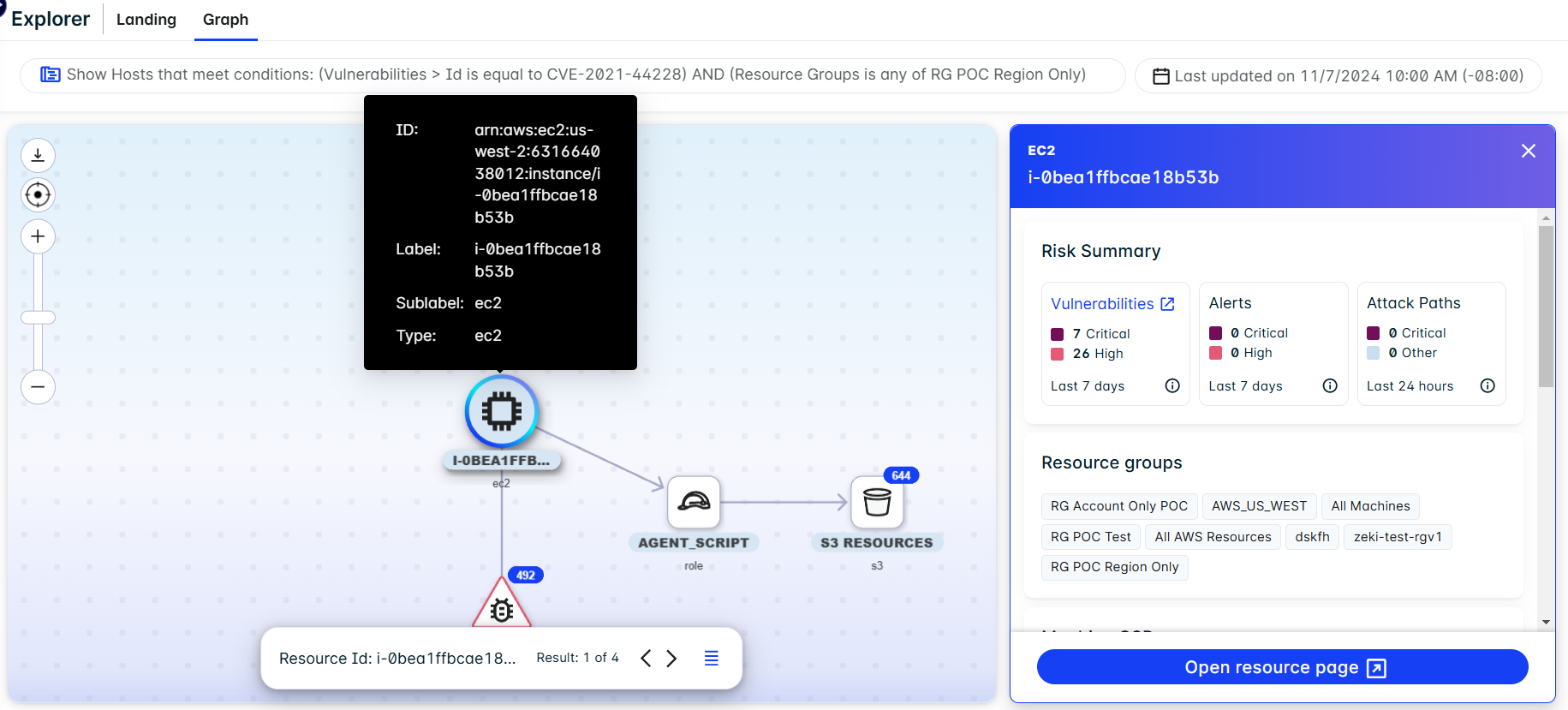
You can also see what other vulnerabilities are affecting the resources.
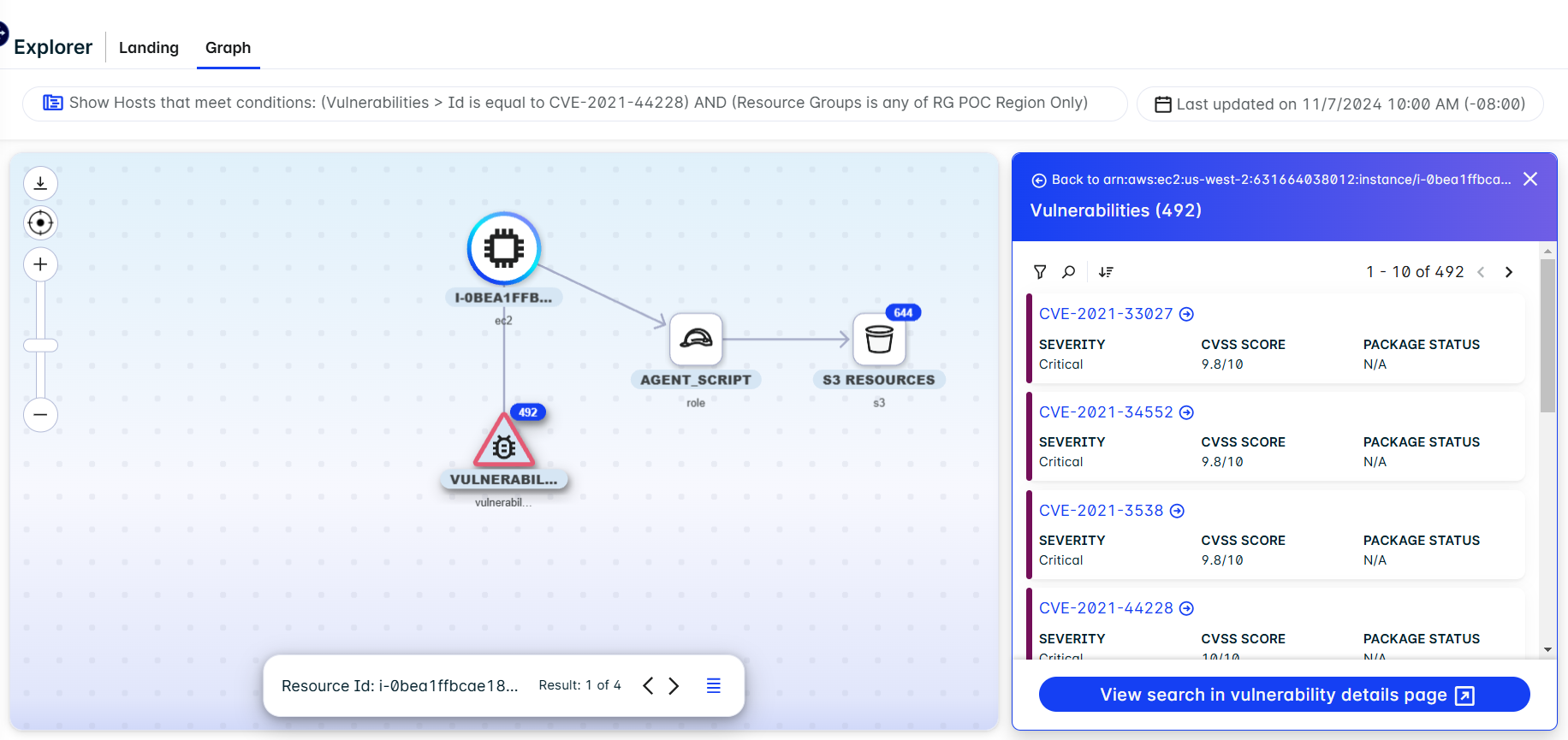
4. Identify the resources that are internet exposed

Now you will identify which resources are internet exposed. Click the hamburger menu at the bottom of the graph to return to your results and click the query string at the top of the page.

Click Add Clause. Select Internet Exposed and set the condition to is equal to True. Click Add clause and click Search.
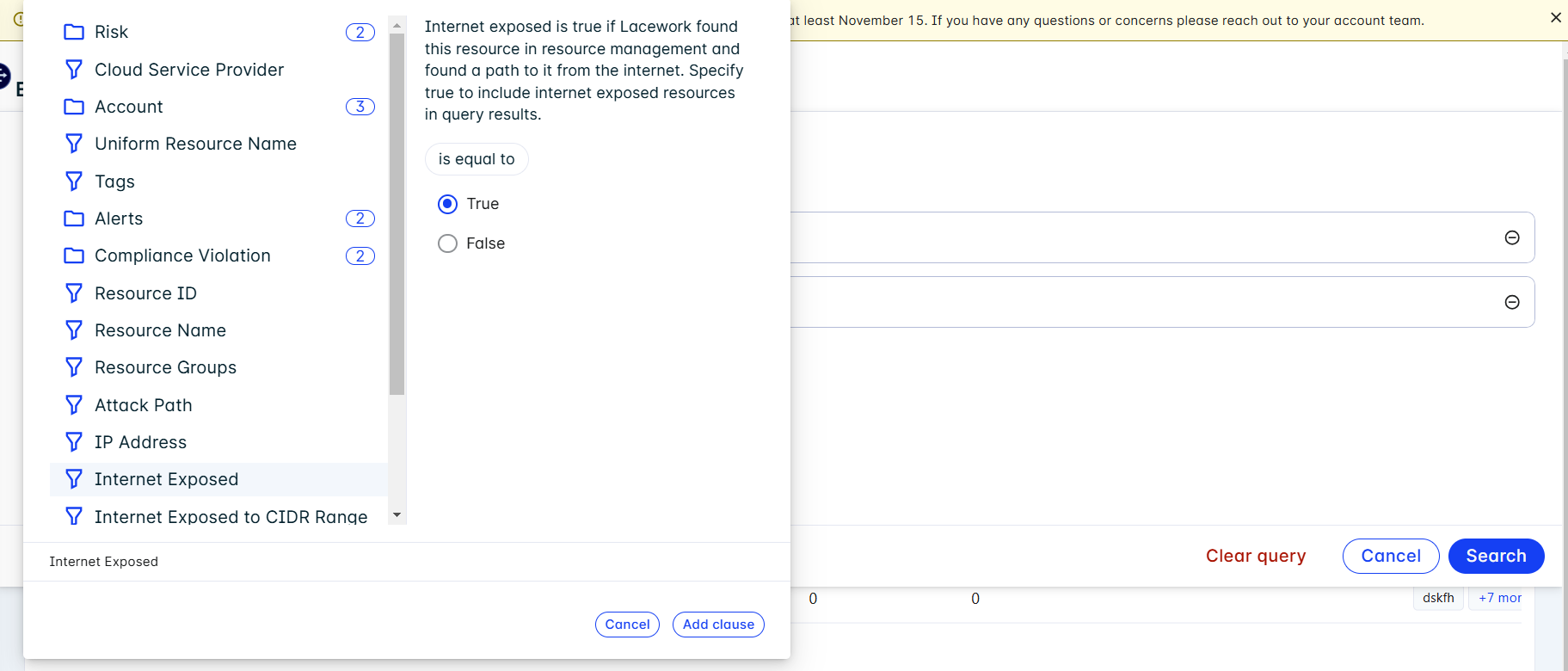
If the query returns resources that are internet exposed, you can identify those resources and address the vulnerability.

Example workflow: Show all hosts with Log4j vulnerability

Example workflow: Show all hosts with Log4j vulnerability

The following workflow uses the Show all hosts with Log4j Vulnerability to identity vulnerabilities in a specific Resource Group in a specific region.

1. Run the query

In the Explorer landing page, click the Show all hosts with Log4j Vulnerability query.

The query results displays all hosts affected by log4j.

2. Use the query builder to include resource groups by region

To narrow the results to Resource Group by region:

  1. Click the query string at the top of the page.
  2. Click Add Clause.
  3. Click Resource Groups. Search for the region and select it, then click Add clause.

  4. Note that you have the option to save this revision as a new query. Click Search.

3. View the results in the Explorer Graph

After the results are returned, click View in Graph. The Explorer graph displays the affected resources.

You can also see what other vulnerabilities are affecting the resources.

4. Identify the resources that are internet exposed

Now you will identify which resources are internet exposed. Click the hamburger menu at the bottom of the graph to return to your results and click the query string at the top of the page.

Click Add Clause. Select Internet Exposed and set the condition to is equal to True. Click Add clause and click Search.

If the query returns resources that are internet exposed, you can identify those resources and address the vulnerability.