

Code Security settings
Code Security settings control which security features are enabled for your repositories, including scanning options and pull request (PR) actions. These settings can be configured at multiple levels: globally, per codespace, or per repository. Understanding how settings are inherited helps you manage configurations efficiently across your organization.
Settings inheritance
Code Security uses an inheritance model where settings flow down from higher levels to lower levels. The inheritance flow is as follows:
Once the lower level has inherited the settings of the higher level, for example, when creating or onboarding a repository to a codespace, the lower level becomes independent of the higher level settings. The lower level will not continuously inherit the settings of the higher level. Furthermore, when you make changes at a lower level, those settings become independent and take precedence over the inherited values.
The following table displays this inheritance behavior:
|
Scenario |
Settings used |
|---|---|
| New codespace integrated | Inherits current global settings, then becomes independent of further edits made to the global settings |
| Repository during codespace onboarding | Inherits codespace settings, then becomes independent of further edits made to the codespace settings |
| Repository newly created within a codespace | Inherits codespace settings, then becomes independent of further edits made to the codespace settings |
| Repository with custom settings | Uses repository settings, independent of codespace |
Repository with codesec.yaml |
Uses file settings, UI is read-only |
| Pipeline scan (non-SCM) | Uses global settings |
Global settings
Global settings serve as the baseline configuration for your FortiCNAPP tenant. They apply in two scenarios:
-
Pipeline scans: Any CI/CD pipeline scans that do not use the SCM app integration model use global settings.
-
Newly integrated codespaces: When you integrate a new codespace (GitHub organization, GitLab group, or Bitbucket workspace), it inherits the current global settings as its starting configuration.
Once a codespace has been integrated, it becomes independent of the global settings. Changes made to global settings after integration do not affect existing codespaces.
Codespace settings
Codespace settings control the initial settings configuration for all repositories within that codespace. When you first integrate a codespace, it inherits the global settings. You can then customize these settings to suit the specific needs of that codespace.
Repositories within the codespace inherit the codespace settings during onboarding and when a new repository is added to a codespace. Following onboarding of a codespace or creation of a new repository the repository settings are then independent of the codespace settings.
Repository settings
Repository settings allow you to configure individual repositories differently from their parent codespace. A repository inherits its codespace settings during onboarding or creation. After that, it is independent of the codespace settings.
The repository will use its own configuration and subsequent changes to the codespace settings will not affect it.
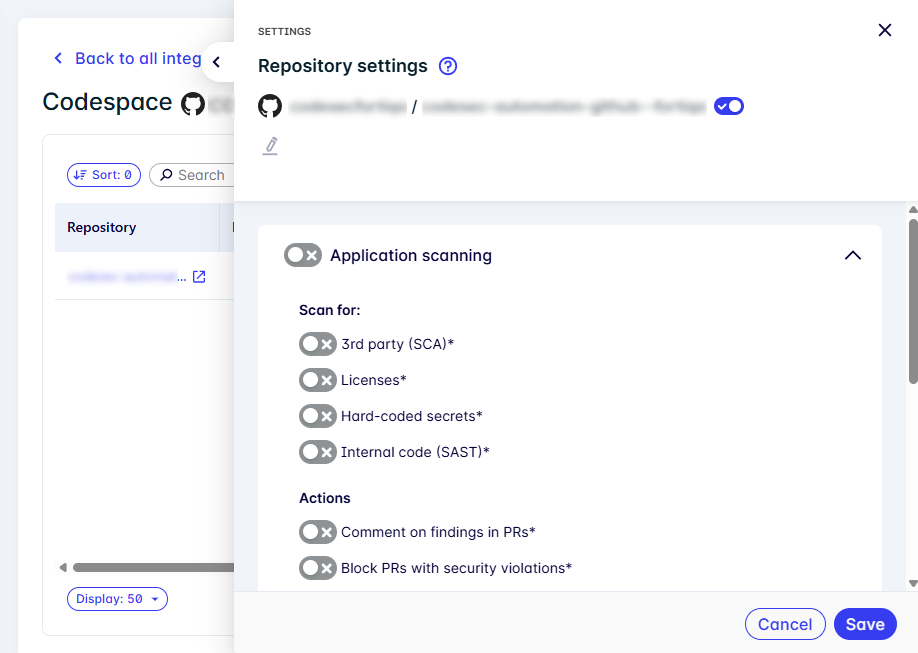
Differences between repository-level settings and codespace-level settings are indicated by an asterisk (*) in the Repository settings pane.
codesec.yaml file
If a codesec.yaml file is present in the default branch of a repository, it takes precedence over all other settings. The file-based configuration overrides any settings configured in the UI at the repository, codespace, or global level.
Once a codesec.yaml file is detected in .lacework/codesec.yaml|yml:
-
It is applied on the next scan.
-
The repository settings in the UI become read-only.
-
A notification is displayed indicating that settings are controlled by the file.
-
Any changes must be made by updating the
codesec.yamlfile in the repository.
This allows development teams to manage their security configuration as code, alongside their application code.
For more information on file-based configuration, see Leveraging the codesec.yaml file.
Configuring Code Security settings
When you are onboarding to FortiCNAPP Code Security, integrating a new codespace, or adding a new repository, you should configure the settings. The following setting levels can be configured:
Configuring global settings
Configure global settings to establish the baseline for new codespace integrations and pipeline scans.
Global tenant settings can be defined when first onboarding to the FortiCNAPP console. These settings will then be applied to any new codespaces integrated into FortiCNAPP.
To configure or edit the global settings:
-
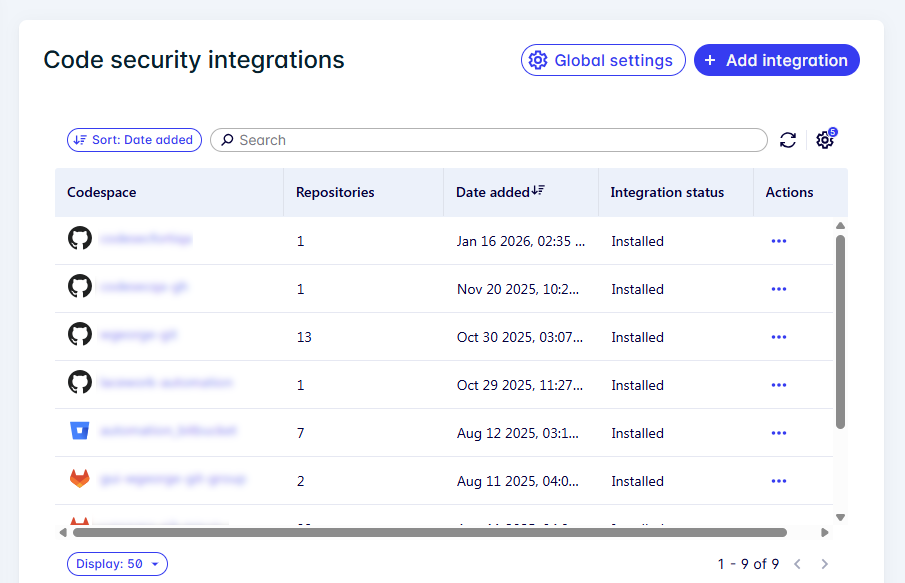
Go to Settings > Integrations > Code security.
-
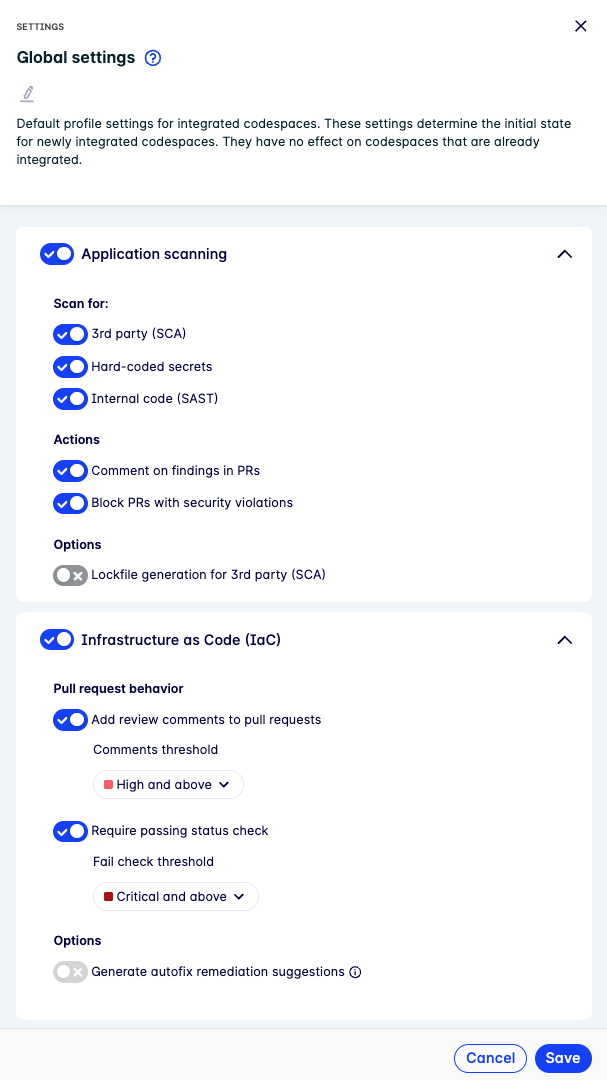
Click Global settings.
-
Enable/disable Code Security features, as needed:
-
Application scanning: Configure SCA, secrets detection, and SAST scanning, application-related Actions, and additional Options.
-
Infrastructure as Code (IaC): Configure IaC behaviors and severity thresholds, and additional Options.
-
-
Click Save. Updates apply to pipeline scans and pull request behavior immediately. New codespaces integrated after saving will inherit these settings.
Configuring codespace settings
Configure codespace settings to customize the configuration for a specific GitHub organization, GitLab group, or Bitbucket workspace.
To configure or edit codespace settings:
-
Go to Settings > Integrations > Code security.
-
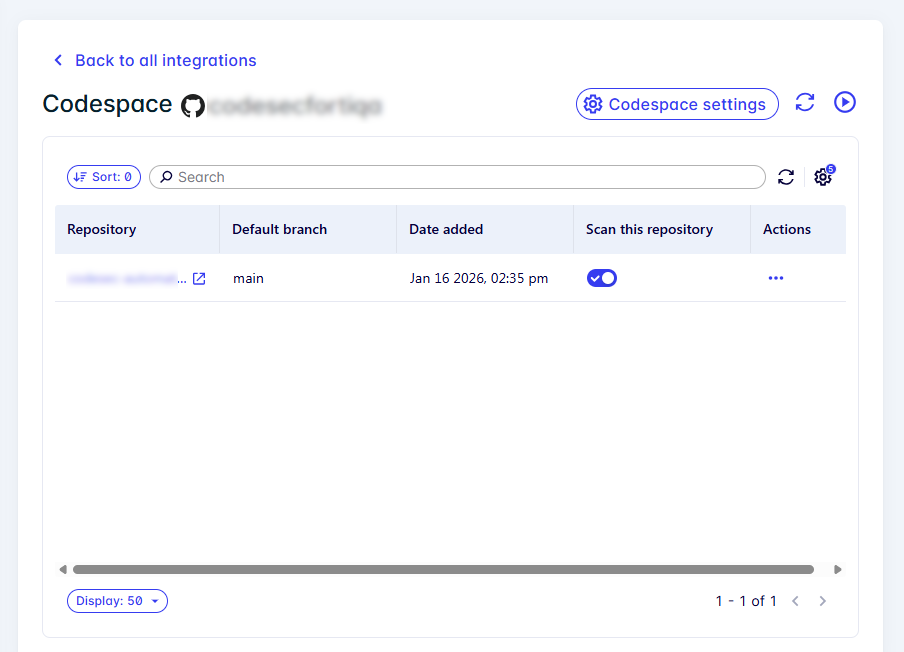
Access the codespace settings pane using one of the following methods:
-
Select Actions > Open settings for the desired codespace.
-
Select the codespace name and click Codespace settings.
-
-
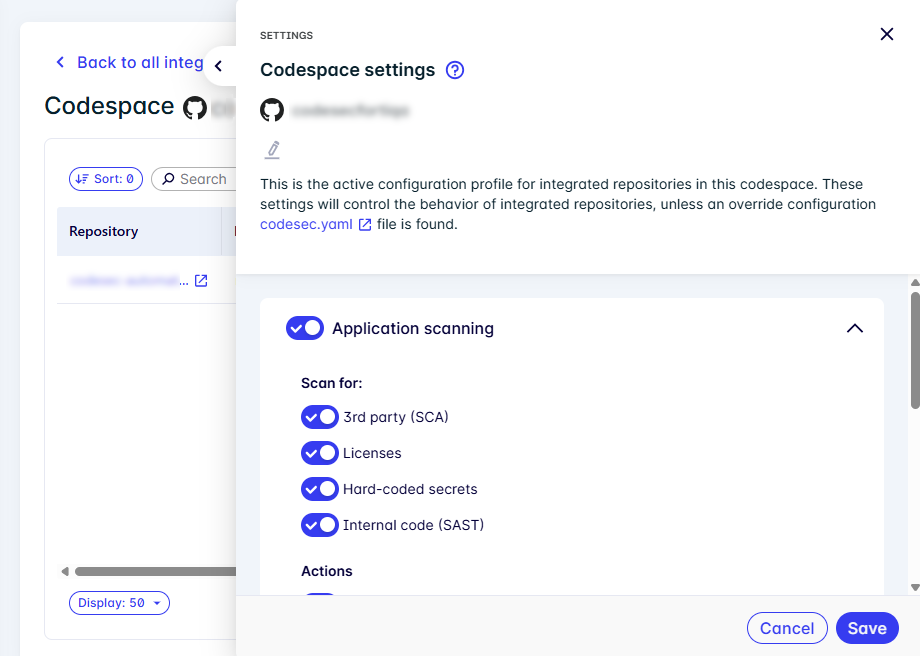
Enable/disable Code Security features, as needed.
-
Click Save. Updates apply to the codespace and any new repositories added to it, they will not affect existing repositories.
Configuring repository settings
Configure repository settings to customize the configuration for a specific repository.
If a codesec.yaml file is detected in the repository, a notification is displayed and the settings become read-only. See codesec.yaml file.
To configure or edit repository settings:
-
Go to Settings > Integrations > Code security.
-
Select the codespace that contains the repository.
-
For the desired repository, select Actions > Open settings.
-
Enable/disable Code Security features, as needed.
-
Click Save. Updates will be applied to the repository.