
Fortinet white logo
Fortinet white logo

Administration Guide

Using Explorer

Using Explorer

The Explorer landing page centers around a search field that acts as the primary entry point for your investigations. When you click in the search field, an examples dropdown appears, presenting a curated set of common investigation templates such as vulnerabilities, toxic combinations, attack surface exposure, and asset lookup. Each template includes rotating example queries to illustrate supported phrasing. Selecting one of these items prefills the search field and triggers the suggestion system, allowing you to choose a matching result to generate the corresponding query.

Starting a search

  1. On the Explorer landing page, enter a search query in the search field.

    • Use concise, keyword-based phrases such as aws critical vulns or exposed rdp. For a list of supported keywords, see Supported keywords.

    • As you type, suggested results appear based on supported patterns.
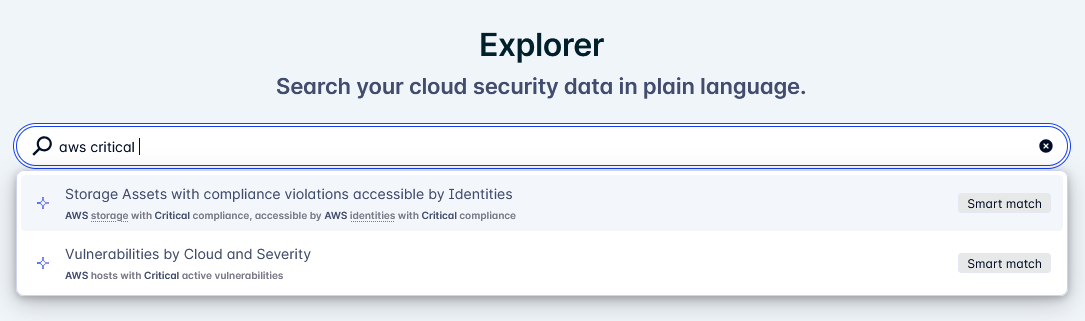
    In the results, bold text indicates entities that have been inferred from your search terms. Underlined text indicates entities that you can further refine in your query.

  2. Select a suggested result.

    • Click a result or press Enter while it is highlighted.

    • The system generates the corresponding query and navigates to the results view in the Query Builder.

    Entering unsupported phrasing may return no suggestions.

Refining and running queries

  1. Review the generated query in the Query Builder.

  2. Modify query clauses if needed.

  3. Run the query and view results in the table.

    Each row corresponds to a separate graph.
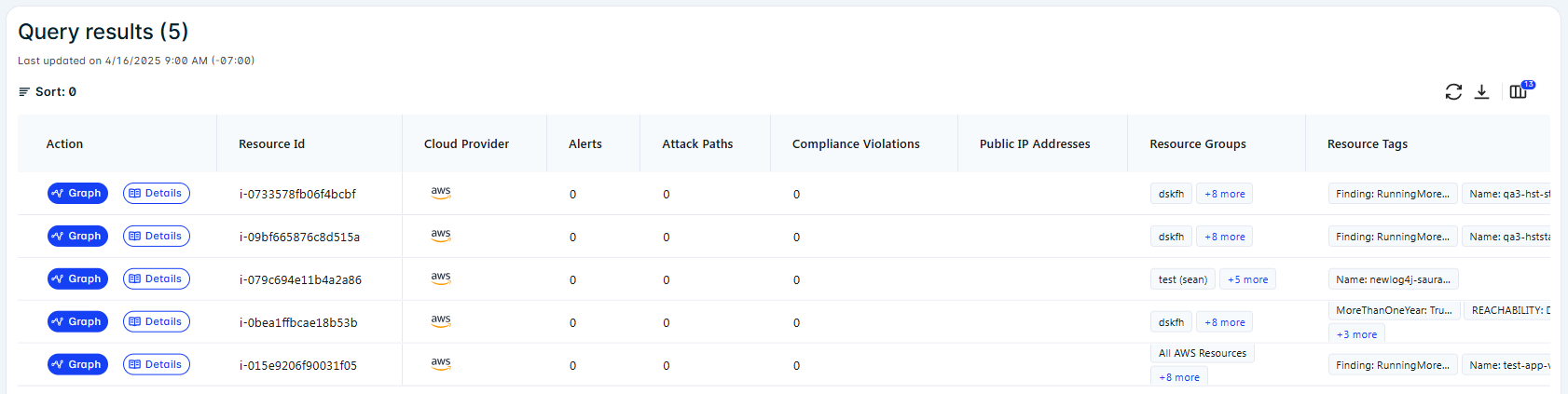
  4. Click Graph to visualize relationships in the Explorer Graph.

For more information about building queries in the Query Builder, see Query builder.

Reusing searches

Return to the Explorer landing page to view Recent searches.

Select a previous search to quickly reapply it.

Click the x next to a search entry to remove it from the list if needed.

Using Explorer

Using Explorer

The Explorer landing page centers around a search field that acts as the primary entry point for your investigations. When you click in the search field, an examples dropdown appears, presenting a curated set of common investigation templates such as vulnerabilities, toxic combinations, attack surface exposure, and asset lookup. Each template includes rotating example queries to illustrate supported phrasing. Selecting one of these items prefills the search field and triggers the suggestion system, allowing you to choose a matching result to generate the corresponding query.

Starting a search

  1. On the Explorer landing page, enter a search query in the search field.

    • Use concise, keyword-based phrases such as aws critical vulns or exposed rdp. For a list of supported keywords, see Supported keywords.

    • As you type, suggested results appear based on supported patterns.

    In the results, bold text indicates entities that have been inferred from your search terms. Underlined text indicates entities that you can further refine in your query.

  2. Select a suggested result.

    • Click a result or press Enter while it is highlighted.

    • The system generates the corresponding query and navigates to the results view in the Query Builder.

    Entering unsupported phrasing may return no suggestions.

Refining and running queries

  1. Review the generated query in the Query Builder.

  2. Modify query clauses if needed.

  3. Run the query and view results in the table.

    Each row corresponds to a separate graph.

  4. Click Graph to visualize relationships in the Explorer Graph.

For more information about building queries in the Query Builder, see Query builder.

Reusing searches

Return to the Explorer landing page to view Recent searches.

Select a previous search to quickly reapply it.

Click the x next to a search entry to remove it from the list if needed.