
Fortinet white logo
Fortinet white logo

User Guide

7.2.0

Adding annotations

Adding annotations

On the video timeline, you can add annotations to make notes within a video for review in the future.

  1. On the video timeline, click the Settings button.
  2. Select Annotation Minibar to display the quick selection buttons in the timeline.
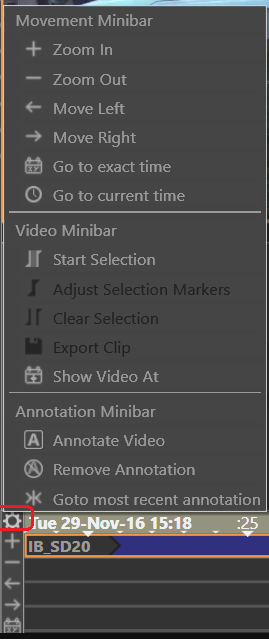
  3. Select the time in the video timeline where you want to put an annotation.
  4. Click the Annotate Video Annotate Video button.
  5. Enter your annotation and then click the OK button.

    A light blue bar appears in the timeline where you put the annotation. When you move the cursor over the blue bar, the annotation appears.

    If you want to delete the annotation, click the Remove Annotation Remove Annotation button.

    To go to the next most recent annotation, select the Next Annotation Next Annotation button.

Adding annotations

Adding annotations

On the video timeline, you can add annotations to make notes within a video for review in the future.

  1. On the video timeline, click the Settings button.
  2. Select Annotation Minibar to display the quick selection buttons in the timeline.
  3. Select the time in the video timeline where you want to put an annotation.
  4. Click the Annotate Video Annotate Video button.
  5. Enter your annotation and then click the OK button.

    A light blue bar appears in the timeline where you put the annotation. When you move the cursor over the blue bar, the annotation appears.

    If you want to delete the annotation, click the Remove Annotation Remove Annotation button.

    To go to the next most recent annotation, select the Next Annotation Next Annotation button.