

Using remote control
With remote control, you can control the cameras of a shared FortiRecorder in FortiCentral on a remote computer.
For example, security operators could use remote control to collaborate on surveillance, with everyone using the same camera.
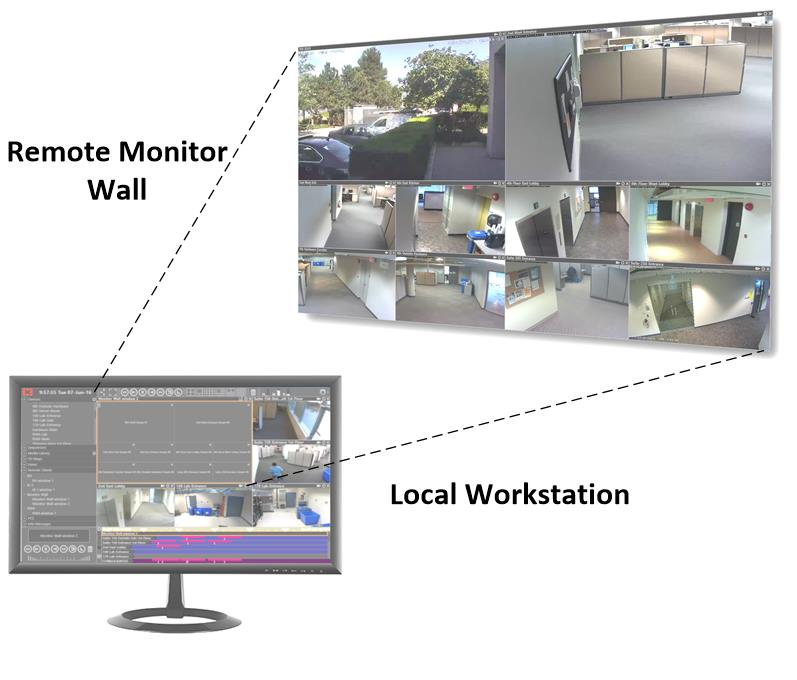
You can share items such as cameras among multiple FortiCentral installations by creating a domain controller. In a domain, FortiCentral installations communicate with each other through shared FortiRecorder devices.
To configure your FortiCentral to accept remote control commands
- Click the Settings button in the top right corner.

- Go to Settings > General.
- Configure the Client ID and Client Name fields, and then enable Accept Remote Commands.
- Click the OK button.
To configure your FortiCentral to control another
- Click the Settings button in the top right corner.
- Go to Settings > Users.
- Select a username that you want to allow to use remote control.
- Enable May Control Other Clients.
-
Optionally, for all usernames, configure User Type.
This grants permissions, limiting which remote control commands each person can use.
-
Click the OK button.
In the Devices panel, the other FortiCentral installations that are configured to allow remote control now appear.
To set up a FortiCentral domain
- Click the Settings button in the top right corner.
- Go to Settings > Recorders.Add at least one FortiRecorder that is also used by the other FortiCentral installations.
- Go to Settings > General.Select the Join Domain checkbox.
-
Repeat the previous steps on all of the FortiCentral installations that you want to belong to the domain.
- On the FortiCentral installation that will act as the domain controller, also select the Control Domain checkbox.
To display cameras from a remote monitor
- Drag the remote FortiCentral from the Remote Client section of the Devices panel to a view pane.
- Drag the camera from the Devices panel to a view pane.
Organizing the views of a remote FortiCentral
You can save the view pane layout of a remote FortiCentral. On the view pane, click the Settings button and go to Save Remote View. Make sure to include “Remote” in your view description to help distinguish between local and remote views.
To change the view pane layout on the remote client, drag a layout icon from the toolbar area at the top of the remote window into the view pane.
You can also open a new window on the remote client. On a view pane, click the Settings button and go to Open Remote Window.