
Fortinet white logo
Fortinet white logo

User Guide

Enable Log Forwarding

Enable Log Forwarding

FortiAIOps supports direct FortiGate log forwarding and FortiAnalyzer log forwarding.

  • Run the following command to configure syslog in FortiGate.

    • config log syslogd setting

    • set status enable

    • set server 10.34.xxx.xxx

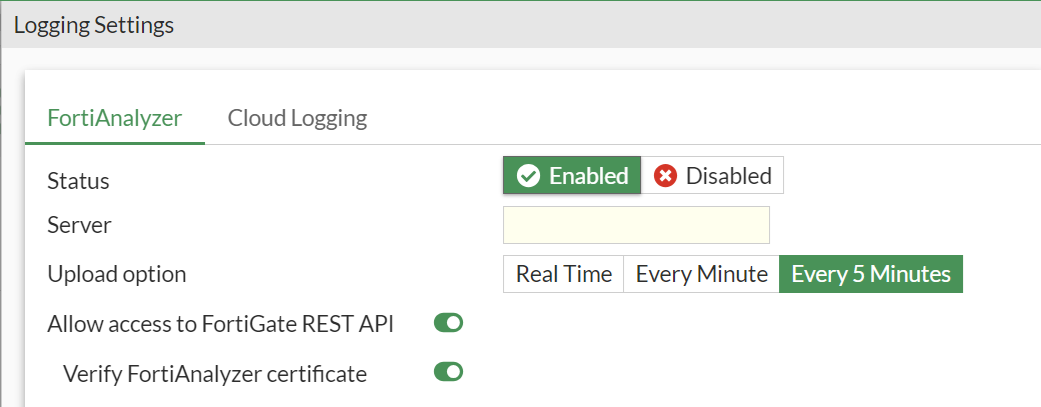
  • Direct FortiGate log forwarding - Navigate to Fabric Connectors > Logging & Analytics > Log Settings in the FortiGate GUI and specify the FortiAIOps IP address. Enable FortiAnalyzer log forwarding.
  • Navigate to Log Forwarding in the FortiAnalyzer GUI, specify the FortiAIOps IP address and select the FortiGate controller in Device Filters.
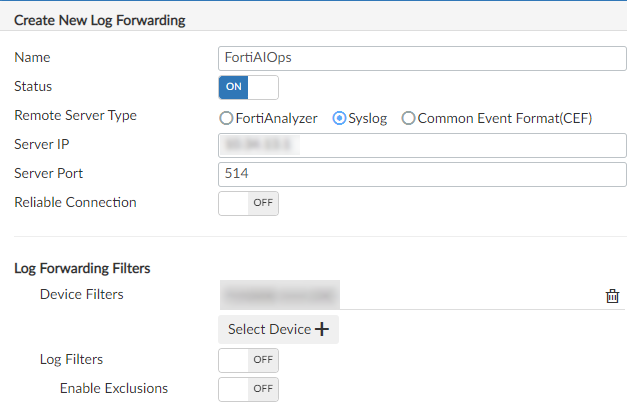
Note: The syslog port is the default UDP port 514.

Enable Log Forwarding

Enable Log Forwarding

FortiAIOps supports direct FortiGate log forwarding and FortiAnalyzer log forwarding.

  • Run the following command to configure syslog in FortiGate.

    • config log syslogd setting

    • set status enable

    • set server 10.34.xxx.xxx

  • Direct FortiGate log forwarding - Navigate to Fabric Connectors > Logging & Analytics > Log Settings in the FortiGate GUI and specify the FortiAIOps IP address. Enable FortiAnalyzer log forwarding.
  • Navigate to Log Forwarding in the FortiAnalyzer GUI, specify the FortiAIOps IP address and select the FortiGate controller in Device Filters.

Note: The syslog port is the default UDP port 514.